

Overview
Connect Zendesk Messaging and your AI agent answers customers in the Zendesk channels you pick, like your Web Widget or mobile apps. When a customer needs a person, the AI agent passes the chat to your team in Zendesk.This is not the Zendesk integration. That one works with tickets. You can use both.
Before you start
- A Chatbase Standard plan or above.
- Admin access to a Zendesk account with at least one Messaging channel.
- If this AI agent uses Sunshine, disconnect Sunshine first. An AI agent can’t use both.
How to connect Zendesk Messaging
1
Connect Zendesk in Chatbase
Open your AI agent in the dashboard and go to Integrations. On the Zendesk Messaging card, click Connect.A Zendesk window opens. Sign in and allow access. The card then shows Connected.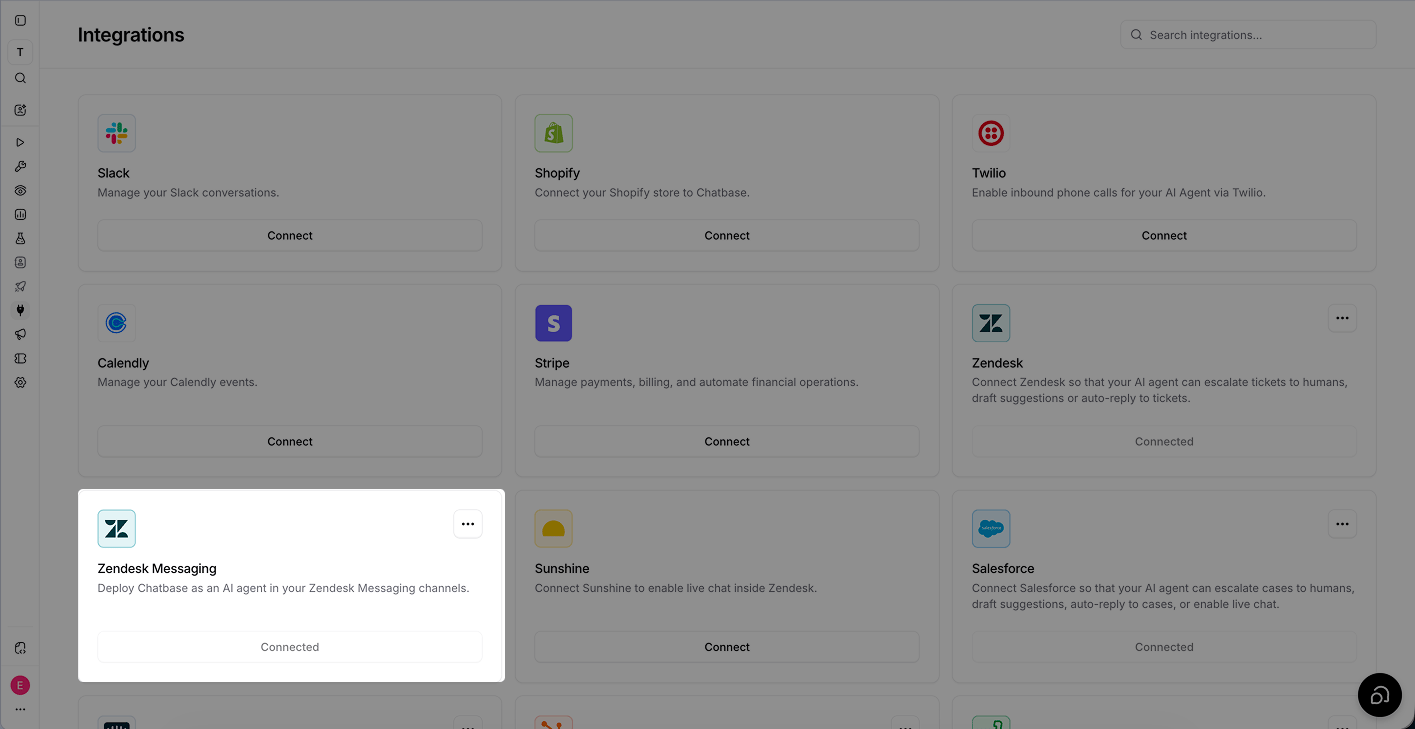
2
Open marketplace bots in Zendesk
In Zendesk Admin Center, go to AI > AI agents. Under Marketplace bots, click Manage marketplace bots.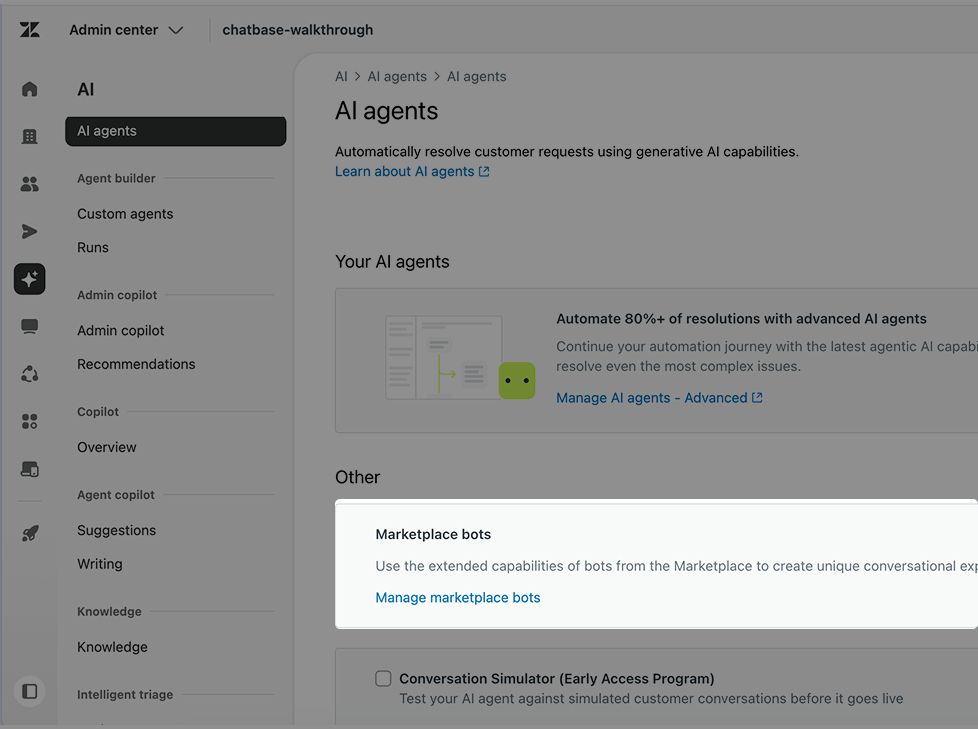
3
Choose channels for Chatbase in Zendesk
Click Chatbase.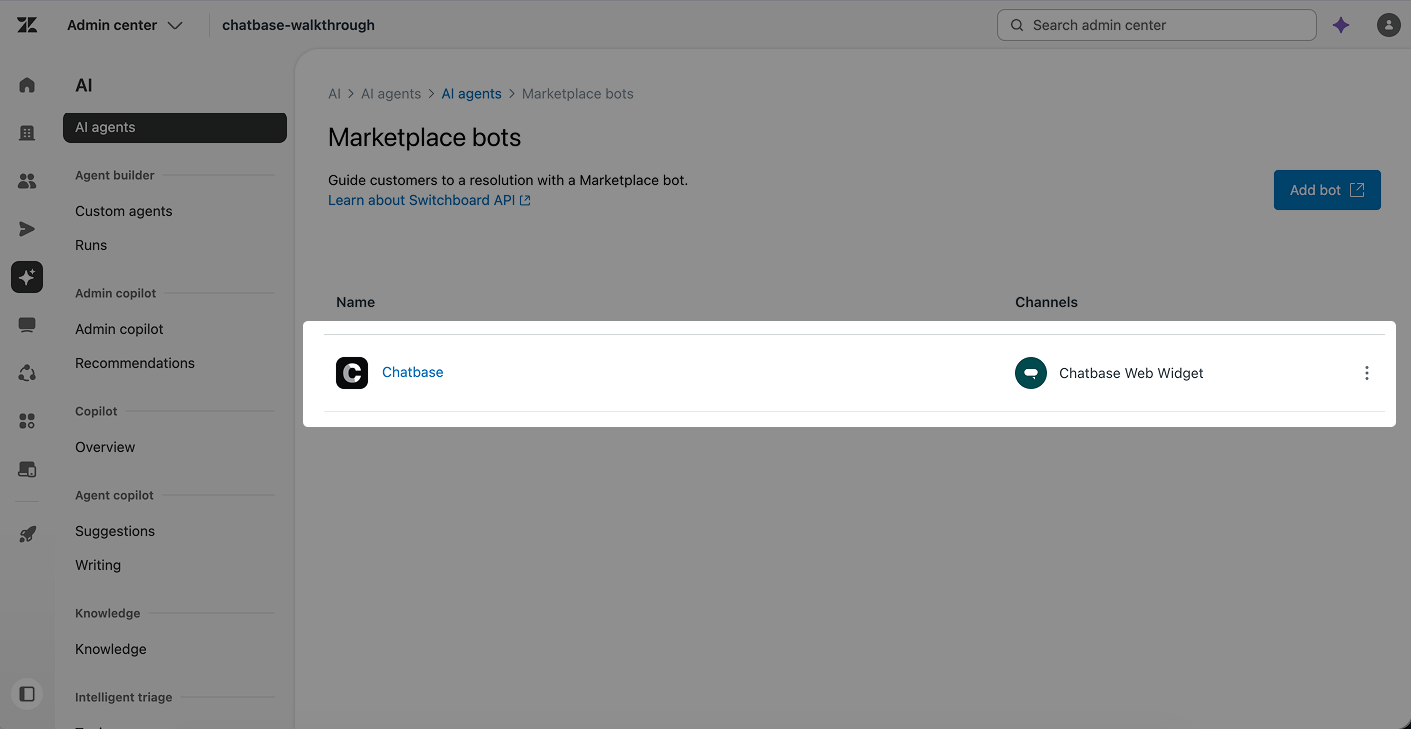
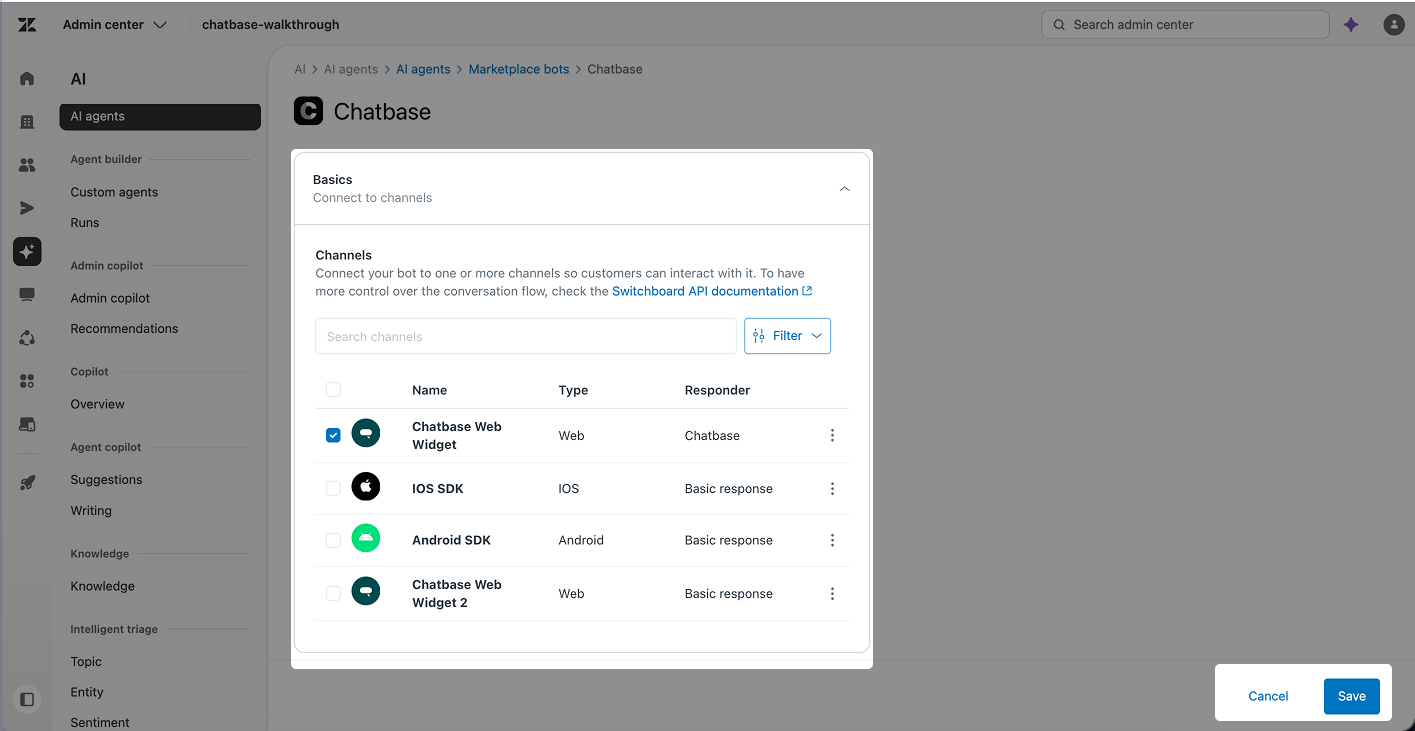
4
Turn on channels in Chatbase
In Chatbase, go to Channels. On the Zendesk Messaging card, click Manage.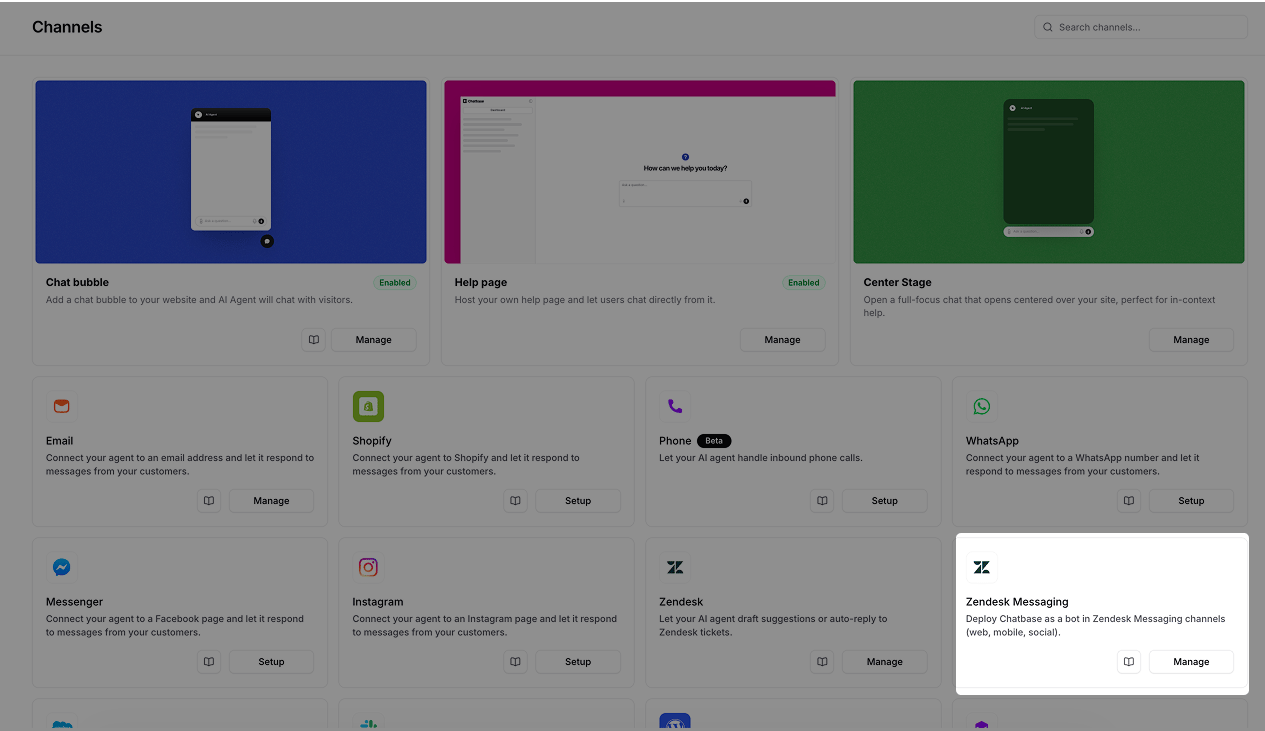
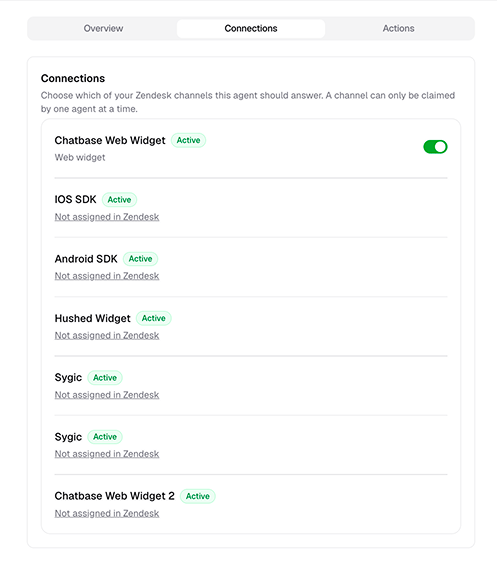
A channel showing Not assigned in Zendesk wasn’t selected in the previous step. Each channel can have one AI agent, so a channel another agent already answers shows Used by agent with that agent’s name.
Send a message in one of the channels you turned on, like your Zendesk Web Widget. Your AI agent replies.
Hand off to a human
Add the Live chat action so your AI agent can pass a chat to your team in Zendesk Agent Workspace.1
Create the action
Go to Build > Actions and open Create action. On the Zendesk Messaging card, click Live chat.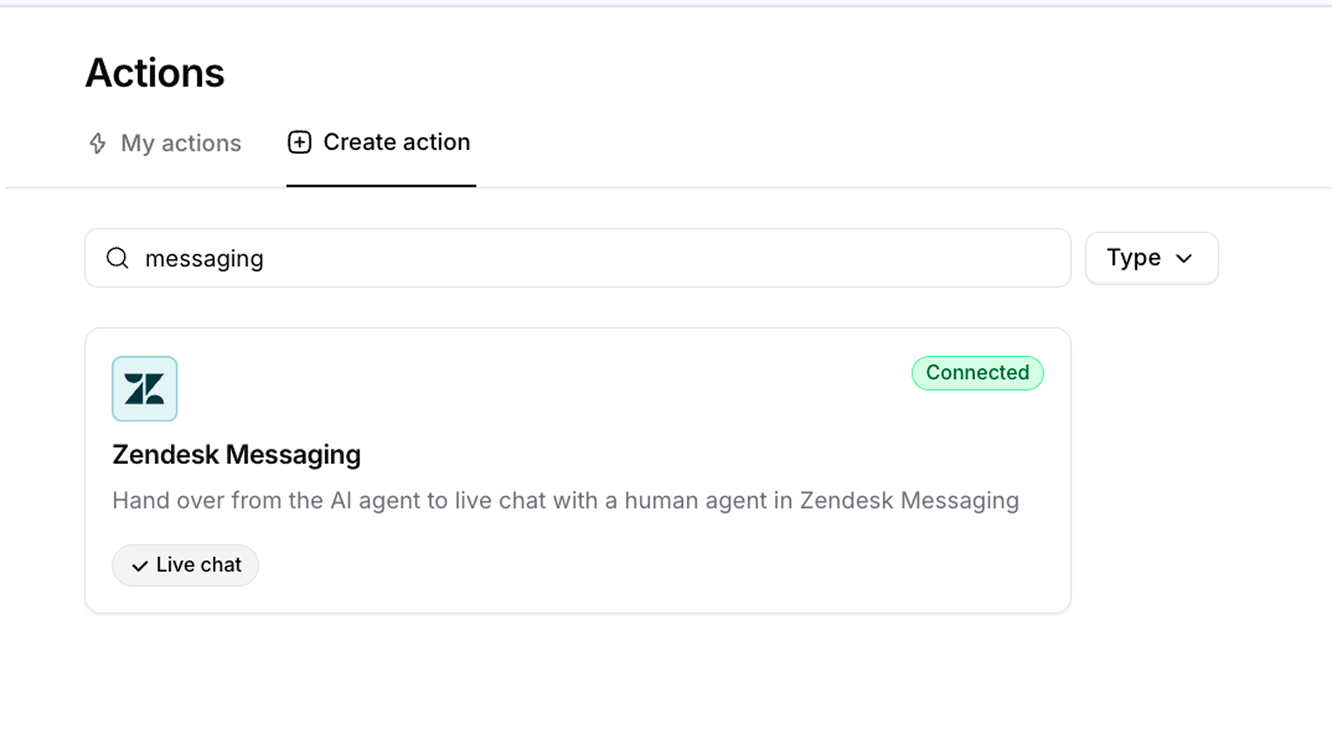
2
Choose when to hand off, then turn it on
Edit When to use to describe when the AI agent should hand off. By default, it hands off when a customer asks for a person or the AI agent can’t solve the issue.Click Save and continue, then turn on the toggle at the top right.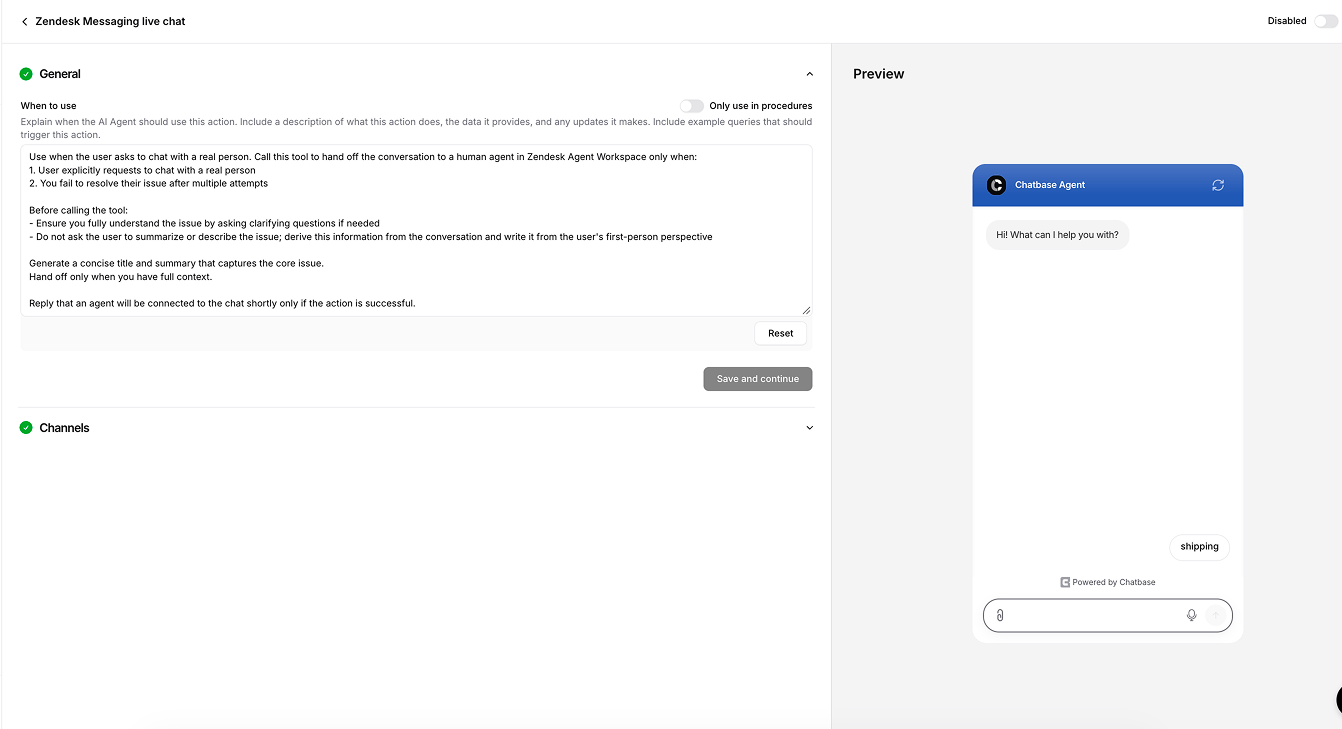
- If the customer isn’t signed in, the AI agent asks for their email.
- The chat moves to Zendesk Agent Workspace with a title and short summary for your team.
- The AI agent stops replying while your team has the chat.
- When your team ends the messaging session, the customer’s next message goes to the AI agent again.
How it works
- Greeting. When a customer opens a new chat in your Web Widget or app, the AI agent sends its initial messages.
- Suggested messages. These show as reply buttons the customer can tap.
- Name and picture. The AI agent uses its display name and profile picture.
- Inactive chats. A conversation ends after 24 hours without a message.
- Conversations. Chats appear in Activity > Conversations with the source Zendesk Messaging.
Attachments are supported, so your AI agent can read files customers send. See Attachments.
Limitations
- Messages your team sends after a handoff don’t appear in Chatbase.
- The AI agent replies with text only. It can’t send files or images.
Disconnect
Then in Chatbase, go to Integrations, open the menu on the Zendesk Messaging card, and click Disconnect. This removes the connection and the Live chat action from this AI agent.Next steps
Zendesk
Let your AI agent reply to Zendesk tickets, or open a ticket when a chat needs a person.