

Save and publish
When you click Save on a page such as Instructions, Actions, Procedures, or a channel’s settings, the change goes into your draft. Nothing changes for your customers yet. The Playground always uses your draft, so you can try a change before anyone else sees it. Your chat widget, help page, and every other channel keep using the live agent. When the draft is ready, click Publish in the top-right corner.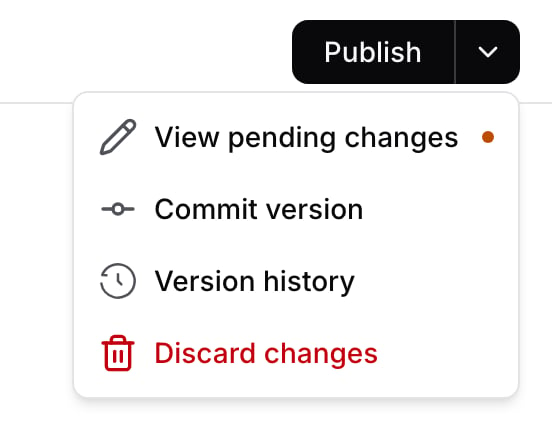
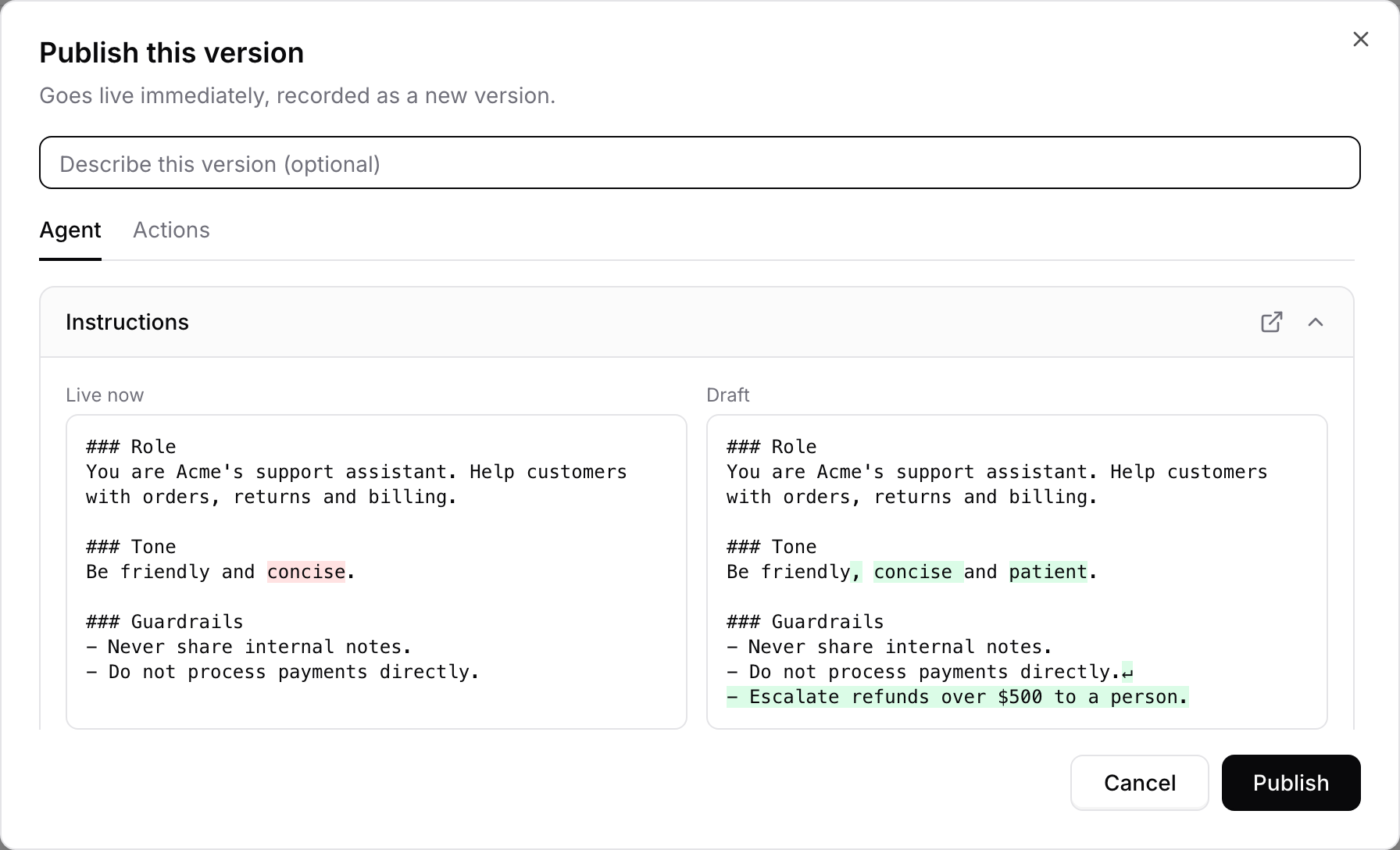
You need permission to edit the AI agent to publish, commit, or restore a version. Restoring a version that changes actions also needs permission to edit actions.
Settings that go live right away
Some settings aren’t part of the draft. They take effect as soon as you save them, and restoring a version never changes them:- Data sources and training
- Connections to other apps and channels, such as WhatsApp, Messenger, Instagram, Slack, and Zendesk
- Turning a channel on or off
- Security settings, such as allowed domains, rate limits, and blocked senders
- Uploaded images, such as logos, avatars, and widget images
- The voice pronunciation dictionary
Version history
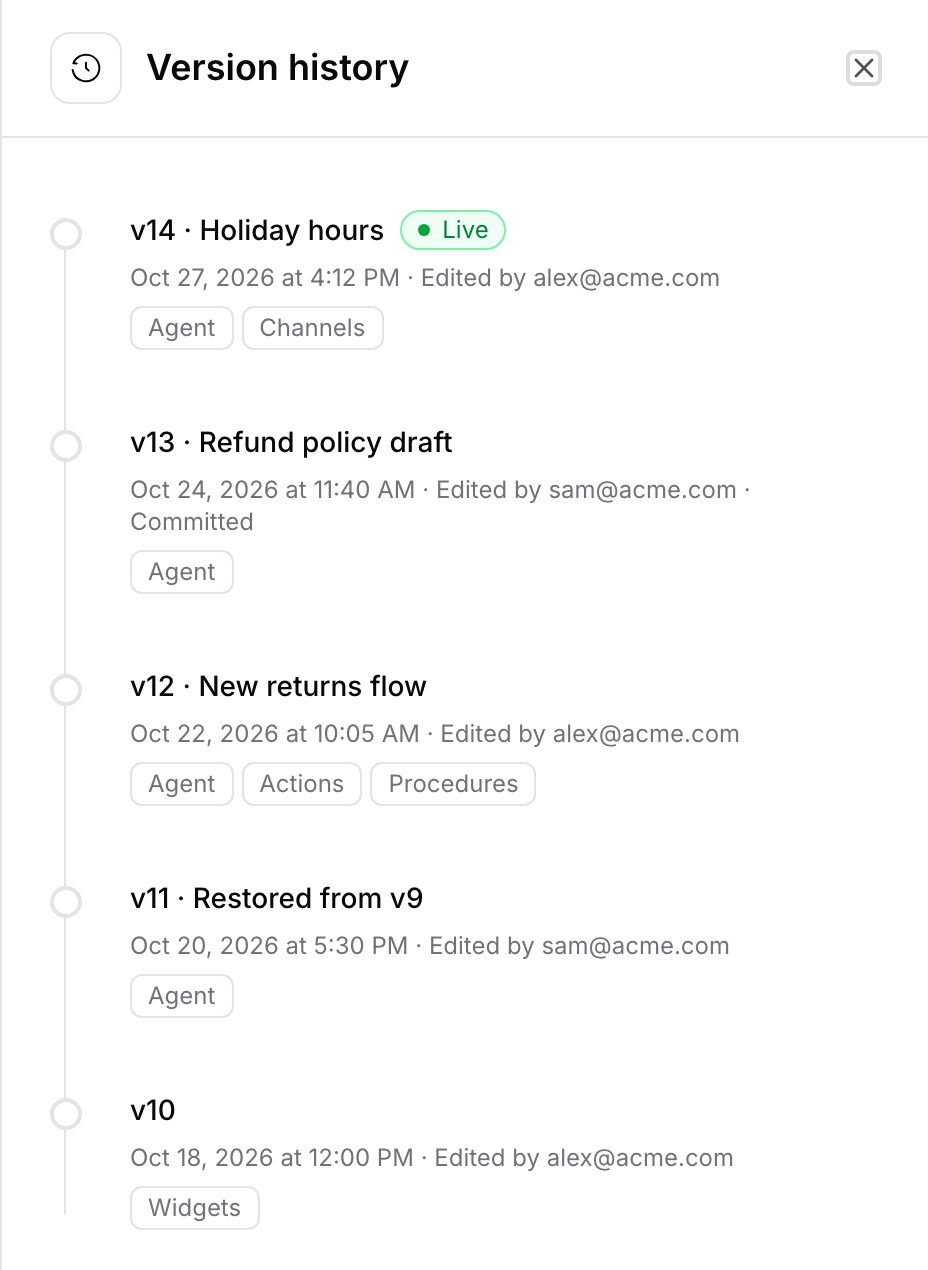
Open the arrow next to Publish and click Version history. Each version shows:- Its number and description
- When it was saved and who saved it
- The areas it changed
- Live on the version your customers are using now, and Committed on versions that were committed but never published
See what a version changed
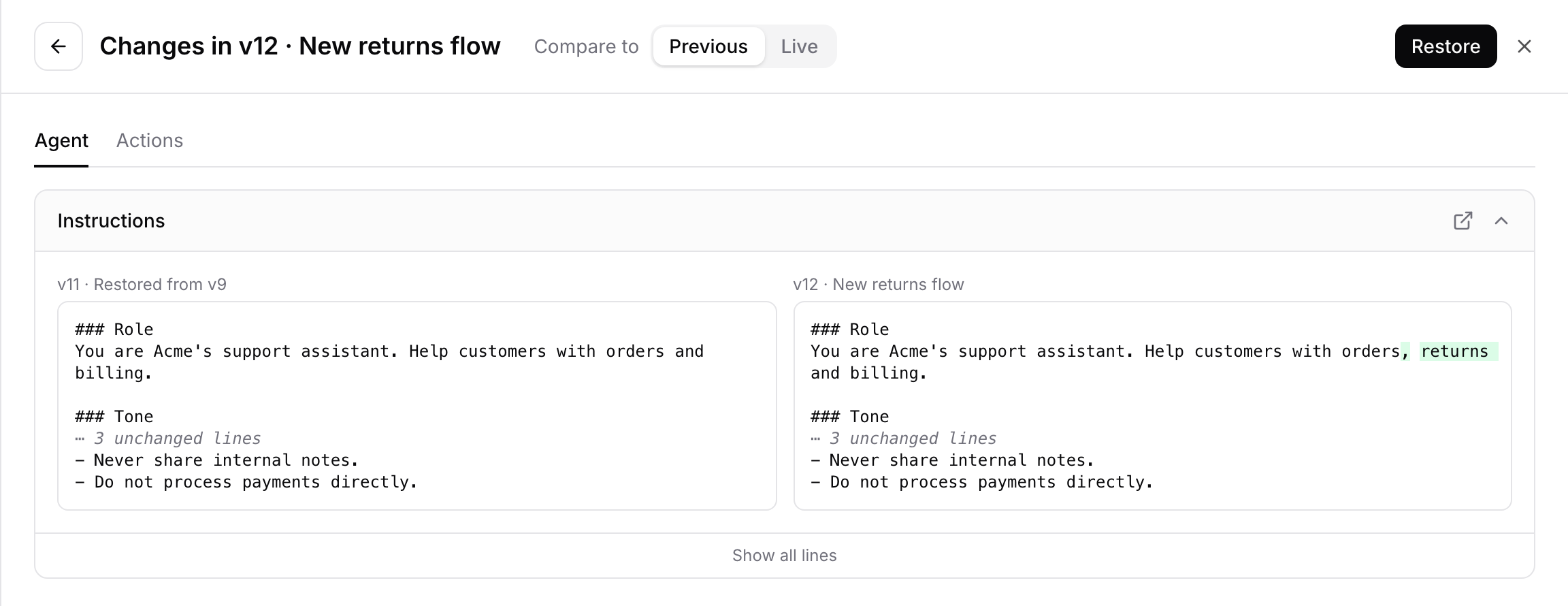
Click a version to open its changes. Use Compare to to switch between:- Previous: what this version changed compared with the version before it.
- Live: what would change if you restored this version now.
Restore a version
Open the version and click Restore, then confirm. Restoring:- Makes that setup live immediately.
- Saves it as a new version at the top of the history. Older versions stay where they are.
- Discards any unpublished changes in your draft.
- Keeps the restored version’s description, or names it “Restored from” followed by the version number.
Changes made outside the dashboard
- API: updates through the Chatbase API go live immediately, without a draft, and appear in version history a minute or two later. They don’t change your draft.
- Backstage: changes Backstage makes go into your draft, like your own. Backstage can also list your versions, show what restoring one would change, and restore it after you approve.