

How a survey goes out
Closing a ticket is what starts a survey. Moving a ticket to Cancelled never does.1
The ticket is closed
Any way of closing counts: the status picker on the ticket, a bulk status change in the inbox, or a conversation that ends and closes its ticket.
2
Chatbase waits
The Send after delay gives the team time to undo a close made by mistake. Reopening the ticket before the delay is up cancels the survey: with the delay set to two hours, a ticket closed by accident and reopened inside those two hours is never surveyed. Closing it again later starts the wait over.
3
The ticket is checked
When the delay is up, the ticket is checked against the rules below. A ticket that fails a check is recorded as not surveyed, with the reason, so coverage stays honest.
4
The email is sent
One email goes to the address on the ticket, from the sender you chose. The links inside work for 30 days.
- The channel cannot receive email. Tickets from WhatsApp, Messenger, Instagram, and Facebook or Instagram comments are left out. They also do not count against coverage.
- There is no email address on the ticket. Widget tickets where no address was collected, for example.
- Nobody replied. A teammate or the AI agent must have sent at least one reply. Closing an untouched ticket does not trigger a survey.
- The ticket carries an excluded tag. Tags are checked when the email would go out, so tagging a ticket right after closing it still stops the survey.
- The same address was surveyed recently, within the cooldown set under Timing.
- The conversation went quiet long ago, beyond the activity window set under Timing.
- The ticket was reopened before the email went out.
Turning surveys on
Open the AI agent, go to Settings, then Helpdesk, then CSAT Surveys. You need permission to edit the agent’s settings to save changes here; anyone who can read the Helpdesk can view them. If the Helpdesk is not set up for the agent yet, the page shows Measure customer satisfaction with an Enable button.1
Review the settings
The defaults work for most teams: a 10-minute delay, a 7-day activity window, a 7-day cooldown, the agent’s no-reply address as the sender, and a ready-made email with the Thumbs scale.
2
Flip the switch
The switch in the top-right corner of the Satisfaction surveys card turns sending on. The word beside it shows the current state: Draft for a configuration that has never been enabled, Enabled, or Disabled.
3
Save
Nothing changes until you click Save at the bottom of the page. One Save covers both the settings and the survey email. From then on, every ticket closed while the switch is on is considered for a survey.
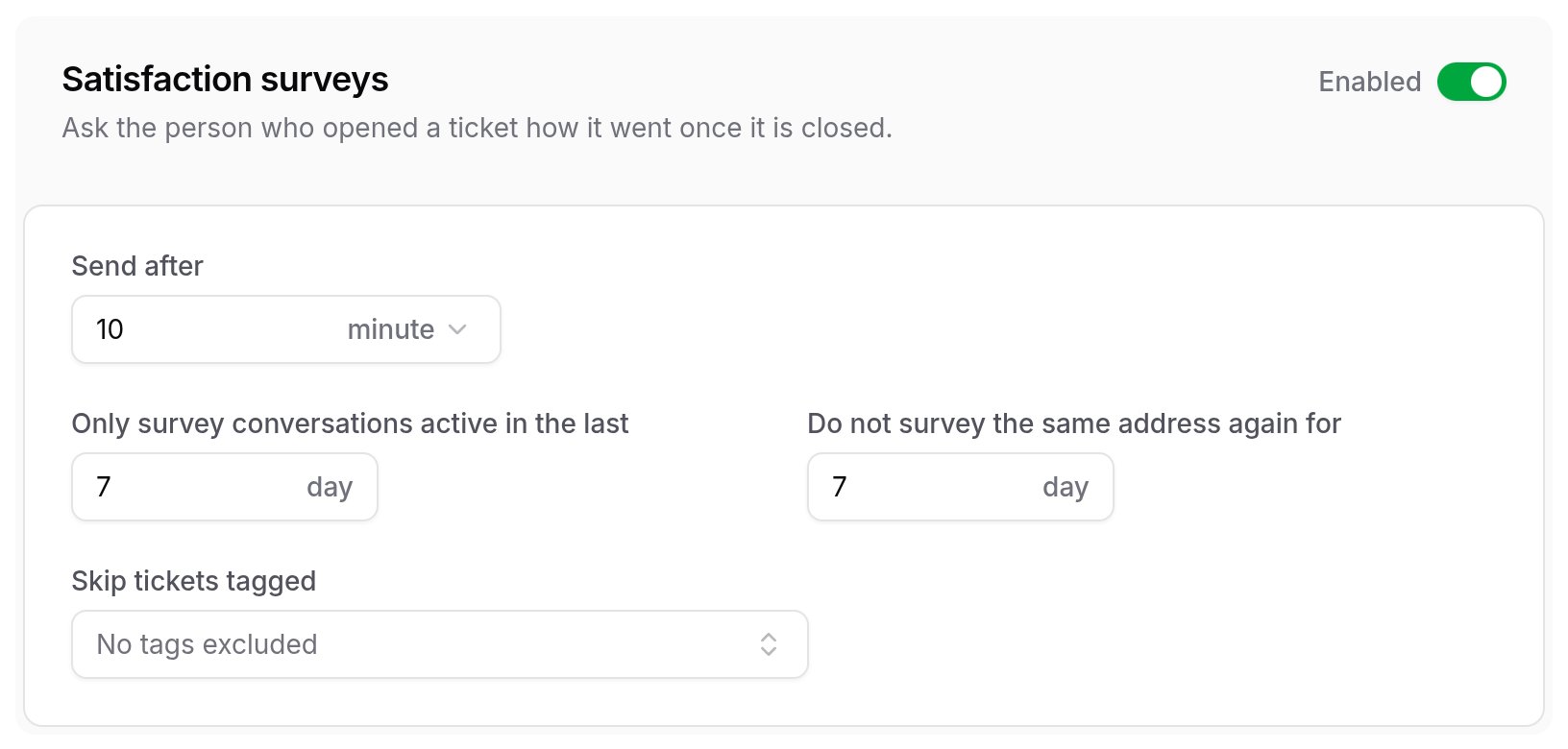
Settings
Timing
Skip tickets tagged
Tickets carrying any of the selected tags are never surveyed. Pick up to 50 tags; the field reads No tags excluded when none are picked.Designing the survey email
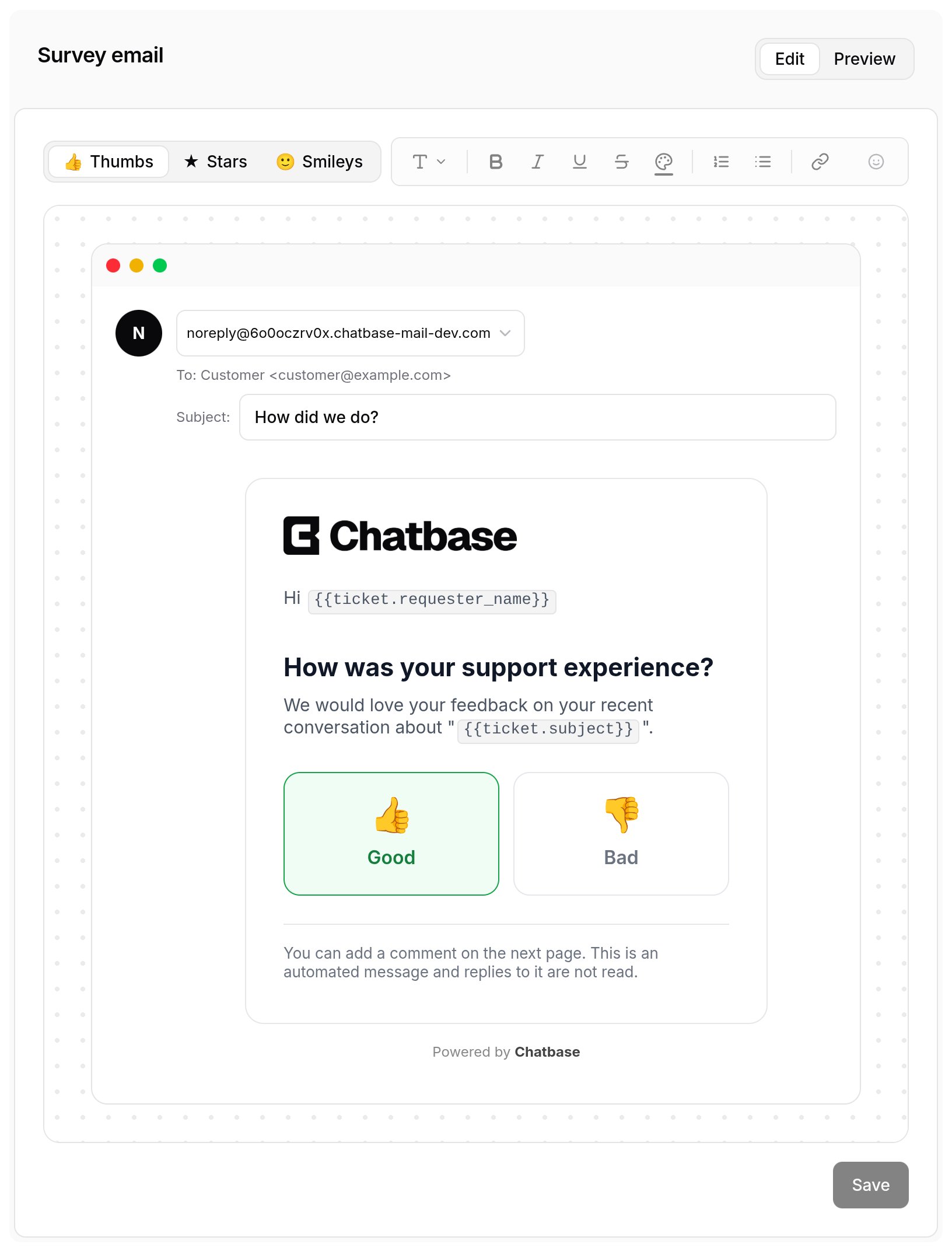
The Survey email card shows the email the way your customer will see it, and you edit it in place. Edit is where you change it; Preview shows the finished email with sample values filled in, such as the name “Jane Doe” and the ticket subject “Refund for order #1042”.Everything on the canvas can be changed:
- From: the address the survey comes from. See Send from.
- Subject: up to 150 characters. Defaults to How did we do?
- Logo: optional, at the top of the email. See Logo.
- Introduction: the text above the rating. It starts with a greeting, the heading How was your support experience?, and a line that quotes the ticket subject. Clear it and the email opens with the heading Rate your support experience instead.
- Rating: the scale chosen in the toolbar, with its labels. See Rating scales.
- Footer: the small print under the rating. It defaults to a note that the customer can comment on the next page and that replies are not read. Leave it empty and the email ends at the rating.
Formatting and variables
The toolbar above the canvas formats the introduction or the footer, whichever you clicked last. It holds a text style picker (Normal text and Heading 1 to Heading 3), bold, italic, underline, strikethrough, text colour, numbered and bulleted lists, links, and emoji. Selecting text also opens a small menu above it with the same formatting, colour, and link options. Ticket fields such as{{ticket.requester_name}} or {{ticket.subject}} are filled in when the email is sent. Insert one with the Variables button in the toolbar, or type {{ in the subject, the introduction, or the footer to pick from the list.
Rating scales
The tabs at the left of the toolbar choose the rating scale the email uses:
Click a label on the canvas to change it, or leave it empty to hide it. Labels you type for one scale come back if you switch away and return to it.
Changing the scale affects surveys sent from then on. A survey that already went out keeps the scale it was sent with.
Logo
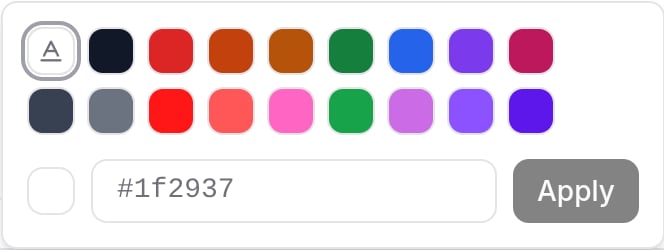
Click Add logo at the top of the email and choose a PNG or JPEG image of up to 1MB. The logo is scaled down to fit 200 by 48 pixels and is never enlarged. Hover over the logo to align it with Align left, Center, or Align right, swap it with Replace logo, or delete it with Remove logo. The logo is uploaded when you click Save. It appears at the top of the email and of the survey page.Text colour
Select text in the introduction or the footer and click the Text color button to colour it. Pick a swatch, or type a hex code such as
Default removes the colour. A variable is always coloured as a whole: if your selection covers part of one, the colour is applied to all of it.
#1f2937 and click Apply. Any other colours already used in that text appear in a row of their own, so you can reuse them.Default removes the colour. A variable is always coloured as a whole: if your selection covers part of one, the colour is applied to all of it.
Send from
Pick the address the survey comes from in the From line of the email. The list offers, in this order:noreply@on the agent’s own Chatbase mail subdomain. This is the default and needs no setup.noreply@on each domain you have verified under Email settings. Sending from your own domain makes the survey recognisable in the inbox.- Every mailbox you have configured on those domains.
noreply@ address does not need to exist as a mailbox. If the Helpdesk email settings use a custom display name, the survey is sent under that name. Replies to the survey email are not read.
What the customer sees
Each rating in the email is a link to the survey page with that rating already picked.The survey page shows your logo and the heading Rate your support experience, with the rating the person clicked already selected. Nothing is recorded yet, so link scanners and mail previews that follow the link do not create answers.
The person can change their choice, add a comment of up to 2,000 characters under Anything you would like to add? (optional), and click Send feedback.
A thank-you screen confirms the answer and offers Change your answer until the link expires. Opening the link again shows the saved answer with Update my answer.
The person can change their choice, add a comment of up to 2,000 characters under Anything you would like to add? (optional), and click Send feedback.
A thank-you screen confirms the answer and offers Change your answer until the link expires. Opening the link again shows the saved answer with Update my answer.
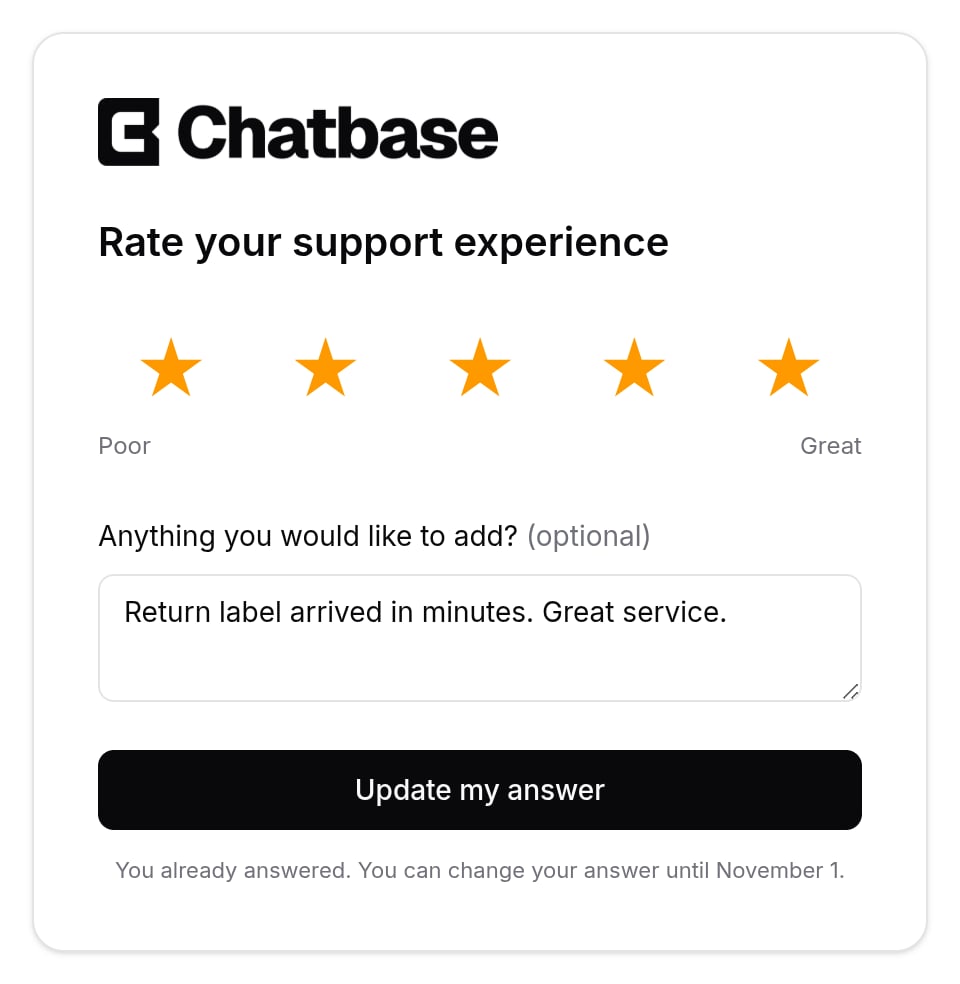
Survey links work for 30 days. A link that has expired, or that was never issued, shows This link is no longer valid and suggests replying to the support conversation instead.
Where the answers show up
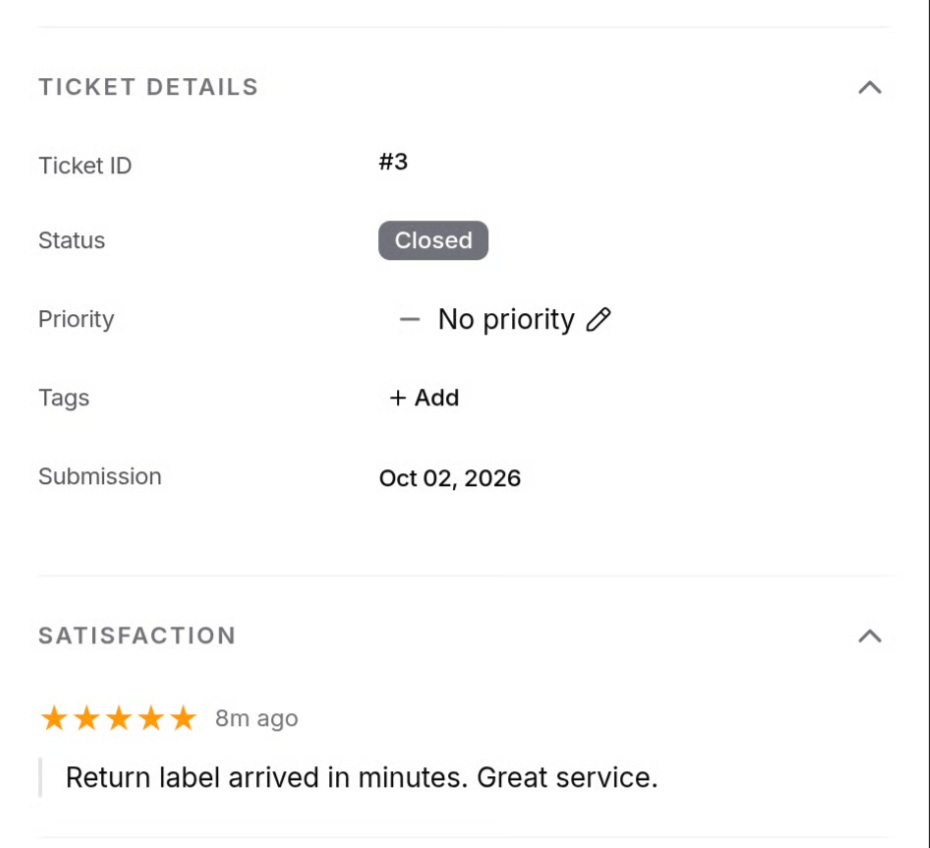
Answers land in two places. Each ticket carries its own rating in the right-hand panel, so a teammate sees the verdict next to the conversation it belongs to. Helpdesk analytics rolls every answer up into a CSAT score, a response rate and coverage, with a list of the individual answers behind it.On the ticket
The Satisfaction section in the ticket’s right-hand panel shows where the survey stands:
- Survey is being sent while the email goes out.
- Survey sent and No answer yet once it is out, with the time it was sent.
- The rating and any comment once the customer answers, with when they answered.
- Not surveyed, with the reason, if a check failed or the email could not be delivered.
In Analytics
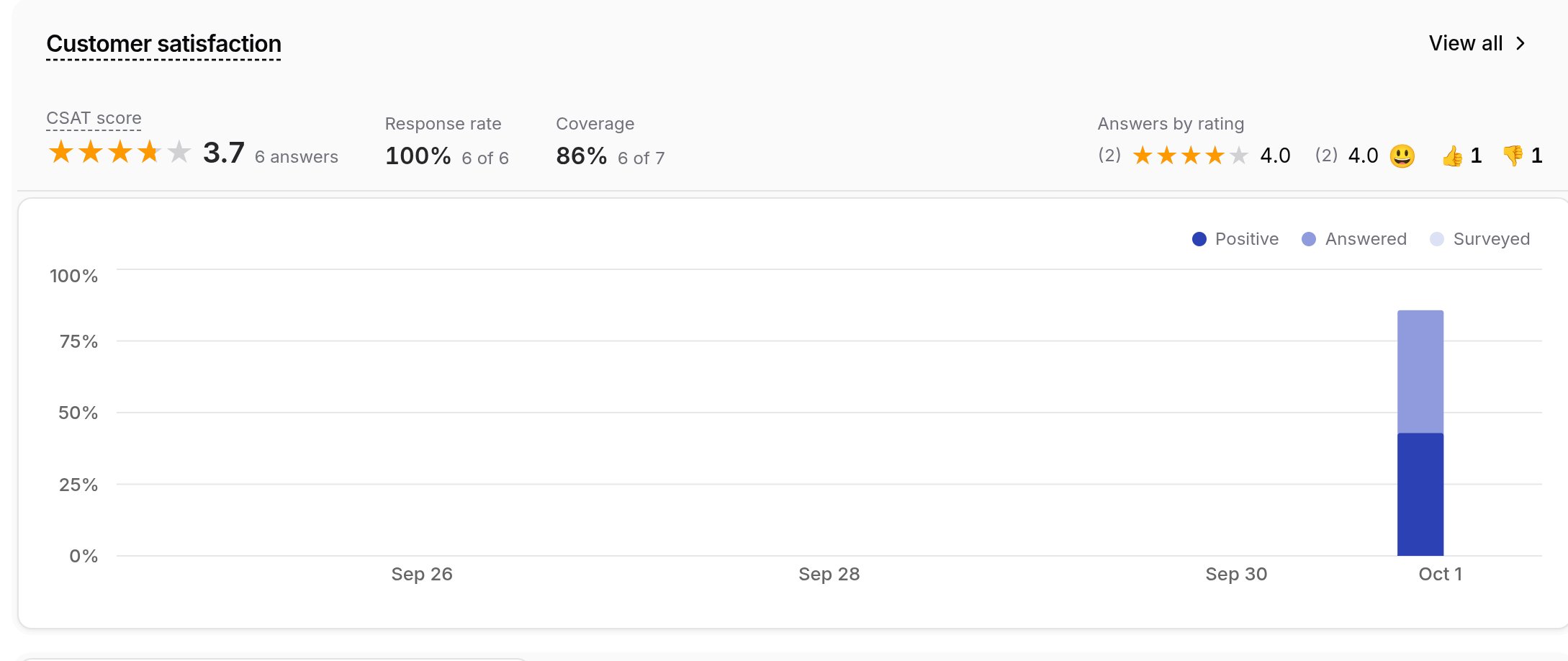
The Customer satisfaction card on the Helpdesk analytics page shows these figures for the selected period:- CSAT score: when every answer is a thumb, the share of answers that were 👍. As soon as any answer uses Stars or Smileys, the score becomes the average answer from 1 to 5, with 👍 counted as 5 and 👎 as 1. The score also shows its change against the previous period.
- Response rate: answered surveys as a share of surveys sent.
- Coverage: surveys sent as a share of closed tickets that could have been surveyed. Channels that cannot receive email are left out.
- Answers by rating: how the answers split for each scale used in the period.
Survey responses
View all on the card opens Survey responses. The top shows coverage, such as 6 of 7 resolved tickets surveyed, and Not surveyed, by reason.
Below it, the 100 most recent answers each show the rating, the date, the comment or No comment, the ticket number and subject with a link into the Helpdesk, the requester, and the teammate who handled it.
Below it, the 100 most recent answers each show the rating, the date, the comment or No comment, the ticket number and subject with a link into the Helpdesk, the requester, and the teammate who handled it.
Who gets credit
Each survey is credited to the teammate assigned to the ticket at the moment it was closed. Reassigning the ticket afterwards, or the teammate leaving the workspace, does not move the credit. A ticket closed with nobody assigned shows as unassigned.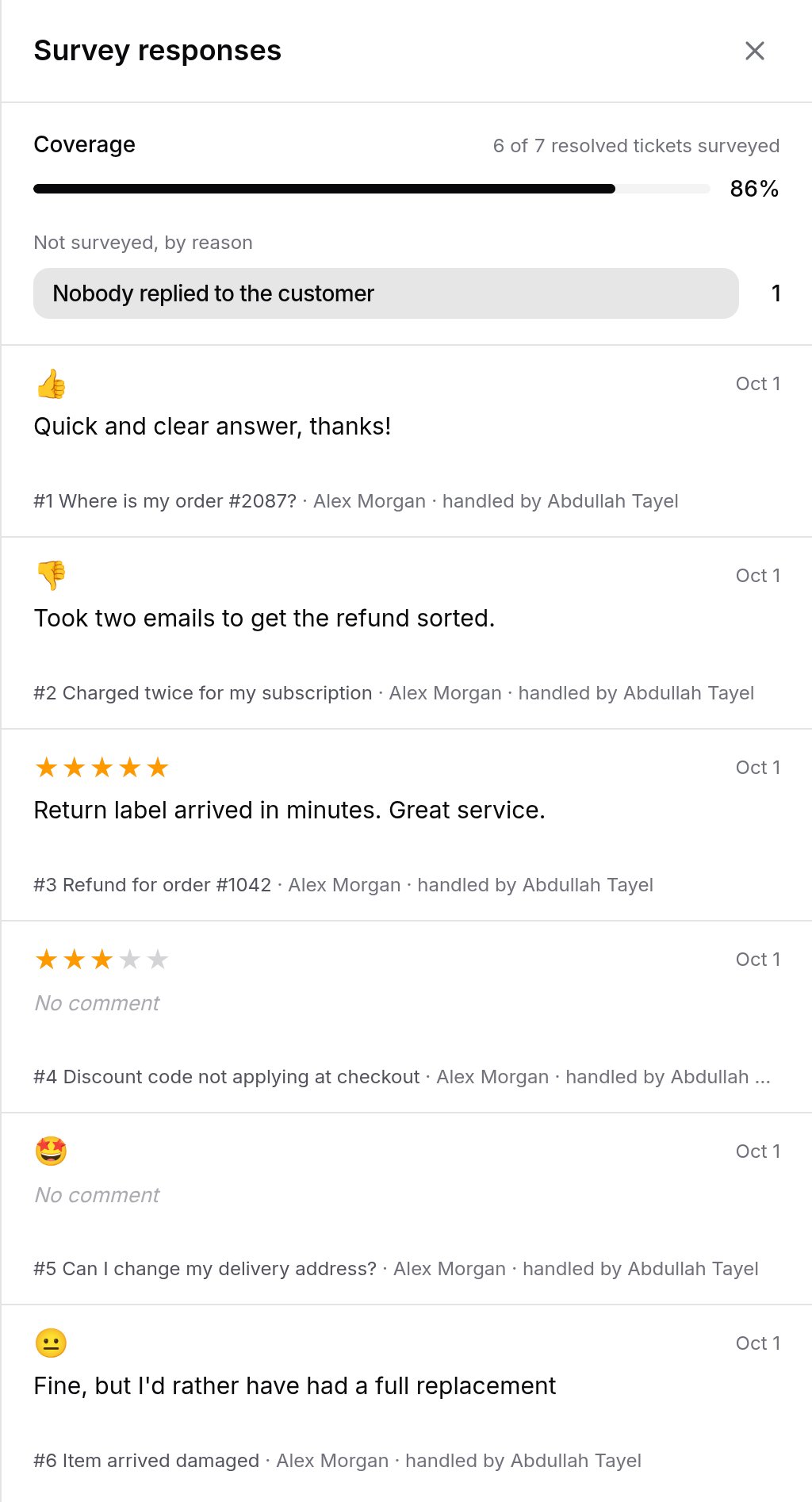
By team member
The Team member performance table at the top of Helpdesk analytics has a CSAT column with each teammate’s CSAT score and number of answers, worked out the same way as the card. Next to it, one column per rating scale shows the teammate’s average on Stars and Smileys and their count of 👍 and 👎.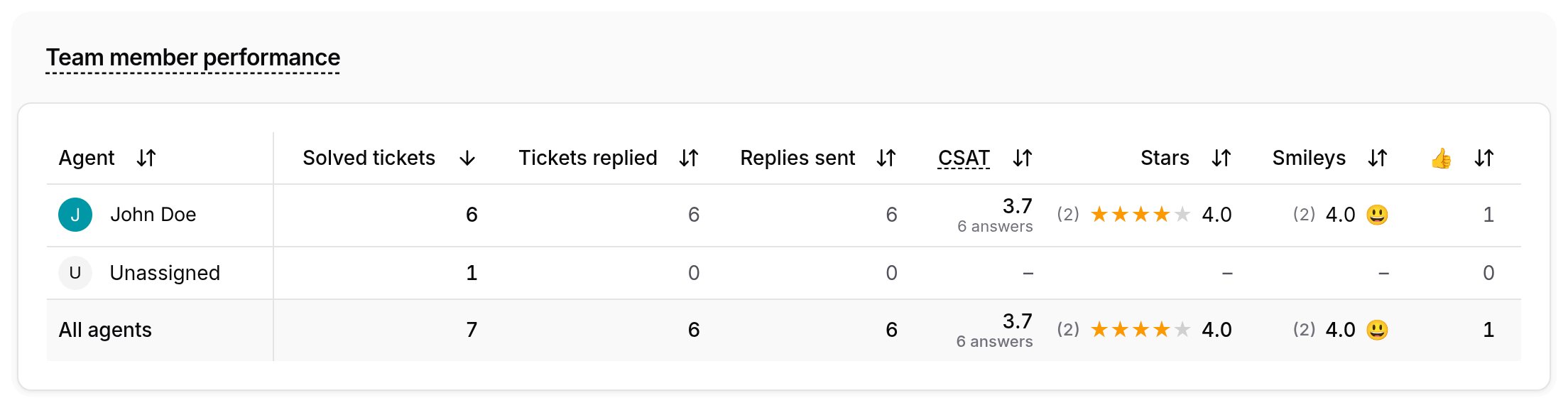
Limits
Good to know
- The survey does not thread onto the ticket. A customer who replies to it gets no answer, and the ticket is not reopened.
- If the email cannot be delivered, the ticket shows Not surveyed with the reason Email could not be sent. Closing the ticket again after fixing the sender retries it.
- Cancelled tickets are never surveyed, and neither are tickets closed while the switch is off or in draft.
- Survey comments are written by customers and shown to your team as written. Treat them as you would any message from a customer.