

Before you start
- Helpdesk is enabled on the AI agent. Without it the page isn’t available.
- Your plan includes Analytics, and your role can read Analytics. Owners, members and viewers can by default. Support associates can’t.
- Record teammate activity is on. It’s off by default, and until someone turns it on under Settings → Helpdesk → Members, the tab shows “Activity recording is turned off for this agent” instead of the table. See How activity is recorded for what Chatbase records.
- Shifts are optional. The Adherence column compares operators with their shift in Scheduling. Operators without one read Not scheduled.
Read the table
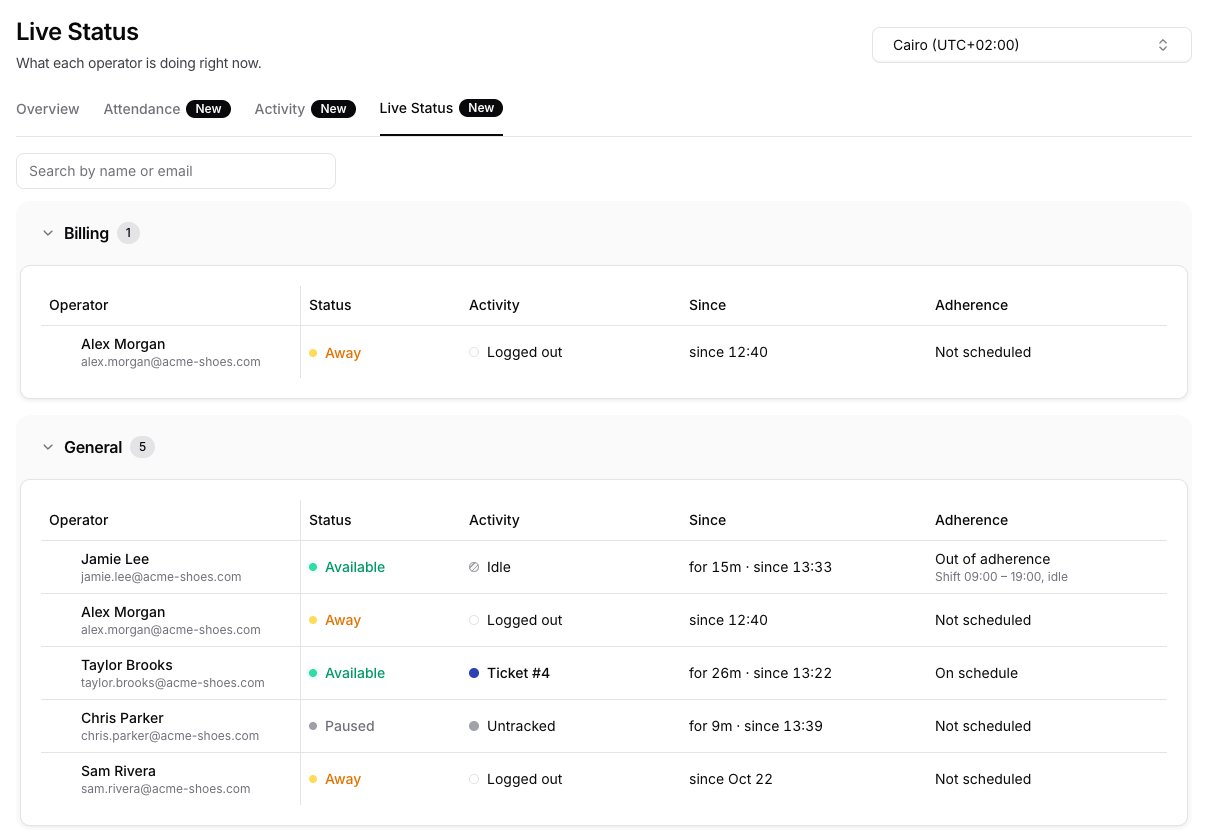
- Timezone. Every time on the page, and where today starts, uses this timezone. Live Status, Activity and Attendance share it, so switching tabs keeps your choice.
- Search. Filter operators by name or email.
Status
Status is the same status the Helpdesk uses to assign tickets, with the same colored dot as on the Members page.- An operator without a shift reads Available, Away, Busy or Paused, as they or an admin set it. Someone who never set a status reads Away.
- An operator on a shift reads Available during their shift hours and Away outside them or on time off. That’s what the Scheduling page calls On shift and Off shift.
Activity
These follow the rules in How activity is recorded. For example, an operator whose laptop goes to sleep reads Logged out once their browser has stopped reporting for 2 minutes. Closing the Helpdesk tab logs them out straight away.
Since
For an operator on a ticket, untracked or idle, Since shows how long that has lasted and when it started, for examplefor 26m · since 13:22. If it started before midnight, the date shows too, as in since Nov 1, 23:40.
For an operator who is logged out, Since shows when they were last in the Helpdesk on this AI agent:
Adherence
Idle inside a shift is out of adherence because Attendance counts idle time as a break.
The shift hours show the whole shift in the timezone you picked, even when it crosses midnight. A shift from 22:00 to 06:00 reads
Shift 22:00 – 06:00 at 23:00 and at 03:00. A shift that ends at midnight reads 23:59 as its end.
Tips and edge cases
- Live Status can be a minute behind. The page shows the moment it last refreshed, and an operator whose laptop went to sleep only reads Logged out after 2 minutes without reports. A status change shows at the next refresh.
- An operator who works after their shift reads Not scheduled. On Attendance, a session within an hour of a shift belongs to that shift and counts as overtime. Live Status only compares with the shift hours themselves.
- Two Helpdesk tabs don’t count twice. An operator is logged in while at least one tab is open.