

Overview
Build is where you configure everything your AI agent needs to operate. This page covers the Instructions section: the instructions themselves, the model, the temperature, and the Compare view for testing changes. The other Build sections have their own pages:Two different things are called guardrails. The Guardrails instructions field on this page holds behavioral rules you write for the AI agent. The separate Guardrails page covers abuse protection: rate limits, spam detection, and country blocking.
Instructions
Instructions define your AI agent’s behavior, role, and response guidelines. Use them to provide context, set expectations, and control how your AI agent responds to users. Go to Build > Instructions. The instructions editor fills the left of the page, and the Model configuration panel on the right holds the Model dropdown and the Temperature slider. Use Compare in the header to test changes side by side, and Save changes to apply them.General instructions
The General section contains your AI agent’s primary instructions. Use this section to define:- Your business or product context
- The AI agent’s role and responsibilities
- Response style and tone
- Goals and expected behavior
- Any additional guidance the AI agent should follow
utm_source? See UTM Tracking for the instructions to add.
Guardrails instructions
Use Guardrails to define rules your AI agent should always follow. Examples include:- Restricting topics the AI agent can discuss
- Preventing the disclosure of sensitive information
- Defining safety or compliance requirements
- Controlling fallback behavior
- Limiting the AI agent’s role or capabilities
AI Model
The AI model is the specific machine learning model used to generate responses for your AI agent. Each model has different capabilities, performance characteristics, and message credit cost, so you can choose the one that best fits your needs.Auto (Chatbase)
Auto (Chatbase)
Auto adapts to every conversation, giving instant answers for everyday questions and frontier-grade intelligence for demanding ones. Multilingual and image understanding are built in, and it handles tools end to end.
- Auto: 1 message credit
GPT
GPT
- GPT-6.1 Sol: 2 message credits
- GPT-6.1 Terra: 2 message credits
- GPT-6 Luna: 1 message credit
- GPT-5.6 Terra: 2 message credits
- GPT-5.5: 4 message credits
- GPT-5.2: 2 message credits
- GPT-OSS-120B: 1 message credit
- GPT-OSS-20B: 1 message credit
- GPT-4o Mini: 1 message credit
Claude
Claude
- Claude 5.5 Opus: 5 message credits
- Claude 5.5 Sonnet: 2 message credits
- Claude 5.5 Haiku: 1 message credit
Gemini
Gemini
- Gemini 3.8 Flash: 2 message credits
- Gemini 3.6 Flash: 2 message credits
- Gemini 3.5 Flash Lite: 1 message credit
- Gemini 3.1 Pro: 2 message credits
- Gemini 3.1 Flash Lite: 1 message credit
- Gemini 3 Flash: 1 message credit
- Gemini 2.5 Pro: 2 message credits
DeepSeek
DeepSeek
- DeepSeek-V4.1-Flash: 1 message credit
- DeepSeek-V4-Flash: 1 message credit
- DeepSeek-V3.1: 1 message credit
- DeepSeek-R1: 1 message credit
Grok
Grok
- Grok 4.7: 2 message credits
Mistral
Mistral
- Mistral Medium 3.5: 2 message credits
- Mistral Small 4: 1 message credit
When you choose a Mistral model, the main inference call that generates your AI agent’s response runs on servers in the EU. Other steps involved in producing and delivering the reply may still be processed outside the EU, so selecting a Mistral model does not by itself keep all conversation data in the EU.
Kimi
Kimi
- Kimi K2.6: 1 message credit
GLM
GLM
- GLM 5.3 Flash: 1 message credit
- GLM 5.2: 2 message credits
Temperature
Temperature controls how creative and varied your AI agent’s responses are. The setting ranges from 0 to 1 and directly affects response predictability:- Lower temperature (close to 0): Produces focused, consistent responses by selecting the most probable outputs
- Higher temperature (closer to 1): Generates more creative and varied responses with less predictability
The default temperature is 0. Adjust it to experiment with different response styles and find what works best for your use case.
Compare area
Click Compare in the Build > Instructions header to open the compare view.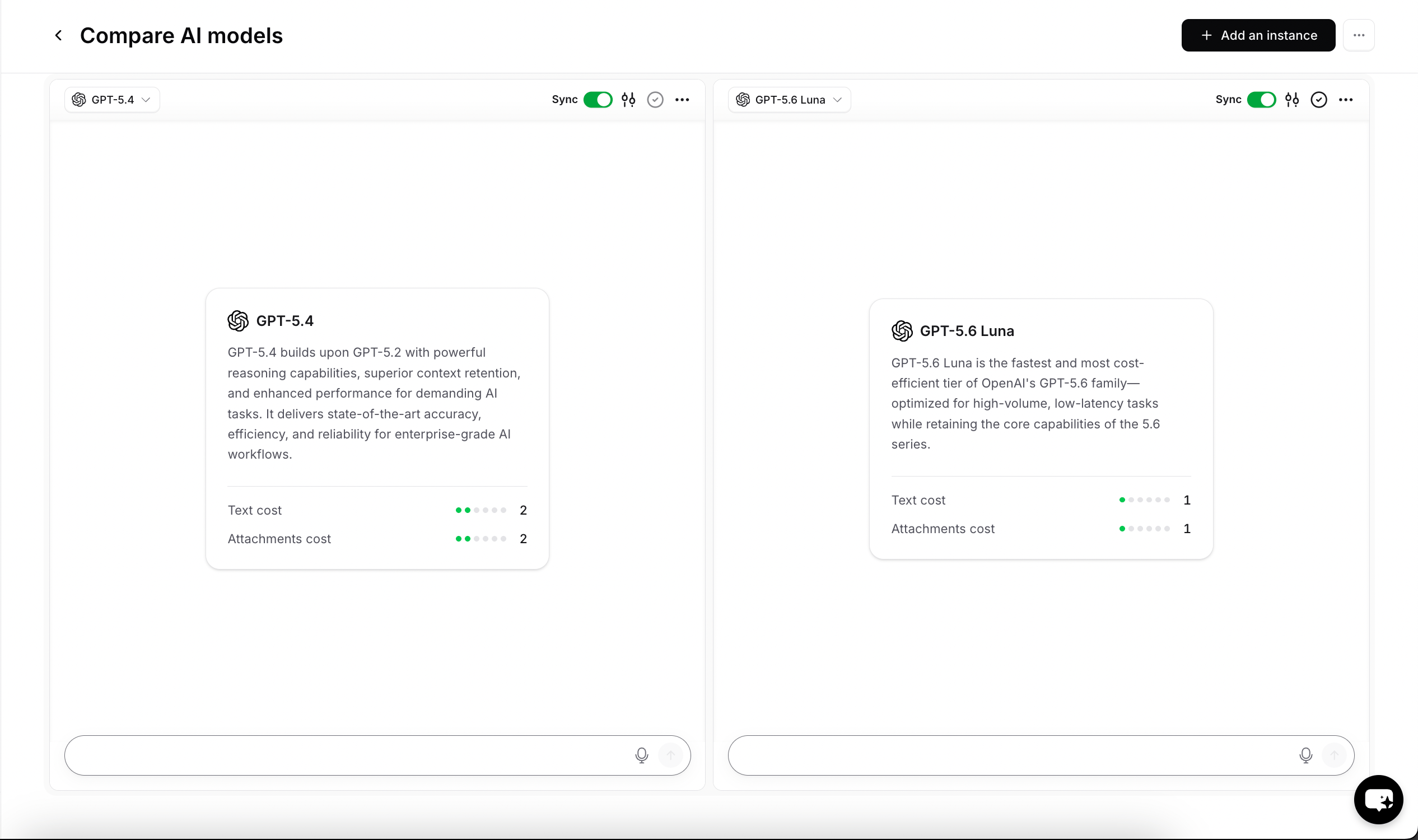
Per-agent controls
Each chat box in the compare view has its own controls, from left to right: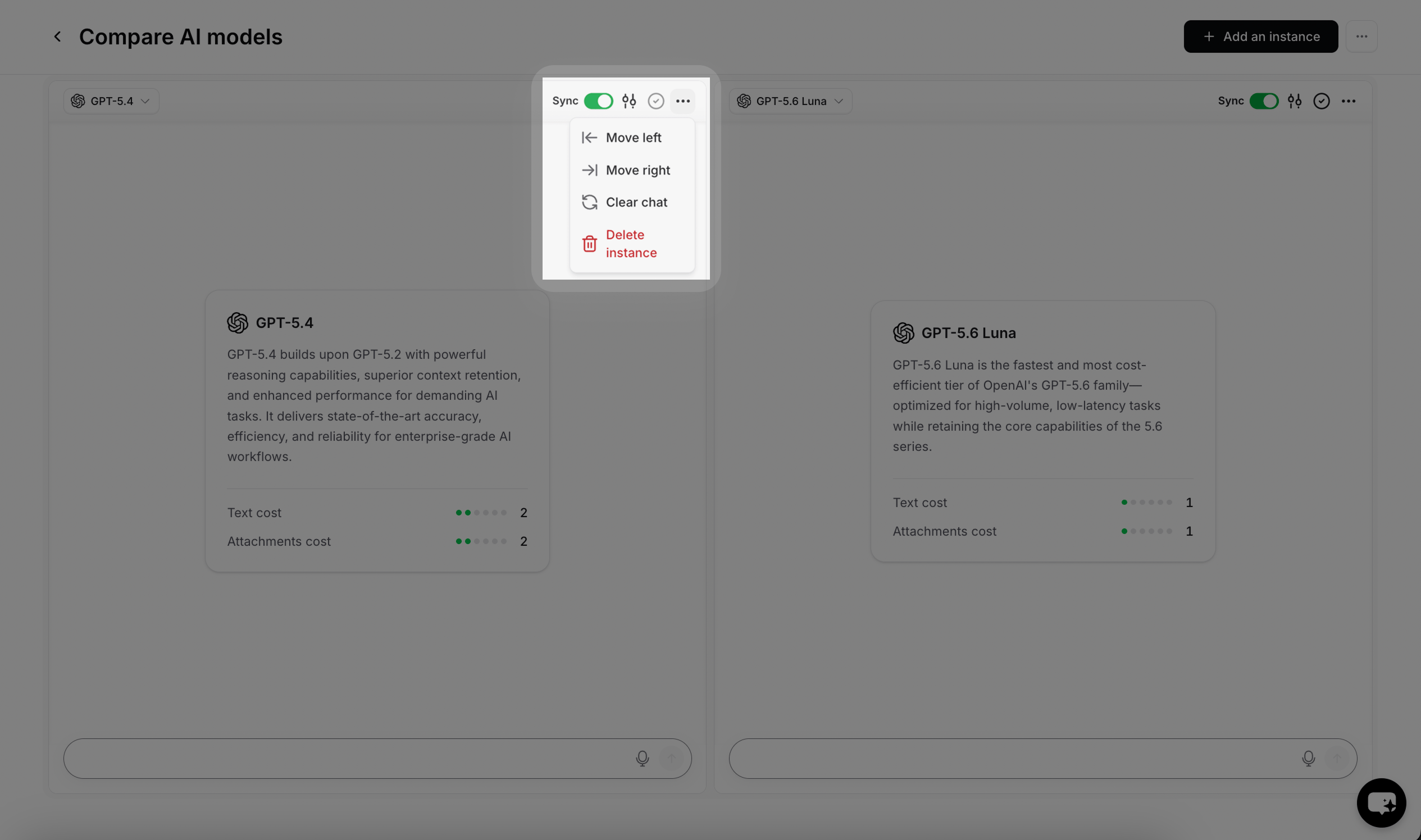
View controls
You can also:- Clear all chats
- Reset the AI agent’s settings to the main settings
- Add a new AI agent to test with
- Click the filter icon to change which AI models you’re testing, and select a new model from the dropdown
Send the same question to two or three models at once and compare the answers before you commit to one in Model configuration.
Troubleshooting
Next steps
Data sources
Add and manage the content your AI agent is trained on.
Models comparison
See how the available models differ before you commit to one.
Best Practices
Proven ways to improve your AI agent’s answers.
Playground
Preview the effect of your changes the way a visitor will see them.