

Before you start
- Help Desk is enabled on the AI agent. Without it the page isn’t available.
- Your plan includes Analytics, and your role can read Analytics. Owners, members and viewers can by default. Support associates can’t.
- Operators have shifts. Attendance reads shifts and time off from Scheduling. Operators without a shift still appear, but the schedule columns stay empty for them.
- Record teammate activity is on. It’s off by default, so Attendance has no data until someone turns it on for the AI agent. See How activity is recorded.
How activity is recorded
While an operator has the Help Desk open in a browser tab, their browser reports to Chatbase once a minute. That report is the only source of attendance data. Chatbase doesn’t track other websites or apps.- Logged in means the Help Desk is open in at least one tab. A tab in the background still counts. When the reports stop for 2 minutes, because the tab closed, the laptop went to sleep or the network dropped, the operator counts as logged out from their last report. Closing the tab ends the session immediately. A gap of 2 minutes or less, such as a page reload, doesn’t start a new session. The sessions on either side join, and the gap counts as logged in.
- Ticket time is time with a ticket open in the window the operator is using. If they switch to another app while the ticket stays visible, the ticket keeps counting for up to 10 minutes. If the ticket leaves the screen, because they minimized the window or hid the tab, it stops counting from that moment. Attendance ignores gaps shorter than 5 seconds.
- Idle starts after 10 minutes without any mouse, keyboard, scroll or touch input in the Help Desk. Idle time still counts as logged in. It isn’t ticket time, so it lowers occupancy.

Read the attendance table
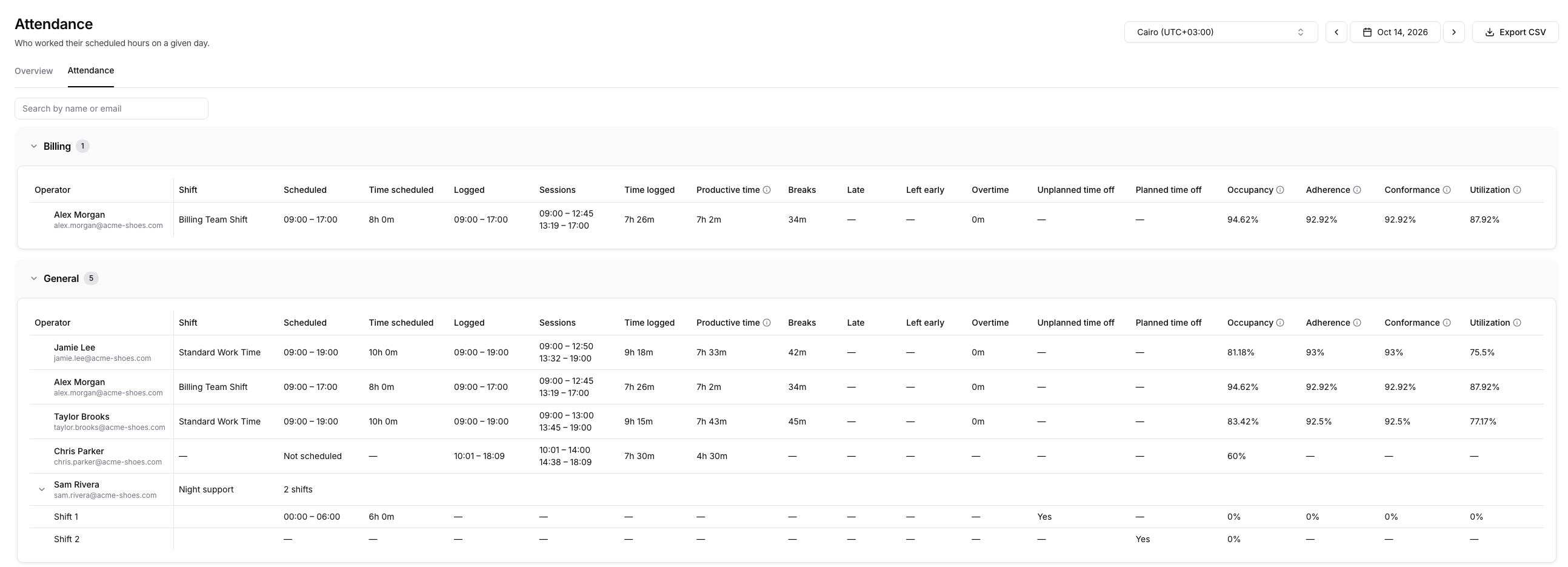
- Timezone. Every time on the page, and the day itself, uses this timezone. It starts as your browser’s timezone, and your browser remembers the one you pick.
- Day. Use the arrows or the calendar to pick a day. Future days aren’t selectable. A past day you pick stays selected if you reload the page, while a new tab opens on today.
- Search. Filter operators by name or email.
Columns
A dash— means the value doesn’t apply. Occupancy shows 0% instead when the operator wasn’t logged in. Durations round down to whole minutes. The ⓘ next to Productive time, Occupancy, Adherence, Conformance and Utilization shows how each one is calculated.
Adherence, Conformance and Utilization need a schedule. They show
— on rows without one, including planned time off, and until the scheduled part starts.
Sessions that overlap a shift, or come within an hour of it, belong to that shift, so logging in 20 minutes early shows as 20 minutes of overtime on the same row. Sessions further away get their own row with no schedule.
Export to CSV
Click Export CSV, choose the days to include, and click Download. The range starts on the day you’re viewing. Use the presets, such as Last 7 days or Last month, or pick any days from the last 13 months in the calendar. The presets count from your computer’s date, so check the dates shown if the timezone you picked is already on a different day.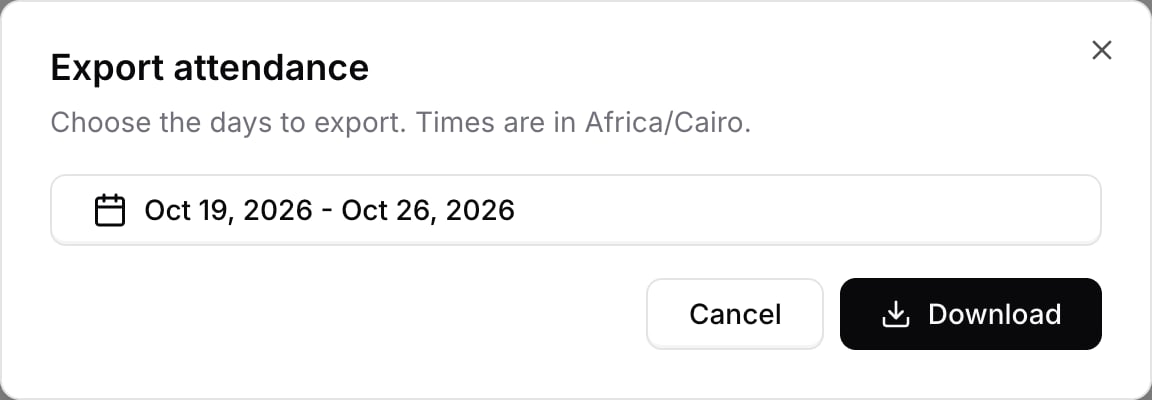
attendance-<date>.csv for one day, or attendance-<first day>-to-<last day>.csv for a range. It uses the timezone you picked and has the table’s columns plus Date, Team and Email. Every row starts with its Date. Its Shift column numbers the rows of operators with several shifts, and Shift name holds the shift’s name. Sessions holds the number of sessions, times look like 09:00 to 17:00, durations are in minutes, and percentages are plain numbers. Operators in several teams get one row per team, so you can filter the file by team.
How a day is counted
- The day runs midnight to midnight in the timezone you picked, not the operator’s timezone. A manager in New York and one in Cairo can see different numbers for the same operator on the same date.
- Overnight shifts split at midnight. Each day shows its own part, with its own Late, Left early and Unplanned time off. On a 22:00 to 06:00 shift, an operator who logs out at 23:00 shows Left early of 1 hour on the first day and Unplanned time off on the next. Which weekday’s hours apply, and whether time off covers the shift, follow the day the shift starts.
- Today is live. An open session counts up to the current minute. Unplanned time off waits until the scheduled part has started, and Left early until it has ended. Adherence, Conformance and Utilization always divide by the whole scheduled part, so during a shift they climb toward their final value.
Tips and edge cases
- History starts when recording began. Days before the first activity recorded on this AI agent never show unplanned time off, adherence, conformance or utilization, because there was nothing to compare against.
- An open tab counts as logged in, even if the operator walked away. The Idle rule lowers occupancy in that case, but time logged still grows.
- Editing a shift changes past days. Attendance computes the schedule from the shift as it is now. If you move a shift on Wednesday, Tuesday’s Late and Left early change too.
- Operators without a shift show Not scheduled, their logged time, productive time and occupancy. The schedule columns, including Adherence, Conformance and Utilization, stay empty.
- Two Help Desk tabs don’t double count. Time logged is the time at least one tab was open.