

Anatomy of a Procedure
Every Procedure has three parts: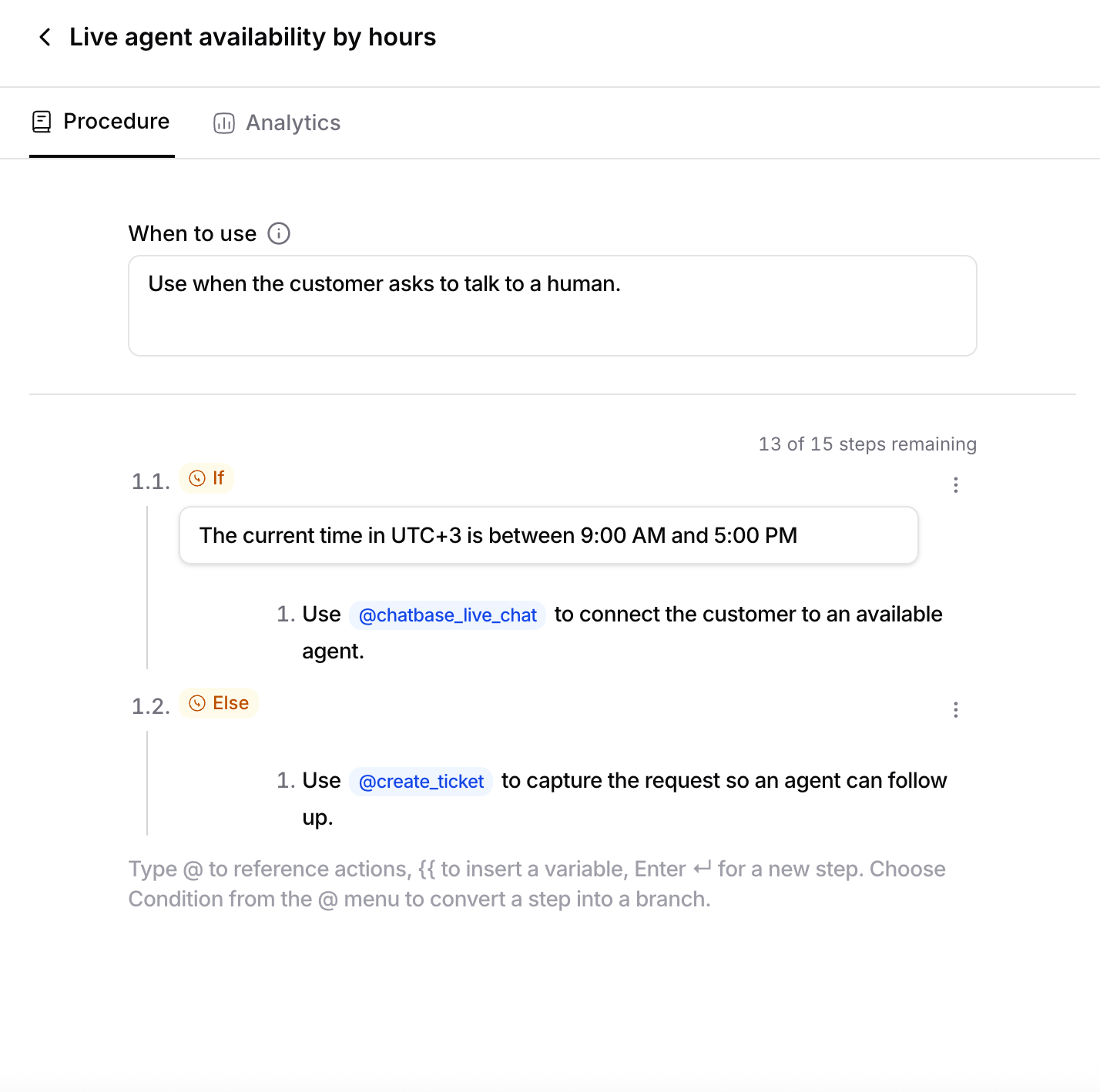
Steps
Steps run in order, top to bottom. There are two kinds:- Instruction steps: a plain instruction the AI agent follows (“Ask the customer for their order number”).
- Branch steps: a decision point with one or more
if/else ifconditions and an optionalotherwise. The AI agent evaluates the conditions top-to-bottom, runs the first matching branch, then continues after the branch.
Limits: up to 15 instruction steps per Procedure, up to 5 branches per decision point (
if / else if / else), and a branch can’t be nested inside another branch.Referencing Actions with @
Inside a step, type @ to reference an Action the AI agent should run at that point (for example @lookup_order). When the AI agent reaches that step, it invokes the tool.
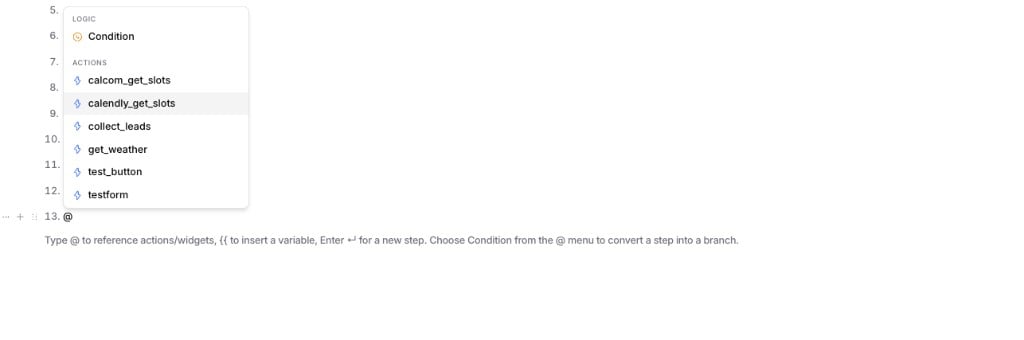
If a step references an Action that doesn’t exist or is disabled, the editor flags it and won’t let you enable the Procedure until you fix or remove the reference.
Using variables with {{ }}
You can personalize your steps and branch conditions with {{token}} variables that are resolved at runtime. Type {{ in a step or condition to open the picker, which groups the available variables into:
A variable resolves only when its value is available for the conversation. For example,
{{user.email}} is empty unless the embedding site passes it, and {{contact.*}} requires a matched contact. Write steps so the AI agent can still proceed (or asks for the value) when a variable is missing.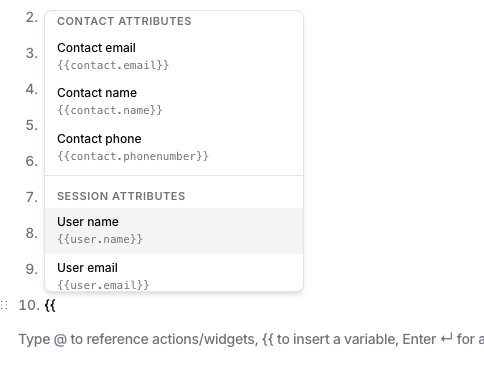
Start from a template
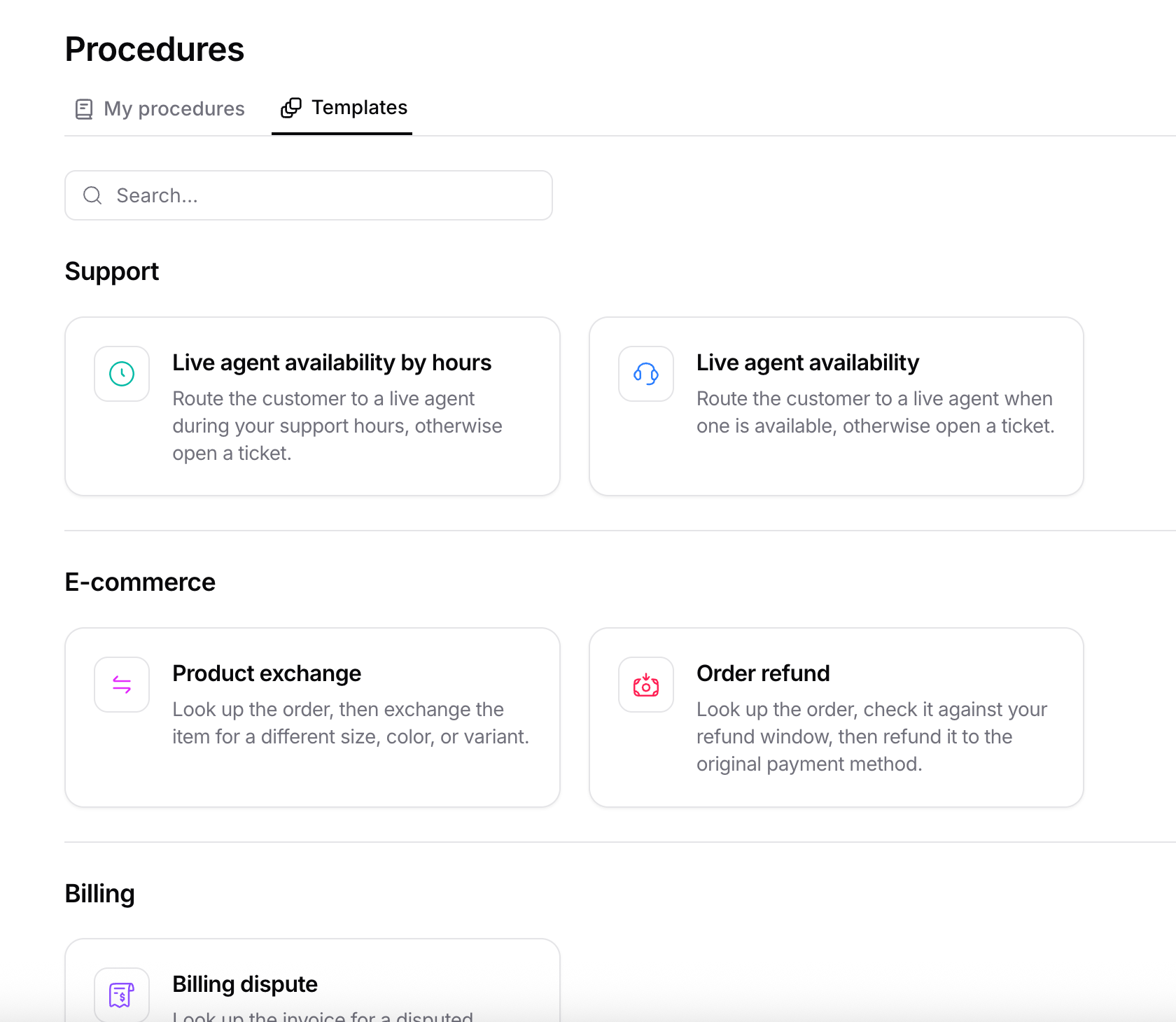
Don’t want to build from scratch? Open the Templates tab to browse ready-made Procedures for common flows like order returns, subscription cancellations, and billing disputes, all grouped by category. Pick one to create an editable copy, then tailor its trigger and steps to your business.Creating a Procedure
1
Open the Procedures tab
Go to your AI agent and then click on Build from the side bar, then open Procedures, then click Add Procedure (or start from a template).
2
Name it and define the trigger
Give it a clear name, then use the When to use field to describe the trigger: the situation that should route the conversation to this Procedure.
3
Add steps
Add instruction steps, reference Actions with
@, add variables with {{ }}, and add conditional branches where the flow forks.4
Enable it
Save and set the Procedure to Active. Only active Procedures are considered at runtime.
Saving puts your changes in a draft. Your customers see them once you click Publish in the top-right corner. A few settings go live as soon as you save. See Drafts and versions.
Analytics
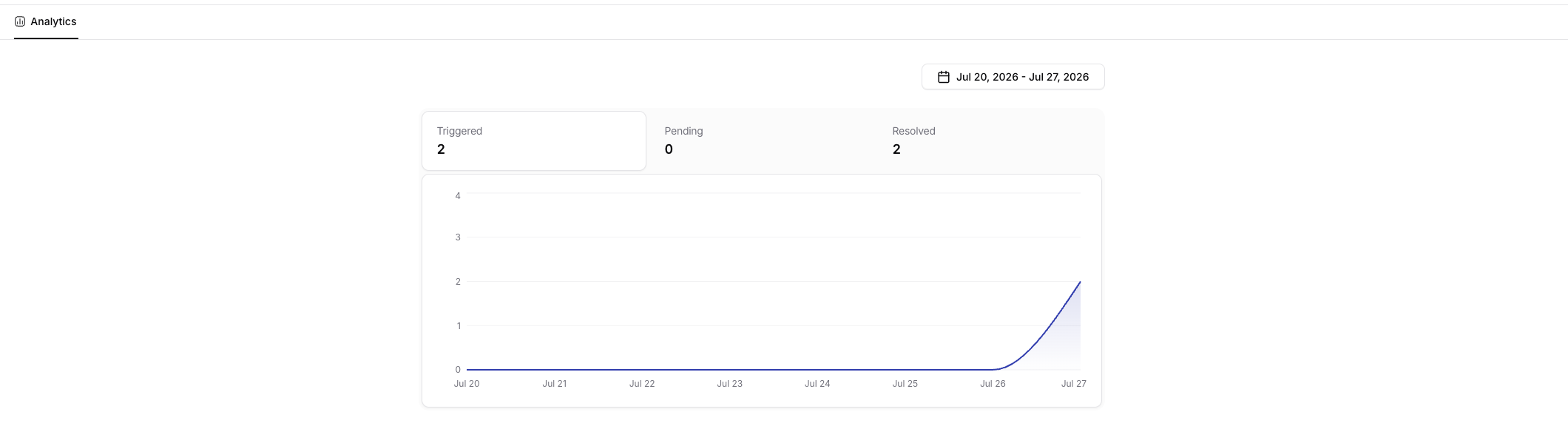
Open a Procedure and switch to the Analytics tab to see how it’s performing over a date range you choose:
A trend chart below the counters breaks the same numbers down by day, so you can spot patterns (for example, a spike in refund requests) at a glance.
Next steps
How Procedures run
Understand triggering, one-Procedure-per-turn, and how Procedures interact with Actions.