

Before you start
- Help Desk is enabled on the AI agent. Without it the page isn’t available.
- Your plan includes Analytics, and your role can read Analytics. Owners, members and viewers can by default. Support associates can’t.
- Record teammate activity is on. It’s off by default, so Activity is empty until someone turns it on under Settings → Helpdesk → Members. While it’s off, the tab shows “Activity recording is turned off for this agent” instead of the timeline. See How activity is recorded for what Chatbase records.
- Shifts are optional. Operators with a shift in Scheduling get their scheduled hours drawn behind their timeline. Operators without one still appear.
Read the timeline
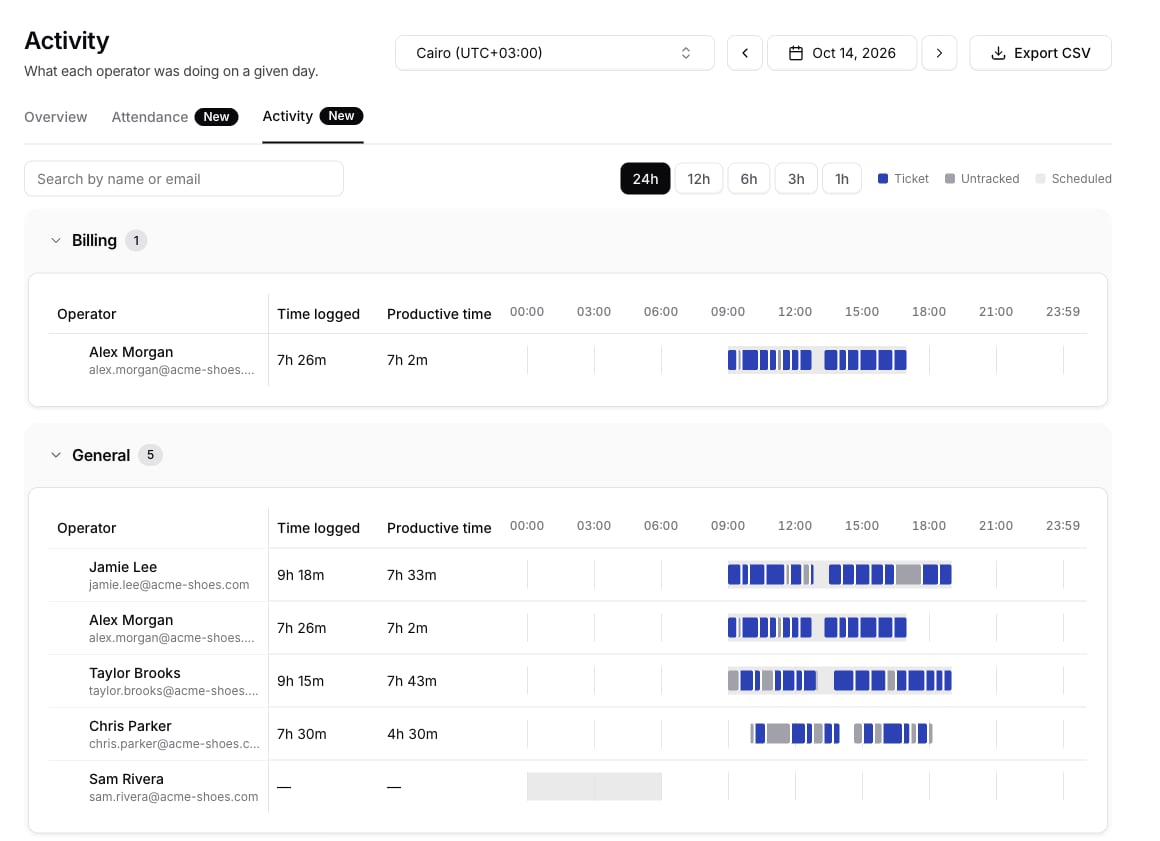
- Timezone. Every time on the page, and the day itself, uses this timezone. Activity and Attendance share it, so switching tabs keeps your choice.
- Day. Use the arrows or the calendar to pick a day. Future days aren’t selectable. Activity and Attendance share the day too.
- Search. Filter operators by name or email.
- Time logged and Productive time, the same totals Attendance shows for that operator on that day. A dash
—means they weren’t logged in. - The timeline, from 00:00 to 23:59, with the colors below.
All the blue blocks in a row add up to Productive time, and all the blue and gray blocks add up to Time logged.
When one ticket ends and another starts at the same minute, a thin white line separates the two blocks. Time on the same ticket with no break in between is always one block.
When you’re looking at today, a red line marks the current time. The timeline refreshes every minute while the page is open, and the line moves forward with it.
See and open a ticket
Hover over a block, or move to it with the Tab key, to see what it was and when, for exampleTicket #482 · 09:00 – 10:00 · 1h 0m. Click a ticket block to open that ticket in a new tab, so the timeline stays where you left it.
A ticket deleted since then shows as Deleted ticket and can’t be opened.
Zoom in
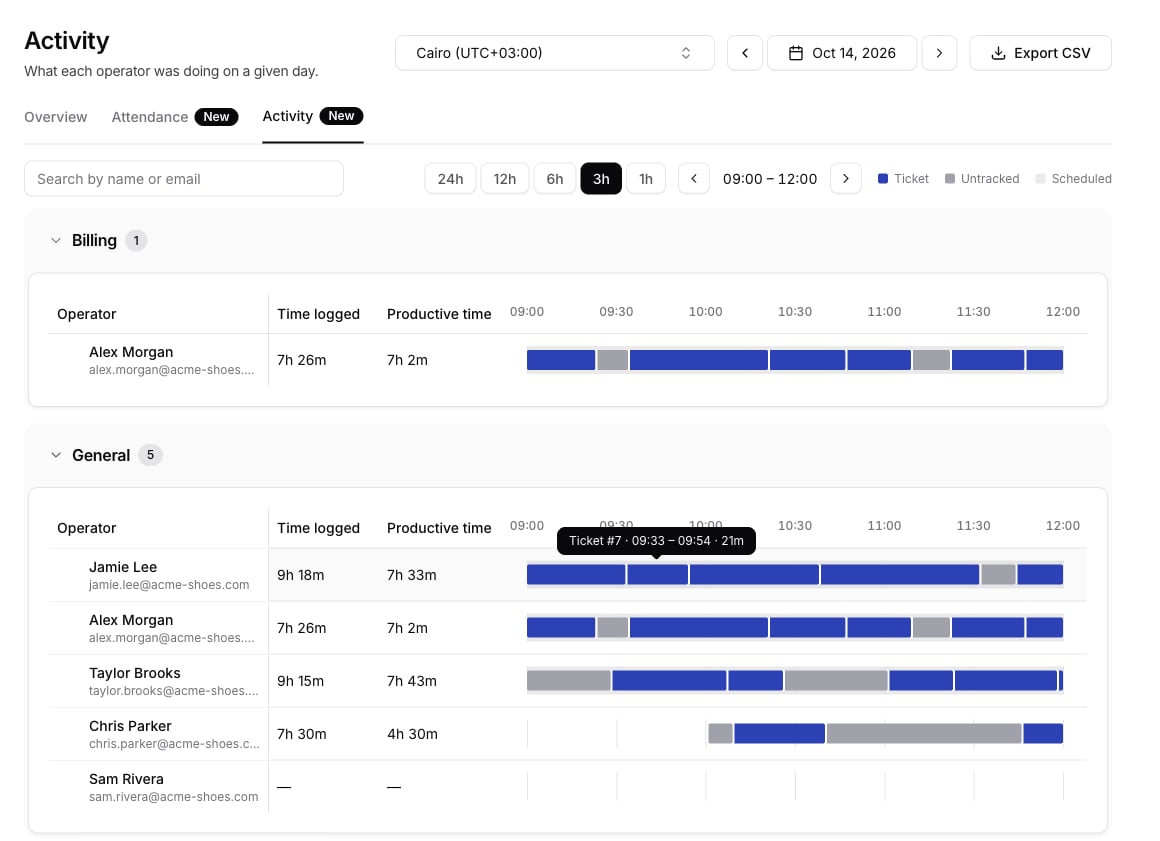
- The window’s times show between two arrows, for example
09:00 – 10:00. Earlier and Later move by half that length and stop at the start and end of the day. - Zooming in or out keeps the middle of what you were looking at.
- The time labels step by 3 hours at 24h, then 2 hours, 1 hour, 30 minutes and 15 minutes at 1h.
- A block that starts or ends outside the window is cut at its edge, but hovering over it still shows its full times.
- Every team card shows the same window, and changing the day keeps it, so you can compare the same hour across days.
Export to CSV
Click Export CSV, choose the days to include, and click Download. It’s the same dialog Attendance uses. The range starts on the day you’re viewing, and you can pick a preset or any days from the last 13 months. The file isactivity-<date>.csv for one day, or activity-<first day>-to-<last day>.csv for a range. It uses the timezone you picked and has one row per block drawn on the timeline:
Rows go by date, then team, then operator, then start time. Unassigned comes after the named teams. Operators in several teams get their rows once per team, so you can filter the file by team. For each operator and day, the
Ticket rows add up to Productive time in the Attendance export, and all rows add up to Time logged.
How a day is counted
- The day runs midnight to midnight in the timezone you picked, not the operator’s timezone.
- Work and shifts that cross midnight split there. A ticket worked from 22:05 to 05:40 shows as
22:05 – 23:59on the first day and00:00 – 05:40on the next, and each day’s totals only count its own part. - Times round down to whole minutes, the same as Attendance.
Tips and edge cases
- Untracked isn’t the same as idle. It’s every logged-in minute that doesn’t count as ticket time, such as time on the ticket list. When an operator switches to another app, their ticket keeps counting only for a while, as How activity is recorded explains, and the rest is untracked.
- An operator with no activity still gets a row, with dashes for the totals and an empty timeline. Their scheduled hours still show if they have a shift.
- Editing a shift changes past days. The scheduled band comes from the shift as it is now, as on Attendance.
- Two Help Desk tabs don’t double count. The timeline shows the time at least one tab was open.