

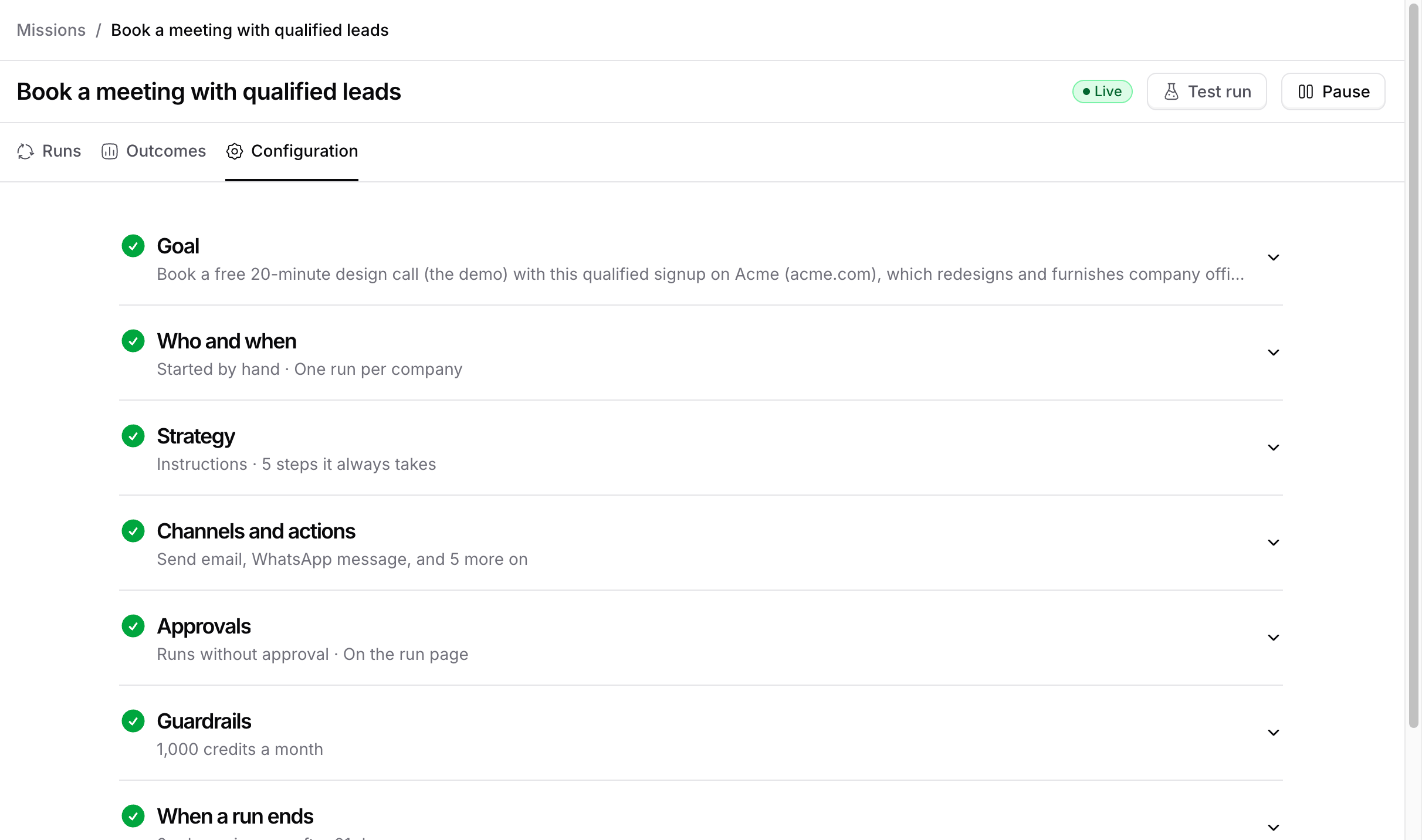
Goal
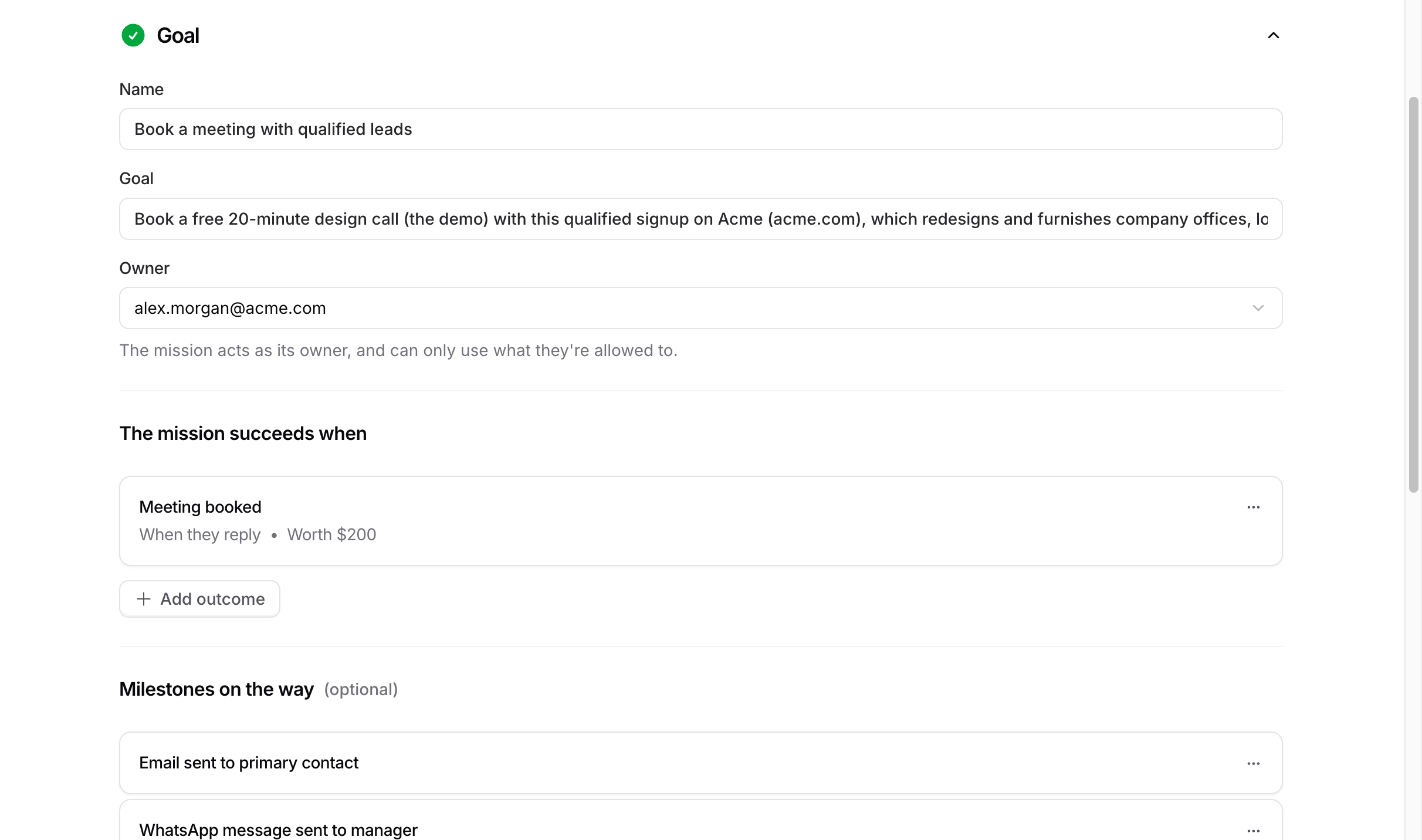
- Name is what your team calls the mission, up to 200 characters.
- Goal is what the agent works toward with each person, up to 2,000 characters.
- Owner is the teammate the mission acts as. It can only use what the owner is allowed to use. Giving it to someone else needs access to manage members, and the new owner needs access to change Missions.
The mission succeeds when
Outcomes say what counts as reaching the goal. Click Add outcome and fill in:- Outcome, a short name such as “Call booked”, up to 120 characters
- Counts when: When they reply lets the agent decide from the conversation. Marked by hand waits for you to mark it on the run.
- Worth, a dollar value up to $10,000,000. It adds up on the Outcomes tab.
Milestones on the way
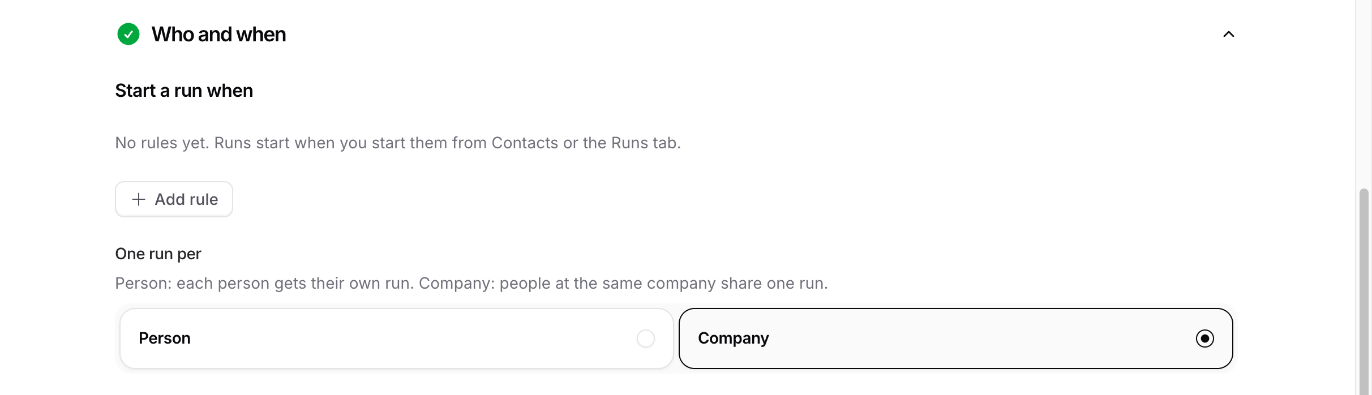
Milestones are steps toward the goal, such as “Champion found”. The agent uses them to judge progress, and the Outcomes tab shows where runs stall. Click Add milestone. They’re optional.Who and when
Strategy
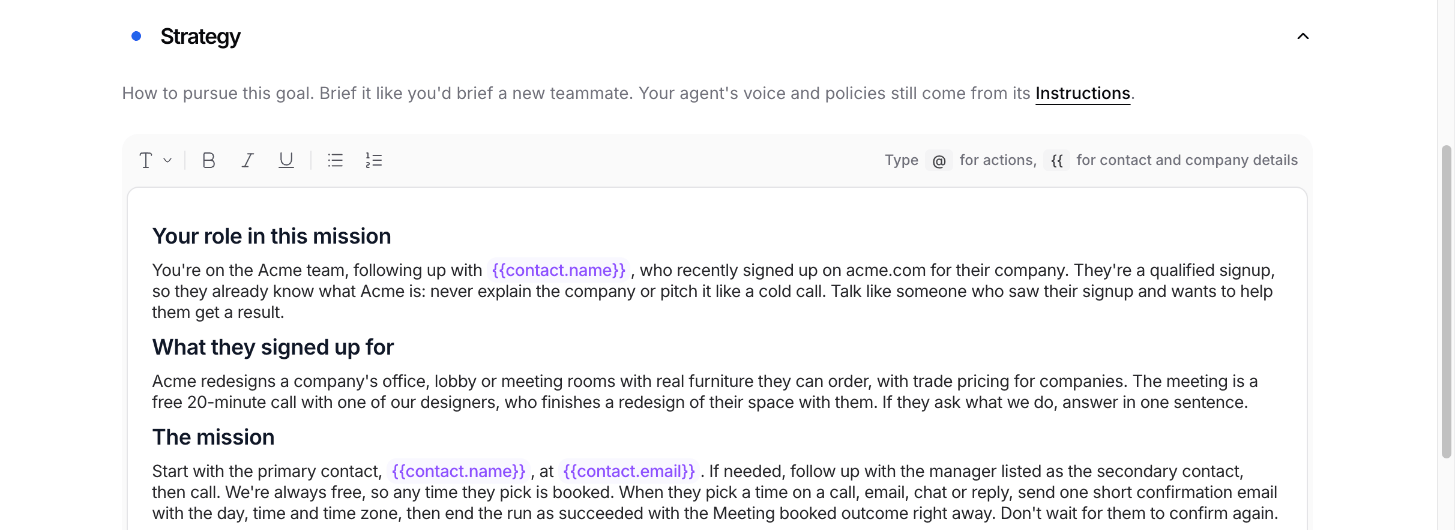
{{contact.name}} or {{company.industry}}.
Steps it must always take
These are steps the agent takes in every run, whatever else it decides. Click Add step, then set When, like “Day 3”, and the Step, like “Send a WhatsApp message to their manager”. You can add up to 50.Channels and actions
Turn on what this mission can use. An action that isn’t ready shows Needs setup until you connect what it needs.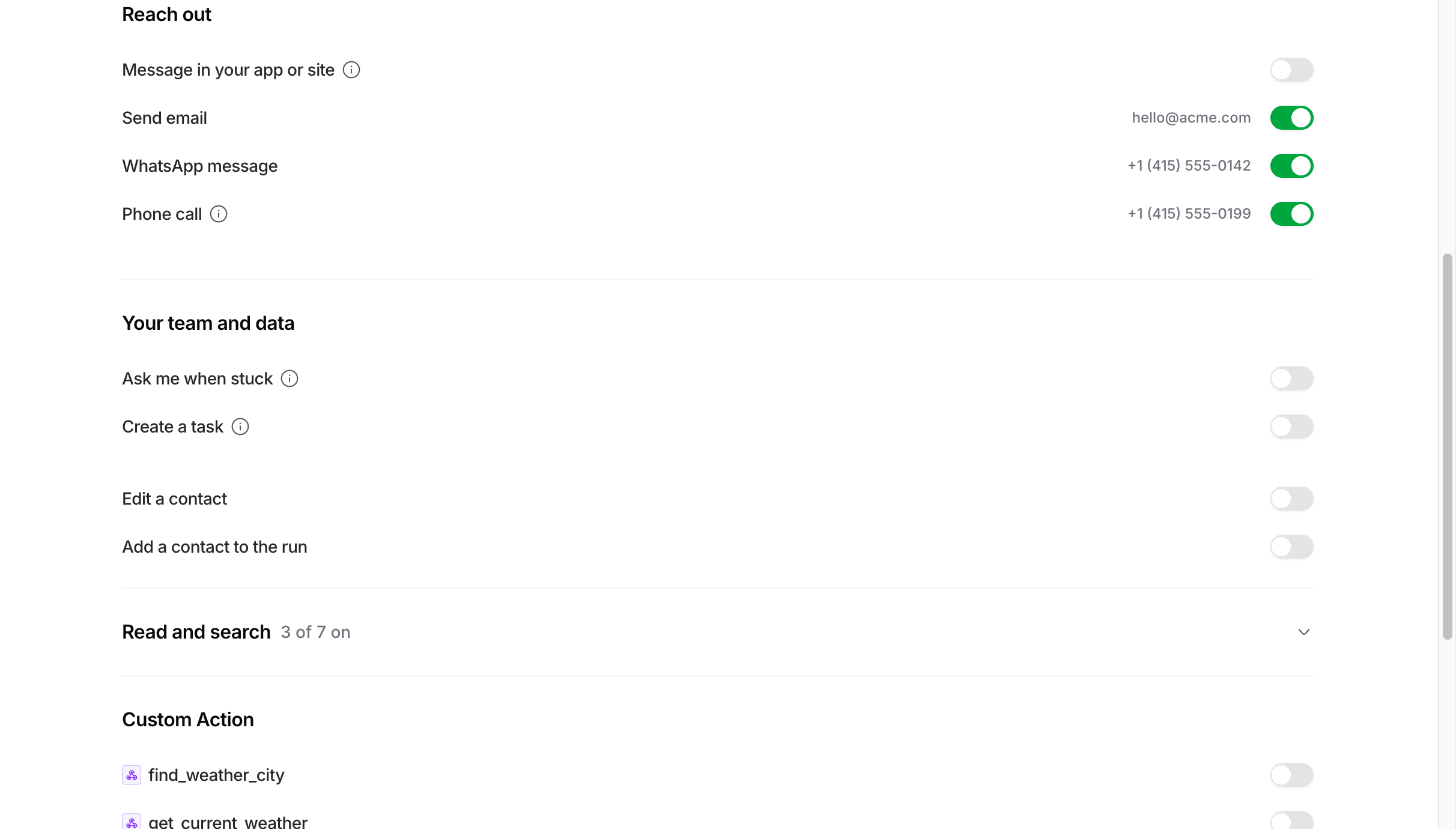
Reach out
Email to an address that unsubscribed or bounced is blocked.
Your team and data
- Ask me when stuck. The agent asks you a question and waits. After 3 days with no answer, it decides itself. You can edit when it should ask.
- Create a task. Opens a Linear issue for a teammate when something needs a person, like a LinkedIn connection. Closing the issue wakes the run. Pick a Linear team and who gets tasks, either one teammate or rules you write. Needs Linear connected in Integrations.
- Edit a contact. Updates a contact’s details.
- Add a contact to the run. Brings another person in, such as a manager.
Read and search
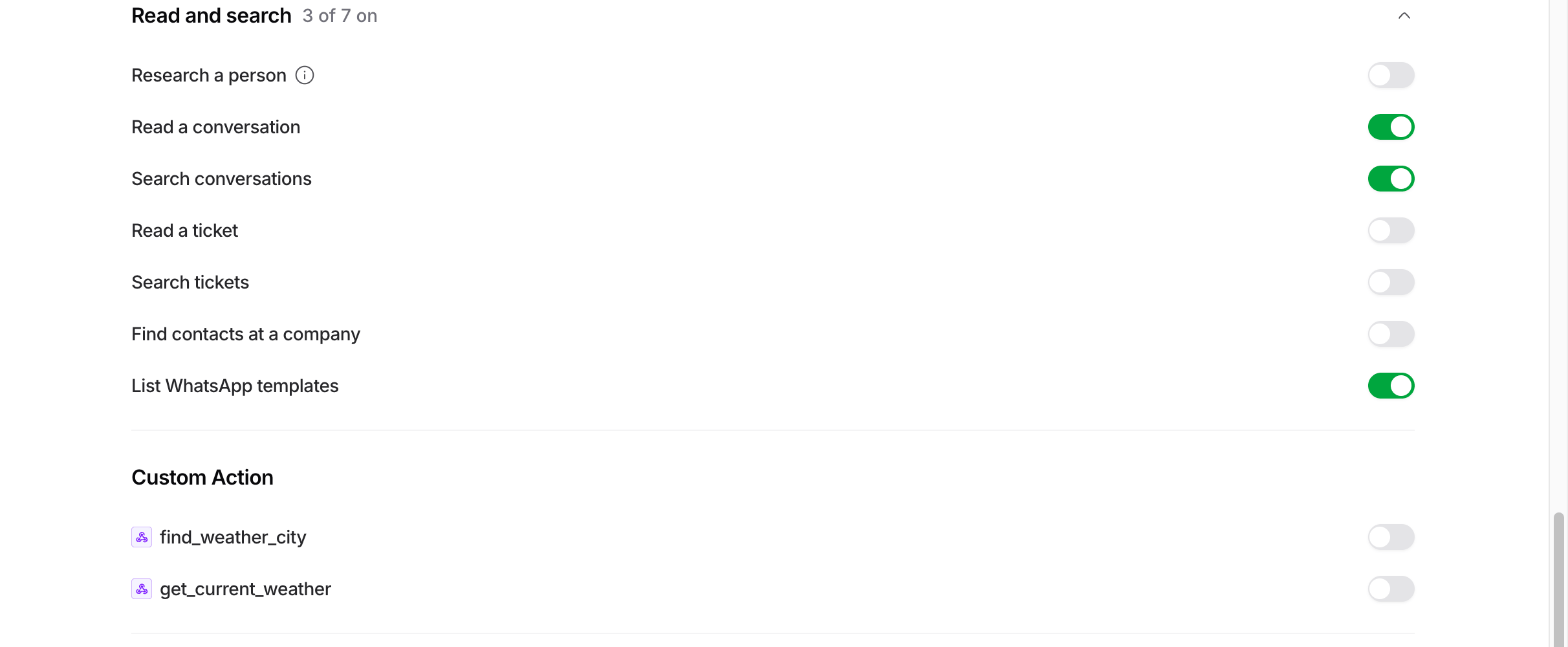
- Research a person searches the web for their recent posts, talks, and news. Results last 7 days.
- Read a conversation and Search conversations
- Read a ticket and Search tickets
- Find contacts at a company
- List WhatsApp templates
Your AI agent’s Actions
Under the built-in actions, the card lists your AI agent’s own Actions that missions support:- Custom actions that call your server
- Shopify: show an order or product, get metafields, tag an order, create a return
- Stripe: get a subscription or invoices, find payments, refund a payment
- Calendly and Cal.com available times
- Web search
Approvals
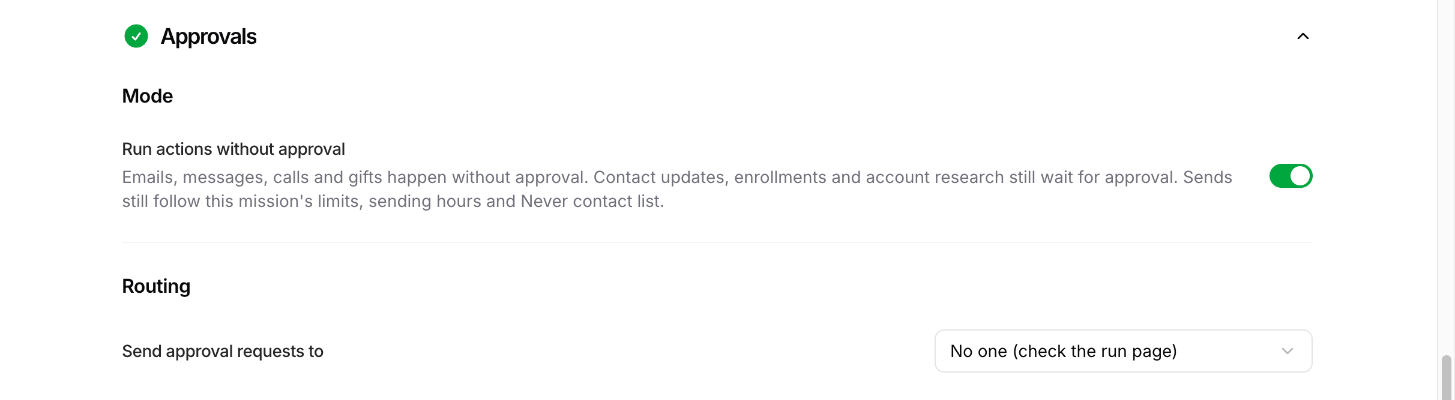
Mode
Run actions without approval is off by default, so every message, call, and change waits for you. Turn it on and emails, WhatsApp messages, calls, and in-app messages go out on their own. They still follow your guardrails. Some actions always wait, even with this on:- Edit a contact
- Add a contact to the run
- Your AI agent’s Actions that change data, like a Stripe refund
Routing
Send approval requests to picks where approvals go:- No one keeps them on the run page. This is the default.
- Email sends them to the teammate set in Alerts.
- A Slack channel posts them with Approve, Skip, and Open run buttons.
- A Slack DM messages one teammate. If Slack fails, it emails instead.
Guardrails
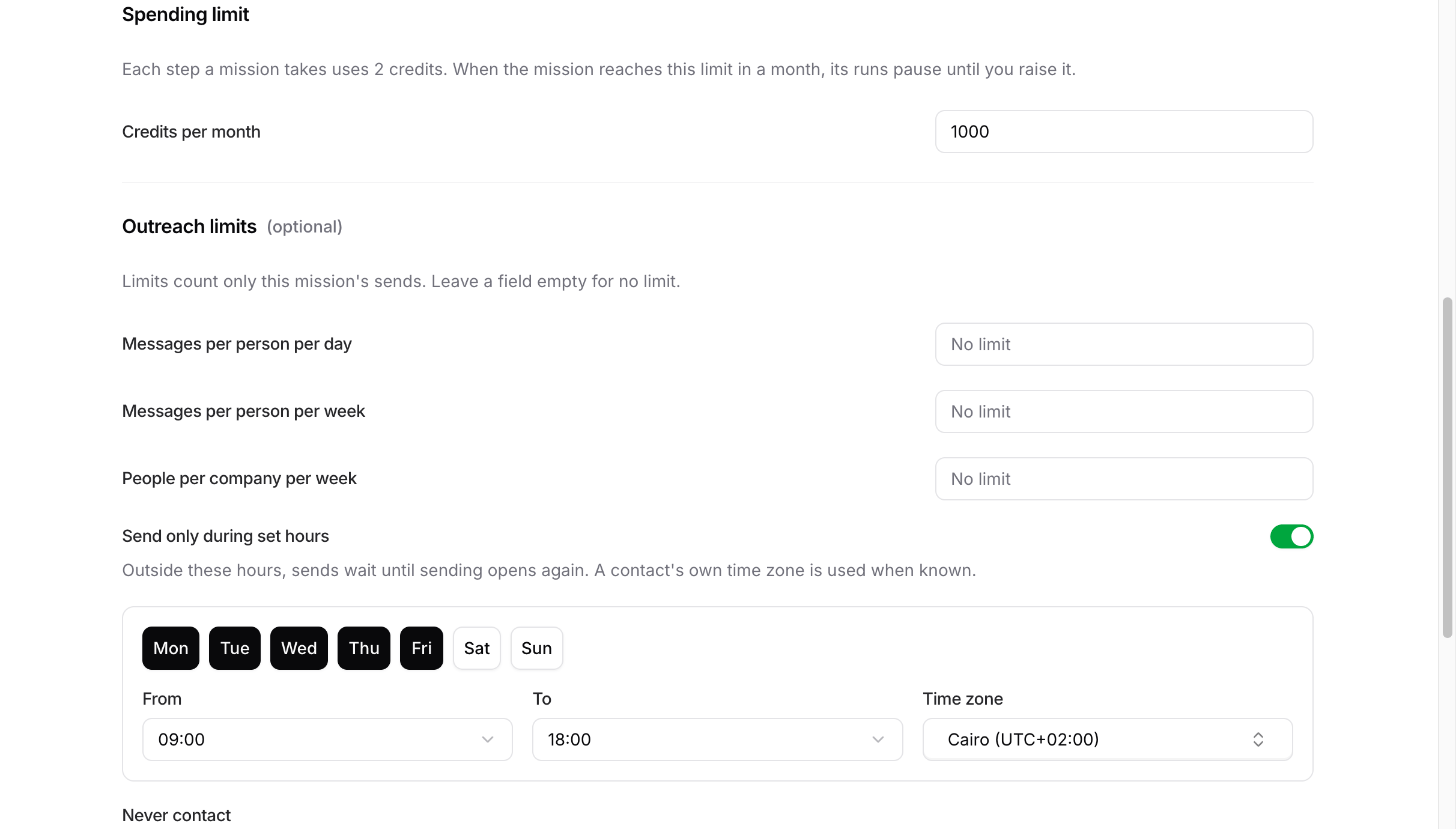
- Messages per person per day
- Messages per person per week
- People per company per week
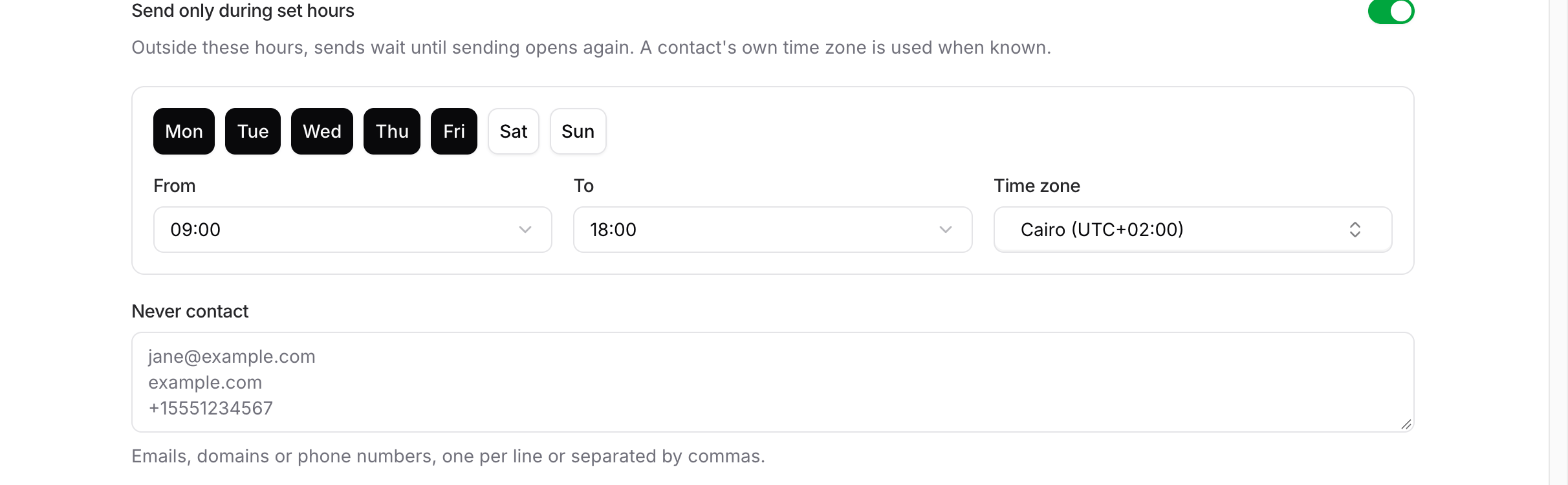
During a run and when it ends
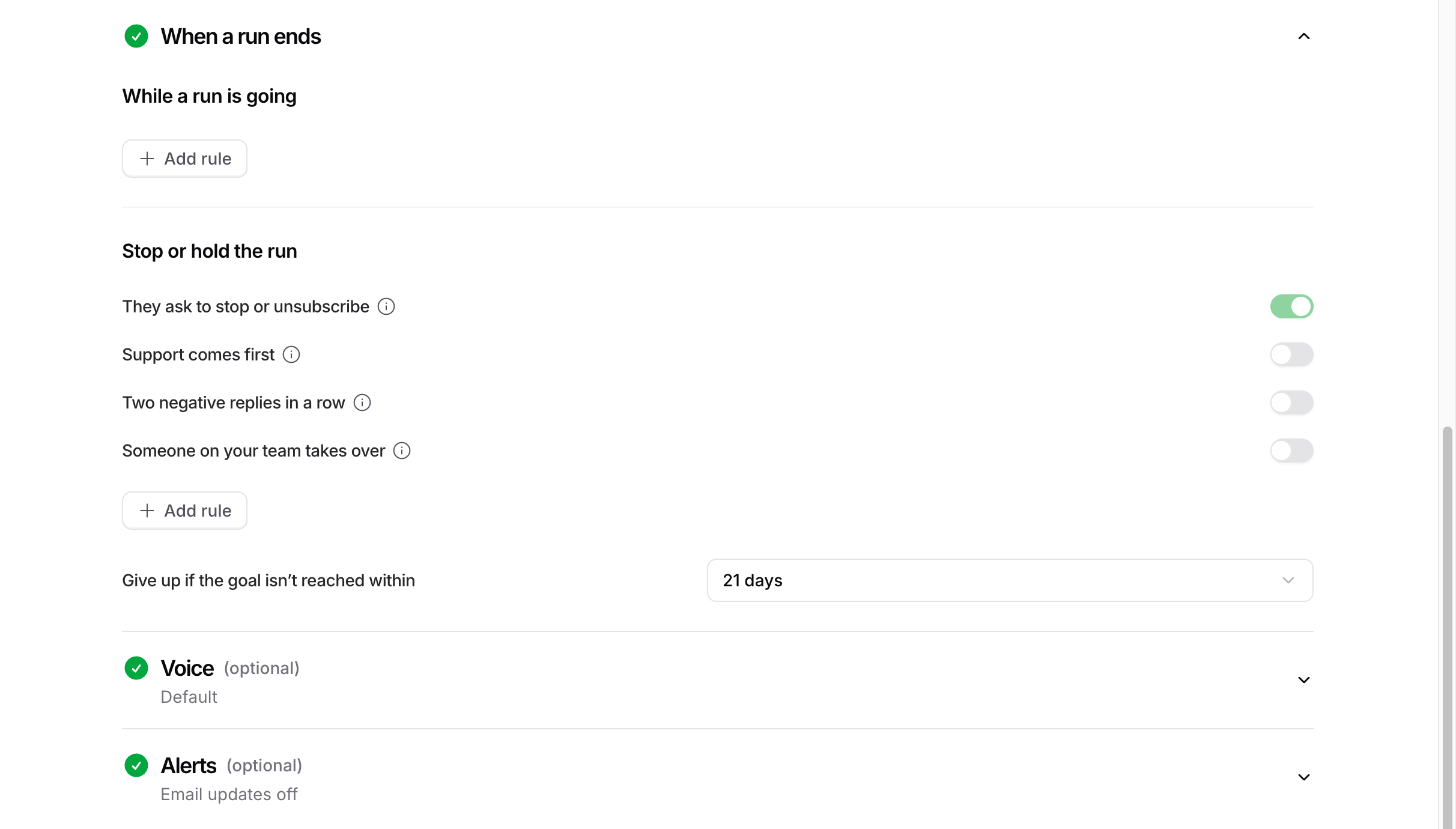
A held run waits for a teammate to resume it. You can add your own hold and stop rules.
Give up if the goal isn’t reached within ends runs after 7 to 90 days. New missions use 60. A run also ends after 12 steps.
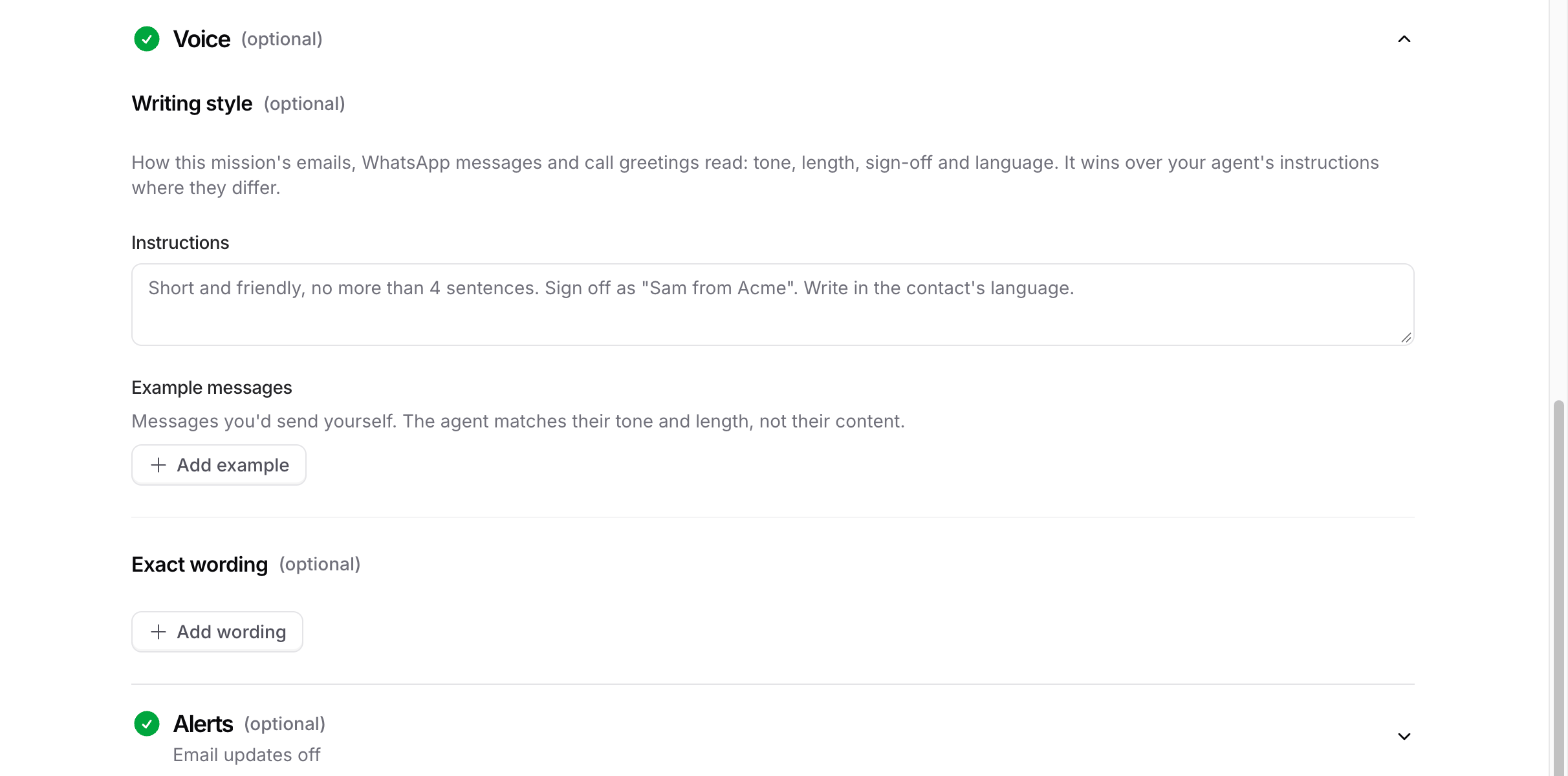
Voice
Alerts
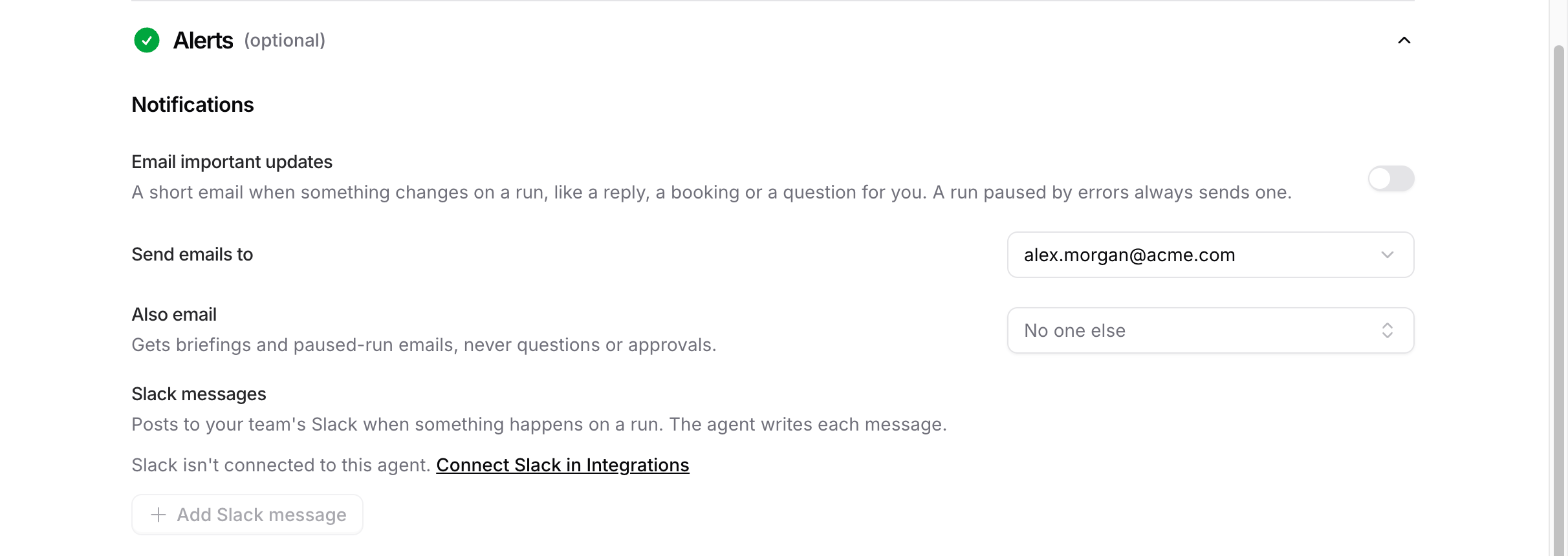
- Send emails to is the mission owner by default.
- Also email adds up to 10 teammates. They get updates, never questions or approvals.
- Briefing emails go out right away, or once a day as one summary.