

The Missions page
My missions lists every mission on the AI agent.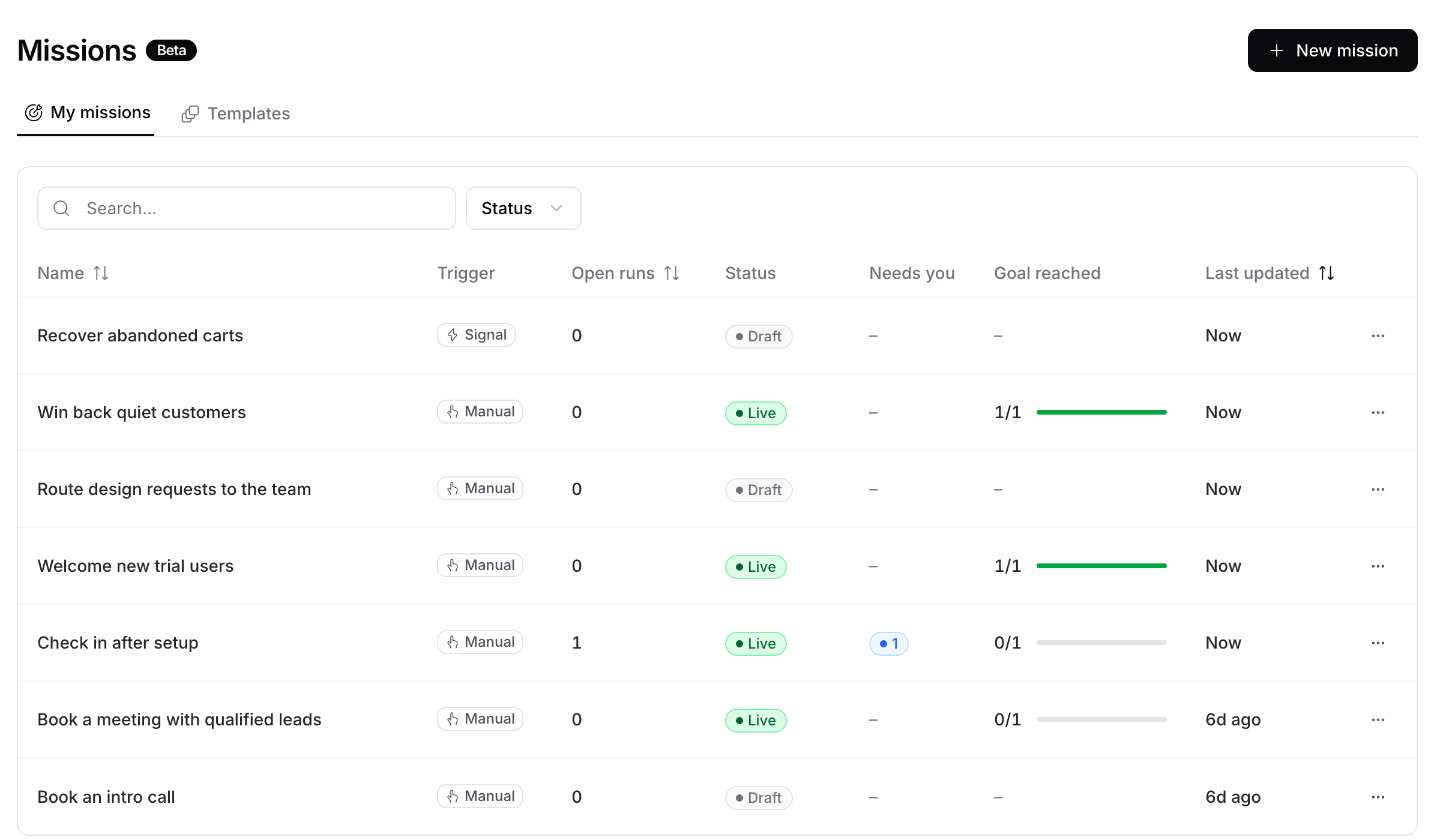
You can search, filter by status, and sort by name, open runs, or last updated. The ⋯ menu on each row opens, publishes, pauses, or resumes the mission.
When runs need you, the Missions item in the sidebar shows how many.
Start from a template
Open the Templates tab. Each template is a working mission. Fill in a few details, test it, and publish.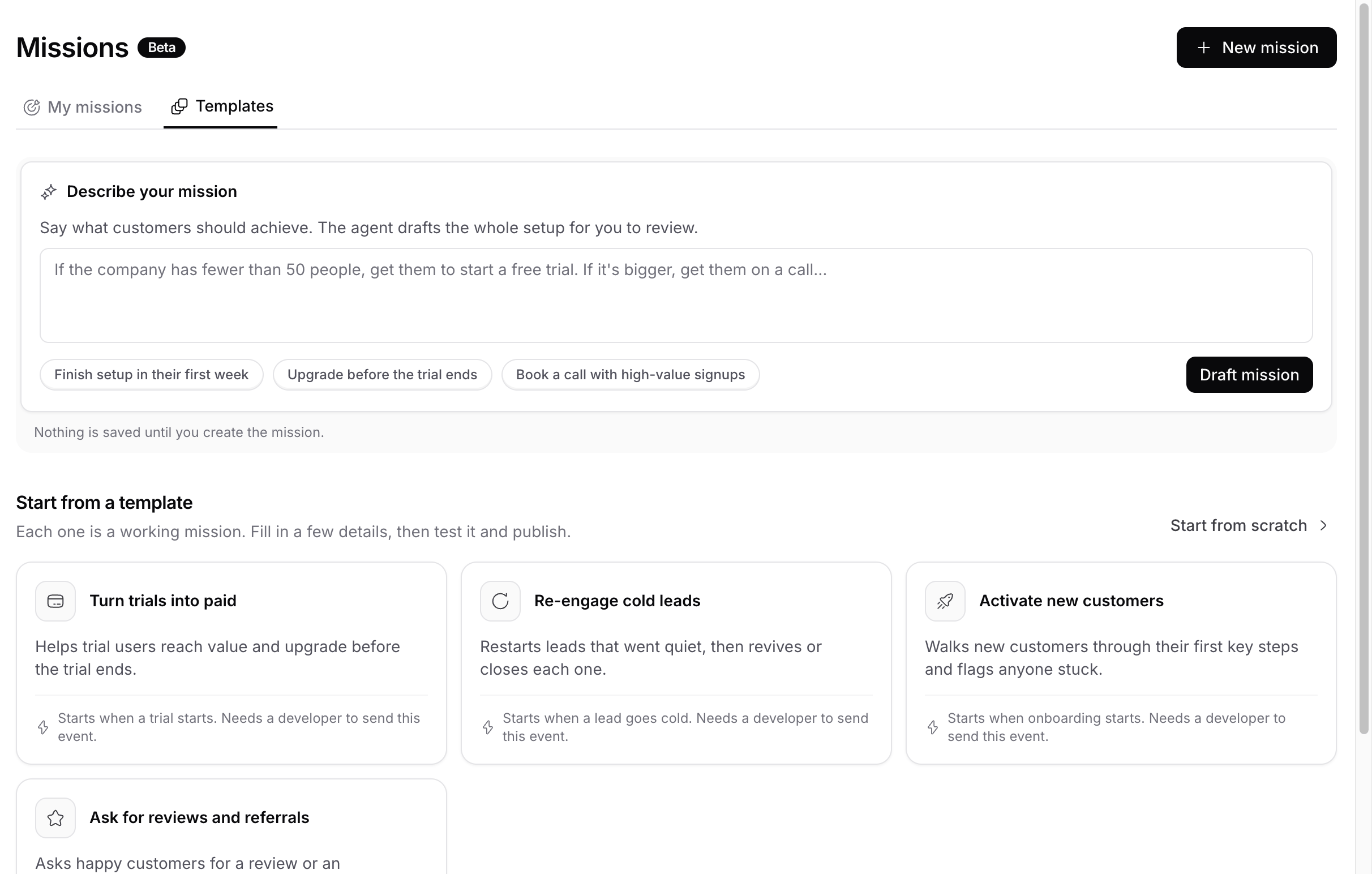
The other templates start on an event, so your product has to send that event. See Send events to Chatbase.
Click a template to read its full setup, then click Use template. Templates send only on weekdays, 9:00 to 18:00 in your time zone. You can change that in Guardrails.
Describe your mission
Write what customers should achieve in plain words, up to 2,000 characters. For example: “If the company has fewer than 50 people, get them to start a free trial. If it’s bigger, get them on a call.” Or click one of the suggestions under the box. Click Draft mission and wait about 20 seconds. The draft fills in:- The name, goal, and instructions
- Whether each person gets their own run, or a company shares one
- Up to 8 steps it always takes
- One to five outcomes with dollar values, and up to 4 milestones
- How many days to try before giving up
- Up to 5 lines of exact wording
Start from scratch
Click Start from scratch on the Templates tab. You get a blank mission with default settings. Configure a mission walks through each card.Fill in placeholders
Templates and drafts can leave blanks in double square brackets, like[[your product name]]. A notice at the top counts them. Click one to jump to its field. You can’t publish until they’re all filled.
Create and check the mission
Click Create mission at the bottom. It’s saved as a Draft, and Test run and Publish turn on. If something is missing, the header shows a N to fix button. Click it to see what’s wrong:
Each item has a button that opens the right card.