

A contact’s page
Go to Contacts and click a person.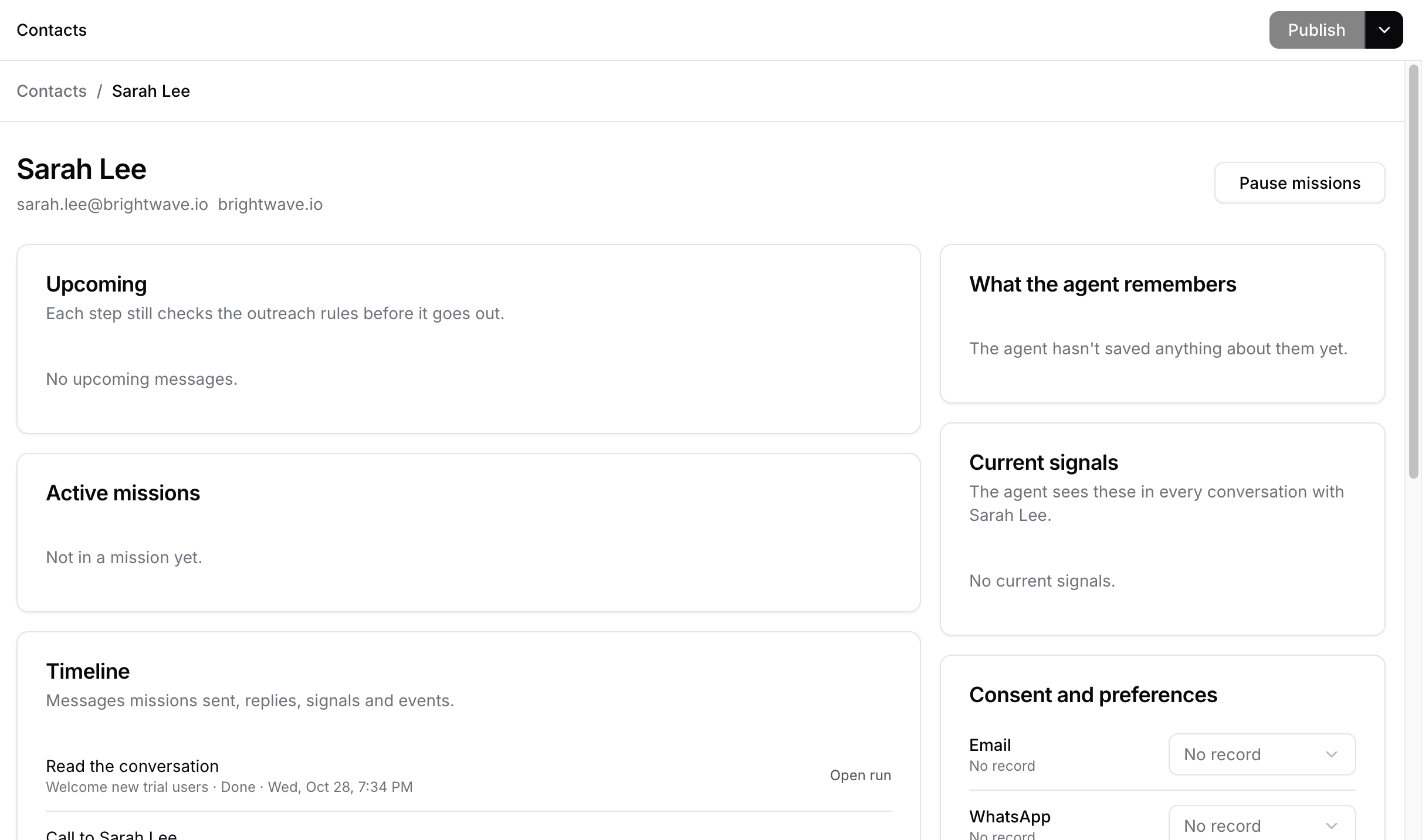
Consent and preferences
Each channel has its own setting. Email is subscribed or unsubscribed. WhatsApp and SMS are opted in or out. Phone is OK to call or do not call. No record means they haven’t said. Each setting shows where it came from, such as the dashboard, a CSV import, or the unsubscribe link in a mission email.Pause missions
Click Pause missions to stop all missions from reaching out to this person. Their replies still reach your AI agent. For someone with a work email, you can pause everyone at their company instead.A company’s page
Open the Companies tab and click a company. It has the same cards, plus:- Outreach this week, what each mission sent to people there in the last 7 days
- Details, such as the domain, industry, size, and main contact. New contacts with that email domain join the company.
- People, everyone at the company