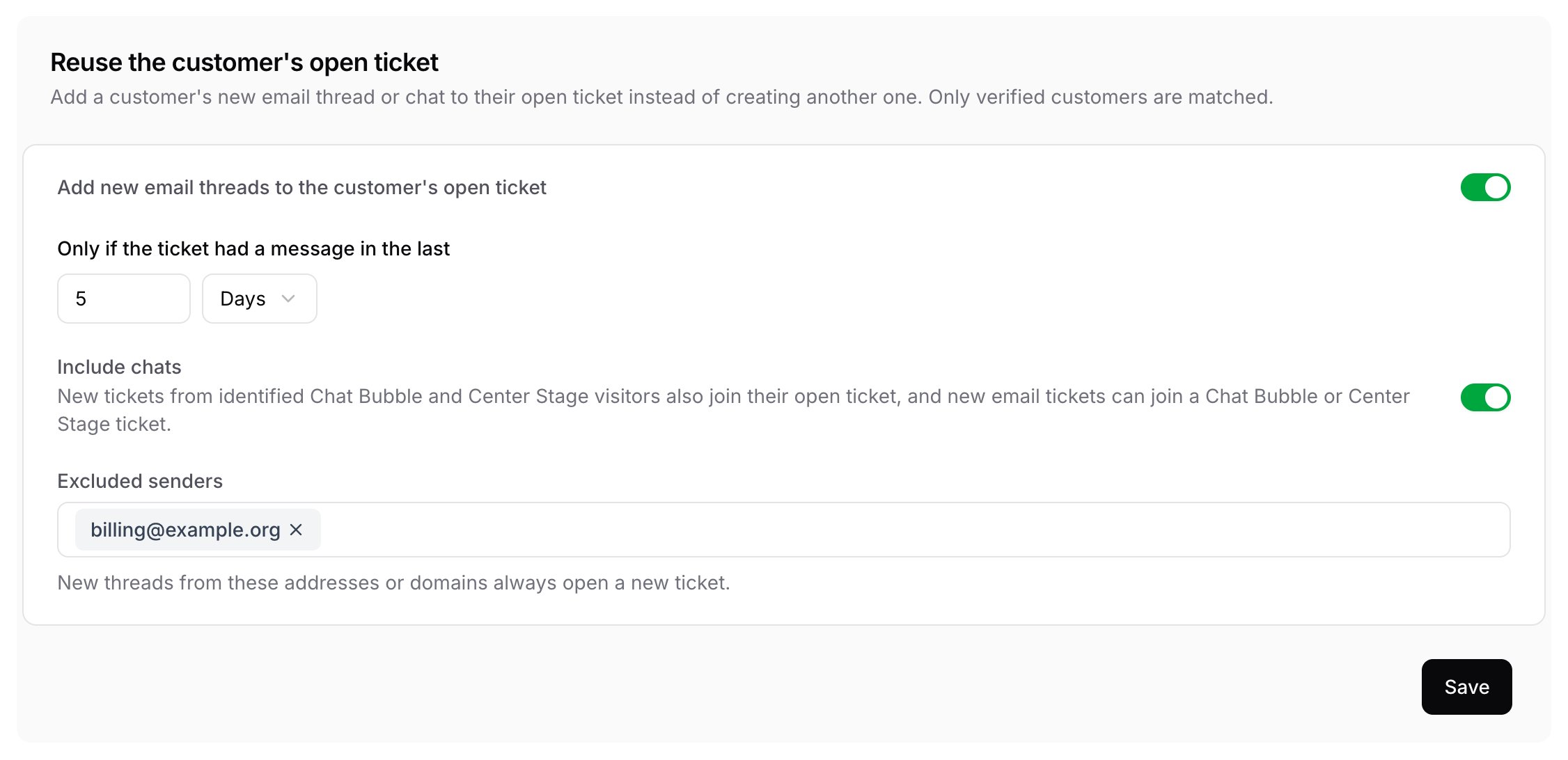
Customers often come back with a new email thread or a new chat before their first request is resolved. With reuse turned on, that new thread is added to the ticket the customer already has open, so your team keeps working in one place. Turn it on under Settings → Helpdesk → Ticket reuse: switch on Add new email threads to the customer’s open ticket and click Save. It is off by default.
Ticket reuse settings with reuse on, a 5 day window, Include chats on, and billing@example.org listed under Excluded senders

Which ticket a new thread joins

A new thread joins an open ticket when:
  • The customer is verified. An email must pass email authentication, and a chat visitor must be identified as a contact with an email. Anyone else gets a new ticket, so a spoofed address cannot add messages to someone else’s ticket.
  • The ticket is from the same customer email address, and it is not closed, cancelled or merged. Only email, Chat Bubble and Center Stage tickets are joined.
  • The ticket had a message within the window you set. The window runs from 1 hour to 30 days and is 5 days unless you change it.
  • The sender is not on your Excluded senders list. Add an email address to exclude that address, or a domain such as example.com to exclude every address at that exact domain. Subdomains need their own entry.
Email threads join whenever the setting is on. Turn on Include chats as well so new tickets from identified Chat Bubble and Center Stage visitors also join their open ticket, and new emails can join a Chat Bubble or Center Stage ticket. When more than one ticket qualifies, the thread joins the one with the most recent message. Replies to an existing thread are not affected and keep going to that thread’s ticket.

What happens on the ticket

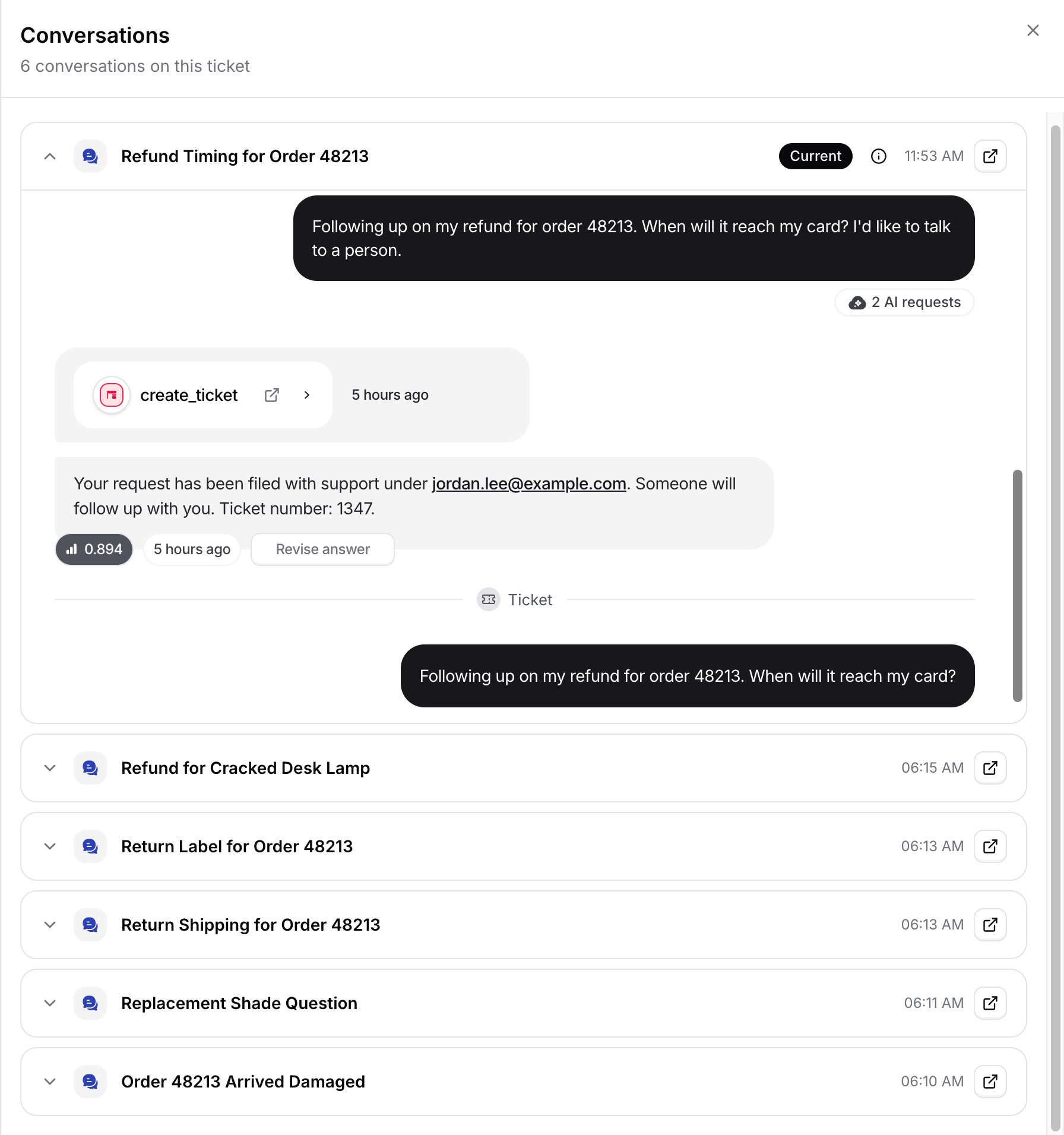
The timeline marks where each new thread starts. For a chat or an email the AI agent escalated, click its subject to read that conversation. View conversations in the ticket’s details lists the ticket’s chats and AI agent email threads, newest first, and marks the one your replies go to.
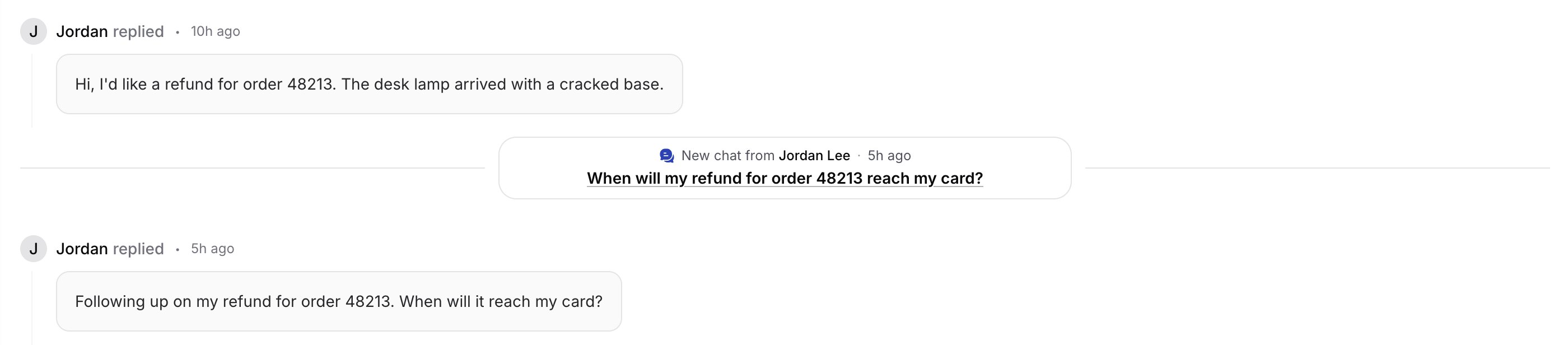
Ticket timeline with a divider reading New chat from Jordan Lee, followed by the new chat's subject as a link
Conversations drawer listing six chats on one ticket, newest first, with the current chat expanded and marked Current
A new chat, or an email the AI agent escalates, becomes the ticket’s conversation, and your replies go to that thread from then on. A chat it replaces goes back to the AI agent. An email thread it replaces stays with the ticket, so the customer’s replies on it still reach your team. An email that arrives straight in your Helpdesk inbox is added to the ticket and does not change its conversation. When the AI agent or the ticket form opens the request, its tags are added to the ticket and fields the ticket has not filled yet are set. Fields that already have a value keep it. These changes run your triggers set to Ticket is Updated, like any other change to the ticket.

How it looks to the customer

When the AI agent escalates, it gives the customer the existing ticket number instead of a new one. In the Chat Bubble or Center Stage, the visitor sees the open ticket’s number, and the chat shows the ticket’s earlier messages.