

Overview
Integrating Freshdesk with Chatbase lets your AI agent escalate complex customer issues to your human support team by creating a ticket directly in Freshdesk. The ticket includes a clear summary of the customer’s issue along with the relevant conversation context. Your support team receives everything it needs upfront, so customers never have to repeat themselves. The AI handles routine inquiries instantly, and when escalation is needed, Freshdesk becomes the system where your human agents step in.What you can do:
Let the AI resolve routine questions on its own, and hand off to Freshdesk the moment a case needs a person, with the full context already attached.
Before you start
- A Chatbase account with an AI agent
- Your Freshdesk subdomain and API key (see Find your Freshdesk API key)
How to connect Freshdesk
1
Open your Chatbase AI agent
Log in to your Chatbase dashboard and select the AI agent you want to connect.
2
Connect Freshdesk
Choose Integrations, then click Connect under Freshdesk.
3
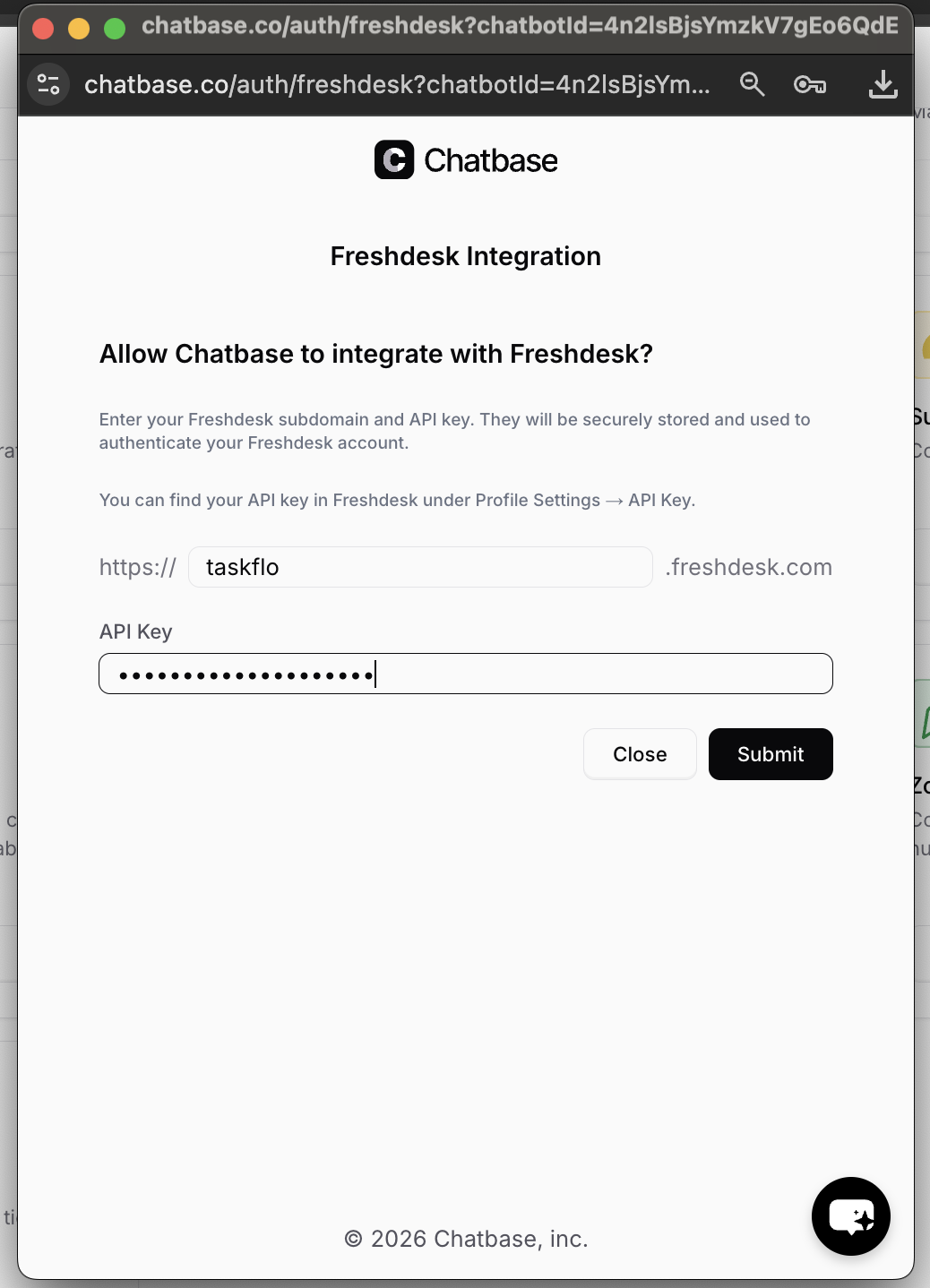
Enter your subdomain and API key
To authorize the integration, you’ll need your Freshdesk subdomain and API key. See Find your Freshdesk API key below.
4
Create the Escalations action
Configure your Escalations action to route tickets to Freshdesk. Follow the Escalations action guide to set it up.
Find your Freshdesk API key
- Log in to your Freshdesk account.
- Click your profile picture (top-right corner).
- Select Profile Settings.
- On the right-hand side, locate Your API Key.
Test the integration by asking your AI agent to speak to a human, and confirm a ticket appears in Freshdesk with the conversation summary attached.
Next steps
Escalations action
Configure when your AI agent escalates, which details it collects first, and which channels it can escalate from.