

Overview
Integrating Instagram with Chatbase lets your AI agent communicate directly with customers through Instagram direct messages. You can also take over any conversation yourself, so routine inquiries are automated but you keep the freedom to step in whenever you want.What you can do:
Answer Instagram DMs automatically, take over a conversation the moment you want to handle it yourself, and run different AI agents on different pages.
Attachments are supported, so your AI agent can process them and respond based on their content. See Attachments.
You can connect more than one Instagram page: select multiple pages during setup, or add more later from the Manage page.
Before you start
- An Instagram Professional Account
- A Facebook Page connected to that account
- A Chatbase account with an AI agent
How to connect Instagram
1
Allow access to messages in Instagram
In your Instagram settings for your Professional Account, under How others can interact with you, click Messages and story replies > Message controls > Allow Access to Messages.
2
Open the Instagram channel
Navigate to your dashboard, pick an AI agent, and go to Channels. Click Connect, then I understand.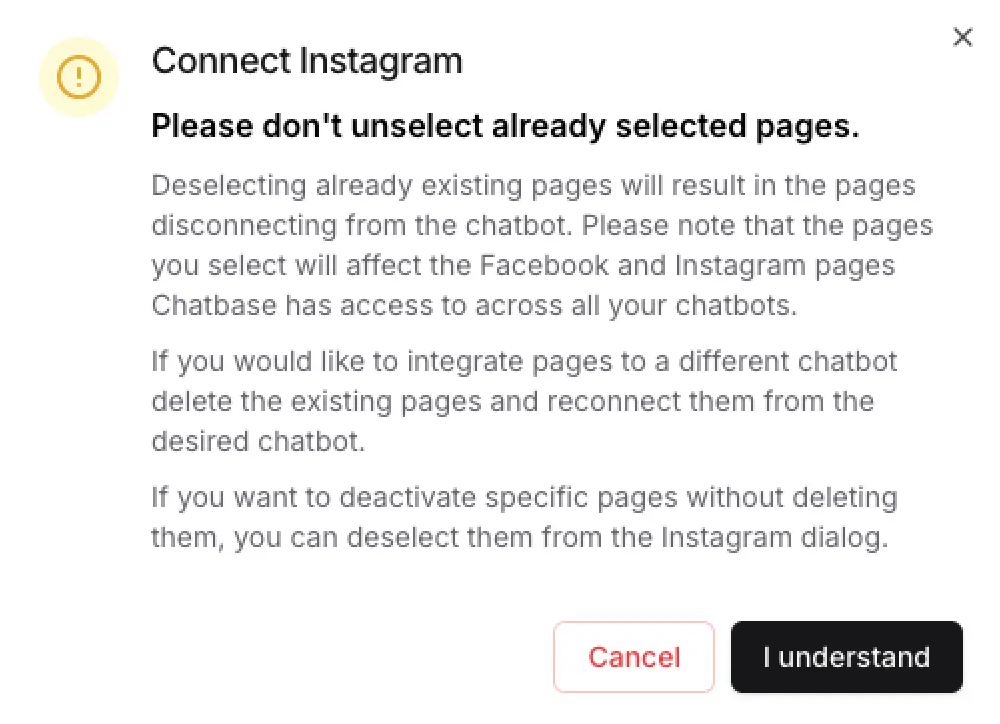
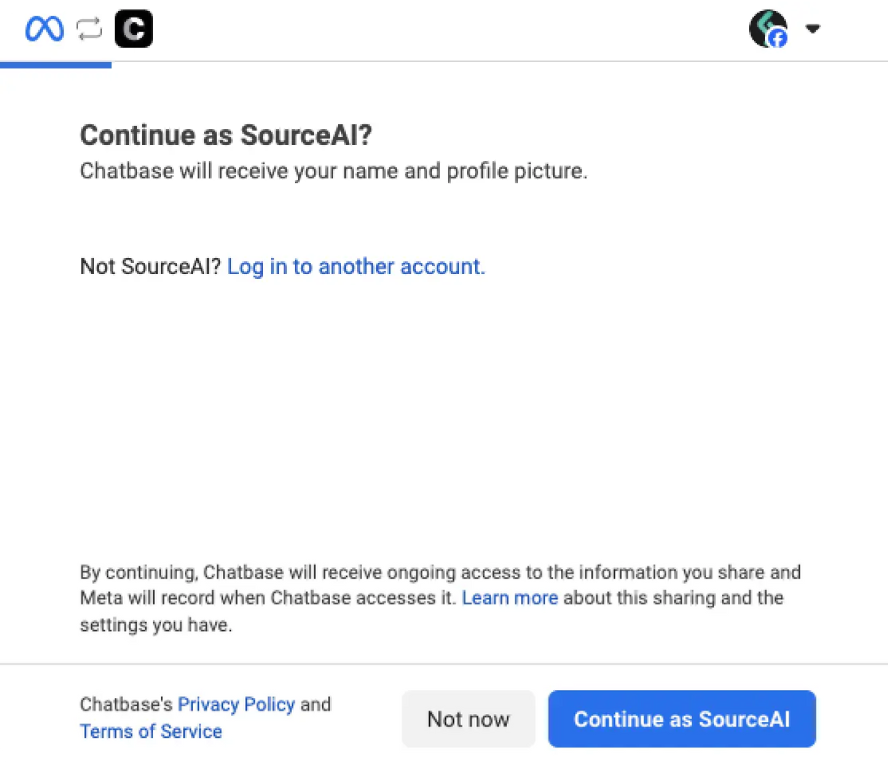
3
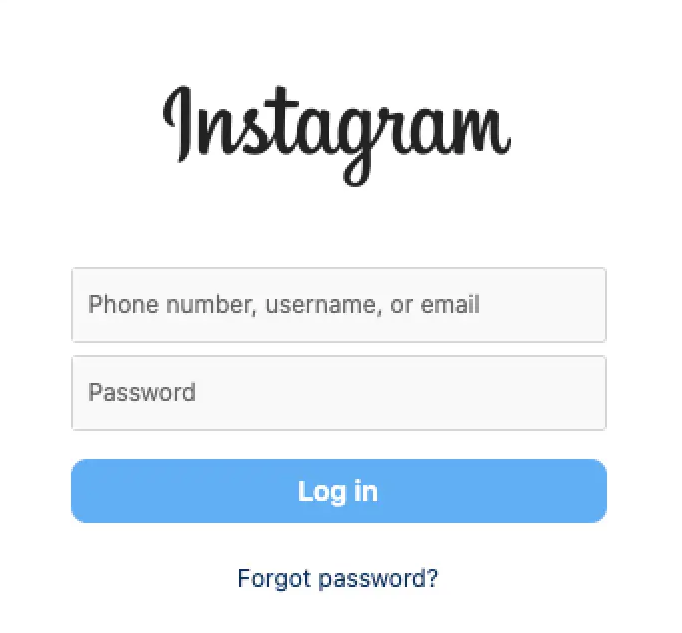
Log in to Instagram
Click Get Started to log in to Instagram. This also converts your account to a Professional Account if it isn’t one already.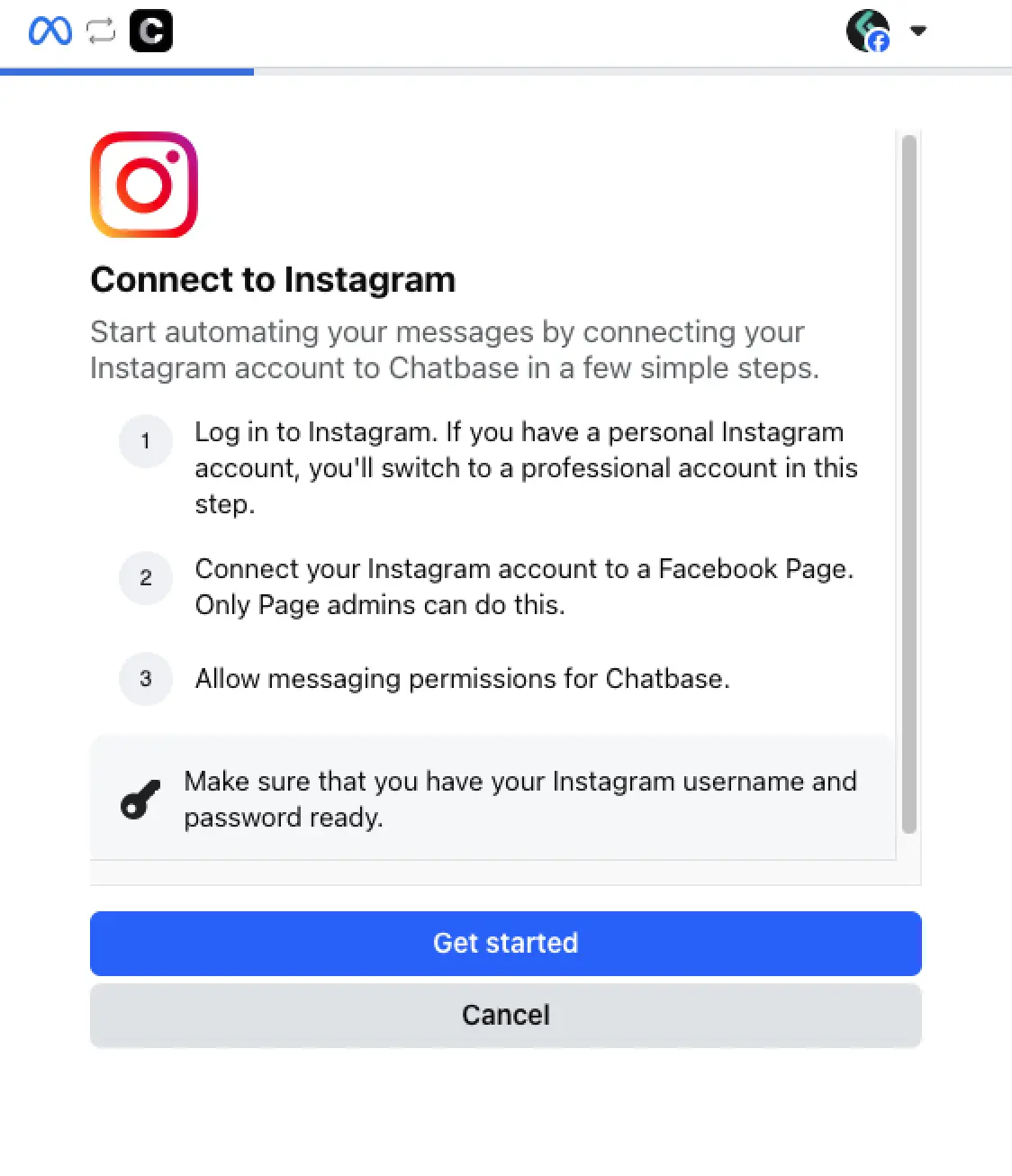
4
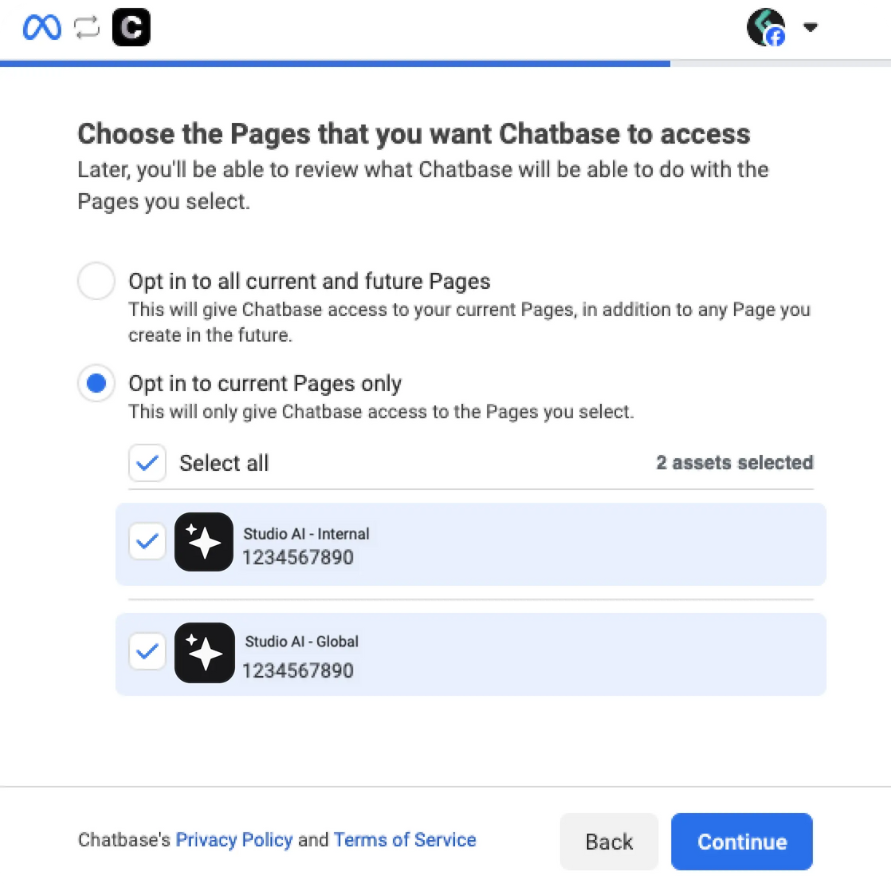
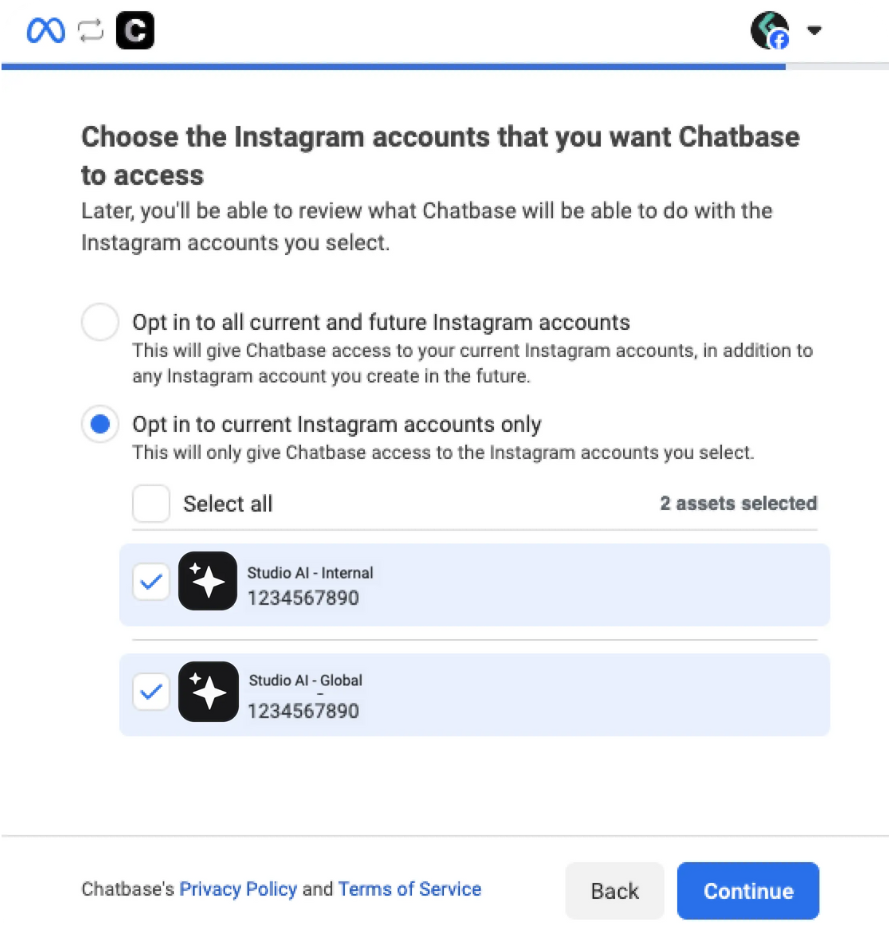
Choose your businesses and pages
Choose the businesses affiliated with your Instagram page. If you have none, select Opt in all current future businesses.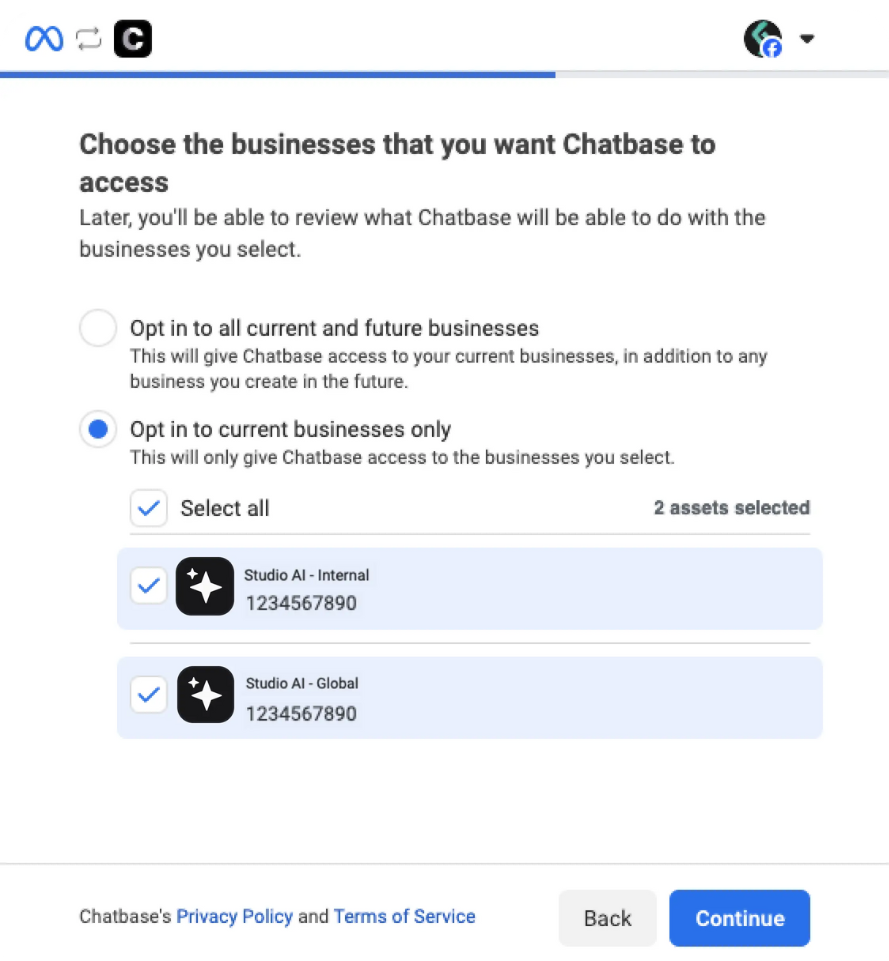
5
Save and confirm
Click Save.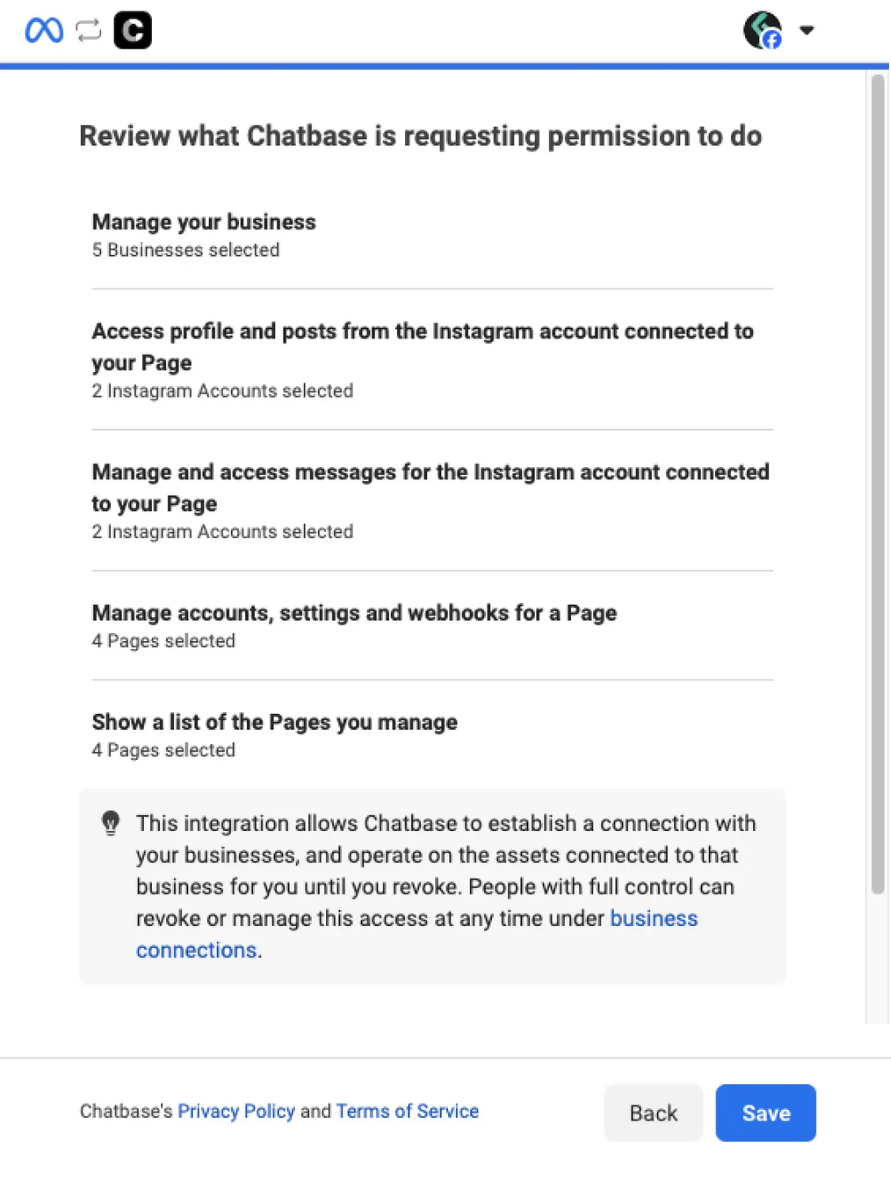
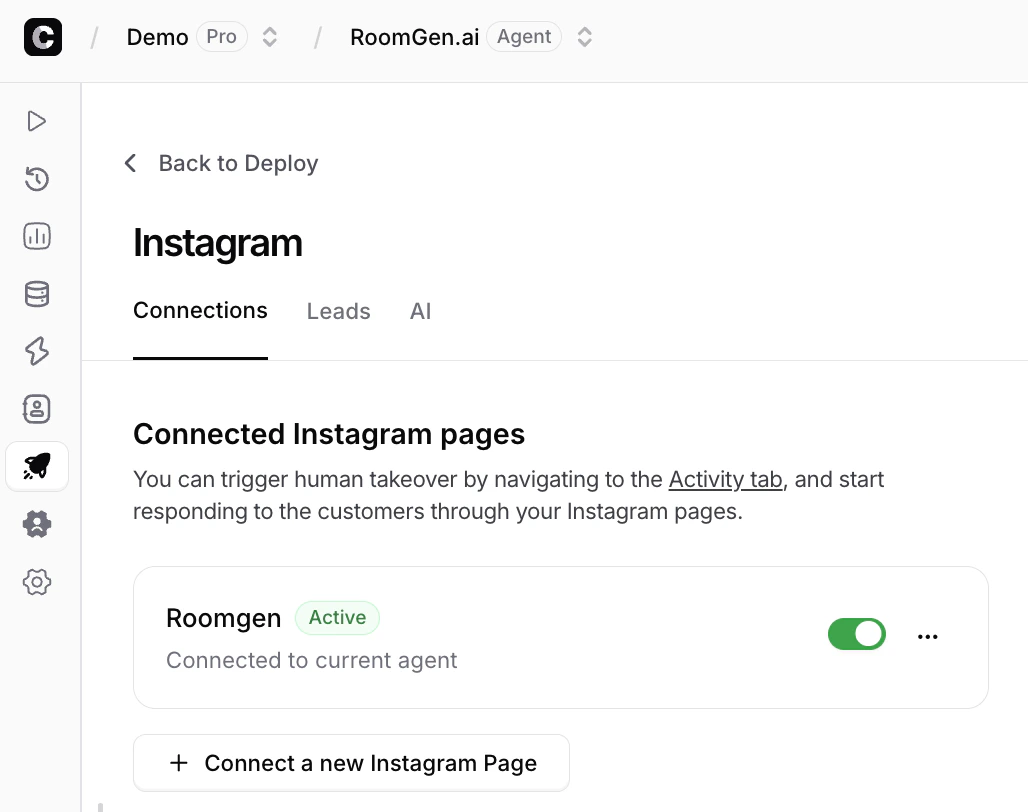
Send a direct message to your connected Instagram account and confirm your AI agent replies.
Human takeover
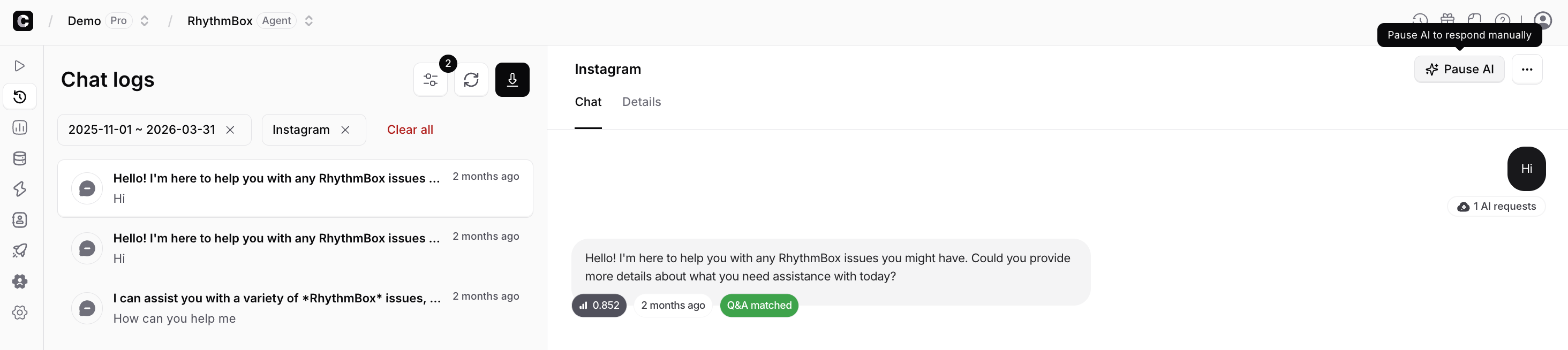
The human takeover feature lets you take over a conversation whenever you want so you can respond to customers directly. It works at the conversation level, so you can pick a specific conversation from the dashboard and stop the AI agent answering.Enable human takeover for a conversation
- Navigate to Activity > Conversations.
- In the Conversations section, filter to show only Instagram chats.
- Click the human takeover icon.
- Click the icon again to restore access to the AI agent.
Comment monitoring
Turn comments on your Instagram posts into Chatbase Helpdesk tickets, so your team can monitor and respond to customers directly from Chatbase. Comment monitoring is available from the channel settings for your Instagram accounts.1
Open your channel settings
Go to Channels and select your connected Instagram channel.
2
Open Comments
Select the Comments tab.
3
Enable comment monitoring
Turn on Comment monitoring and select the connected accounts you want to monitor.
4
Receive comments as tickets
When someone comments on a monitored Instagram post, Chatbase automatically creates a ticket in the Chatbase Helpdesk.The ticket includes information about the original post and the comment, giving your team the context needed to respond.
5
Reply from the Chatbase Helpdesk
Open the ticket in the Chatbase Helpdesk and reply directly to the comment.Replies sent from Chatbase are posted as replies to the original Instagram comment.
Connecting different AI agents to different pages
You can connect different AI agents to different Instagram pages, so each page gets specialized interactions.- After connecting your first pages, you have access to the manage Instagram pages integrations page. Navigate to the AI agent you want to connect, then Channels > Manage.
- Click Manage to open the dashboard. To connect another AI agent to an already-connected page, click the page and delete it.
- Navigate to the AI agent you want to integrate with the deleted page, then run through the integration steps again.
Troubleshooting
Off-Meta activities tracking is disabled
Off-Meta activities tracking is disabled
If your Facebook account has Off-Meta activities set to “Don’t track”, this can block the Instagram authentication. Go to your Facebook account settings, look under privacy settings for Off-Meta activities tracking, and enable it temporarily during the connection process.
Network redirect blocking authentication
Network redirect blocking authentication
Some networks redirect Facebook from
facebook.com to web.facebook.com during login, which can block the authentication flow. When this happens, the Instagram login popup completes successfully and closes, but the first Meta window doesn’t move to the next step. Try switching to a different network, such as mobile data or a different WiFi connection, and attempt the connection again.You can enable or disable the Instagram integration without disconnecting it. Disabling pauses messages while keeping your setup intact, and you can re-enable at any time. New chats still appear in your Chatbase dashboard chat logs.
Limitations
- A Professional Account and a linked Facebook Page are required. A personal Instagram account can’t be connected.
- Deleting a page removes takeover for its conversations. The chat logs remain, but the takeover icon disappears.
Next steps
Messenger
Connect the Facebook pages linked to your Instagram accounts for the same treatment.