

Overview
Connect Linear to turn Helpdesk tickets into Linear issues. When a ticket needs work from another team, such as a bug report or a feature request, the AI drafts the issue from the ticket for you, so your team doesn’t have to rewrite it by hand.Before you start
- A Chatbase AI agent with the Helpdesk
- A Linear workspace you can grant access to
Connect Linear
1
Open Integrations
Go to your Chatbase dashboard and select your AI agent. Click Integrations in the sidebar.
2
Grant access to Linear
Click Connect on the Linear card, then grant Chatbase access to your Linear workspace.
Create or link an issue from a ticket
Open a ticket in the Helpdesk and find the Linear issues section in the ticket’s Details panel.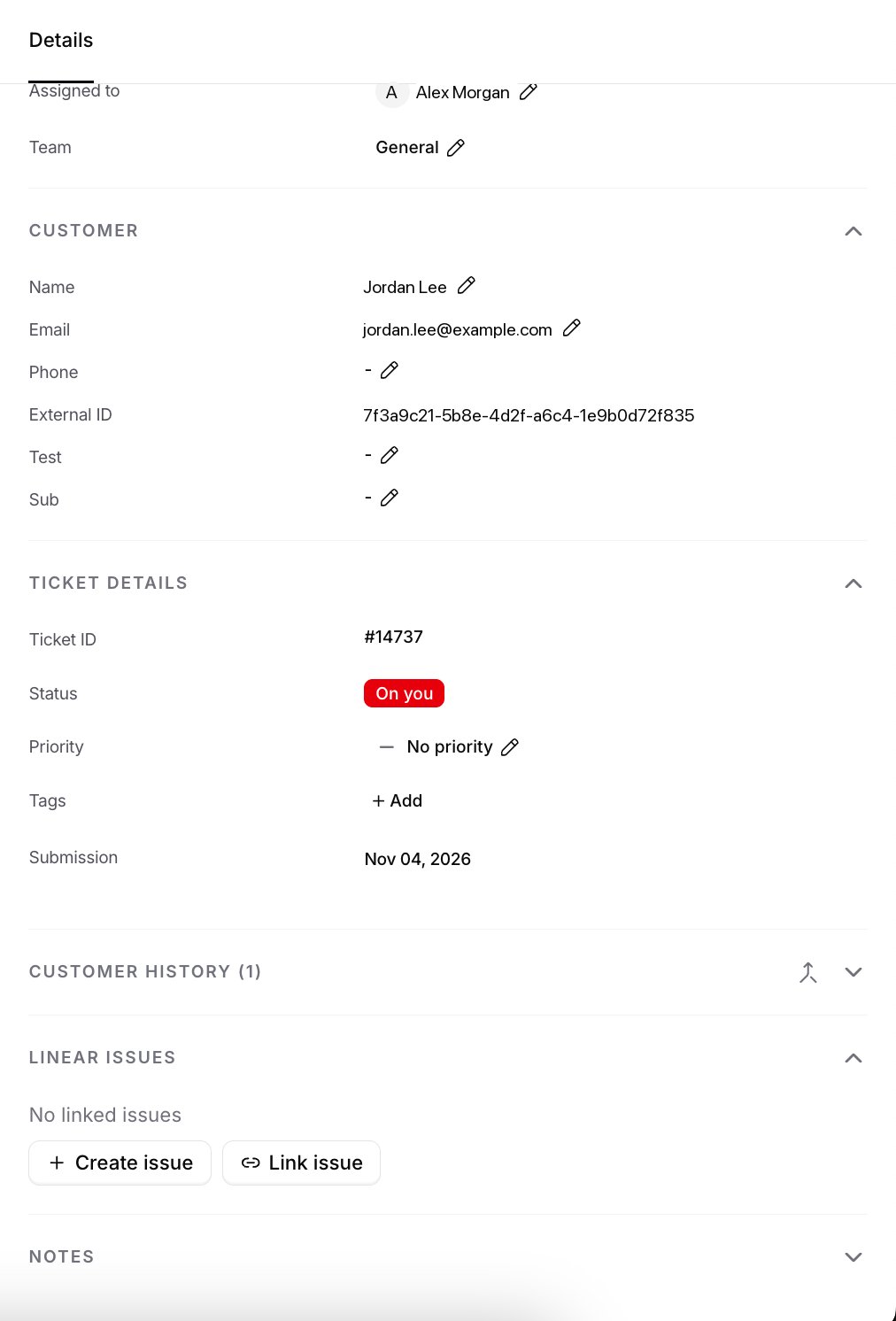
- Create issue: The AI drafts a new Linear issue from the ticket, following your draft settings.
- Link issue: Link the ticket to an issue that already exists in Linear.
Draft settings
Draft settings control how the AI writes a Linear issue from a ticket. Click Draft settings on the Linear card to change them.- Language: The language the issue is written in.
- Writing instructions: How the AI should write the issue description, up to 4,000 characters. Click Reset to default to go back to the default instructions.
Click Save to apply your changes.