

Overview
WhatsApp Catalog lets your AI agent send product cards directly inside WhatsApp conversations. When a customer asks to see products, instead of plain text links they receive native WhatsApp product cards they can browse, add to a cart, and order from, all without leaving the chat. This feature connects your Shopify product catalog to WhatsApp through Meta’s commerce infrastructure. Products sync from Shopify to a Meta catalog, which WhatsApp then uses to render native product cards.Prerequisites:
- Your Shopify integration must be set up.
- The Retrieve and display products action must be enabled on your AI agent.
- Your WhatsApp channel must be connected.
Setup
The setup involves six parts: installing Meta’s Facebook & Instagram app on Shopify, creating a Meta catalog, publishing your products, assigning Chatbase as a partner, connecting the catalog in WhatsApp Manager, and confirming the connection in Chatbase.Part 1: Install the Facebook & Instagram app on Shopify
1
Open the Shopify App Store
Go to the Facebook & Instagram app on the Shopify App Store and click Install.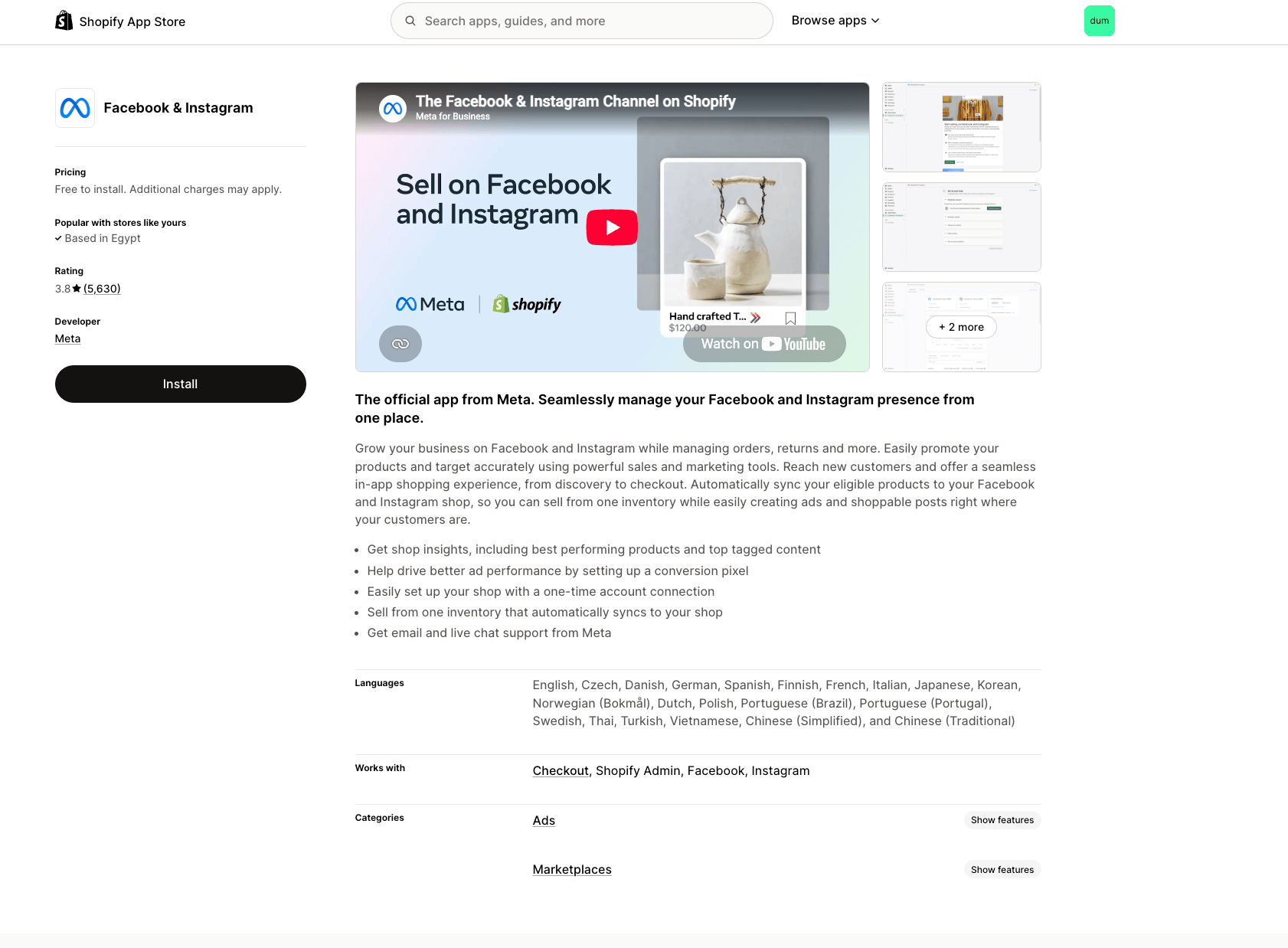
2
Approve permissions
Review the permissions the app needs (customer data, staff data, store data) and click Install.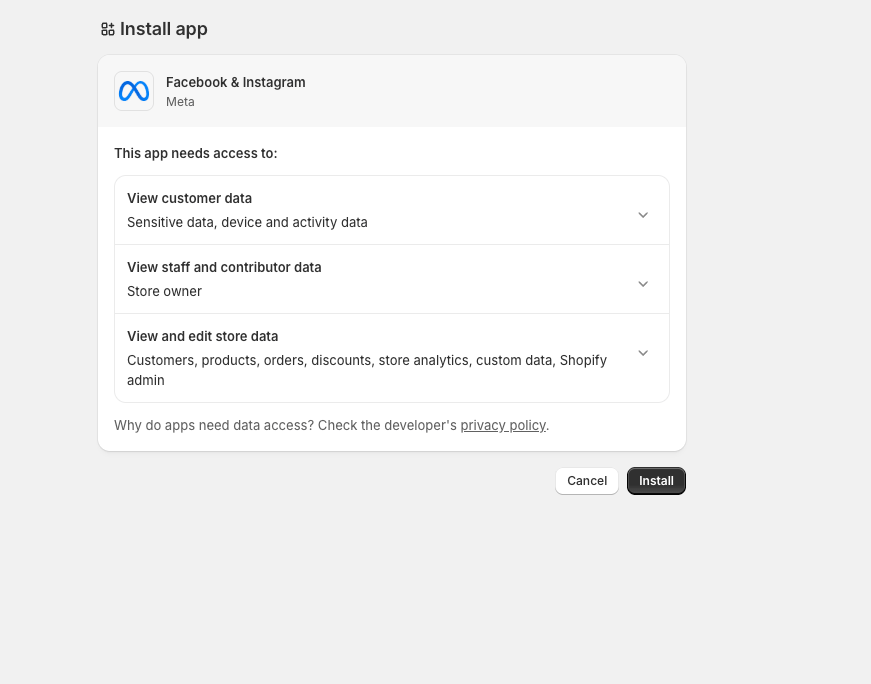
3
Get started
Once installed, the app opens in your Shopify admin. Click Get started.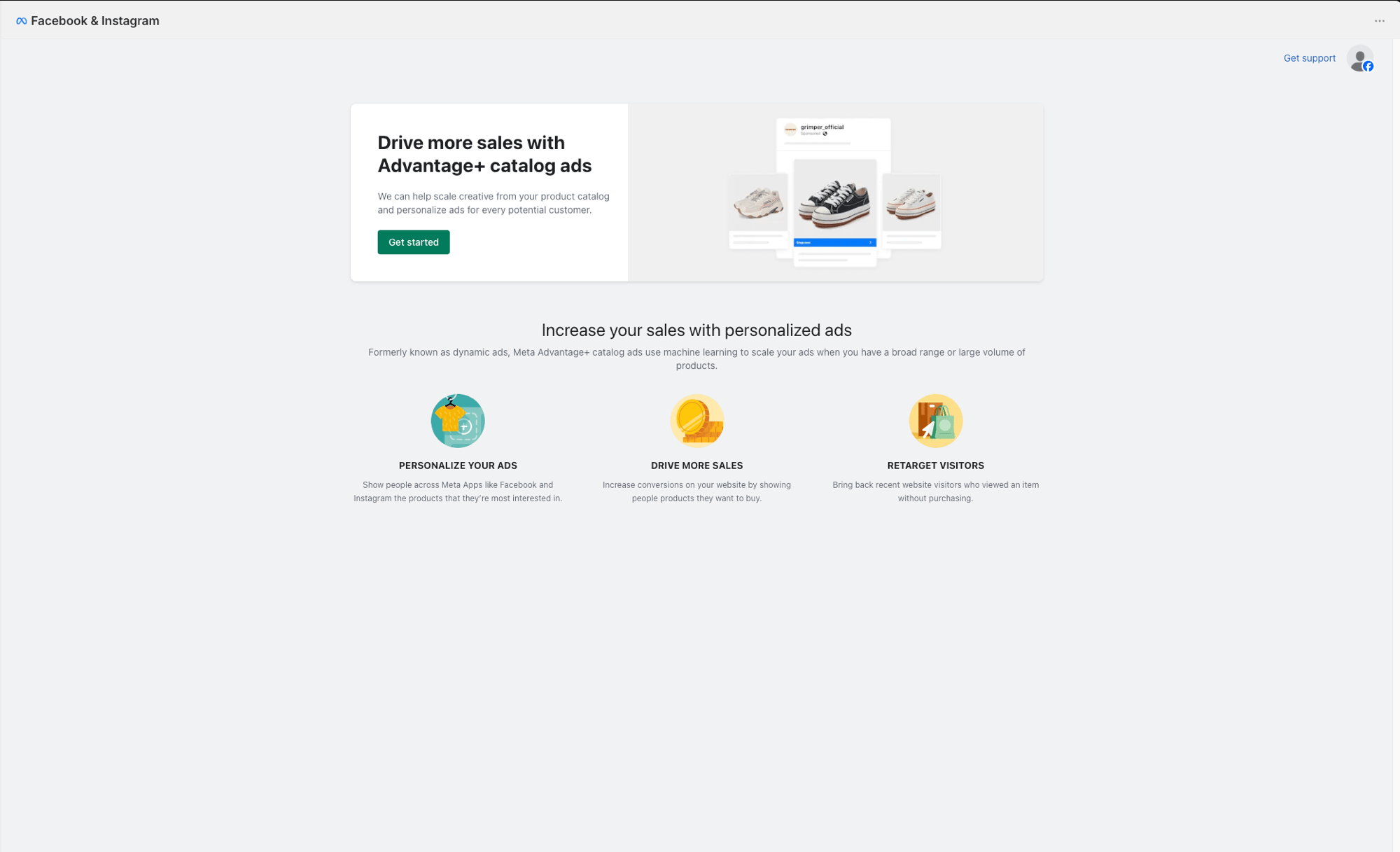
Part 2: Connect your Meta account and create a catalog
1
Connect your account
Connect your Facebook profile and choose the business portfolio that owns your products. If you don’t have one, click Create new.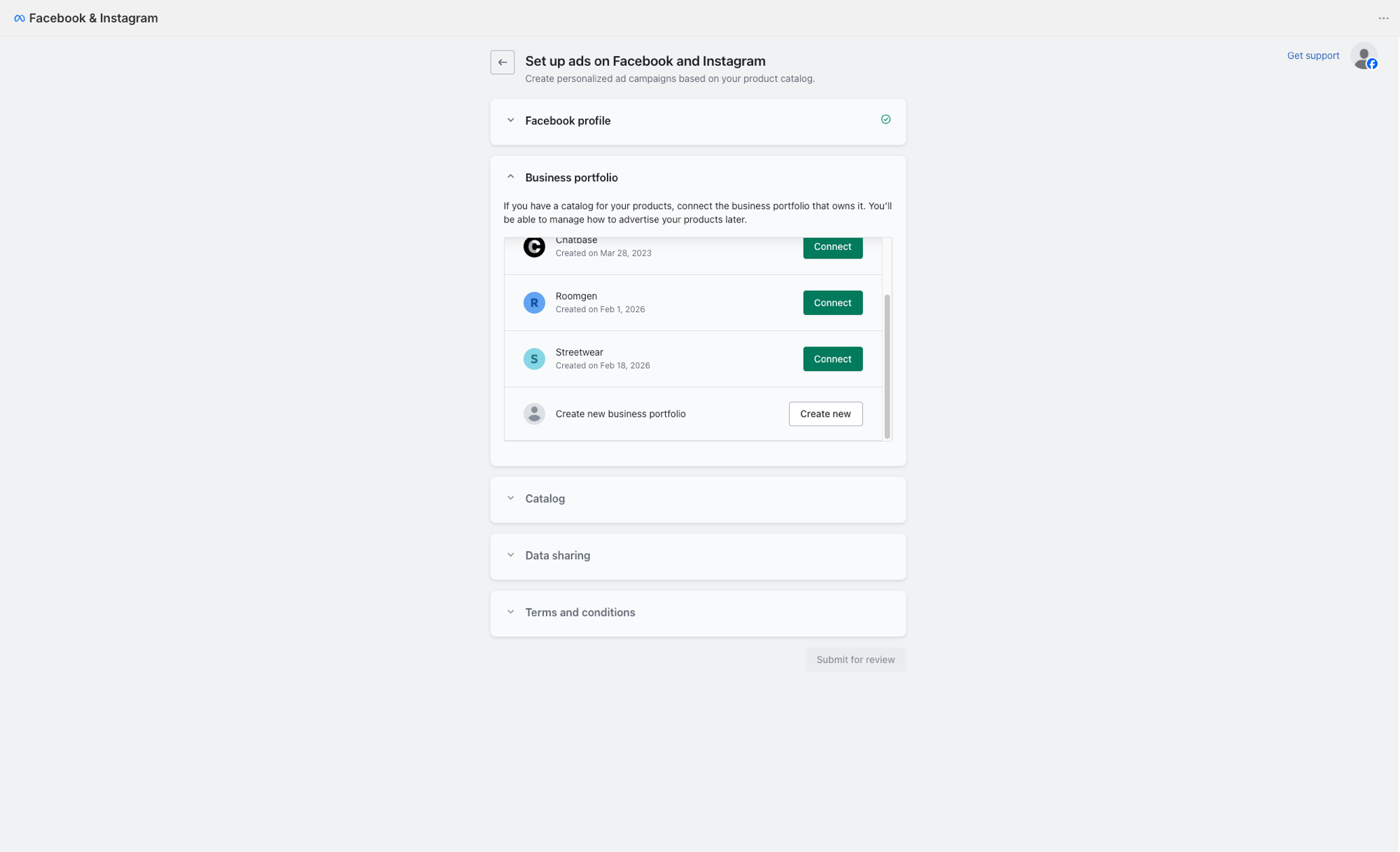
2
Create a catalog
Expand the Catalog section and click Create catalog. This creates a Meta product catalog that your Shopify products will sync to.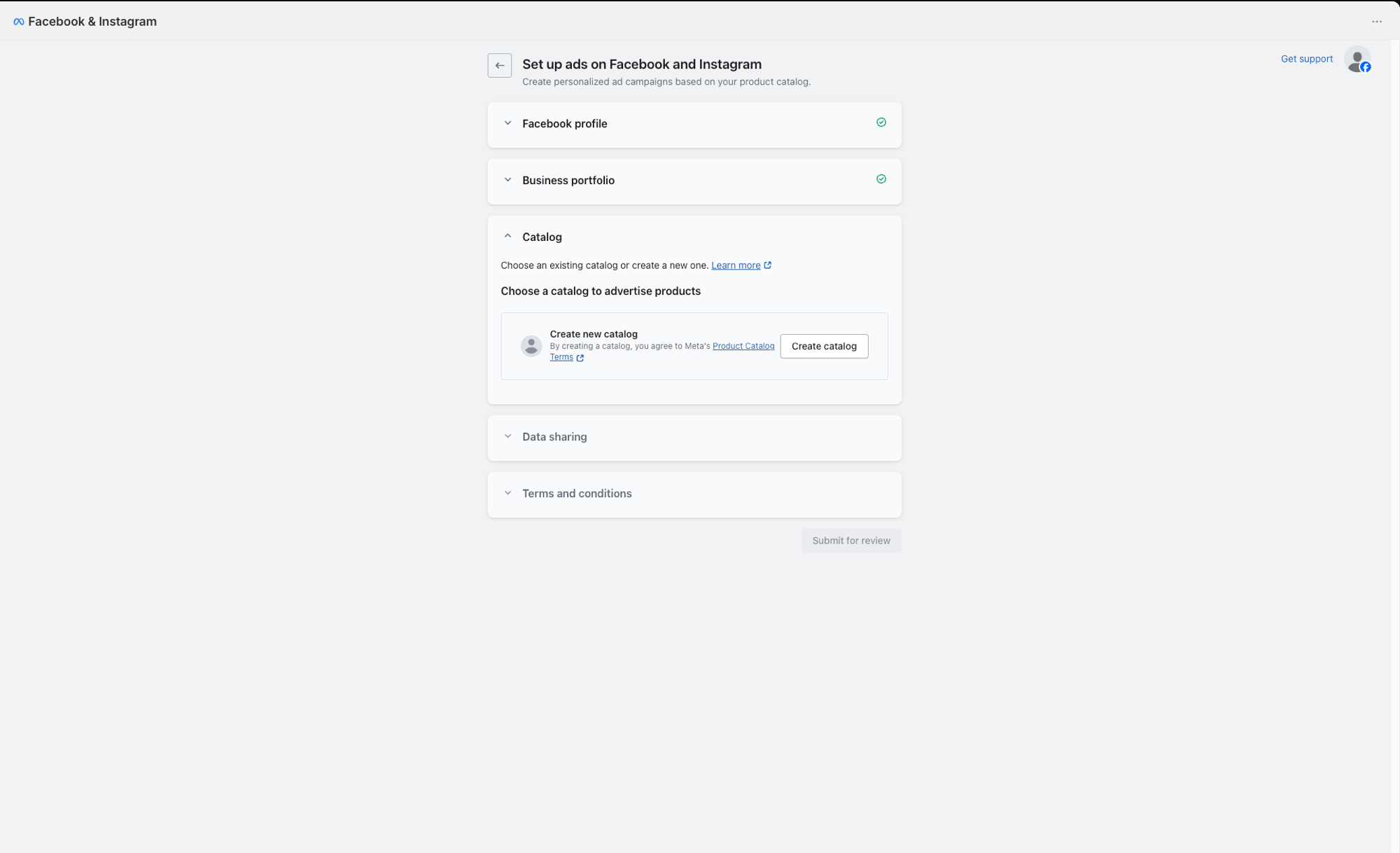
3
Choose data sharing preference
Expand Data sharing and choose your preferred level (Conservative, Enhanced, or Maximum). This controls how customer activity data is shared with Meta. Click Save.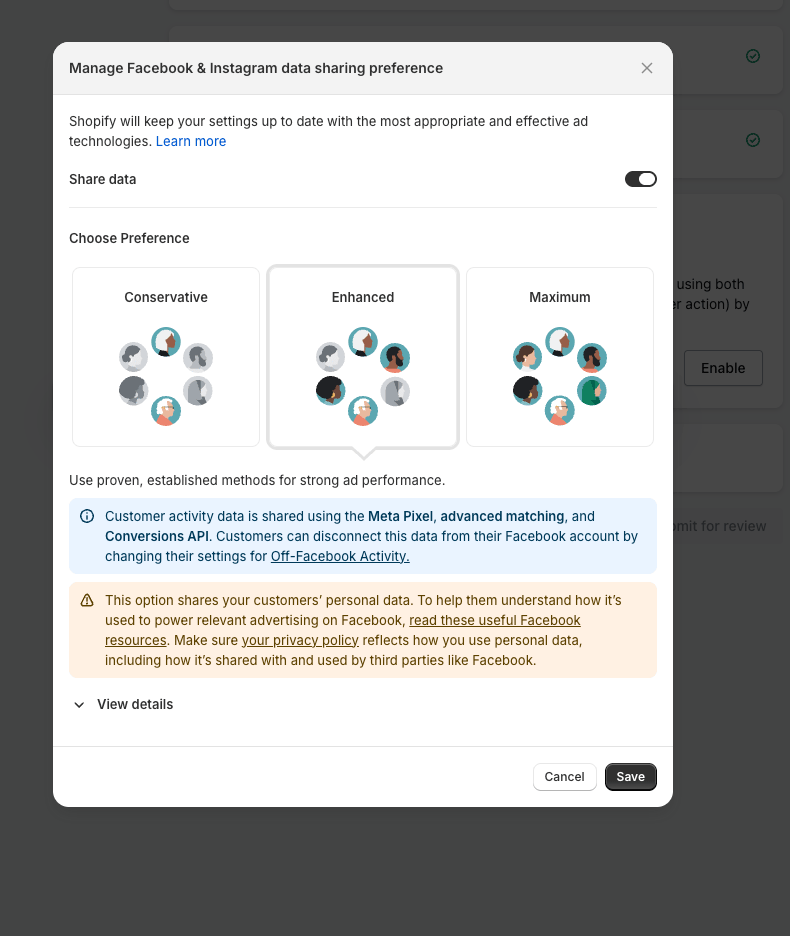
4
Submit for review
Once all sections show a green checkmark (Facebook profile, Business portfolio, Catalog, Data sharing, Terms and conditions), click Submit for review.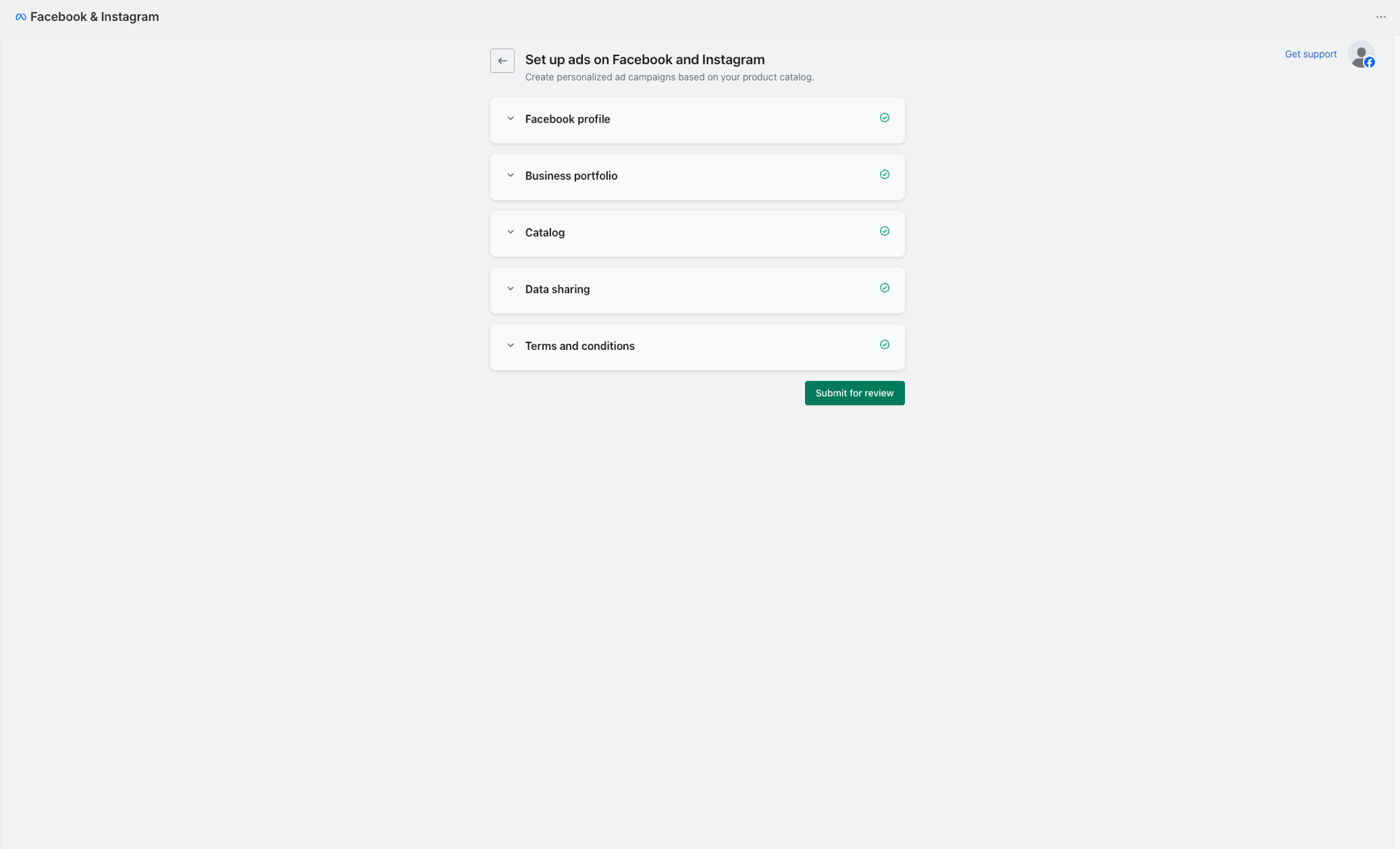
5
Wait for setup to finalize
The channel setup takes several minutes. Do not refresh the page. Once it finishes, the Overview tab appears.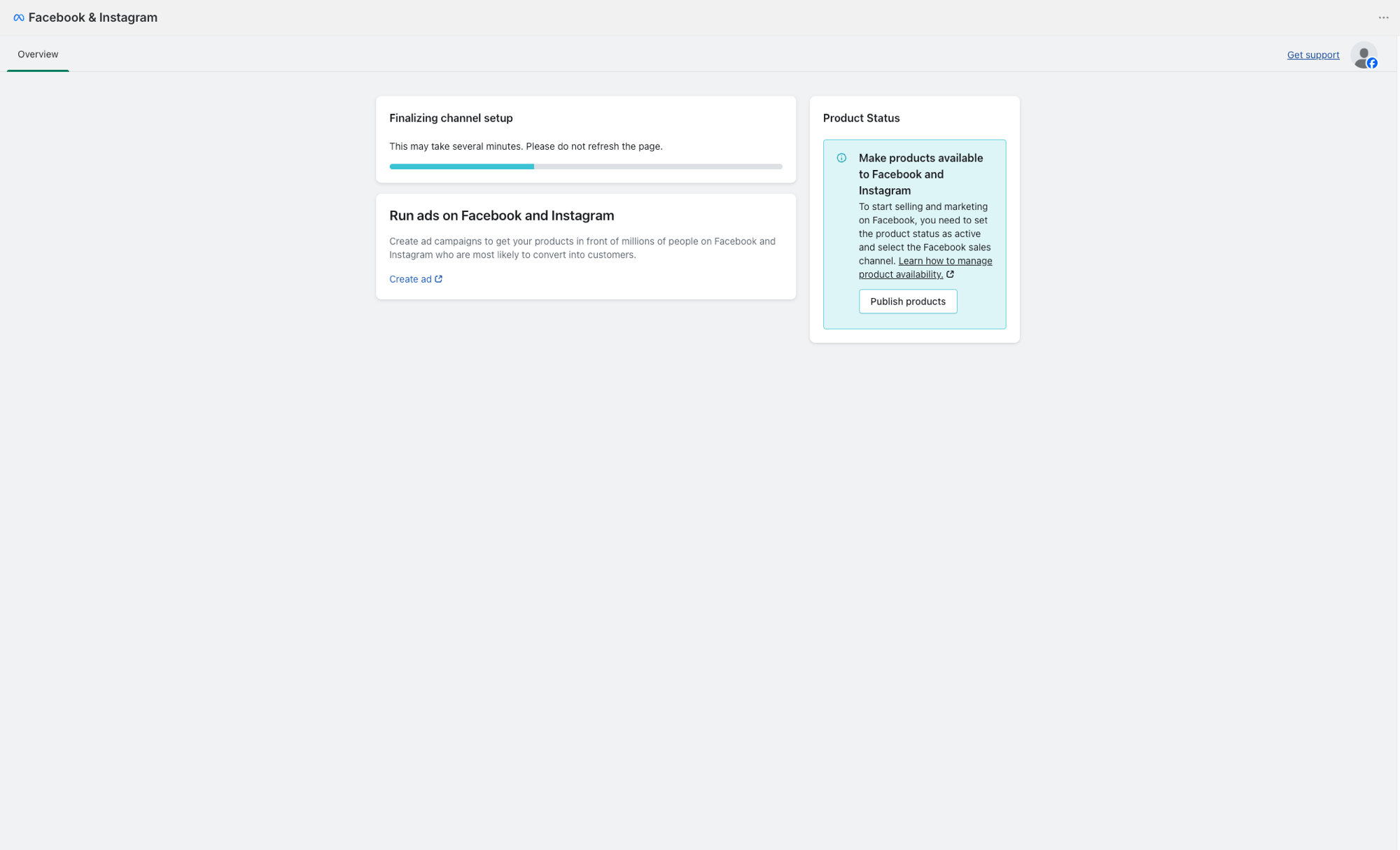
Part 3: Publish your products to the Meta catalog
1
Click Publish products
On the Facebook & Instagram Overview page, find the Product Status card and click Publish products. This opens the Shopify Products page.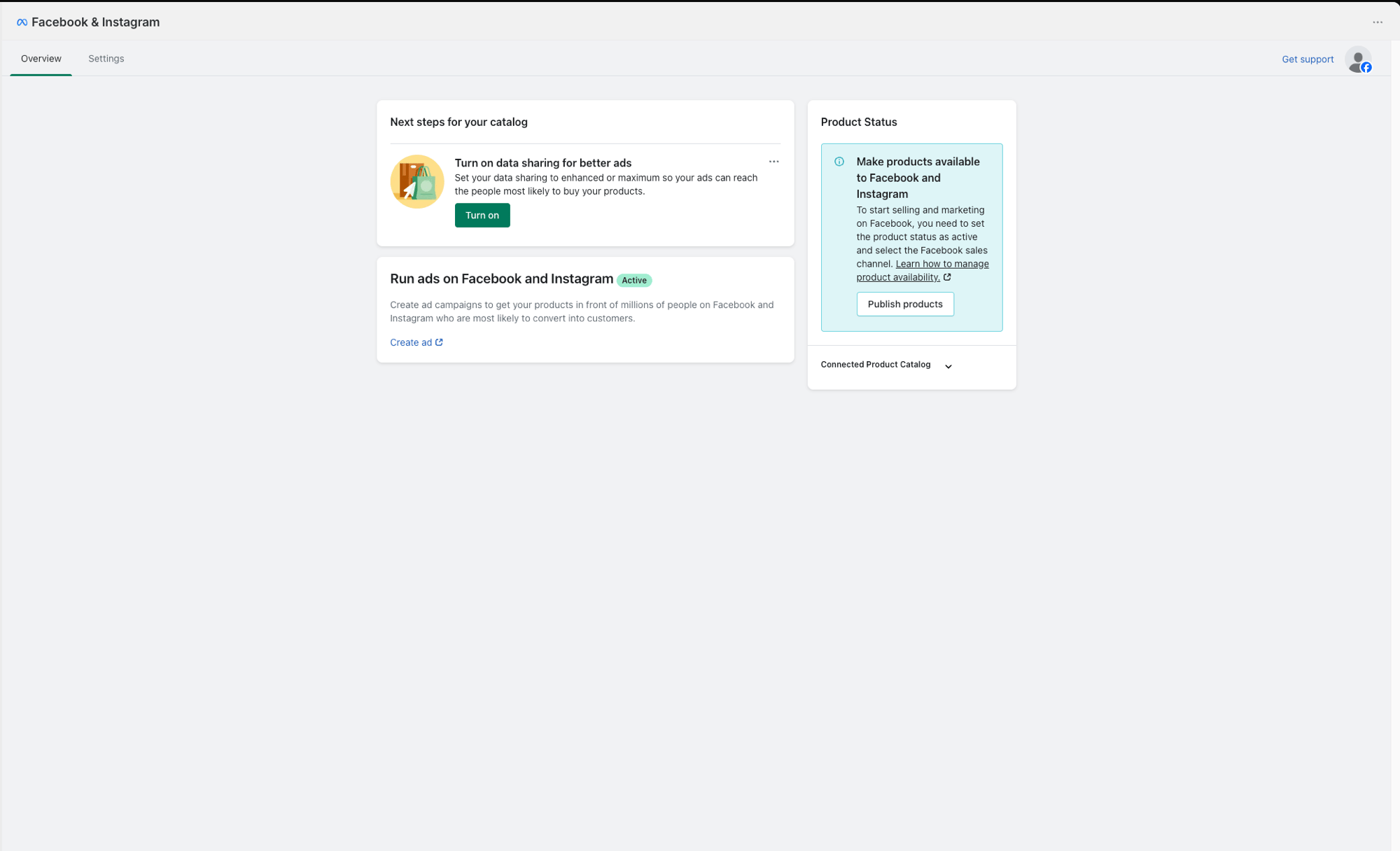
2
Select all products
On the Products page, click the checkbox in the header row, then click Select all results to select every product in your store.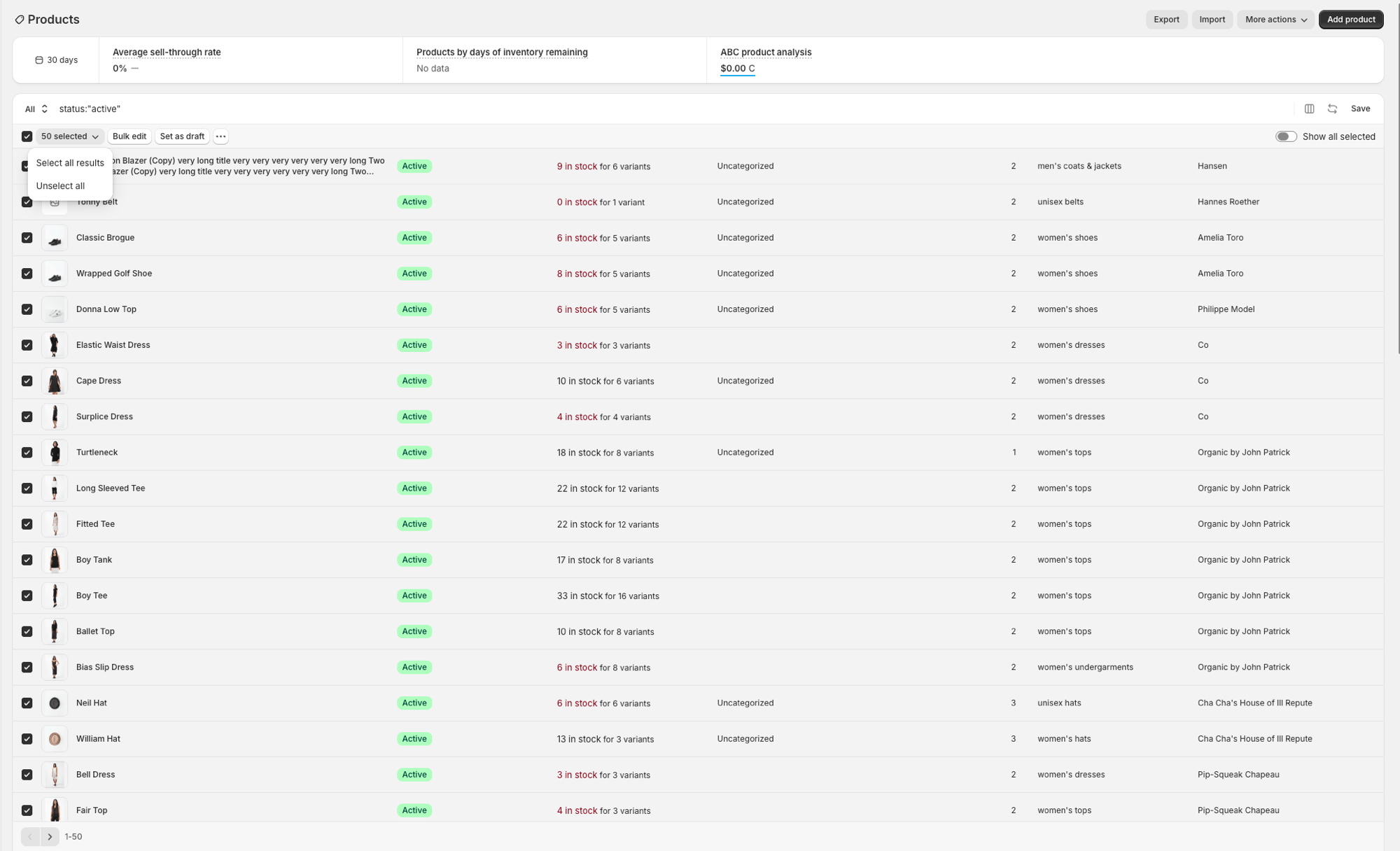
3
Include in sales channels
Click the … menu, then Include in sales channels. In the dialog that appears, check Facebook & Instagram and click Include products.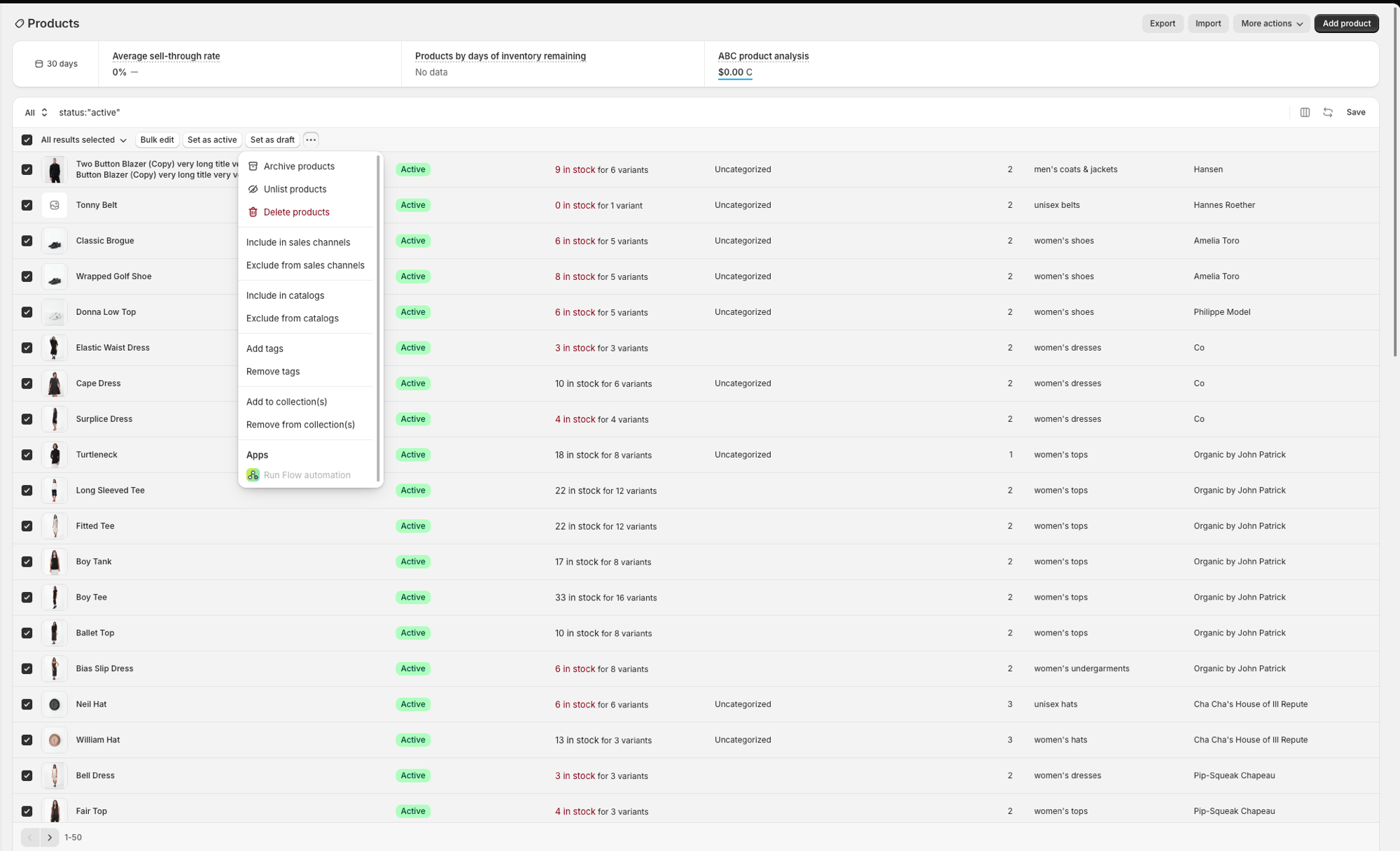
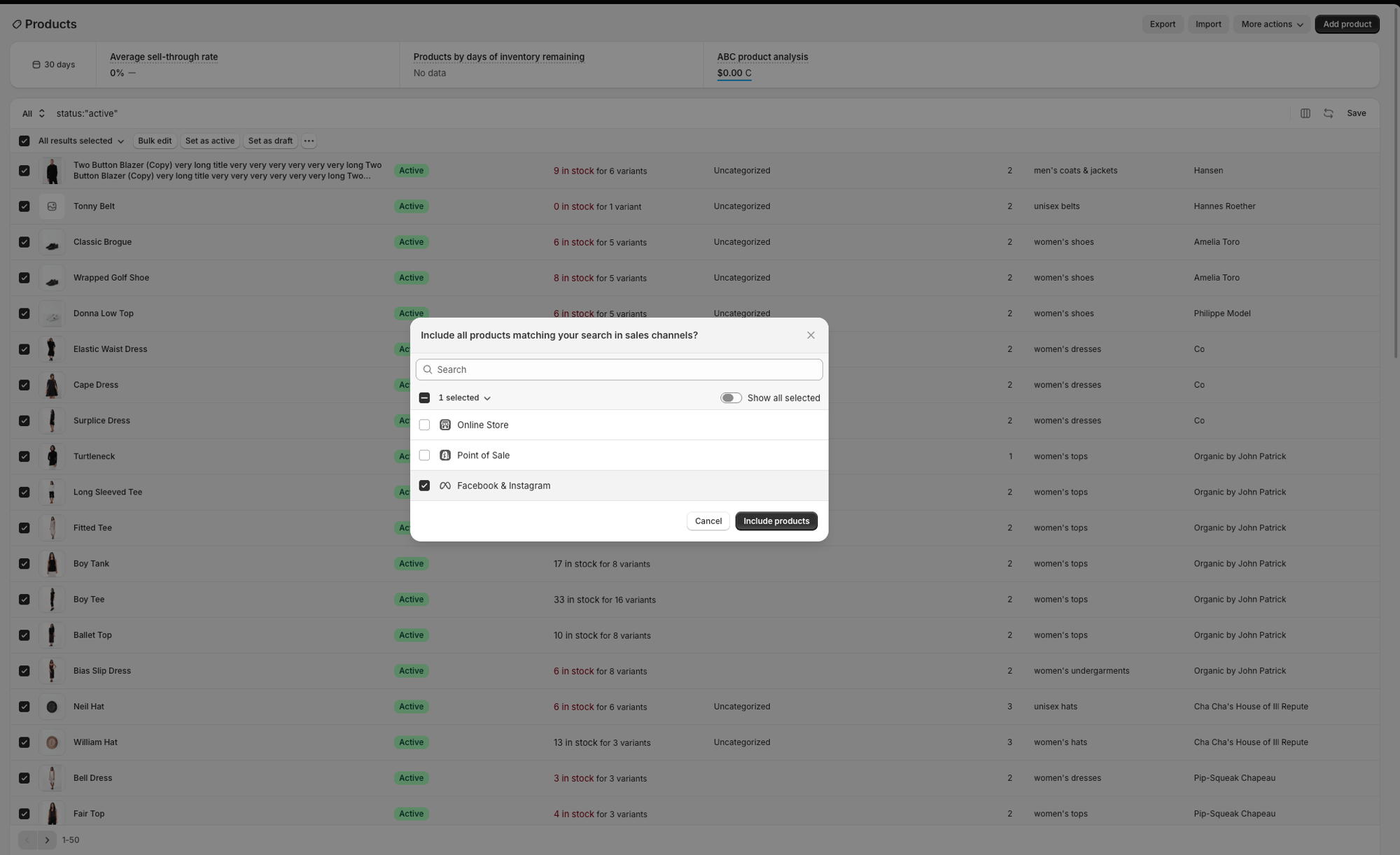
4
Verify products are syncing
Go back to the Facebook & Instagram app in Shopify. Expand Connected Product Catalog to see your catalog details and confirm products are syncing.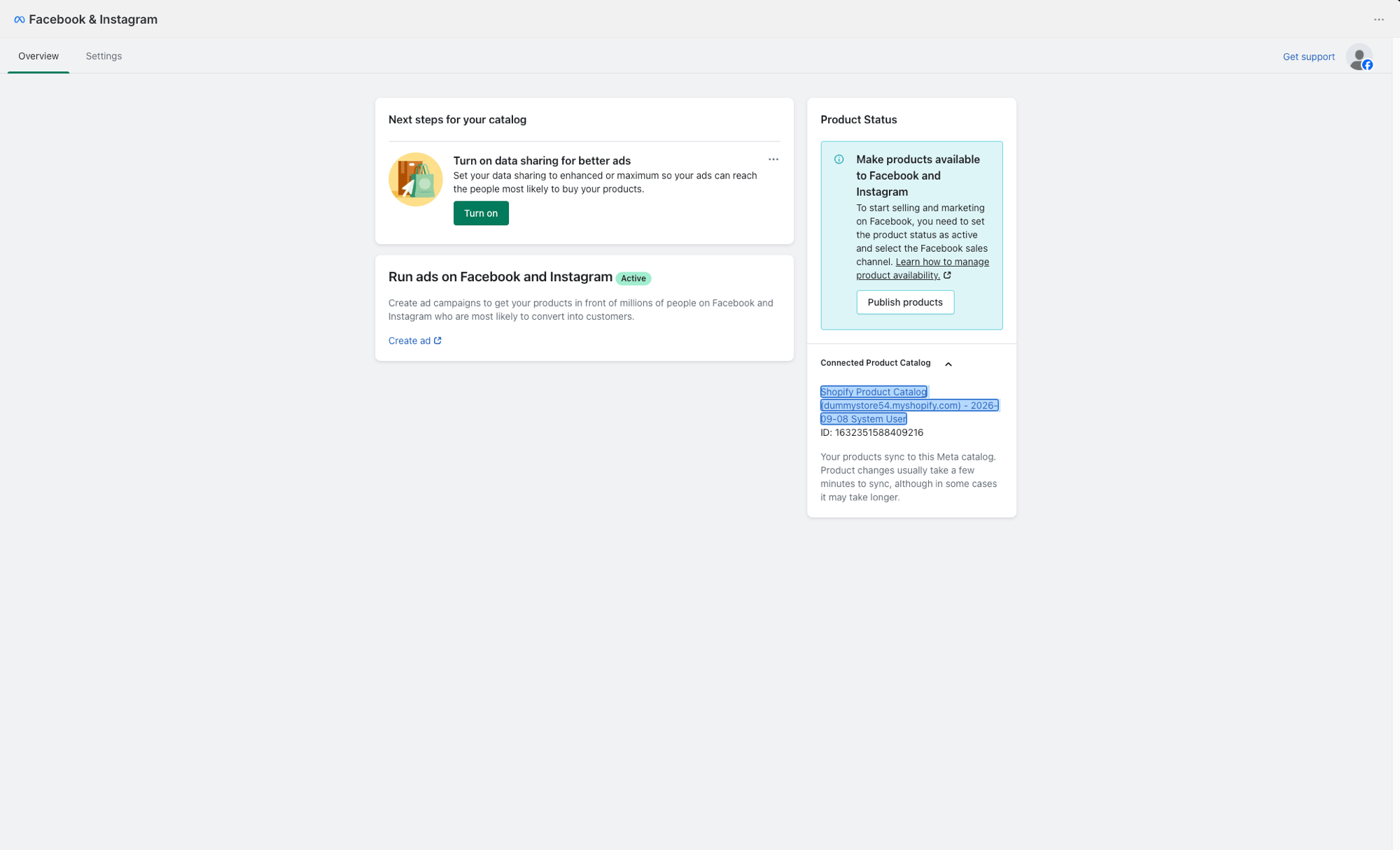
Part 4: Assign Chatbase as a partner
Chatbase needs partner access to your Meta catalog to serve products through WhatsApp.1
Open Meta Business Settings
Go to Meta Business Settings and navigate to Data sources > Catalogues in the left sidebar. Select your Shopify Product Catalog.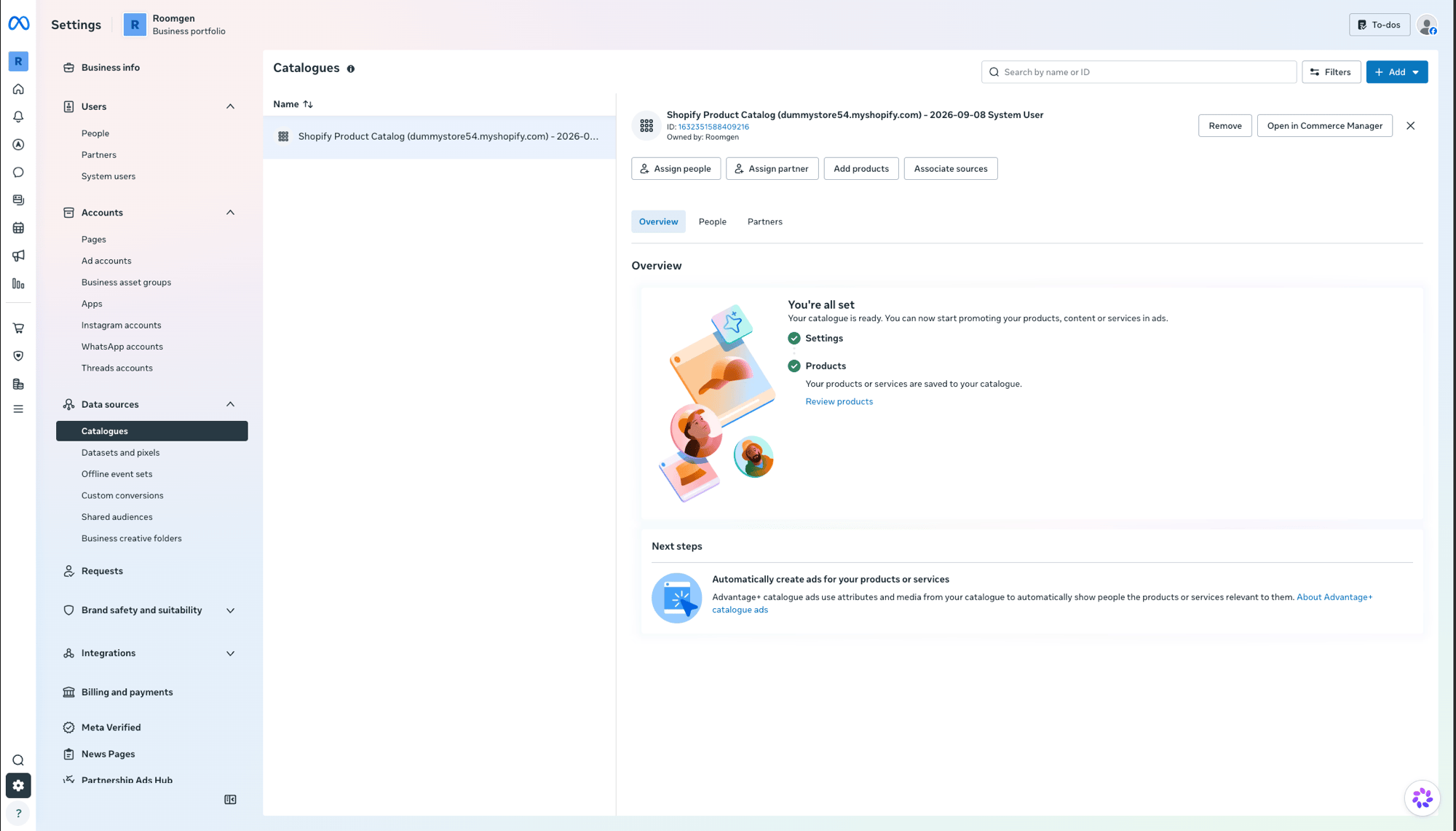
2
Assign Chatbase as a partner
Click Assign partner, choose Business ID, and enter Chatbase’s Business ID:Give Partial access and confirm.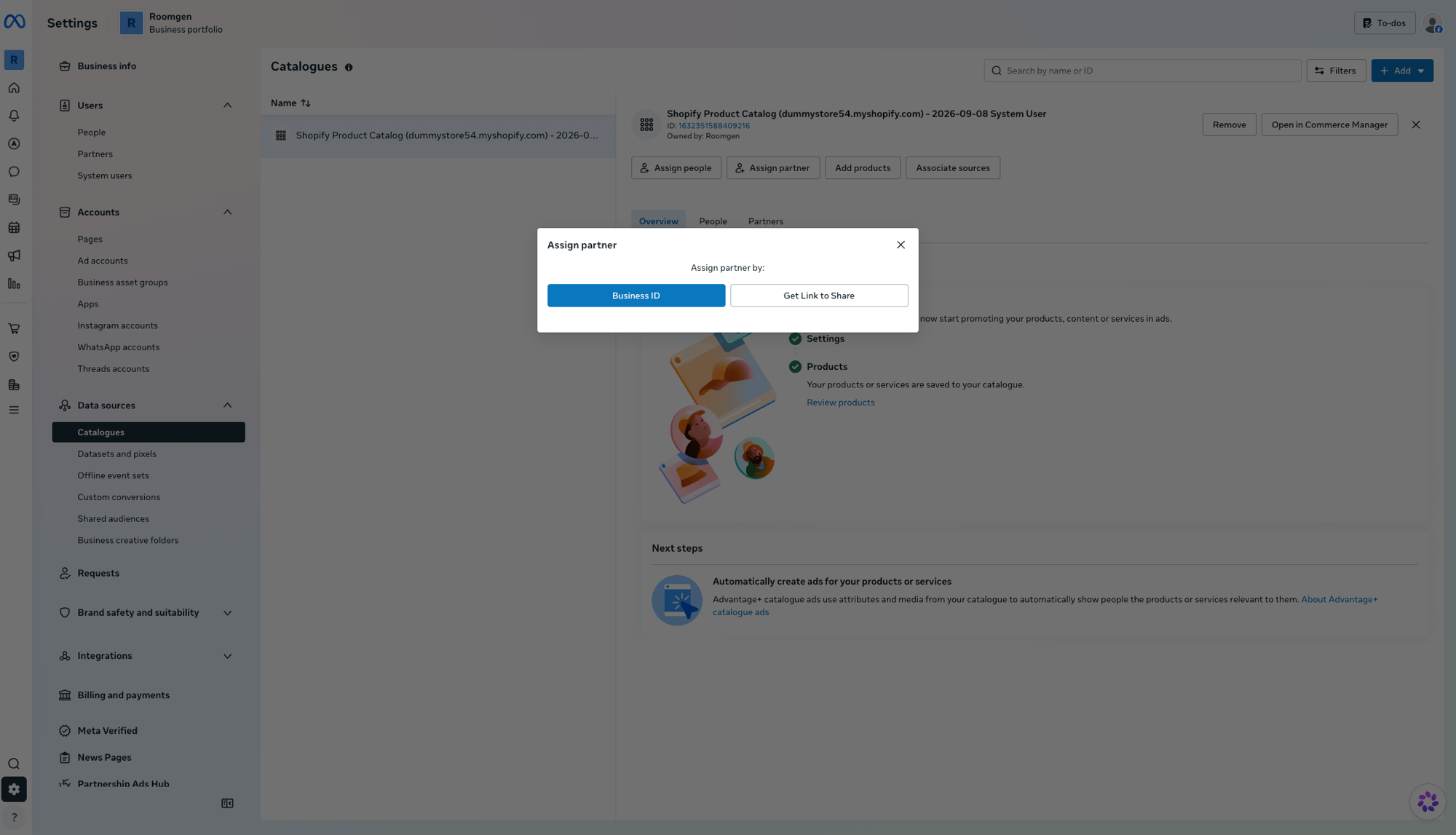
Part 5: Confirm the connection in Chatbase
1
Open the Show Products action
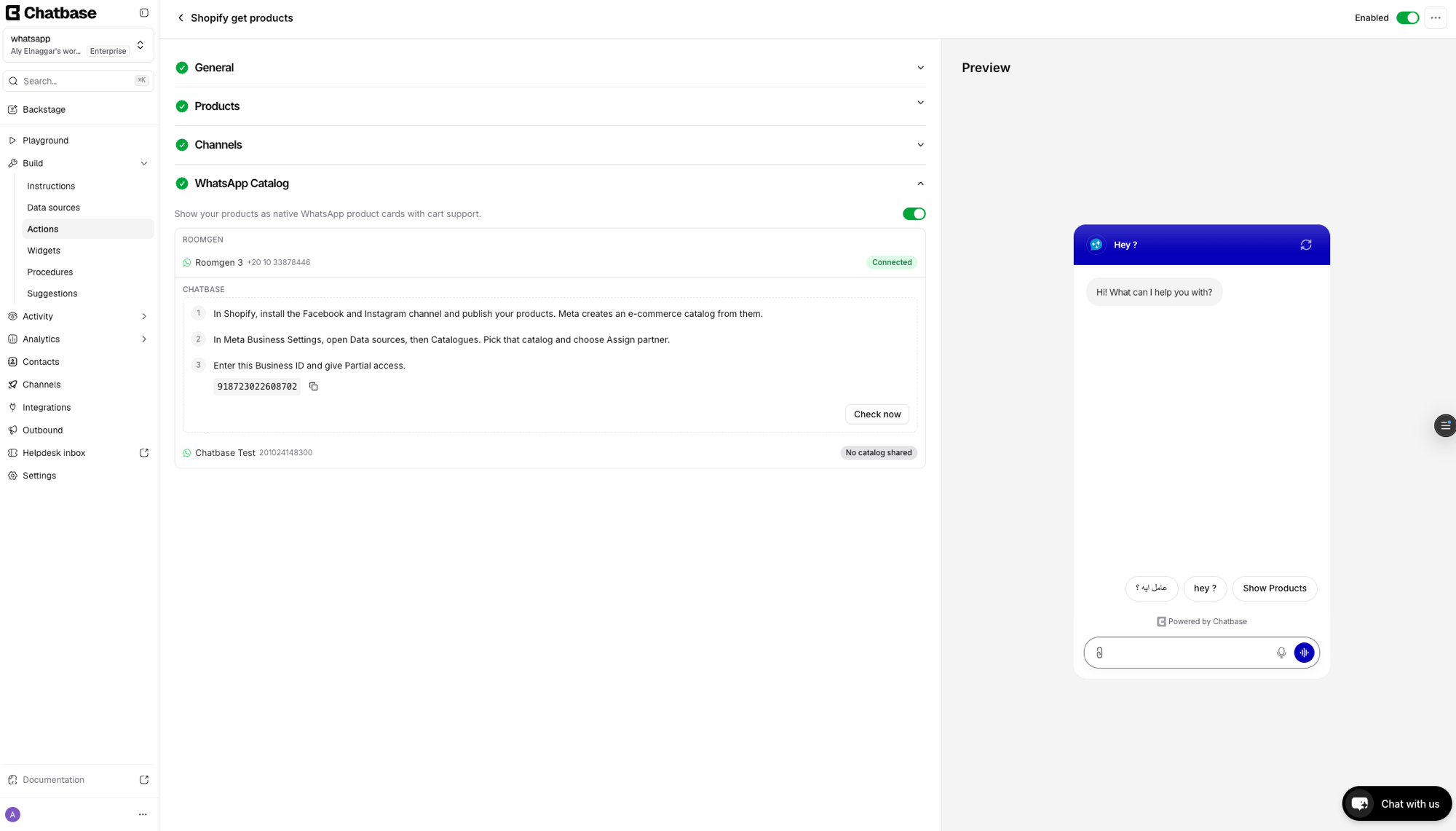
In your Chatbase dashboard, go to Build > Actions and open the Shopify get products action. Scroll down to the WhatsApp Catalog section. You’ll see the setup steps listed for each WhatsApp Business Account (WABA). Click Check now or wait for it to refresh automatically.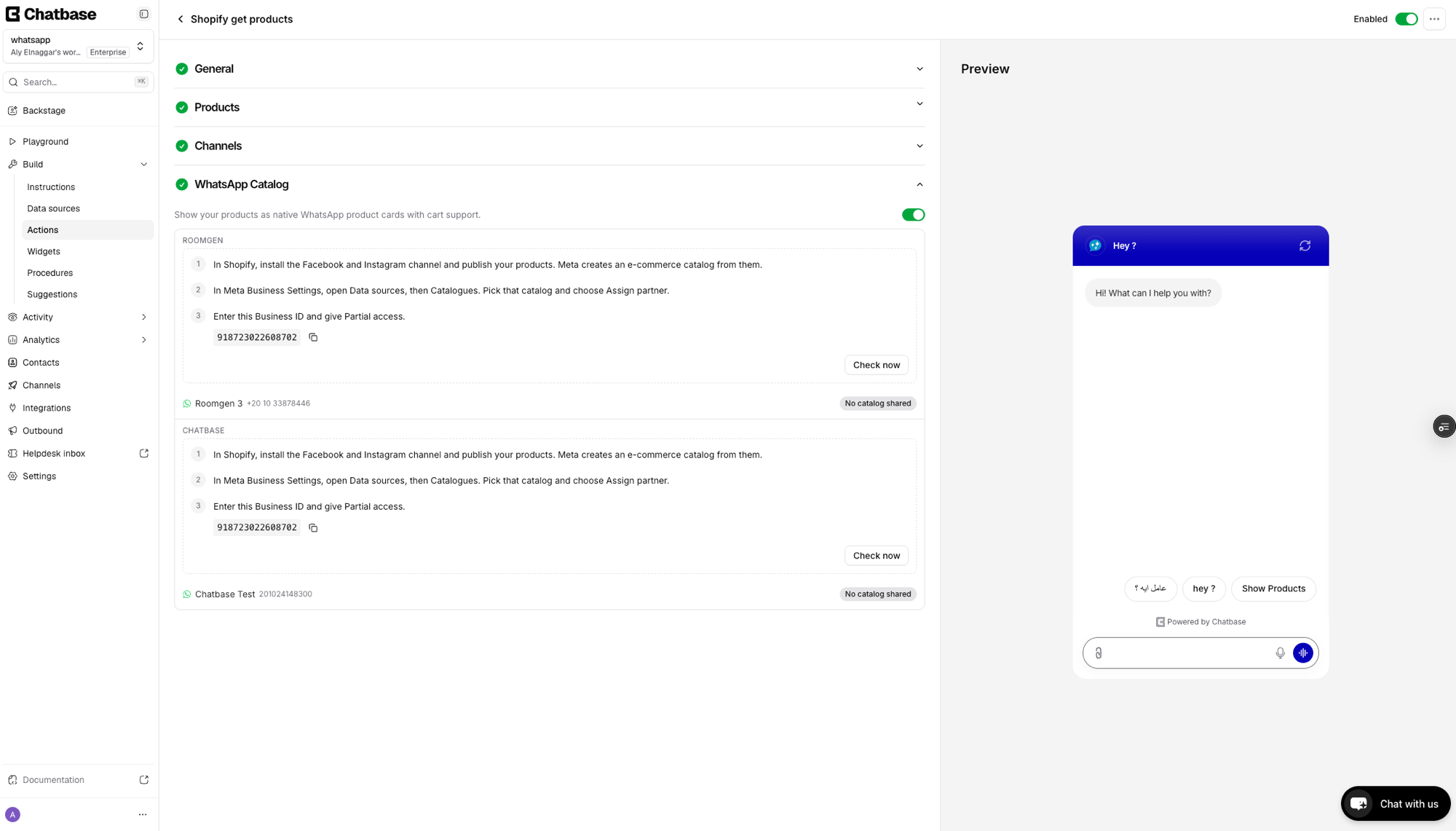
Part 6: Connect the catalog in WhatsApp Manager
1
Open WhatsApp Manager
Once the partner assignment is detected, Chatbase shows a Connect in WhatsApp Manager button next to your WhatsApp number. Click it to open WhatsApp Manager.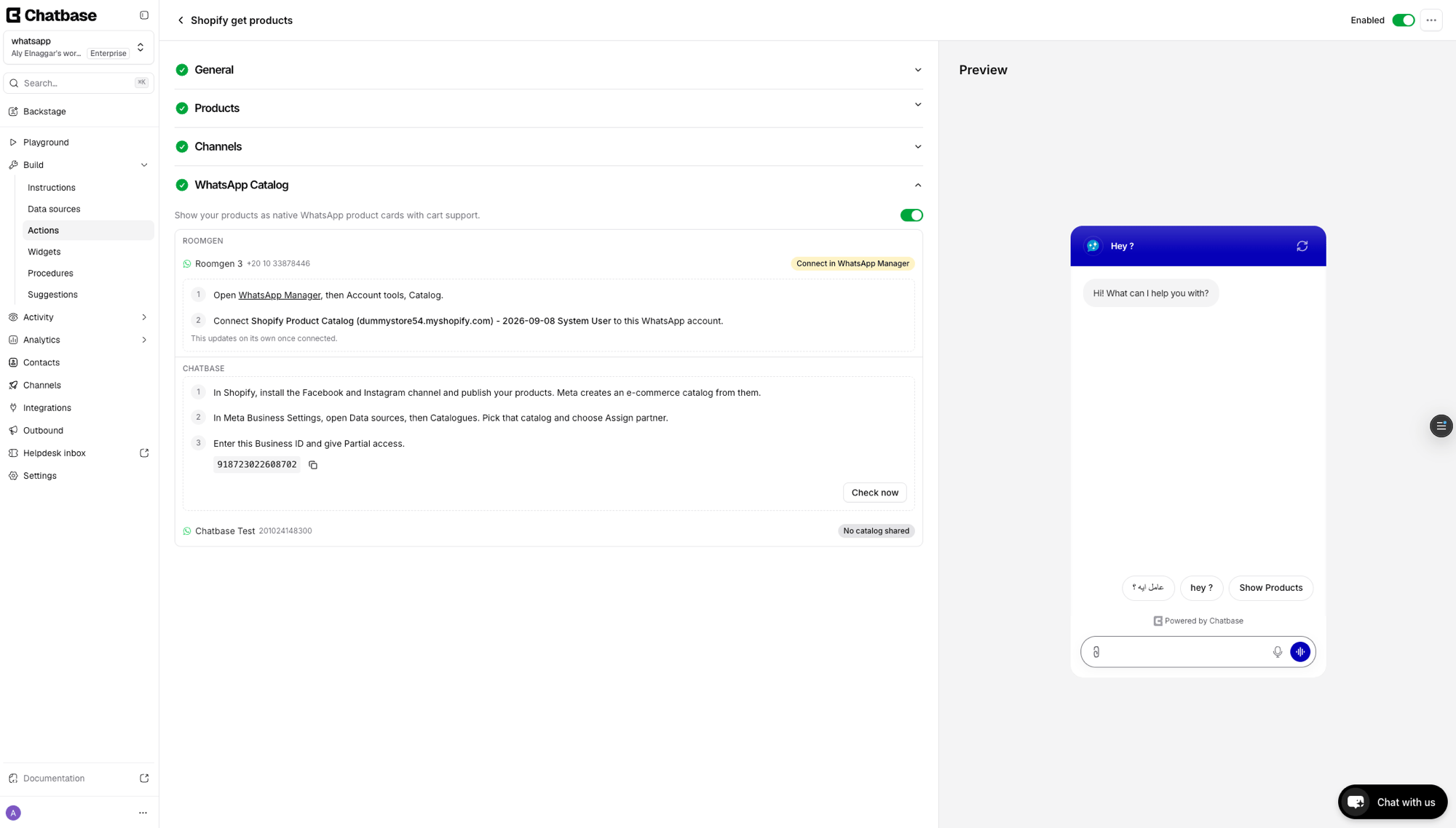
2
Go to Catalogue
In WhatsApp Manager, navigate to Account tools > Catalogue in the left sidebar. Make sure you are viewing the correct WhatsApp Business Account (WABA) in the top-right dropdown. Click Choose a Catalogue.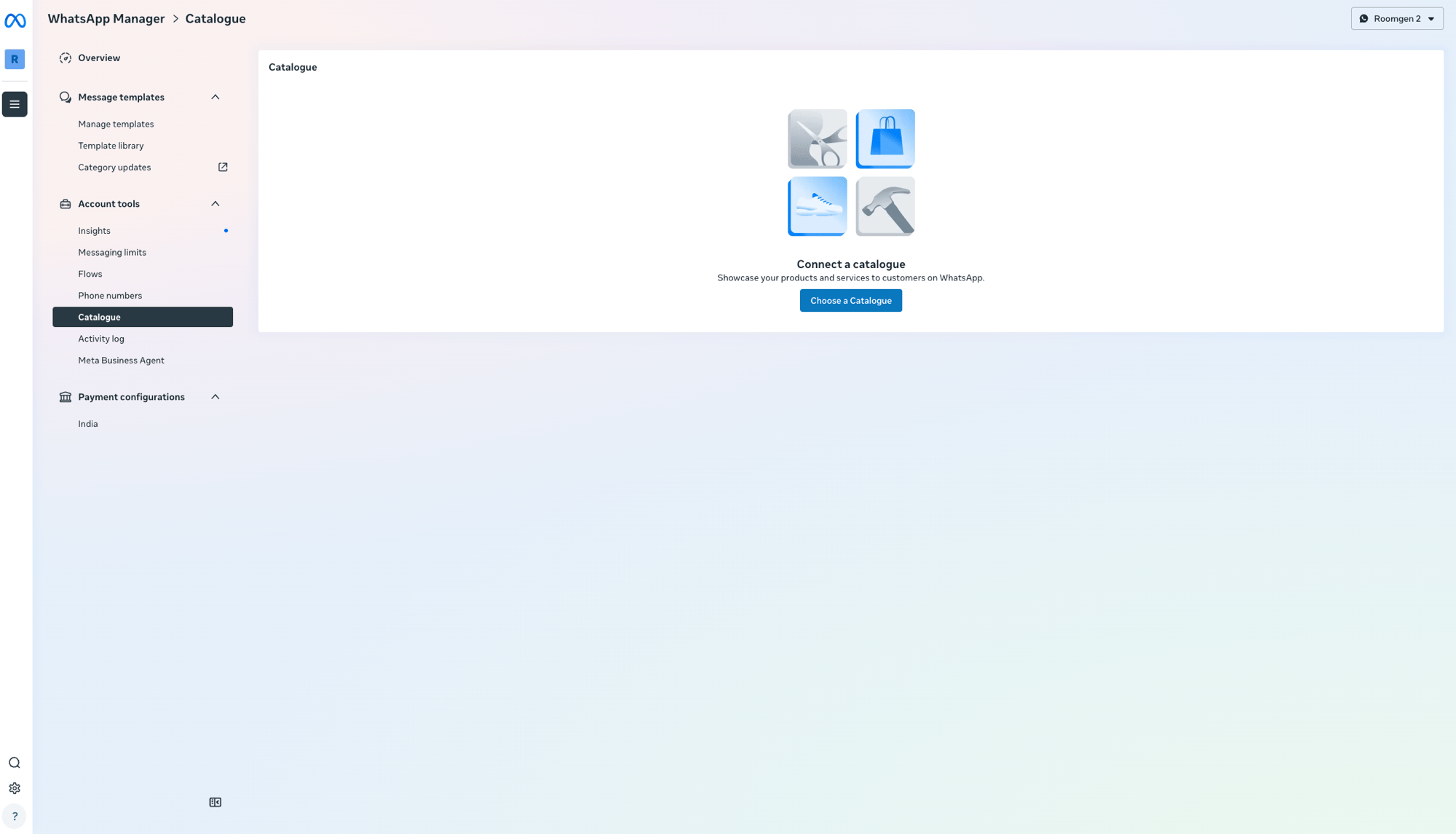
3
Select and connect your catalog
In the Connect a catalogue dialog, search for your Shopify Product Catalog, select it, and click Connect Catalogue.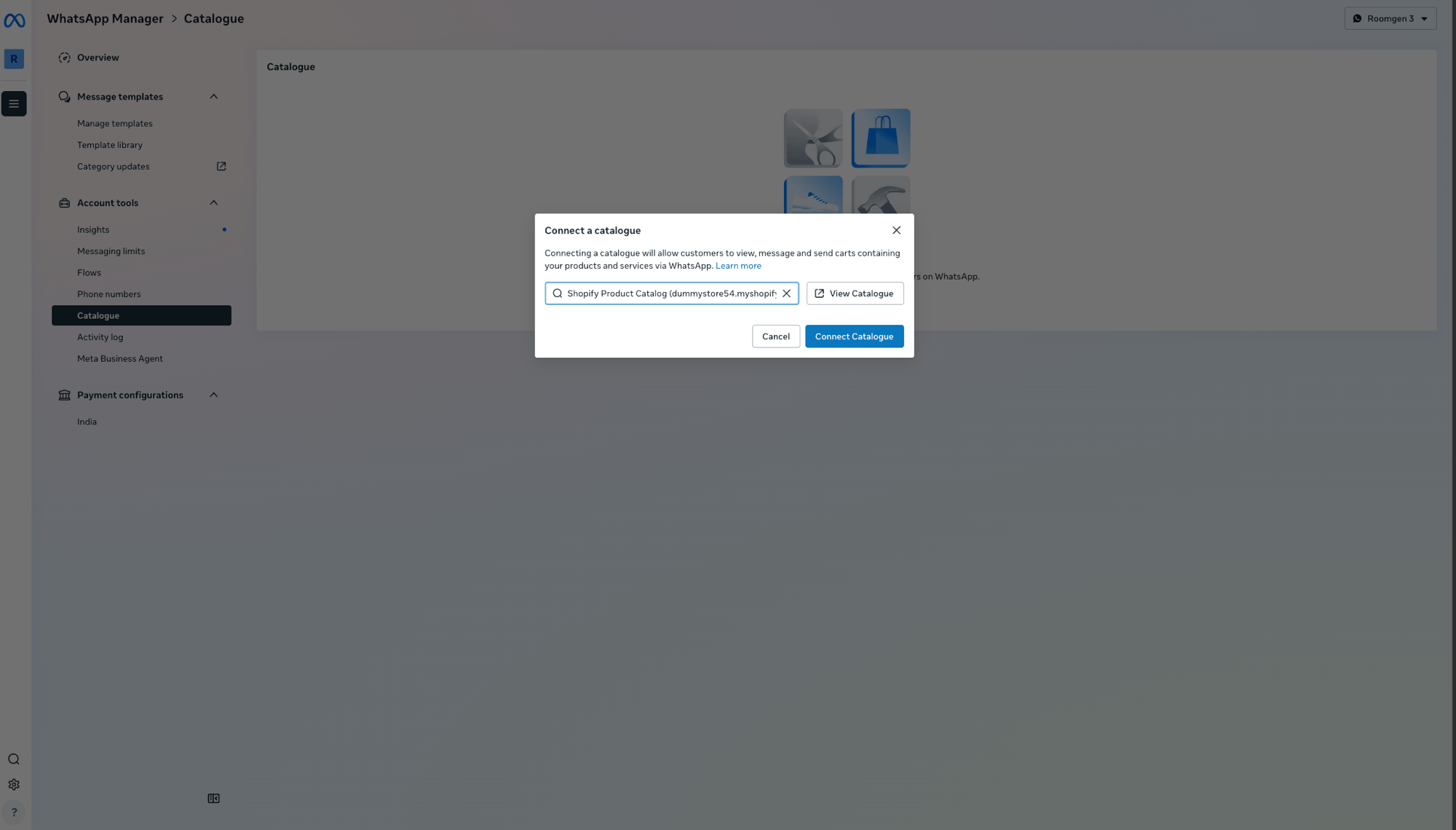
4
Catalogue connected
You’ll see a confirmation toast: Catalogue successfully connected. The page now shows your catalog details and options for showing the catalogue icon in the chat header and the “Add to basket” button.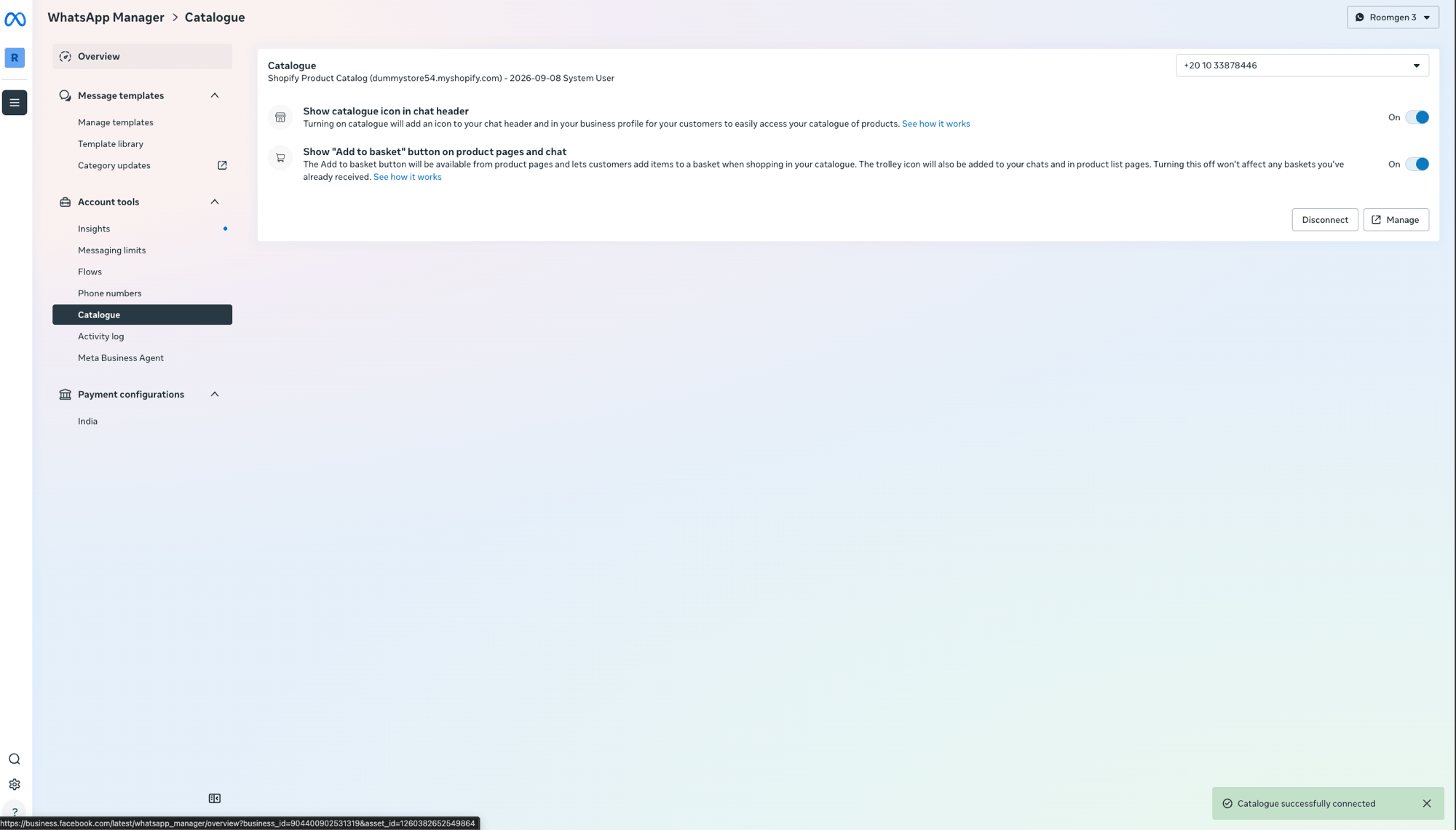
Part 7: Wait for Meta review
Return to the Shopify get products action in Chatbase. The WhatsApp Catalog section now shows In review for your WhatsApp number. Meta reviews the products that were pushed from Shopify. This is part of Meta’s standard review process and may take some time.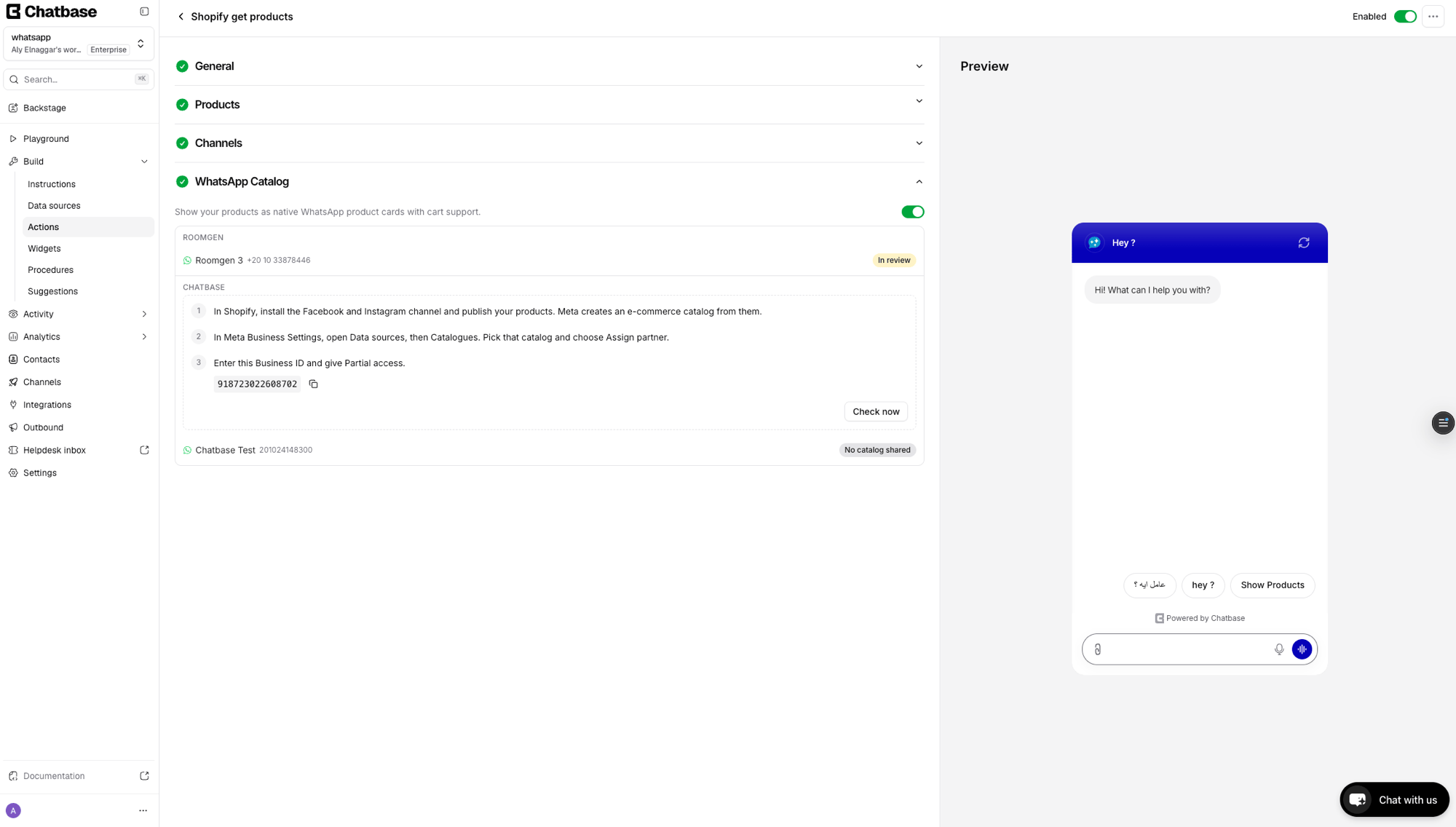
Test the integration by opening a WhatsApp conversation with your AI agent and asking to see products. The AI agent should respond with native product cards that customers can browse and add to a cart.
How it works
Once connected, the Retrieve and display products action automatically detects the WhatsApp channel and sends products as native WhatsApp catalog cards instead of plain text. Customers can:- Browse product cards with images, titles, and prices
- Add items to a WhatsApp cart
- Send the cart to your AI agent to continue to checkout
How the WhatsApp cart and the chat cart work together
Customers can fill their cart two ways: by tapping Add to cart on the catalog cards, or by asking the AI agent in chat (for example, “add two of these to my cart”), which uses the Update cart action. Both end up in the same Shopify cart, but they don’t show up in the same places:- Items added in chat don’t appear in the WhatsApp catalog cart. WhatsApp’s cart only exists on the customer’s phone, and Meta doesn’t let businesses add items to it. Items the AI agent adds are saved to the Shopify cart, not the WhatsApp cart.
- Items from the WhatsApp cart reach the Shopify cart once the customer sends it. Chatbase adds the items the customer sent to the same Shopify cart the AI agent uses. Sending the cart doesn’t place an order by itself. The AI agent picks up from there, and the order is placed with Create order.
- “View my cart” shows everything. When the customer asks to see their cart, the Get cart action lists every product in one place, whether it was added in chat or sent from the WhatsApp cart.
Troubleshooting
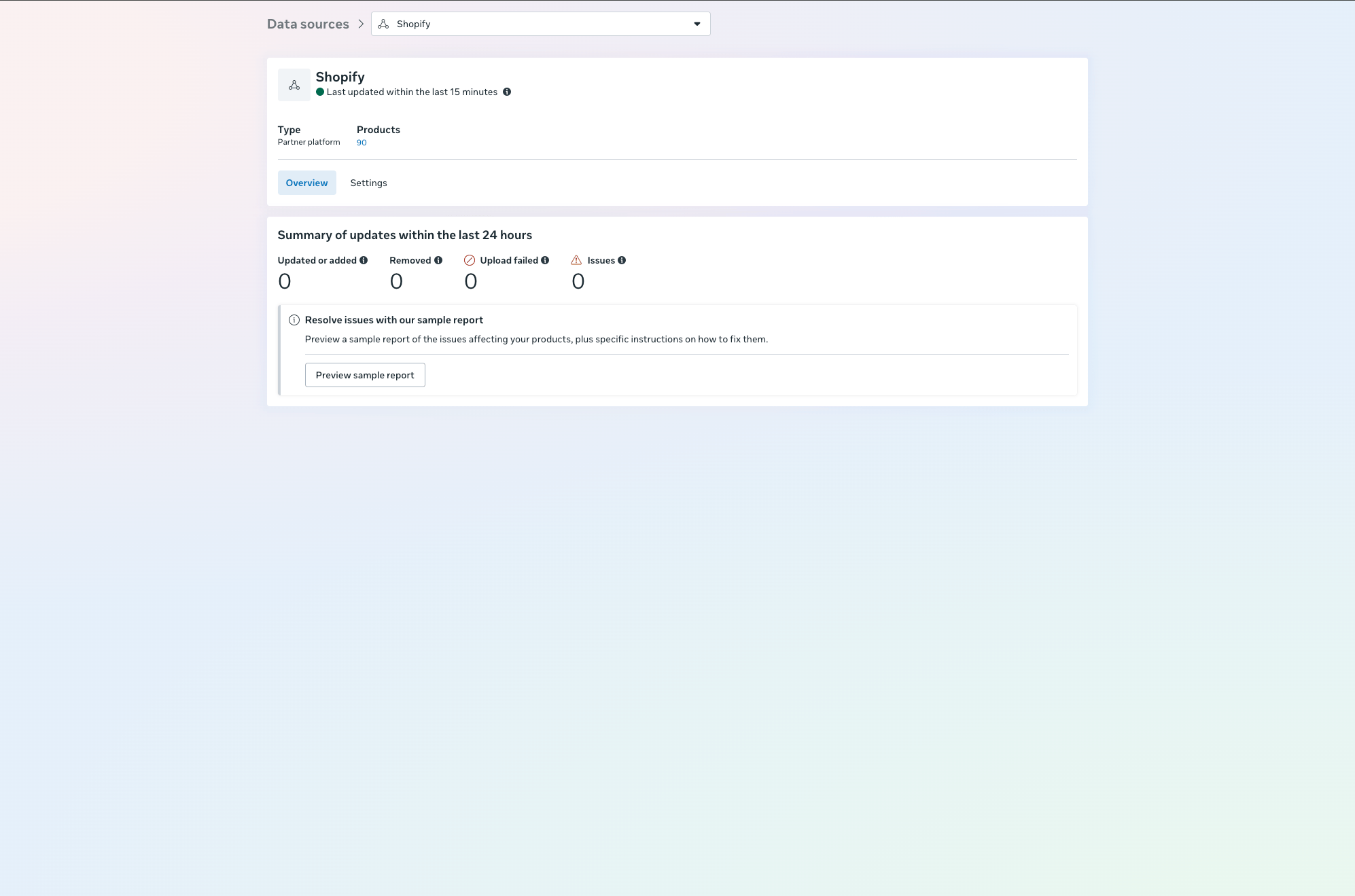
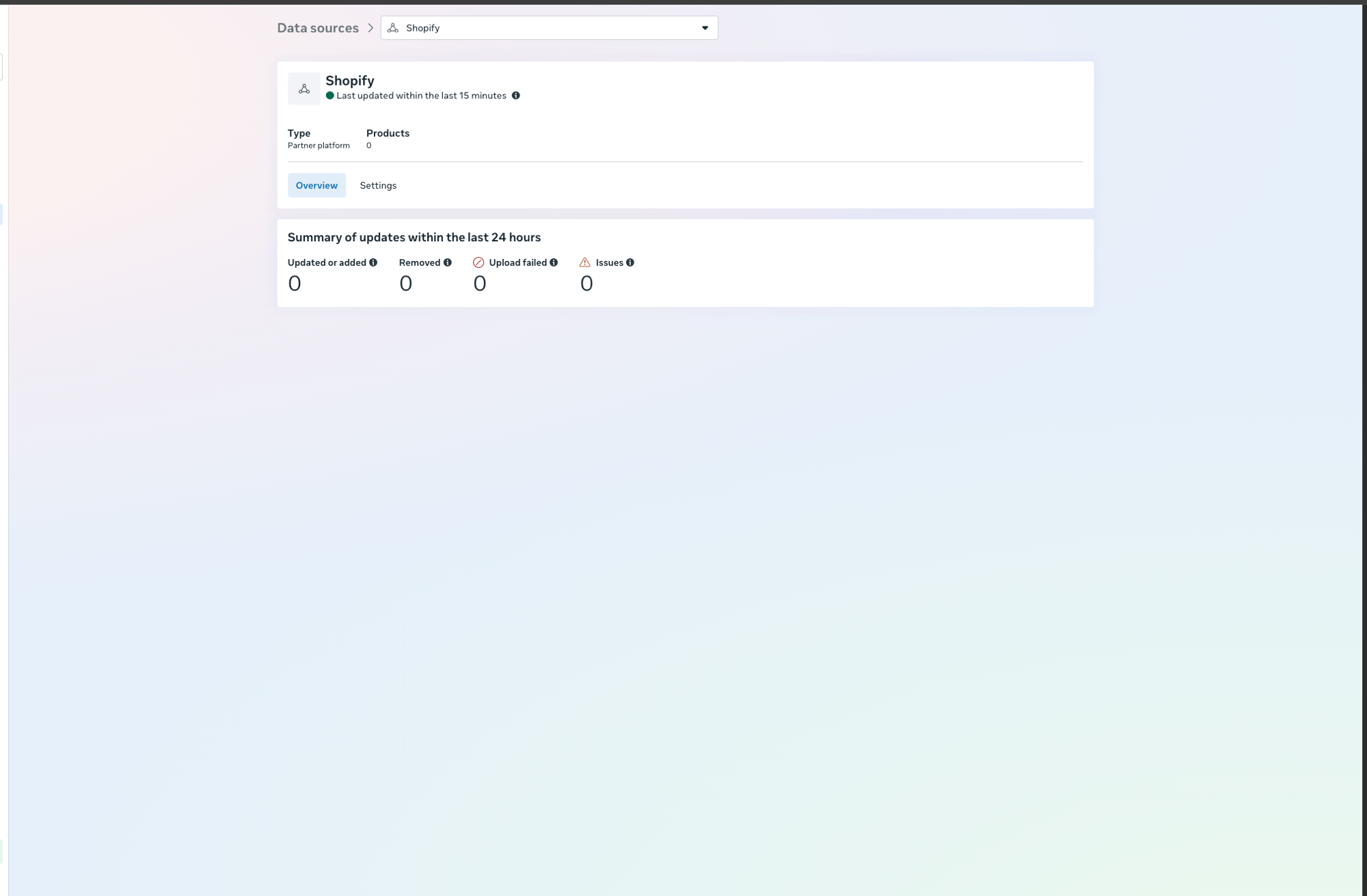
Products show 0 in Meta Commerce Manager
Products show 0 in Meta Commerce Manager
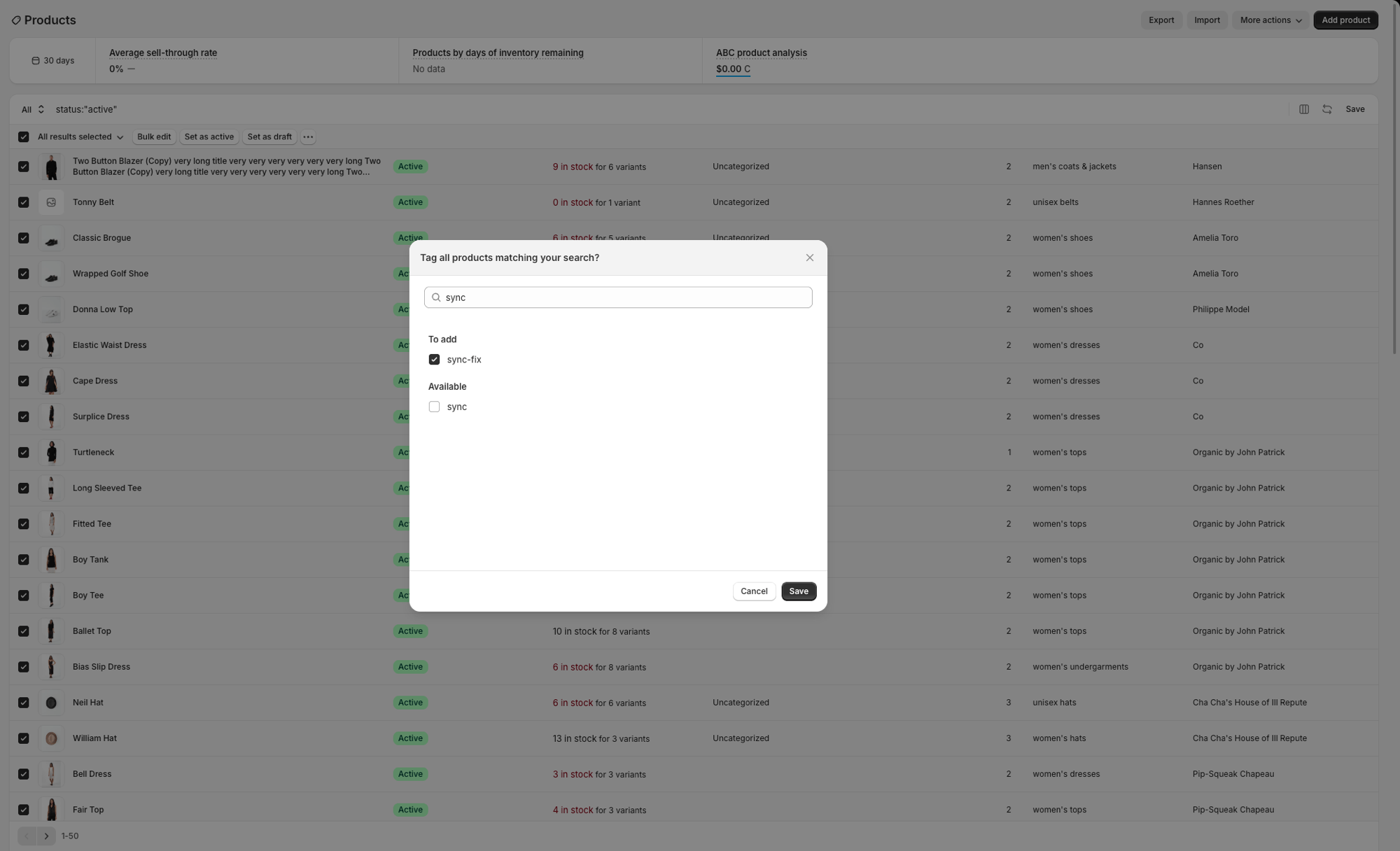
The initial sync from Shopify to Meta can take several minutes. If products still show 0 after waiting, go to Shopify Admin > Products, select all products, and use … > Add tags to add a temporary tag (e.g.
sync-fix). This triggers Shopify to re-push the product data. You can remove the tag afterwards.Catalog not appearing in WhatsApp Manager
Catalog not appearing in WhatsApp Manager
Make sure you assigned Chatbase as a partner (Business ID
918723022608702) with Partial access in Meta Business Settings > Catalogues. Also verify you are viewing the correct WhatsApp Business Account (WABA) in the WhatsApp Manager dropdown.Status stuck on 'In review'
Status stuck on 'In review'
Meta reviews catalog products before they can be served on WhatsApp. This is a standard Meta review process and is outside of Chatbase’s control. Review times vary. Ensure your products comply with Meta’s commerce policies.
Related
Retrieve and display products
Configure the Show Products action that powers WhatsApp Catalog.
WhatsApp integration
Set up your WhatsApp channel connection.
Shopify integration
Connect your Shopify store to Chatbase.
Meta Catalogs documentation
Official Meta documentation on WhatsApp catalogs.