

trackingId to an element in your widget’s code, and Chatbase counts how often visitors see it and use it. No code on your website is needed. The counts and the click-through rate appear in Analytics → Widgets.
trackingId is also the element’s label in analytics, so give each one a short name a person can read.
Add a trackingId
In the code editor, addtrackingId to any element you want to track. It appears in autocomplete, and hovering it shows the rules.
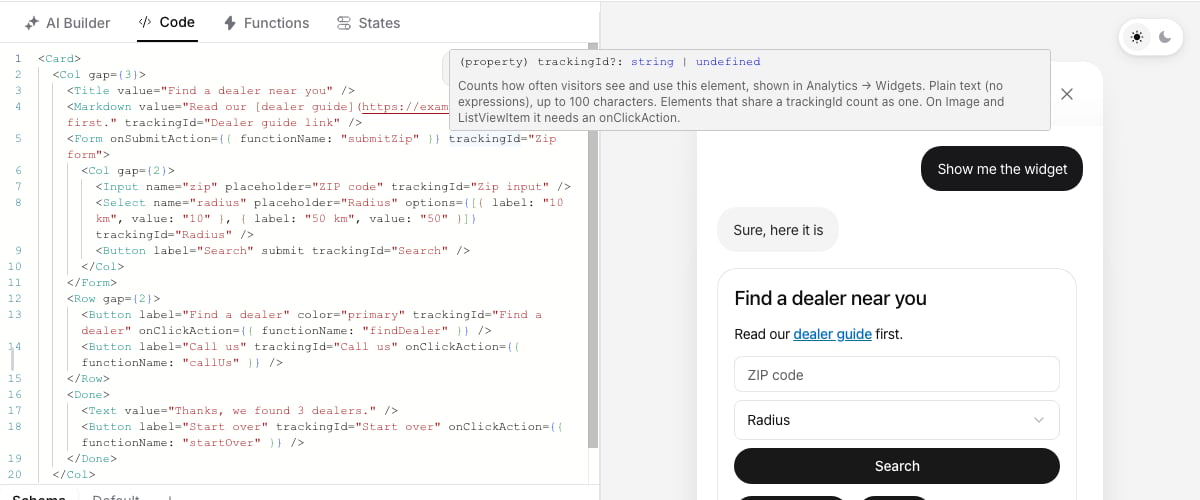
Rules
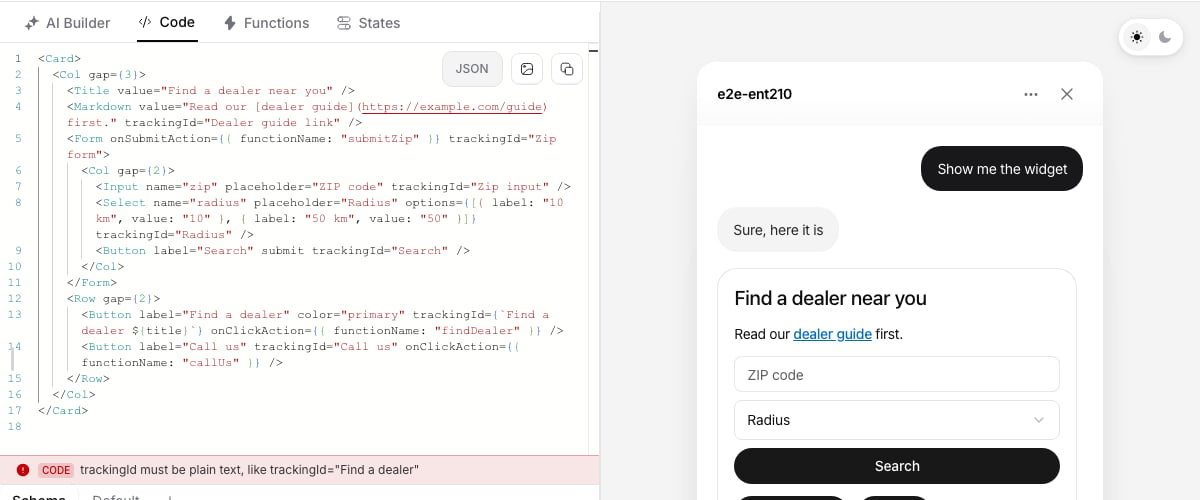
- The value is plain text written in the code:
trackingId="Find a dealer". Variables, expressions and template literals such astrackingId={`Find ${city}`}are not allowed. - The value can’t be empty and is at most 100 characters.
- Elements that share a
trackingIdcount as one element. Use this for items rendered from a list, for exampletrackingId="Product card"on every card. - Renaming a
trackingIdstarts a new row in analytics. The old name keeps its history.
Supported elements
Layout components, text components and
Map don’t accept a trackingId. Focusing or hovering an element is never counted.
What Gets Counted
Each time your agent shows a widget in a conversation is one appearance. For every tracked element in that appearance, Chatbase counts:- Impressions: 1 if the element was on screen. An element inside a state that never became active, a step the visitor never reached, or an empty list gets no impression.
- Interactions: 1 if the visitor used the element at least once. Clicking a button five times in the same appearance still counts once.
Visitor Privacy and Consent
When a visitor sees or uses a tracked element, their browser reports it to Chatbase. The report holds the element’strackingId and links it to the conversation. It sends nothing the visitor typed or chose.
If your consent tool still loads the chat when a visitor declines analytics, turn the reports off for that visitor with the disableWidgetTracking runtime option: