> ## Documentation Index
> Fetch the complete documentation index at: https://chatbase.co/docs/llms.txt
> Use this file to discover all available pages before exploring further.
# WhatsApp Business App Coexistence
> Connect the number you already use in the WhatsApp Business app, so your AI agent and your team share it
## Overview
Coexistence lets you connect a phone number that's already active in the **WhatsApp Business app** to your AI agent, without deleting the account or changing numbers. After you connect:
* Your AI agent answers customers on that number.
* You can still read and reply to chats from the WhatsApp Business app on your phone.
* Your recent chat history and contacts are copied into Chatbase.
* When you reply from the app, Chatbase sees the reply and stops the AI for that conversation, so you and the AI don't talk over each other.
If you're connecting a new number, or a number you don't use in the WhatsApp Business app, follow the regular [WhatsApp setup](/docs/user-guides/integrations/whatsapp) instead.
## Before you start
Make sure you have:
* The **WhatsApp Business app, version 2.24.17 or later**, on the phone that uses the number. Update the app first if needed.
* The phone with you during setup. You confirm the connection from the app.
* A Facebook account that can manage your business on Meta.
* A few minutes. Connecting and importing your history can take several minutes.
Connect at a time when few customers are messaging you. Messages that arrive while you connect and while your history imports can be lost, and your AI agent doesn't reply until the import finishes.
Connecting changes a few things in the WhatsApp Business app. Disappearing messages, view-once messages, live location, and broadcast lists stop working. All linked devices are logged out and need to be linked again. See [Limitations](#limitations) for the full list.
## Connect your WhatsApp Business app number
Go to the AI agent you'd like to connect. Click **Channels** in the sidebar, then click **Setup** on the **WhatsApp** card. If you already have a WhatsApp number connected, open **Channels → WhatsApp**, go to the **Connection** tab, and click **Connect a new number**.
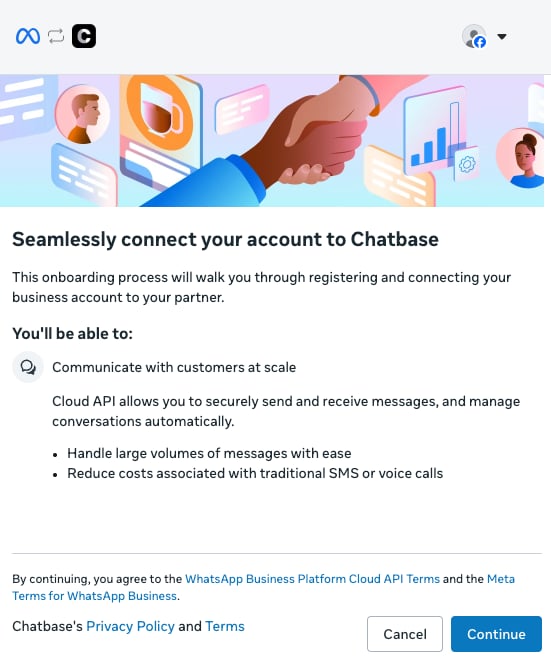
A Meta window opens. Log in with the Facebook account that manages your business, then click **Continue**.
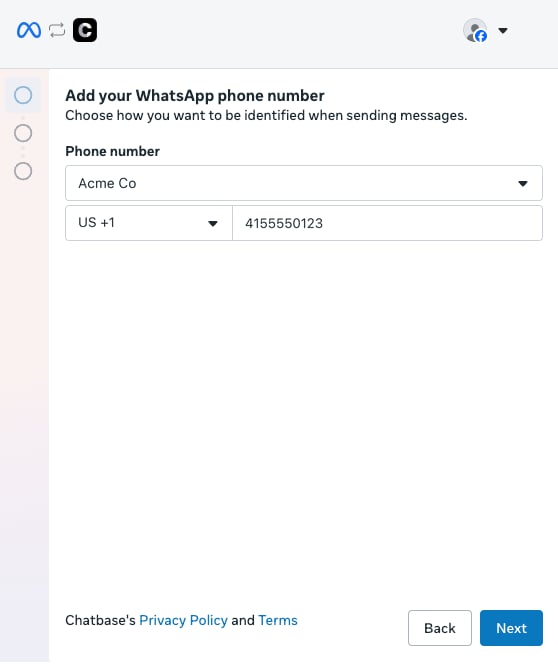
 Choose your WhatsApp Business app profile, enter the phone number you use in the app, and click **Next**.
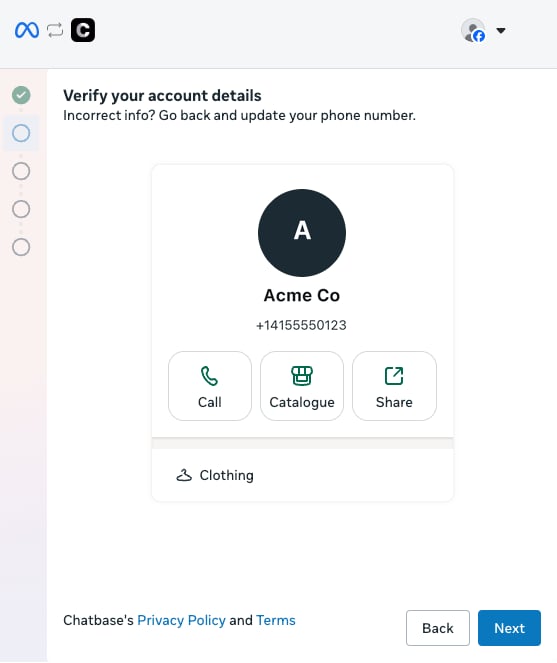
 Meta shows the business profile from your WhatsApp Business app. Check that it's the right one and click **Next**. If it isn't, click **Back** and change the number.
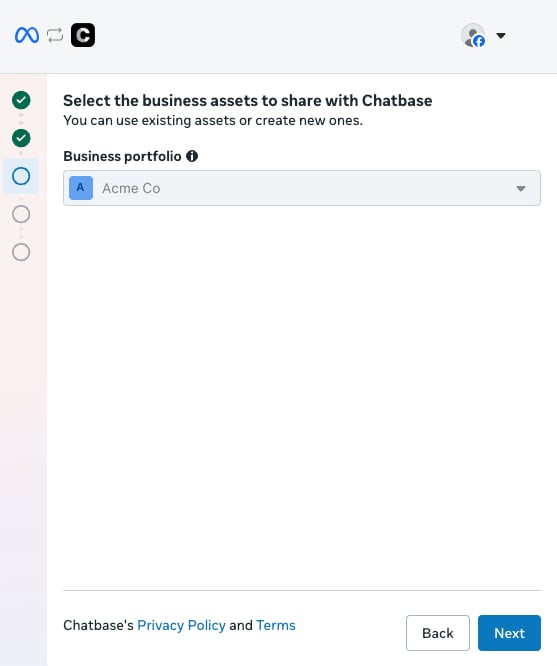
 Select the business portfolio to share with Chatbase and click **Next**.
 Meta shows a QR code. Keep this window open and pick up your phone.
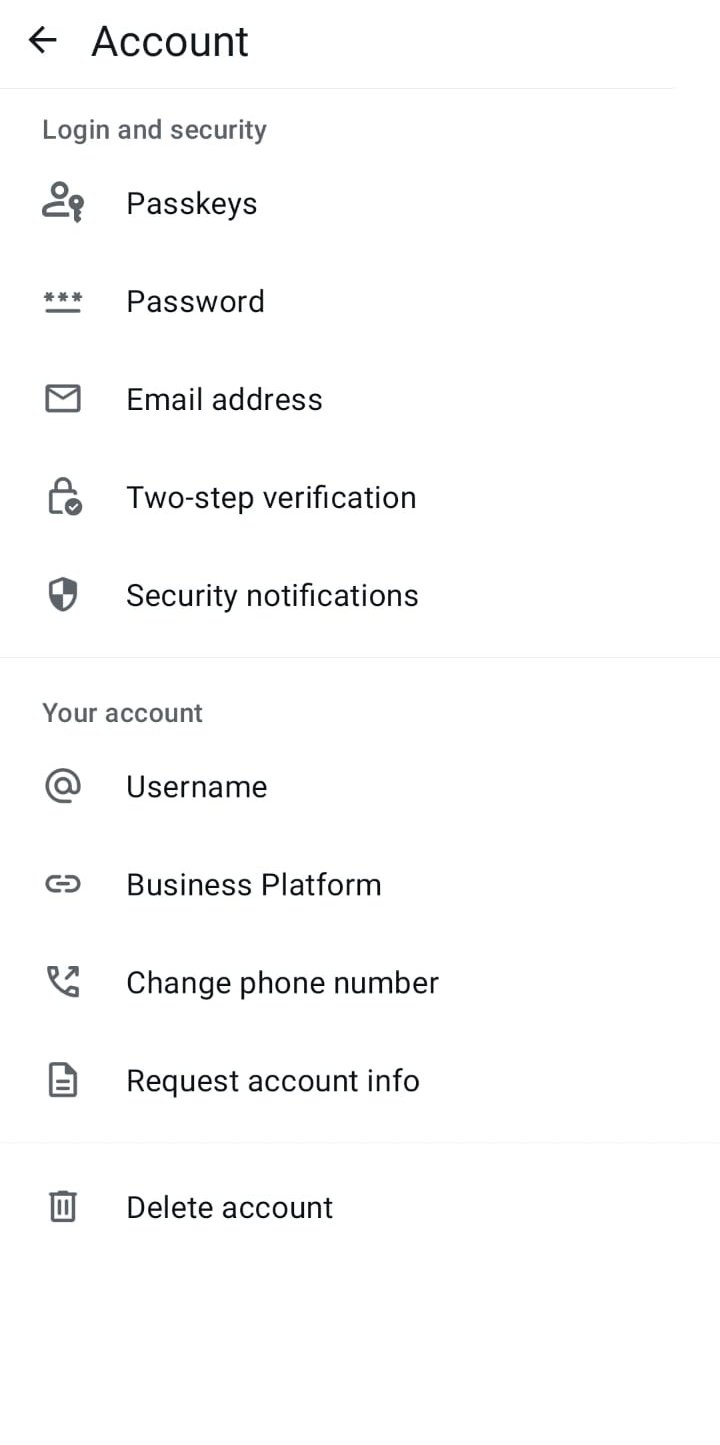
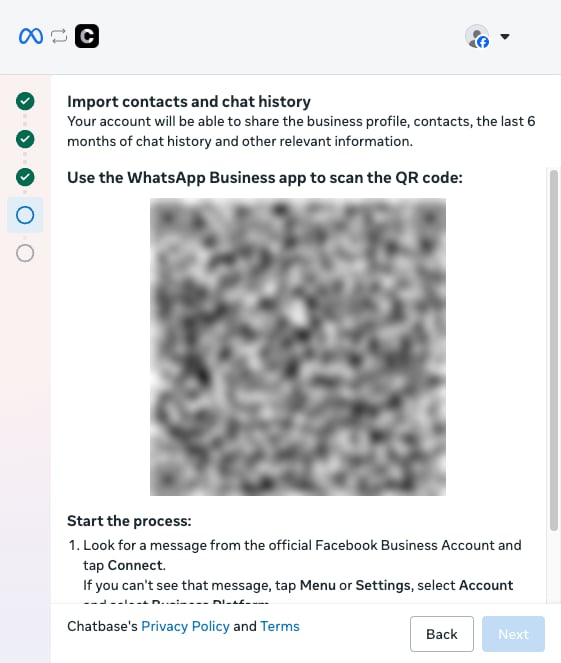 In the WhatsApp Business app, open the **Business Platform** screen:
* If you see a message from the official Facebook Business account in your chats, tap **Connect**.
* If there's no message, go to **Settings → Account → Business Platform**.
In the WhatsApp Business app, open the **Business Platform** screen:
* If you see a message from the official Facebook Business account in your chats, tap **Connect**.
* If there's no message, go to **Settings → Account → Business Platform**.
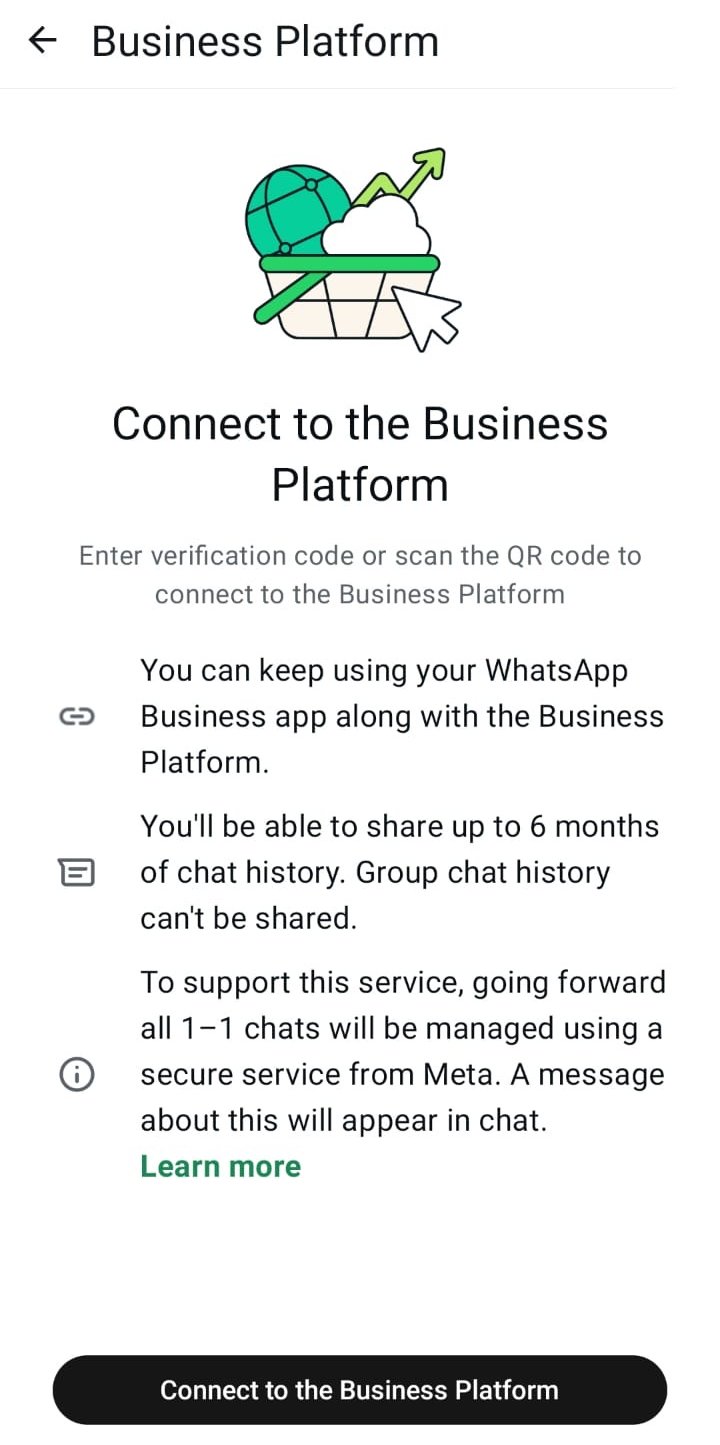
 Tap **Connect to the Business Platform**.
 The app asks whether to share your chat history. Choose **Share all chats** to bring up to 6 months of one-to-one chats into Chatbase, so your AI agent and your team see what was said before. Group chats can't be shared. Tap **Confirm**.
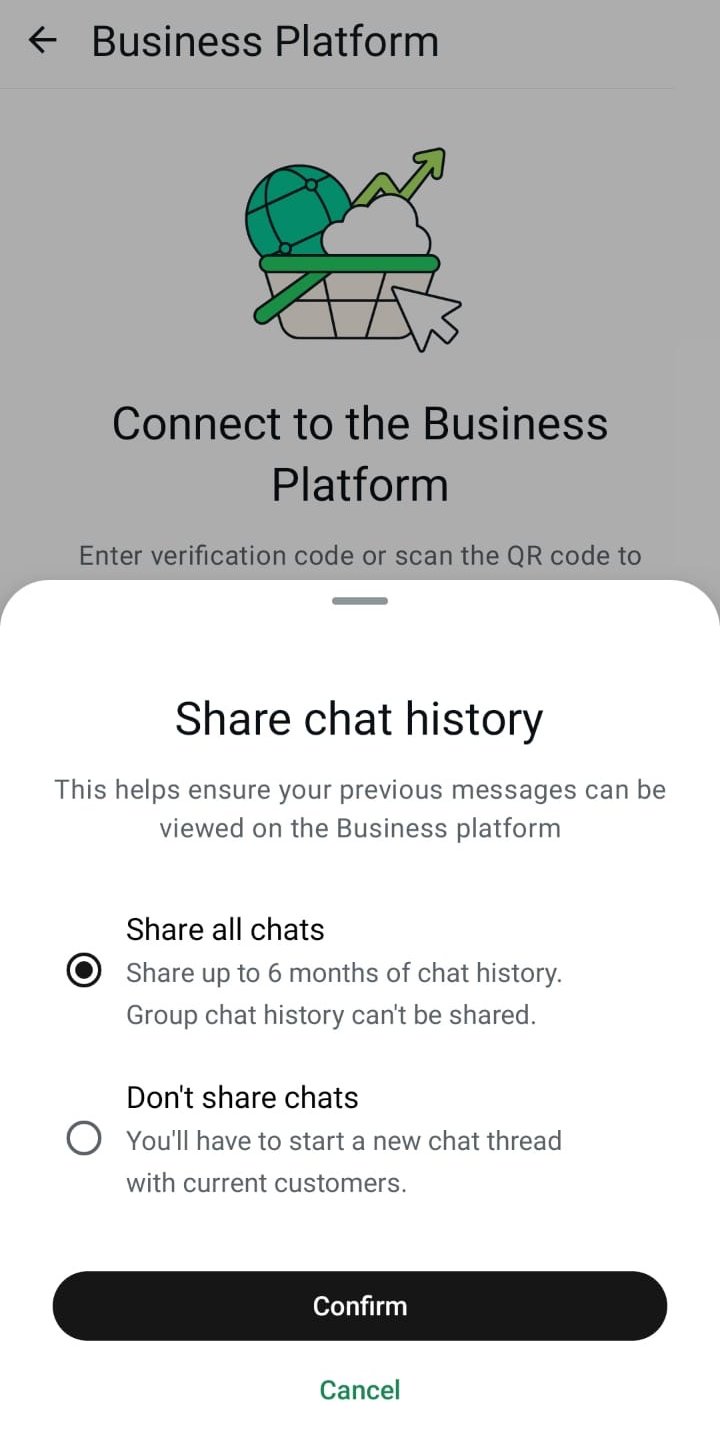 History can be shared only once. If you choose **Don't share chats**, the only way to import it later is to disconnect and connect the number again.
The app opens the camera. Scan the QR code in the Meta window on your computer.
Back on your computer, Meta shows your WhatsApp Business account. Check the time zone and click **Next**.
History can be shared only once. If you choose **Don't share chats**, the only way to import it later is to disconnect and connect the number again.
The app opens the camera. Scan the QR code in the Meta window on your computer.
Back on your computer, Meta shows your WhatsApp Business account. Check the time zone and click **Next**.
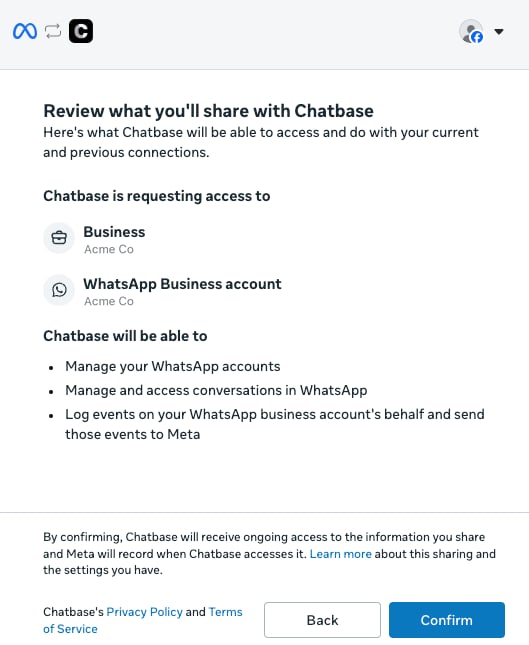
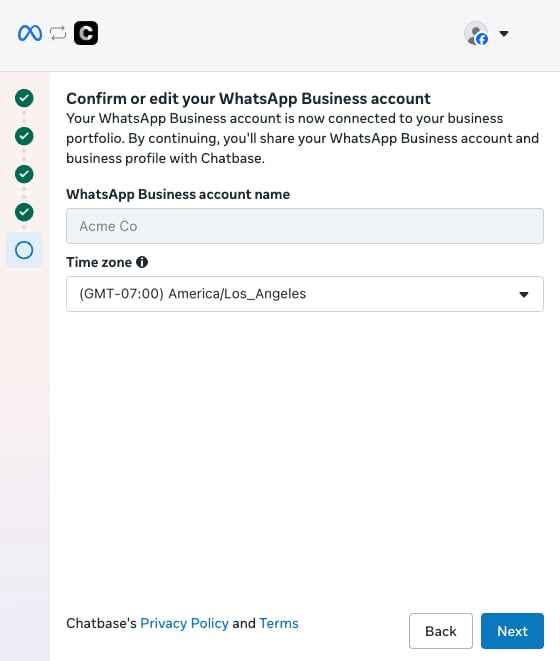 Meta lists what Chatbase can access and do. Click **Confirm**.
 Meta shows **Connecting your account** for a few moments, then **Your account is connected to Chatbase**. Click **Finish**.
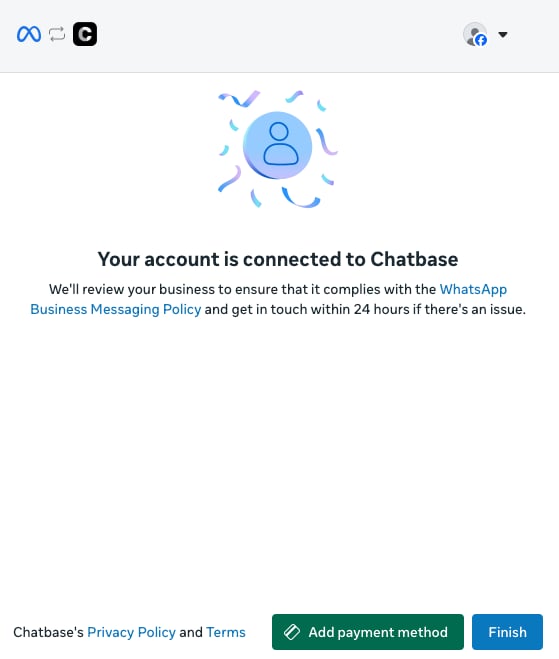 You can also click **Add payment method** here to set up Meta billing for the messages your AI agent sends, or add it later in Meta.
## Importing your chat history and contacts
Right after you connect, Chatbase starts importing from the WhatsApp Business app:
* **Chat history:** your recent conversations are added to [Chat logs](/docs/user-guides/chatbot/activity), so your AI agent and your team can see what was said before.
* **Contacts:** your WhatsApp Business app contacts are added to [Contacts](/docs/user-guides/chatbot/contacts/contacts-overview), and stay in sync when you add or remove them in the app.
You can follow the import on the number's card in **Channels → WhatsApp**, on the **Connection** tab:
| Status on the card | What it means |
| - | - |
| **Preparing history import…** | Chatbase asked Meta for your history and is waiting for it to arrive. |
| **Importing history… N%** | History is arriving. A progress bar shows how far along it is. |
| **History sharing is off in WhatsApp** | You chose not to share history in the app. Live messages still work. |
| **History can't be imported again** | Meta allows one import, within 24 hours of connecting. See [Import history again](#import-history-again). |
| **History import could not be started** | Something went wrong when requesting history. Live messages still work. Contact support if you need the history. |
When the import finishes, the status line disappears from the card and your AI agent starts replying.
You can also click **Add payment method** here to set up Meta billing for the messages your AI agent sends, or add it later in Meta.
## Importing your chat history and contacts
Right after you connect, Chatbase starts importing from the WhatsApp Business app:
* **Chat history:** your recent conversations are added to [Chat logs](/docs/user-guides/chatbot/activity), so your AI agent and your team can see what was said before.
* **Contacts:** your WhatsApp Business app contacts are added to [Contacts](/docs/user-guides/chatbot/contacts/contacts-overview), and stay in sync when you add or remove them in the app.
You can follow the import on the number's card in **Channels → WhatsApp**, on the **Connection** tab:
| Status on the card | What it means |
| - | - |
| **Preparing history import…** | Chatbase asked Meta for your history and is waiting for it to arrive. |
| **Importing history… N%** | History is arriving. A progress bar shows how far along it is. |
| **History sharing is off in WhatsApp** | You chose not to share history in the app. Live messages still work. |
| **History can't be imported again** | Meta allows one import, within 24 hours of connecting. See [Import history again](#import-history-again). |
| **History import could not be started** | Something went wrong when requesting history. Live messages still work. Contact support if you need the history. |
When the import finishes, the status line disappears from the card and your AI agent starts replying.
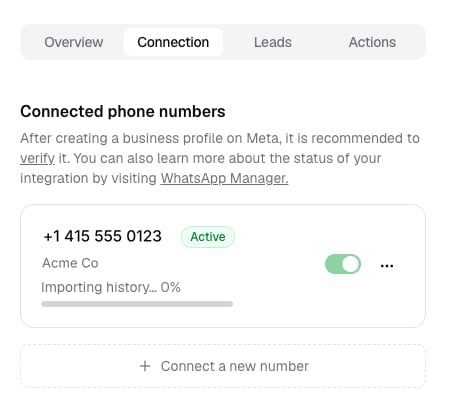 Your AI agent doesn't reply to customers while history is importing, so it doesn't answer before it has the conversation's past. Messages that arrive during the import still show up in the WhatsApp Business app and in Chat logs. The on/off toggle for the number is grayed out and can't be changed until the import finishes.
Photos, videos, and files older than 14 days are not included in the history Meta sends. They appear as a placeholder in Chat logs.
## Replying from the WhatsApp Business app
You can keep replying to customers from the WhatsApp Business app. Chatbase sees each reply and treats it as you stepping into the conversation:
* **If you use the [Help desk](/docs/user-guides/chatbot/help-desk/help-desk-overview):** Chatbase [takes over](/docs/user-guides/chatbot/help-desk/takeover) the conversation and opens a ticket with your reply in it. The AI stays off for that customer until the ticket is closed. The customer's next messages go to the same ticket.
* **If you don't use the Help desk:** Chatbase pauses the AI for that conversation. To hand it back to the AI, open the conversation in **Chat logs**, open its menu, and click **Resume conversation**.
Your AI agent doesn't reply to customers while history is importing, so it doesn't answer before it has the conversation's past. Messages that arrive during the import still show up in the WhatsApp Business app and in Chat logs. The on/off toggle for the number is grayed out and can't be changed until the import finishes.
Photos, videos, and files older than 14 days are not included in the history Meta sends. They appear as a placeholder in Chat logs.
## Replying from the WhatsApp Business app
You can keep replying to customers from the WhatsApp Business app. Chatbase sees each reply and treats it as you stepping into the conversation:
* **If you use the [Help desk](/docs/user-guides/chatbot/help-desk/help-desk-overview):** Chatbase [takes over](/docs/user-guides/chatbot/help-desk/takeover) the conversation and opens a ticket with your reply in it. The AI stays off for that customer until the ticket is closed. The customer's next messages go to the same ticket.
* **If you don't use the Help desk:** Chatbase pauses the AI for that conversation. To hand it back to the AI, open the conversation in **Chat logs**, open its menu, and click **Resume conversation**.
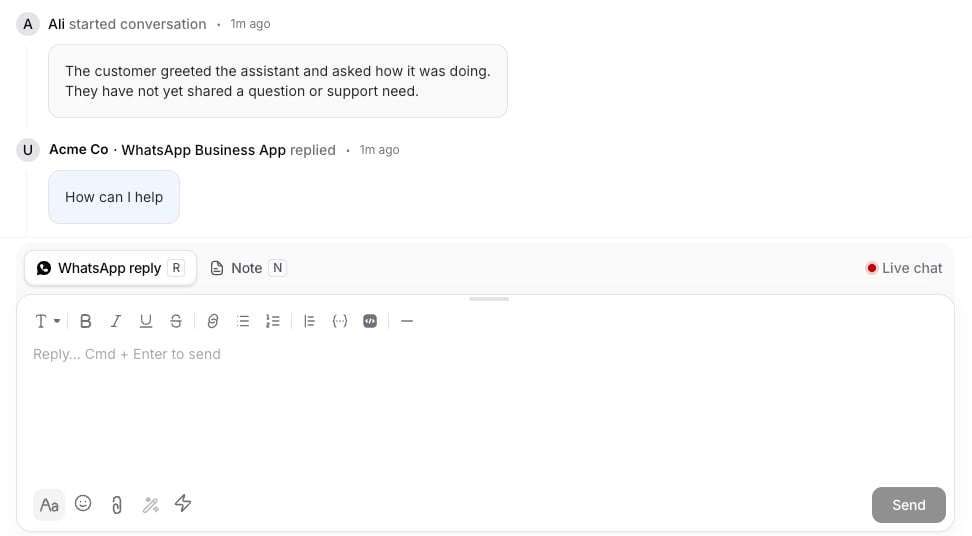 Replies sent from the app are labeled with your business name and **WhatsApp Business App** (for example, *Acme Co · WhatsApp Business App*) in Chat logs and tickets, so you can tell them apart from AI replies.
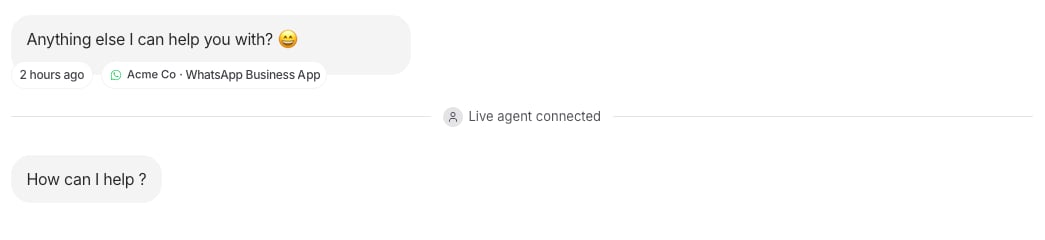 To keep the AI answering, reply only from Chatbase. Replying from the app is the way to take a conversation over yourself.
## Disconnecting
There are two separate ways to disconnect, and they do different things.
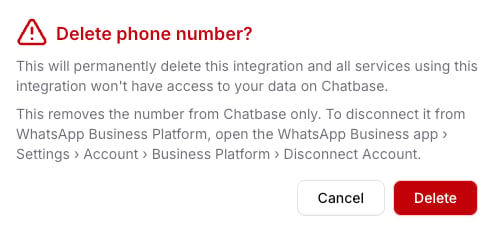
**Remove the number from Chatbase.** Open **Channels → WhatsApp**, go to the **Connection** tab, click the **⋯** menu on the number, choose **Delete Number**, then click **Delete** to confirm. This removes the number from Chatbase and stops your AI agent on it, but the number stays connected to the WhatsApp Business Platform.
To keep the AI answering, reply only from Chatbase. Replying from the app is the way to take a conversation over yourself.
## Disconnecting
There are two separate ways to disconnect, and they do different things.
**Remove the number from Chatbase.** Open **Channels → WhatsApp**, go to the **Connection** tab, click the **⋯** menu on the number, choose **Delete Number**, then click **Delete** to confirm. This removes the number from Chatbase and stops your AI agent on it, but the number stays connected to the WhatsApp Business Platform.
 **Disconnect from the WhatsApp Business Platform.** In the WhatsApp Business app, go to **Settings → Account → Business Platform**, tap **Chatbase**, and confirm that you want to disconnect. Chatbase notices and the number's card shows **Disconnected from WhatsApp**. Your AI agent stops replying on that number.
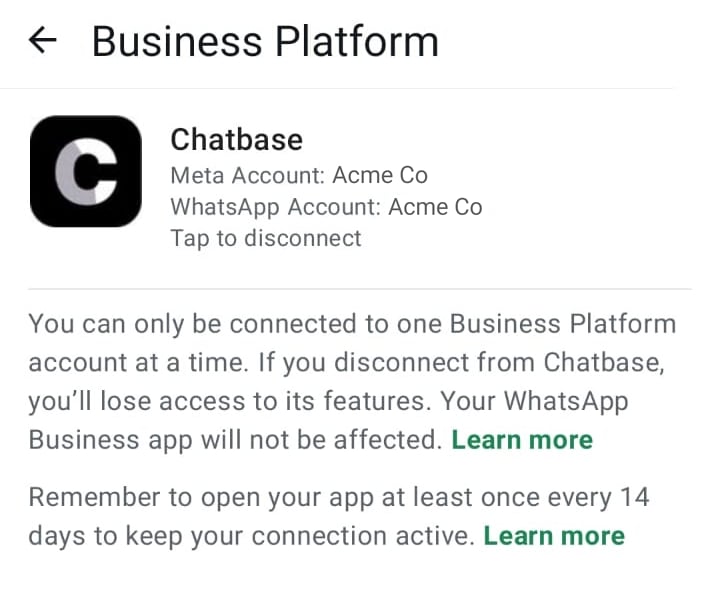 If the number is reconnected to the platform later, Chatbase picks it back up.
### Import history again
Meta allows history to be imported once, within 24 hours of connecting. To import it again, disconnect in the WhatsApp Business app (**Settings → Account → Business Platform**), then go through [Connect your WhatsApp Business app number](#connect-your-whatsapp-business-app-number) again and share history when asked.
## Limitations
**In Chatbase**
* **Group chats aren't supported.** Your AI agent only works in one-to-one chats, and group chats aren't imported.
* **History is imported once.** You can import up to about 6 months of one-to-one chats, once, right after connecting. To import it again, you need to disconnect and connect again.
* **Older media isn't imported.** Photos, videos, and files older than 14 days show up as placeholders in Chat logs.
* **Replying from the app pauses the AI** for that conversation. See [Replying from the WhatsApp Business app](#replying-from-the-whatsapp-business-app).
**In the WhatsApp Business app**
Once connected, Meta changes some things in the app:
* Disappearing messages are turned off for one-to-one chats.
* View-once messages and live location can't be sent.
* Broadcast lists are turned off. You can't create new ones, and existing ones become read-only.
* Linked devices are logged out during setup. You can link up to 4 again afterwards. WhatsApp for Windows and WhatsApp for Wear OS aren't supported as linked devices.
Your catalog, labels, quick replies, greeting and away messages, calls, status, and channels keep working in the app.
**Keeping the connection active**
* **Open the WhatsApp Business app at least once every 14 days.** If you don't, Meta disconnects the number from the platform and your AI agent stops replying.
* Changing the number, deleting the account, or moving the number to regular WhatsApp also disconnects it.
* If you reinstall the app or move to a new phone, keep the option to reconnect your connected platforms checked when you register again, and the connection comes back on its own.
**Pricing**
Messages you send from the WhatsApp Business app stay free. Messages your AI agent sends are charged at Meta's [WhatsApp Business Platform rates](https://developers.facebook.com/documentation/business-messaging/whatsapp/pricing). The 24-hour window for free-form replies applies to your AI agent's messages. Messages you send from the app don't open or extend it.
## Next steps
Learn how taken-over conversations and tickets work.
Reach customers after the 24-hour window closes.
This documentation is built and hosted on [Mintlify](https://mintlify.com), a developer documentation platform.
If the number is reconnected to the platform later, Chatbase picks it back up.
### Import history again
Meta allows history to be imported once, within 24 hours of connecting. To import it again, disconnect in the WhatsApp Business app (**Settings → Account → Business Platform**), then go through [Connect your WhatsApp Business app number](#connect-your-whatsapp-business-app-number) again and share history when asked.
## Limitations
**In Chatbase**
* **Group chats aren't supported.** Your AI agent only works in one-to-one chats, and group chats aren't imported.
* **History is imported once.** You can import up to about 6 months of one-to-one chats, once, right after connecting. To import it again, you need to disconnect and connect again.
* **Older media isn't imported.** Photos, videos, and files older than 14 days show up as placeholders in Chat logs.
* **Replying from the app pauses the AI** for that conversation. See [Replying from the WhatsApp Business app](#replying-from-the-whatsapp-business-app).
**In the WhatsApp Business app**
Once connected, Meta changes some things in the app:
* Disappearing messages are turned off for one-to-one chats.
* View-once messages and live location can't be sent.
* Broadcast lists are turned off. You can't create new ones, and existing ones become read-only.
* Linked devices are logged out during setup. You can link up to 4 again afterwards. WhatsApp for Windows and WhatsApp for Wear OS aren't supported as linked devices.
Your catalog, labels, quick replies, greeting and away messages, calls, status, and channels keep working in the app.
**Keeping the connection active**
* **Open the WhatsApp Business app at least once every 14 days.** If you don't, Meta disconnects the number from the platform and your AI agent stops replying.
* Changing the number, deleting the account, or moving the number to regular WhatsApp also disconnects it.
* If you reinstall the app or move to a new phone, keep the option to reconnect your connected platforms checked when you register again, and the connection comes back on its own.
**Pricing**
Messages you send from the WhatsApp Business app stay free. Messages your AI agent sends are charged at Meta's [WhatsApp Business Platform rates](https://developers.facebook.com/documentation/business-messaging/whatsapp/pricing). The 24-hour window for free-form replies applies to your AI agent's messages. Messages you send from the app don't open or extend it.
## Next steps
Learn how taken-over conversations and tickets work.
Reach customers after the 24-hour window closes.
This documentation is built and hosted on [Mintlify](https://mintlify.com), a developer documentation platform.