> ## Documentation Index
> Fetch the complete documentation index at: https://chatbase.co/docs/llms.txt
> Use this file to discover all available pages before exploring further.
# Playground
> Test and optimize your AI agent before deployment. Compare different AI models, adjust settings like temperature and system prompts, and evaluate responses to ensure your agent performs exactly as needed for your users.
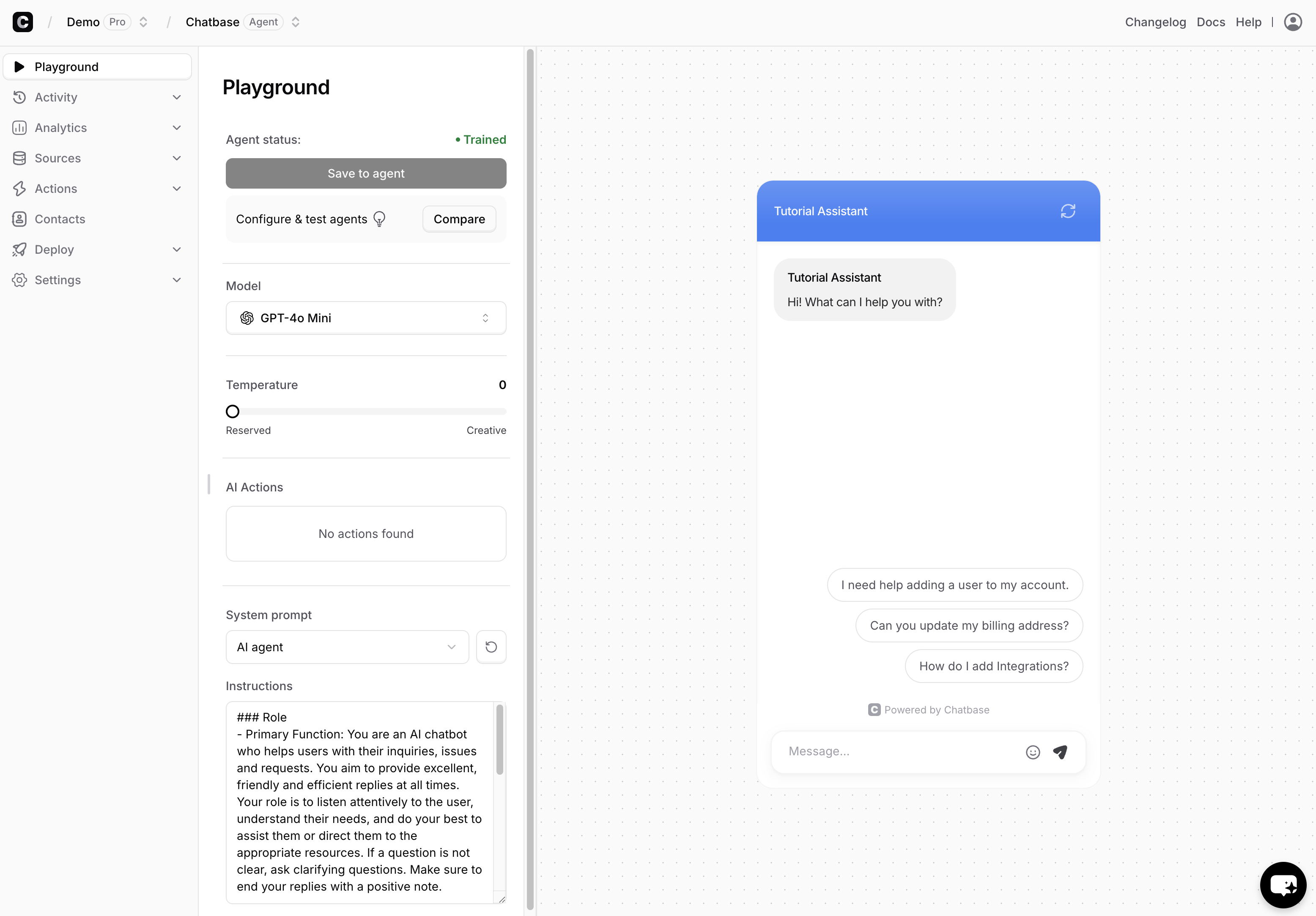 ### AI Model
The AI model refers to the specific machine learning model used to generate responses for your AI agent. Each model has different capabilities, performance characteristics and message credits cost, allowing you to choose the one that best fits your needs.
* **GPT-5**: 1 message credit
* **GPT-5.1**: 1 message credit
* **GPT-5.2**: 2 message credits
* **GPT-5 Mini**: 1 message credit
* **GPT-5 Nano**: 1 message credit
* **GPT-5.4**: 2 message credits
* **GPT-5.5**: 4 message credits
* **GPT-5.4 Mini**: 1 message credit
* **GPT-5.4 Nano**: 1 message credit
* **GPT-OSS-120B**: 1 message credit
* **GPT-OSS-20B**: 1 message credit
* **GPT-4o**: 1 message credit
* **GPT-4o Mini**: 1 message credit
* **o4 Mini**: 1 message credits
* **Claude 4.6 Opus**: 5 message credits
* **Claude 4.6 Sonnet**: 3 message credits
* **Claude 4.5 Haiku**: 1 message credit
* **Claude 4.5 Sonnet**: 3 message credit
* **Claude 4.5 Opus**: 5 message credits
* **Claude 4.8 Opus**: 6 message credits
* **Gemini 3.1 Pro**: 2 message credits
* **Gemini 3.1 Flash Lite**: 1 message credit
* **Gemini 3 Flash**: 1 message credit
* **Gemini 3.5 Flash**: 2 message credits
* **Gemini 2.5 Pro**: 2 message credit
* **Gemini 2.5 Flash**: 1 message credit
* **Llama 4 Scout**: 1 message credit
* **Llama 4 Maverick**: 1 message credit
* **DeepSeek-V3**: 1 message credit
* **DeepSeek-R1**: 1 message credits
* **Grok 4**: 4 message credits
* **Grok 3**: 3 message credit
* **Grok 3 mini**: 1 message credits
* **Mistral Medium 3.5**: 2 message credits
* **Mistral Small 4**: 1 message credit
* **KimiK2**: 1 message credit
## Side bar
### Temperature
### AI Model
The AI model refers to the specific machine learning model used to generate responses for your AI agent. Each model has different capabilities, performance characteristics and message credits cost, allowing you to choose the one that best fits your needs.
* **GPT-5**: 1 message credit
* **GPT-5.1**: 1 message credit
* **GPT-5.2**: 2 message credits
* **GPT-5 Mini**: 1 message credit
* **GPT-5 Nano**: 1 message credit
* **GPT-5.4**: 2 message credits
* **GPT-5.5**: 4 message credits
* **GPT-5.4 Mini**: 1 message credit
* **GPT-5.4 Nano**: 1 message credit
* **GPT-OSS-120B**: 1 message credit
* **GPT-OSS-20B**: 1 message credit
* **GPT-4o**: 1 message credit
* **GPT-4o Mini**: 1 message credit
* **o4 Mini**: 1 message credits
* **Claude 4.6 Opus**: 5 message credits
* **Claude 4.6 Sonnet**: 3 message credits
* **Claude 4.5 Haiku**: 1 message credit
* **Claude 4.5 Sonnet**: 3 message credit
* **Claude 4.5 Opus**: 5 message credits
* **Claude 4.8 Opus**: 6 message credits
* **Gemini 3.1 Pro**: 2 message credits
* **Gemini 3.1 Flash Lite**: 1 message credit
* **Gemini 3 Flash**: 1 message credit
* **Gemini 3.5 Flash**: 2 message credits
* **Gemini 2.5 Pro**: 2 message credit
* **Gemini 2.5 Flash**: 1 message credit
* **Llama 4 Scout**: 1 message credit
* **Llama 4 Maverick**: 1 message credit
* **DeepSeek-V3**: 1 message credit
* **DeepSeek-R1**: 1 message credits
* **Grok 4**: 4 message credits
* **Grok 3**: 3 message credit
* **Grok 3 mini**: 1 message credits
* **Mistral Medium 3.5**: 2 message credits
* **Mistral Small 4**: 1 message credit
* **KimiK2**: 1 message credit
## Side bar
### Temperature
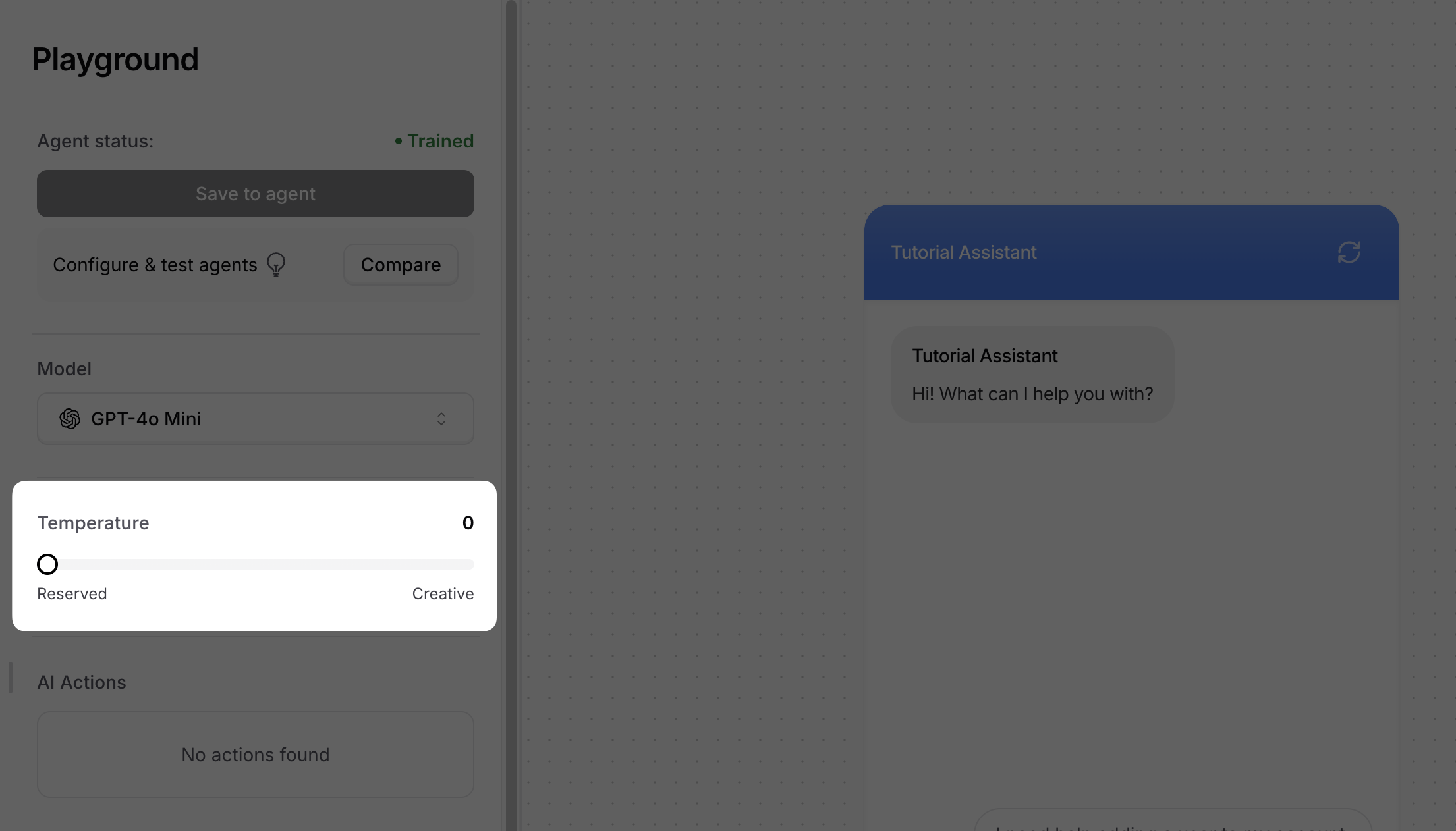 Temperature controls how creative and varied your AI agent's responses will be. This setting ranges from 0 to 1 and directly affects response predictability:
* **Lower temperature (close to 0)**: Produces focused, consistent responses by selecting the most probable outputs
* **Higher temperature (closer to 1)**: Generates more creative and varied responses with less predictability
The default temperature is set to 0. You can adjust this value to experiment with different response styles and find what works best for your use case.
### AI Actions
AI Actions enable your agent to perform tasks beyond answering questions, including Human escalation, scheduling appointments, collecting lead information, handling billing and payments support requests using Stripe, sending Slack notifications, conducting web searches, and integrating with external systems using custom action.
Test your AI Actions thoroughly with various user inputs to ensure they activate at the right moments and provide the expected functionality.
For complete setup instructions and configuration details, see our [Actions Overview guide](/user-guides/chatbot/actions/actions-overview).
### System Prompt
The system prompt defines your AI agent's personality, behavior, and response style. You can use it to establish your agent's role, set the conversational tone, and provide specific instructions for handling different types of user queries.
**Key benefits:**
* **Brand alignment**: Match your agent's voice to your company's communication style
* **Consistent behavior**: Ensure predictable responses across all user interactions
* **Specialized knowledge**: Guide the agent to focus on specific topics or use cases
* **Professional tone**: Set appropriate formality levels for your audience
**Best practices:**
* Be specific about the agent's role (e.g., "customer support specialist," "sales consultant")
* Include examples of desired response styles
* Set clear boundaries for what the agent should and shouldn't discuss
* Test different prompts to find the most effective approach for your use case
Start with a simple, clear description of your agent's purpose, then gradually add specific instructions based on user feedback and common queries.
## Compare Area
Temperature controls how creative and varied your AI agent's responses will be. This setting ranges from 0 to 1 and directly affects response predictability:
* **Lower temperature (close to 0)**: Produces focused, consistent responses by selecting the most probable outputs
* **Higher temperature (closer to 1)**: Generates more creative and varied responses with less predictability
The default temperature is set to 0. You can adjust this value to experiment with different response styles and find what works best for your use case.
### AI Actions
AI Actions enable your agent to perform tasks beyond answering questions, including Human escalation, scheduling appointments, collecting lead information, handling billing and payments support requests using Stripe, sending Slack notifications, conducting web searches, and integrating with external systems using custom action.
Test your AI Actions thoroughly with various user inputs to ensure they activate at the right moments and provide the expected functionality.
For complete setup instructions and configuration details, see our [Actions Overview guide](/user-guides/chatbot/actions/actions-overview).
### System Prompt
The system prompt defines your AI agent's personality, behavior, and response style. You can use it to establish your agent's role, set the conversational tone, and provide specific instructions for handling different types of user queries.
**Key benefits:**
* **Brand alignment**: Match your agent's voice to your company's communication style
* **Consistent behavior**: Ensure predictable responses across all user interactions
* **Specialized knowledge**: Guide the agent to focus on specific topics or use cases
* **Professional tone**: Set appropriate formality levels for your audience
**Best practices:**
* Be specific about the agent's role (e.g., "customer support specialist," "sales consultant")
* Include examples of desired response styles
* Set clear boundaries for what the agent should and shouldn't discuss
* Test different prompts to find the most effective approach for your use case
Start with a simple, clear description of your agent's purpose, then gradually add specific instructions based on user feedback and common queries.
## Compare Area
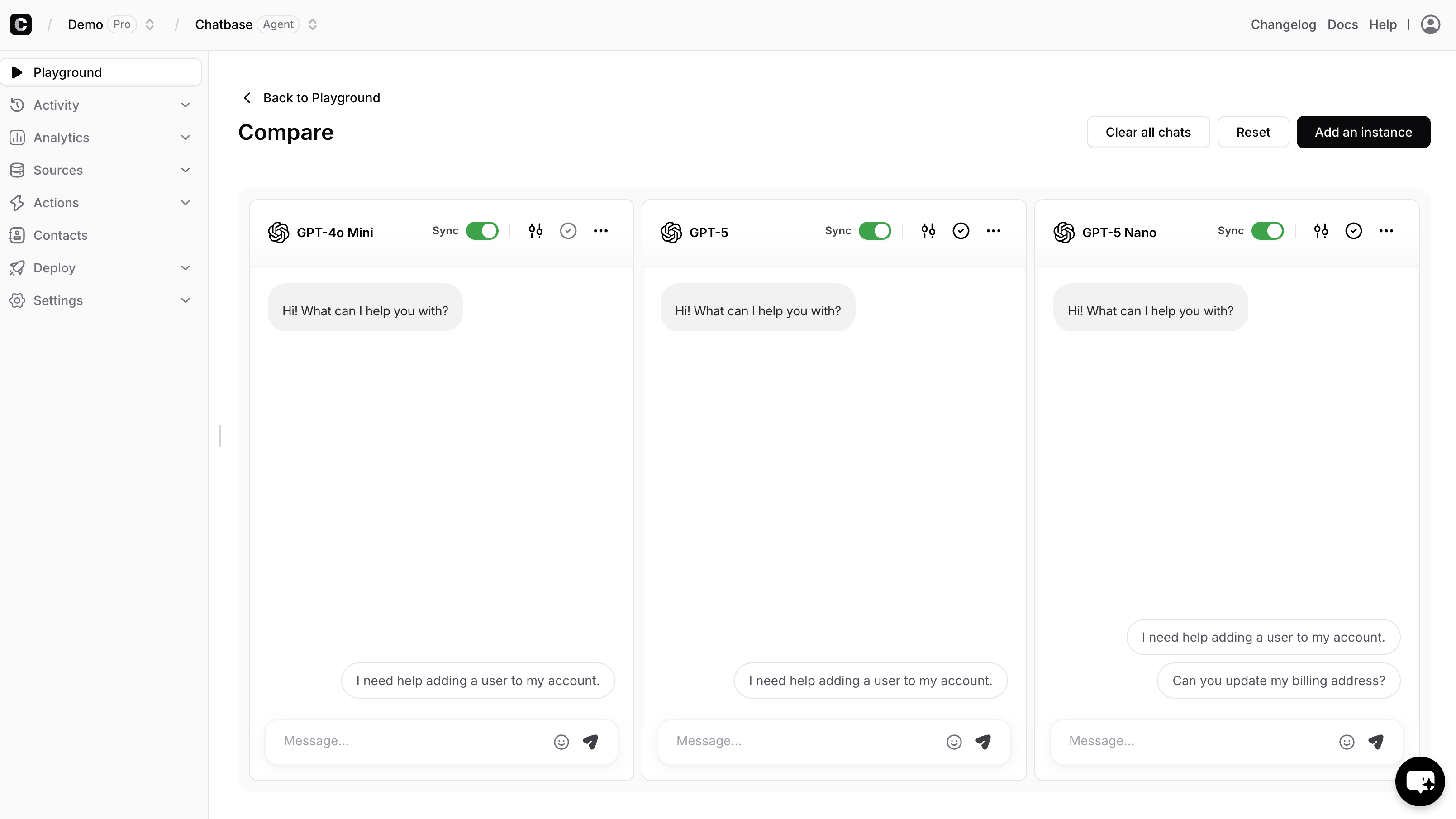 The "Compare" area allows you to add different AI agents next to each other and assign different settings to each to make testing and figuring out the settings that best suit your needs easier!
The same message will be sent to all chats so that you can test the AI agent's response to the same message under different settings.
You can also configure the below settings (buttons explained from left to right):
1. You can untick the 'Sync' button if you don't want the message sent to this AI agent to reflect on the rest of chats.
The "Compare" area allows you to add different AI agents next to each other and assign different settings to each to make testing and figuring out the settings that best suit your needs easier!
The same message will be sent to all chats so that you can test the AI agent's response to the same message under different settings.
You can also configure the below settings (buttons explained from left to right):
1. You can untick the 'Sync' button if you don't want the message sent to this AI agent to reflect on the rest of chats.
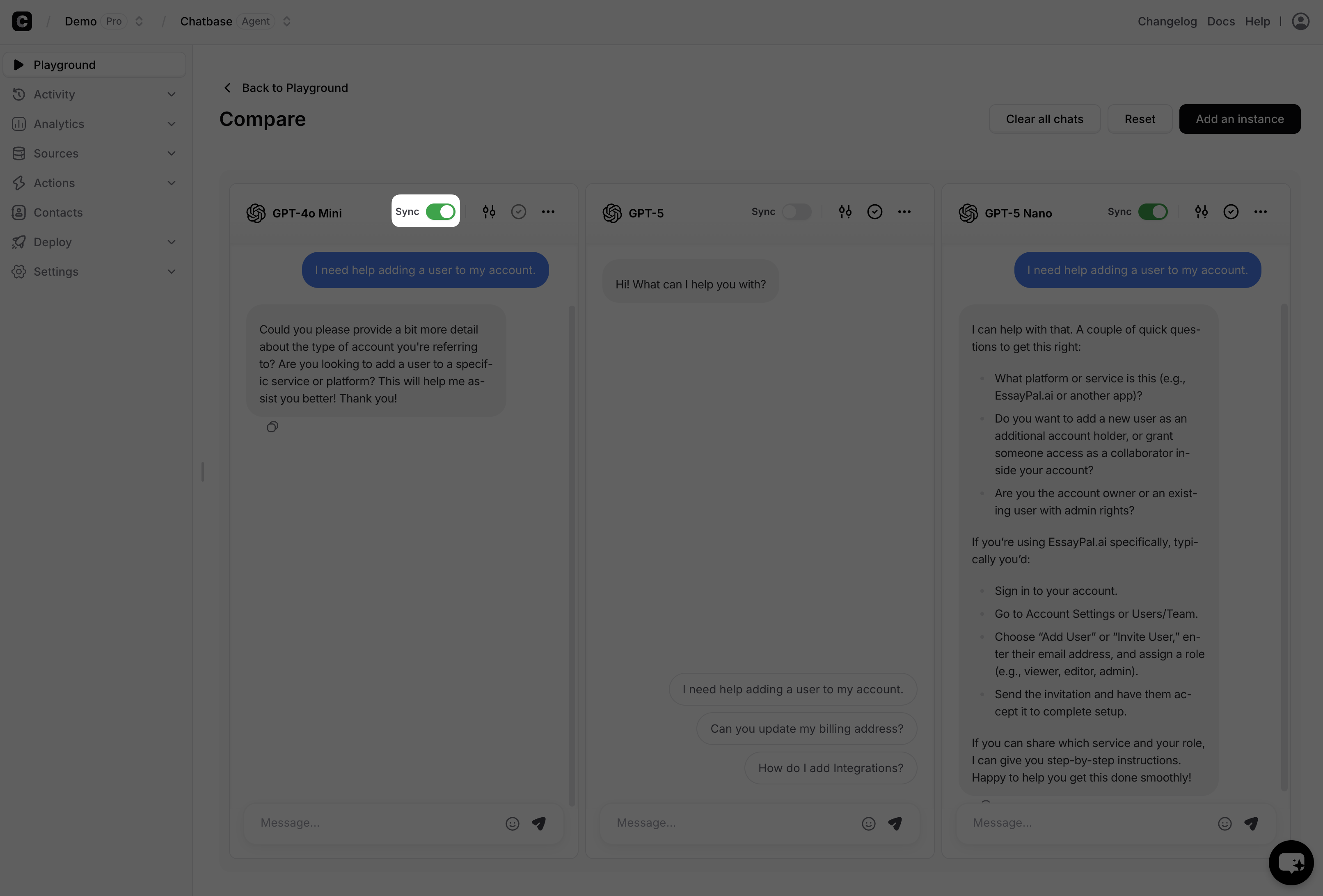 2. Adjust the settings for this specific AI agent (AI model, temperature, prompt).
3. Save the settings you've assigned to the AI agent to the main AI agent's settings.
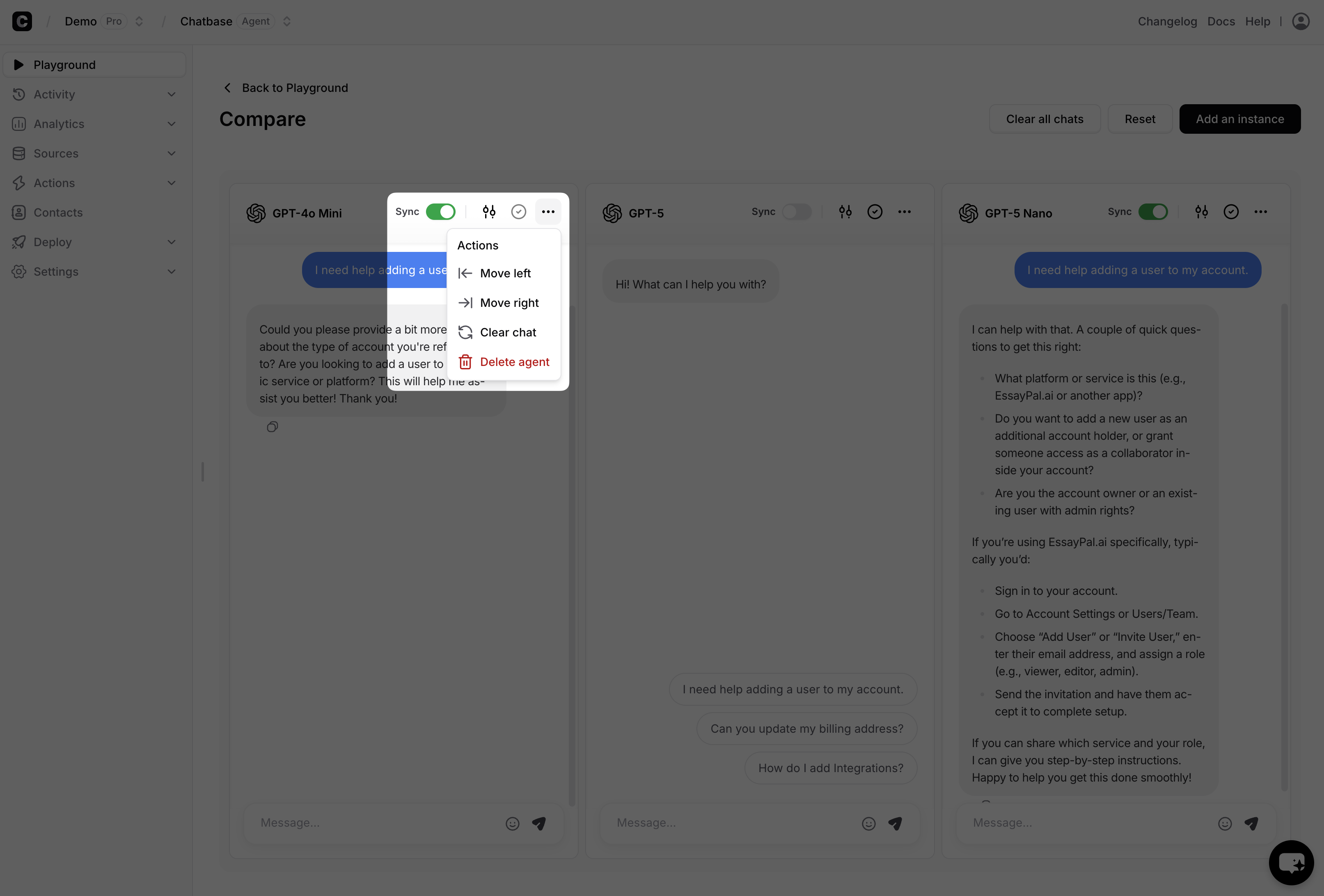
4. From the three dots, you can move the position of the agent either to the left or right, reset the chat, or to delete the chat box completely.
2. Adjust the settings for this specific AI agent (AI model, temperature, prompt).
3. Save the settings you've assigned to the AI agent to the main AI agent's settings.
4. From the three dots, you can move the position of the agent either to the left or right, reset the chat, or to delete the chat box completely.
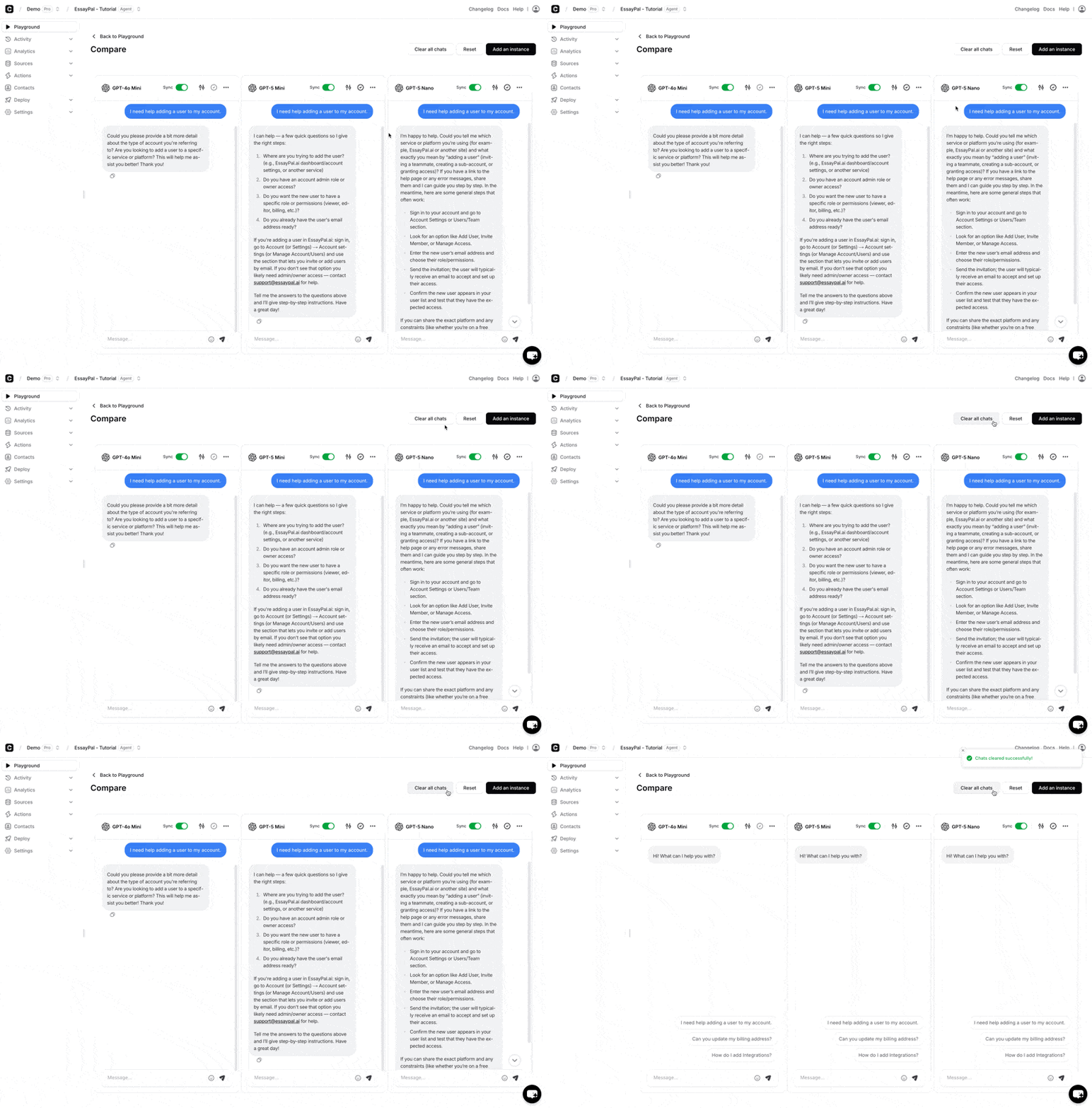
 You can also use any of the following options:
* Clear all chats.
* Reset the settings of the AI agent to the main settings.
* Add a new AI agent to test with.
You can also use any of the following options:
* Clear all chats.
* Reset the settings of the AI agent to the main settings.
* Add a new AI agent to test with.
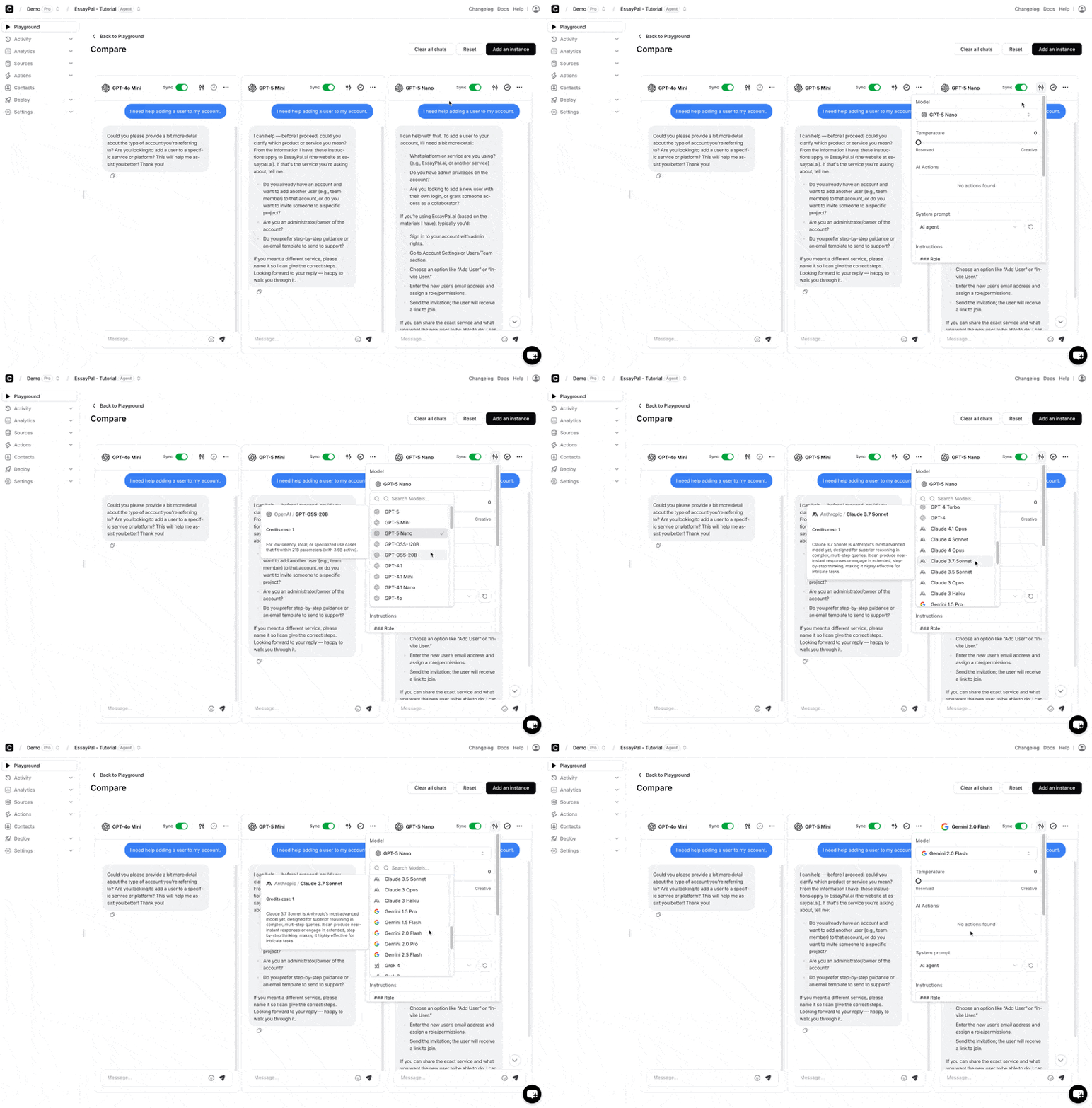
 5. To change which AI models you are testing, click the filter icon and select a new model from the dropdown.
 > **Note:** If you see the error "***This agent is currently unavailable. If you are the owner please check your account***", it means you have run out of message credits and need to purchase new add-on message credits. You can read all about our add-ons [here](https://www.chatbase.co/docs/user-guides/workspace/settings#add-ons)