> ## Documentation Index
> Fetch the complete documentation index at: https://chatbase.co/docs/llms.txt
> Use this file to discover all available pages before exploring further.
# Triggers
> Automate your help desk with ordered rules that run when tickets are created or updated, setting statuses, routing work, and adding notes for you.
## Introduction
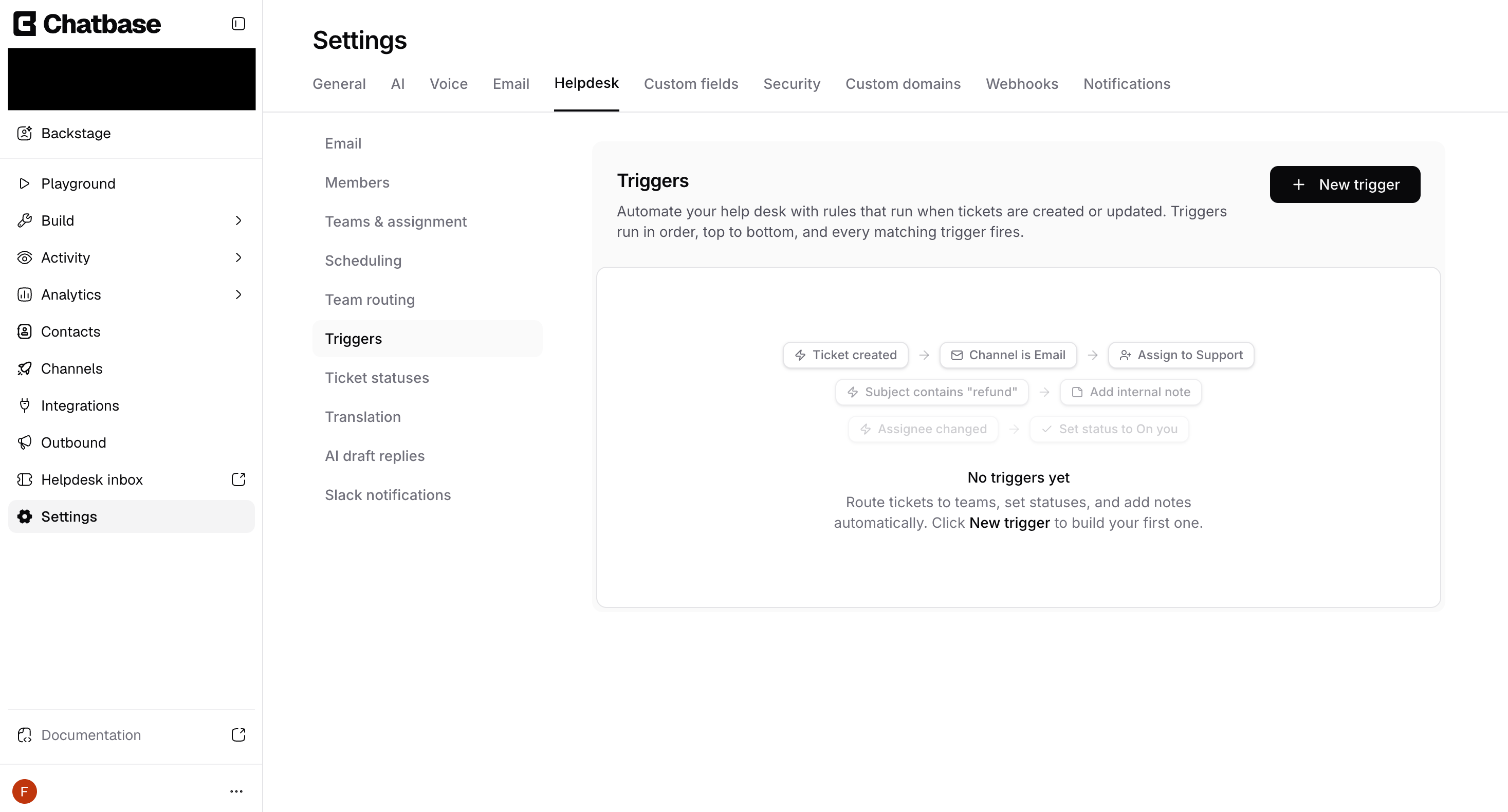
Triggers are automation rules for your help desk. Each trigger watches for tickets that are **created** or **updated**, checks them against the conditions you define, and runs the actions you choose - like setting a status, assigning a team or agent, or adding an internal note - without anyone lifting a finger.
The mental model is simple: **WHEN** a ticket matches your conditions, **THEN** run these actions.
Triggers run **in order, top to bottom**, and **every matching trigger fires**. This lets you stack rules - one to route billing questions, another to prioritize angry customers - and they all apply to the same ticket in the order you set.
You configure triggers from **Help desk settings → Triggers**.
 Triggers require the Help Desk to be enabled for your agent. If you haven't set it up yet, see the [Help Desk overview](/docs/user-guides/chatbot/help-desk/help-desk-overview).
## How a Trigger Works
Every trigger is made of four parts:
A **name** and optional **description** so your team knows what the rule does and why.
The rules that decide whether a ticket matches - based on its status, channel, assignee, team, subject, and more.
What happens when a ticket matches - set a status, assign work, or add a note. Actions run in order.
Whether the trigger is **Active** or **Paused**. Only active triggers run.
## How Triggers Run (Cycles)
Triggers don't just run once from top to bottom - they run in **cycles**. This lets one trigger's action feed into another trigger's conditions, so your rules can build on each other.
Here's what happens each time a ticket is created or updated:
Chatbase checks every active trigger in order, top to bottom, against the ticket.
Each trigger whose conditions match runs its actions.
If any trigger changes the ticket (for example, it sets a new status or assigns a team), the scan **starts over from the top**. Triggers that hadn't matched before now get another chance, because they're re-checked against the ticket's updated state.
The cycle keeps restarting until a full pass makes no further change. At that point the ticket is done and the final result is saved.
Ordering still matters. Put the trigger that sets the foundational value (like status or team) **above** the triggers that react to it, so the reaction gets picked up when the scan restarts.
## Creating a Trigger
Go to **Help desk settings → Triggers** and click **New trigger**. A panel opens from the right.
Give it a clear **Name** (for example, "Route billing tickets") and an optional **Description** explaining what it does.
Triggers require the Help Desk to be enabled for your agent. If you haven't set it up yet, see the [Help Desk overview](/docs/user-guides/chatbot/help-desk/help-desk-overview).
## How a Trigger Works
Every trigger is made of four parts:
A **name** and optional **description** so your team knows what the rule does and why.
The rules that decide whether a ticket matches - based on its status, channel, assignee, team, subject, and more.
What happens when a ticket matches - set a status, assign work, or add a note. Actions run in order.
Whether the trigger is **Active** or **Paused**. Only active triggers run.
## How Triggers Run (Cycles)
Triggers don't just run once from top to bottom - they run in **cycles**. This lets one trigger's action feed into another trigger's conditions, so your rules can build on each other.
Here's what happens each time a ticket is created or updated:
Chatbase checks every active trigger in order, top to bottom, against the ticket.
Each trigger whose conditions match runs its actions.
If any trigger changes the ticket (for example, it sets a new status or assigns a team), the scan **starts over from the top**. Triggers that hadn't matched before now get another chance, because they're re-checked against the ticket's updated state.
The cycle keeps restarting until a full pass makes no further change. At that point the ticket is done and the final result is saved.
Ordering still matters. Put the trigger that sets the foundational value (like status or team) **above** the triggers that react to it, so the reaction gets picked up when the scan restarts.
## Creating a Trigger
Go to **Help desk settings → Triggers** and click **New trigger**. A panel opens from the right.
Give it a clear **Name** (for example, "Route billing tickets") and an optional **Description** explaining what it does.
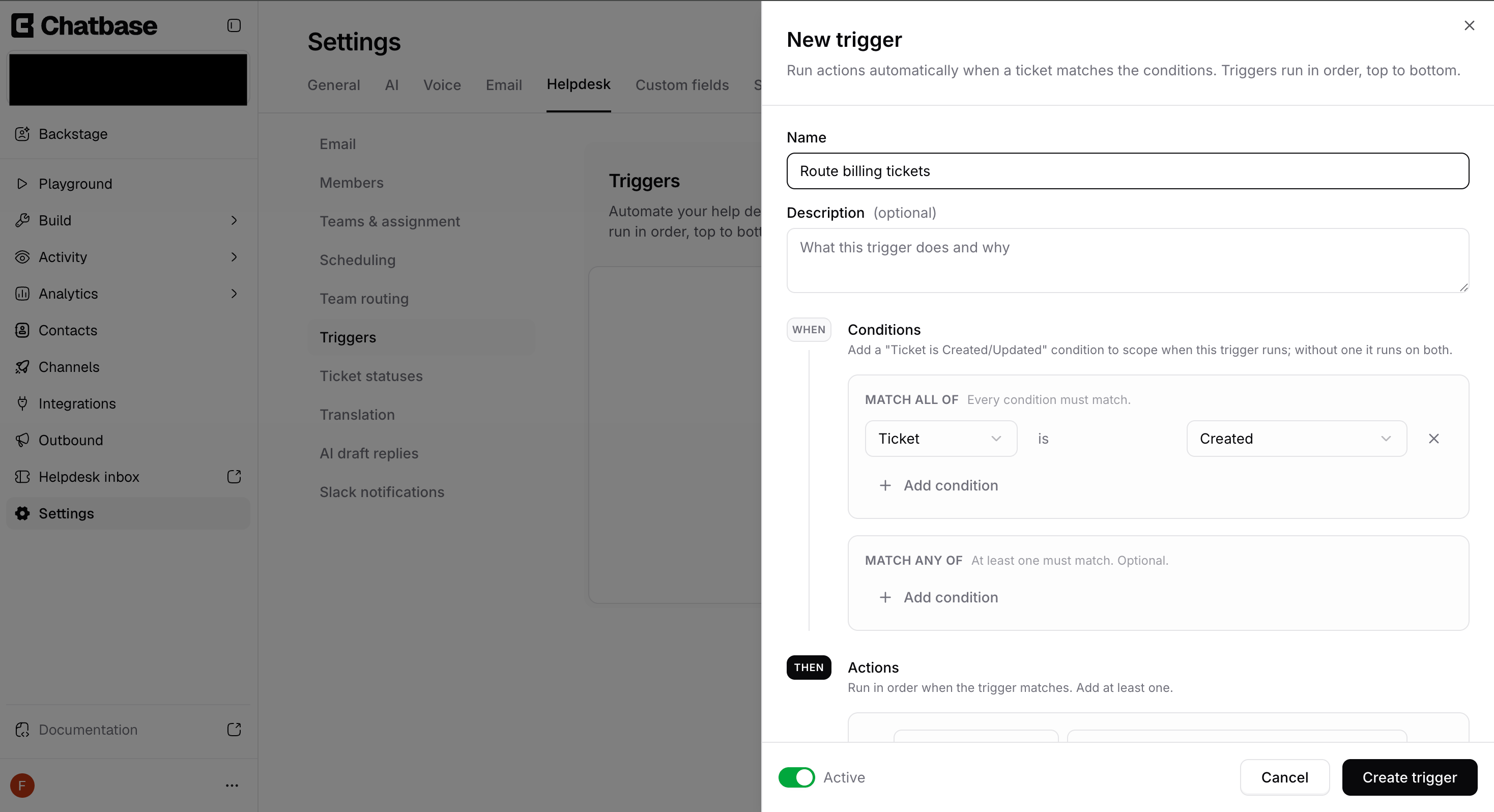 Add the conditions that decide when the trigger should run. See [Conditions](#conditions) below for every available field and operator.
Add at least one action to perform when a ticket matches. See [Actions](#actions) below for the full list.
Use the **Active / Paused** toggle to decide whether the trigger runs, then click **Create trigger**. New triggers are active by default.
## Conditions
Conditions decide which tickets a trigger applies to. They're organized into two groups:
* **Match ALL of** - every condition in this group must match.
* **Match ANY of** - at least one condition in this group must match. This group is optional and is combined with the ALL group using **AND**.
Use **Match ALL of** for the rules that must always be true (for example, "Status category is New") and **Match ANY of** for a set of alternatives (for example, subject contains "refund" **or** "chargeback").
### When does a trigger run?
Add a **Ticket is Created** or **Ticket is Updated** condition to control when a trigger fires. If you don't add one, the trigger runs on **both** create and update.
### Condition fields
| Field | What it matches | Operators |
| ------------------- | ------------------------------------------------------------------------------------------------------------------------------------------------------------------------------------------- | ------------------------------------------------------- |
| **Ticket** | Whether the ticket was just **Created** or **Updated**. Use this to scope when the trigger runs. | `is` |
| **Status category** | The ticket's category: **New**, **On you**, **On customer**, **On hold**, **Closed**, or **Cancelled**. | `is`, `is not`, `changed`, `changed to`, `changed from` |
| **Status** | A specific ticket status you've configured (see [Ticket statuses](/docs/user-guides/chatbot/help-desk/ticket-statuses)). | `is`, `is not`, `changed`, `changed to`, `changed from` |
| **Channel** | The channel the ticket came in on - **Help desk**, **Chat bubble**, **Email**, **WhatsApp**, **API**, **Messenger**, **Instagram**, **Center stage**, or **Phone**. Select several at once. | `is any of` |
| **Assignee** | Who the ticket is assigned to, including **Unassigned**. | `is`, `is not`, `changed`, `changed to`, `changed from` |
| **Team** | Which team the ticket belongs to, including **No team**. | `is`, `is not`, `changed`, `changed to`, `changed from` |
| **Subject** | Keywords in the ticket subject. Add one or more keywords; matching is case-insensitive. | `contains any of` |
| **Description** | Keywords in the ticket description. Add one or more keywords; matching is case-insensitive. | `contains any of` |
### About operators
| Operator | What it does |
| ----------------------------- | ------------------------------------------------------------------------------------------------------------------------------------- |
| `is` / `is not` | Compares the ticket's **current** value. For example, "Status category **is** New." |
| `changed` | Matches when the field changed at all during this update, regardless of the new value. Takes no value. |
| `changed to` / `changed from` | Matches the specific transition in this update - for example, "Assignee **changed to** Unassigned" or "Status **changed from** Open." |
| `is any of` | Matches when the field is any one of several selected values (used for **Channel**). |
| `contains any of` | Matches when the text contains any of the keywords you list (used for **Subject** and **Description**). |
## Actions
Actions are what the trigger does when a ticket matches. Add at least one; they run **in order**, top to bottom.
| Action | What it does |
| ----------------------- | ---------------------------------------------------------------------------------------------------------------------------------------------------------------------------------------------------------------------------- |
| **Set status** | Move the ticket to a specific ticket status you've configured. |
| **Set status category** | Move the ticket to a category. This applies the category's **default status**. Tickets already in that category are left unchanged. |
| **Assign team** | Assign the ticket to a team. Optionally check **Auto-assign an agent using the team's strategy** to also route it to an agent based on that team's [assignment method](/docs/user-guides/chatbot/help-desk/assignment-algorithm). |
| **Assign agent** | Assign the ticket to a specific agent, or choose **Unassign** to clear the assignee. |
| **Add internal note** | Add an internal note to the ticket. Notes are visible to your team only, never to the customer. |
## Managing Triggers
### Ordering
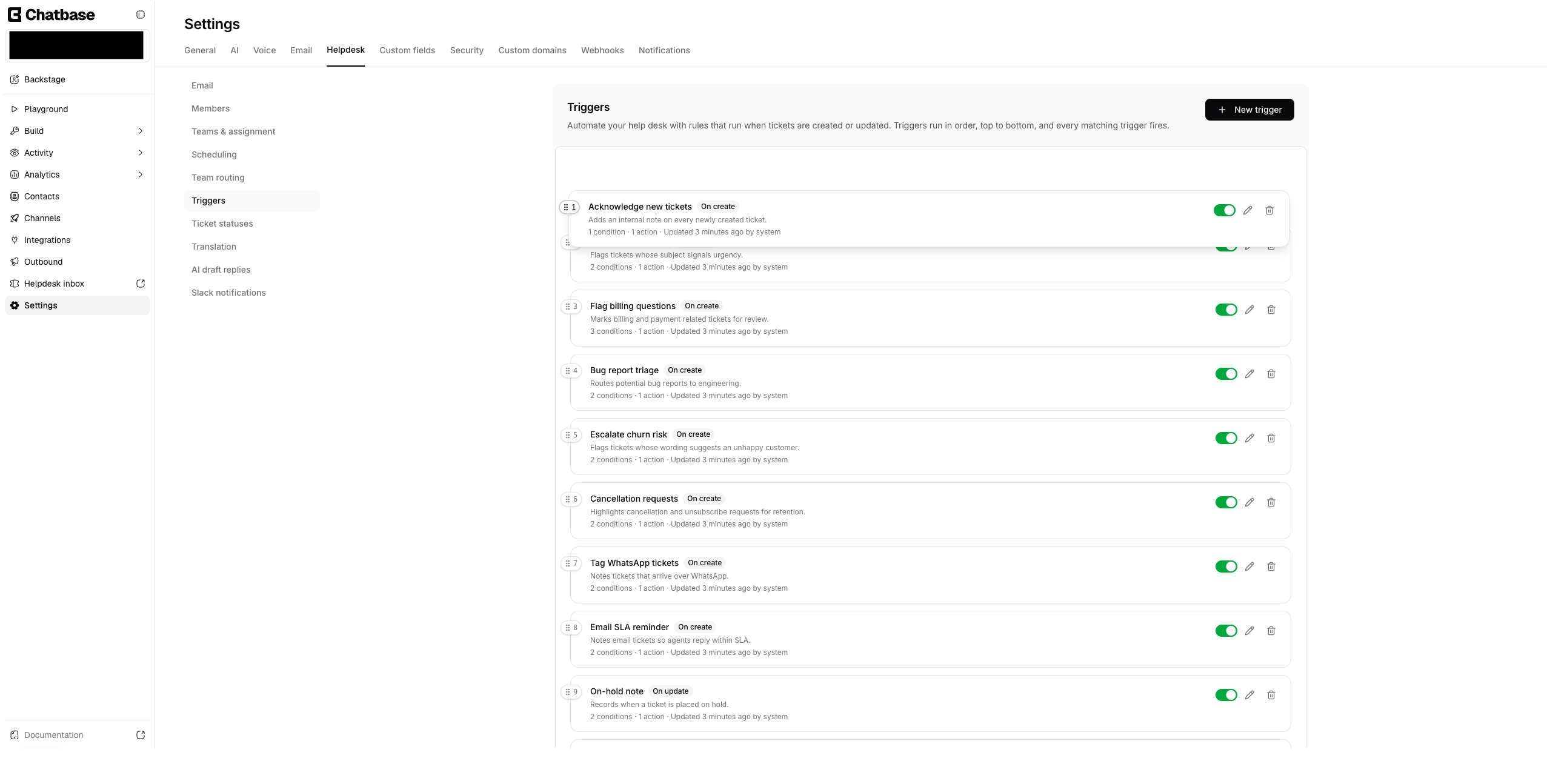
Triggers run in the order they appear in the list. Drag the handle on the left of any trigger to reorder it. Because **every matching trigger fires**, the order matters when two triggers touch the same field - the later one wins.
Add the conditions that decide when the trigger should run. See [Conditions](#conditions) below for every available field and operator.
Add at least one action to perform when a ticket matches. See [Actions](#actions) below for the full list.
Use the **Active / Paused** toggle to decide whether the trigger runs, then click **Create trigger**. New triggers are active by default.
## Conditions
Conditions decide which tickets a trigger applies to. They're organized into two groups:
* **Match ALL of** - every condition in this group must match.
* **Match ANY of** - at least one condition in this group must match. This group is optional and is combined with the ALL group using **AND**.
Use **Match ALL of** for the rules that must always be true (for example, "Status category is New") and **Match ANY of** for a set of alternatives (for example, subject contains "refund" **or** "chargeback").
### When does a trigger run?
Add a **Ticket is Created** or **Ticket is Updated** condition to control when a trigger fires. If you don't add one, the trigger runs on **both** create and update.
### Condition fields
| Field | What it matches | Operators |
| ------------------- | ------------------------------------------------------------------------------------------------------------------------------------------------------------------------------------------- | ------------------------------------------------------- |
| **Ticket** | Whether the ticket was just **Created** or **Updated**. Use this to scope when the trigger runs. | `is` |
| **Status category** | The ticket's category: **New**, **On you**, **On customer**, **On hold**, **Closed**, or **Cancelled**. | `is`, `is not`, `changed`, `changed to`, `changed from` |
| **Status** | A specific ticket status you've configured (see [Ticket statuses](/docs/user-guides/chatbot/help-desk/ticket-statuses)). | `is`, `is not`, `changed`, `changed to`, `changed from` |
| **Channel** | The channel the ticket came in on - **Help desk**, **Chat bubble**, **Email**, **WhatsApp**, **API**, **Messenger**, **Instagram**, **Center stage**, or **Phone**. Select several at once. | `is any of` |
| **Assignee** | Who the ticket is assigned to, including **Unassigned**. | `is`, `is not`, `changed`, `changed to`, `changed from` |
| **Team** | Which team the ticket belongs to, including **No team**. | `is`, `is not`, `changed`, `changed to`, `changed from` |
| **Subject** | Keywords in the ticket subject. Add one or more keywords; matching is case-insensitive. | `contains any of` |
| **Description** | Keywords in the ticket description. Add one or more keywords; matching is case-insensitive. | `contains any of` |
### About operators
| Operator | What it does |
| ----------------------------- | ------------------------------------------------------------------------------------------------------------------------------------- |
| `is` / `is not` | Compares the ticket's **current** value. For example, "Status category **is** New." |
| `changed` | Matches when the field changed at all during this update, regardless of the new value. Takes no value. |
| `changed to` / `changed from` | Matches the specific transition in this update - for example, "Assignee **changed to** Unassigned" or "Status **changed from** Open." |
| `is any of` | Matches when the field is any one of several selected values (used for **Channel**). |
| `contains any of` | Matches when the text contains any of the keywords you list (used for **Subject** and **Description**). |
## Actions
Actions are what the trigger does when a ticket matches. Add at least one; they run **in order**, top to bottom.
| Action | What it does |
| ----------------------- | ---------------------------------------------------------------------------------------------------------------------------------------------------------------------------------------------------------------------------- |
| **Set status** | Move the ticket to a specific ticket status you've configured. |
| **Set status category** | Move the ticket to a category. This applies the category's **default status**. Tickets already in that category are left unchanged. |
| **Assign team** | Assign the ticket to a team. Optionally check **Auto-assign an agent using the team's strategy** to also route it to an agent based on that team's [assignment method](/docs/user-guides/chatbot/help-desk/assignment-algorithm). |
| **Assign agent** | Assign the ticket to a specific agent, or choose **Unassign** to clear the assignee. |
| **Add internal note** | Add an internal note to the ticket. Notes are visible to your team only, never to the customer. |
## Managing Triggers
### Ordering
Triggers run in the order they appear in the list. Drag the handle on the left of any trigger to reorder it. Because **every matching trigger fires**, the order matters when two triggers touch the same field - the later one wins.
 ### Activate or pause
Use the switch on each trigger row to turn it **Active** or **Paused**. Paused triggers stay in your list but don't run, so you can temporarily disable a rule without deleting it.
### Edit or delete
Open a trigger to edit its name, conditions, or actions at any time. To remove a trigger, use the delete control and confirm - deleted triggers stop running on new and updated tickets, and this can't be undone.
### Needs attention
If a trigger references something that no longer exists - a deleted team, an archived status, or a removed agent - it's flagged with a **Needs attention** badge. Open the trigger and update the affected condition or action to fix it.
## Good to Know
* **Every matching trigger fires.** Triggers aren't exclusive - all rules whose conditions match will run, in order. Use ordering to control which action takes precedence.
* **Triggers run after the ticket is saved.** They apply once a create or update is committed, so they never block or fail the underlying ticket change.
* **Only active triggers run.** Pause a trigger to disable it without losing its configuration.
* **You can add up to 1000 triggers** per agent.
### Activate or pause
Use the switch on each trigger row to turn it **Active** or **Paused**. Paused triggers stay in your list but don't run, so you can temporarily disable a rule without deleting it.
### Edit or delete
Open a trigger to edit its name, conditions, or actions at any time. To remove a trigger, use the delete control and confirm - deleted triggers stop running on new and updated tickets, and this can't be undone.
### Needs attention
If a trigger references something that no longer exists - a deleted team, an archived status, or a removed agent - it's flagged with a **Needs attention** badge. Open the trigger and update the affected condition or action to fix it.
## Good to Know
* **Every matching trigger fires.** Triggers aren't exclusive - all rules whose conditions match will run, in order. Use ordering to control which action takes precedence.
* **Triggers run after the ticket is saved.** They apply once a create or update is committed, so they never block or fail the underlying ticket change.
* **Only active triggers run.** Pause a trigger to disable it without losing its configuration.
* **You can add up to 1000 triggers** per agent.