> ## Documentation Index
> Fetch the complete documentation index at: https://chatbase.co/docs/llms.txt
> Use this file to discover all available pages before exploring further.
# Custom Fields
> Define the details your AI agent collects when it creates a ticket, and view or edit them on every ticket in the help desk.
Custom fields are the details your AI agent collects from customers when it creates a ticket, such as an order number, a delivery date, or a photo of the damage. You define a field once under **Settings → Custom fields**, add it to a create-ticket action, and the AI agent asks for it during the conversation. The answer lands on the ticket, typed and labeled, where your team can read and edit it.
Fields are shared across an AI agent's actions. Two create-ticket actions that both collect *Order number* write to the same field, so tickets look the same no matter which conversation created them.
***
## Anatomy of a field
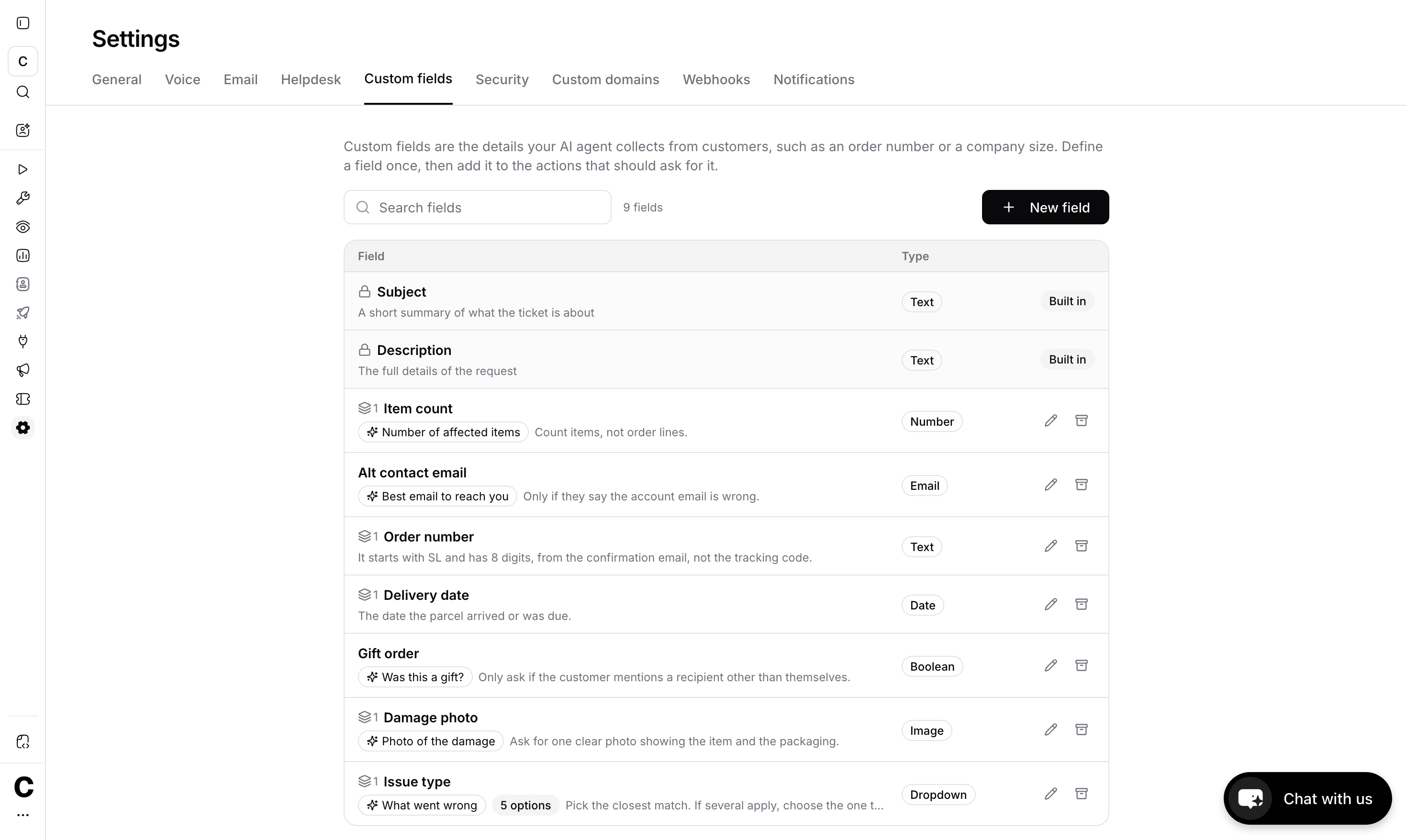 | Property | What it does |
| -------------------------- | ----------------------------------------------------------------------------------------------------------------------------------------------------------------------------------------------- |
| **Internal label** | The name your team sees in the help desk. Unique per AI agent. |
| **Customer-facing label** | The name the AI agent uses with customers when asking for the value. A noun phrase works best: *Refunded order number*, not *What is your order number?* |
| **Type** | Controls what the value can be and how it renders on the ticket. Fixed once the field is created. |
| **Collection instruction** | Optional guidance for the AI agent on how to get the value and what counts as a valid answer, for example *"It starts with SL and has 8 digits."* The AI agent writes its own question from it. |
### Field types
| Type | Holds |
| ------------ | --------------------------------------------------------------------------------------------------------------------------- |
| **Text** | Free text |
| **Number** | A number |
| **Boolean** | A yes or no answer, shown as Yes or No on the ticket |
| **Date** | A calendar date |
| **Email** | An email address. On the email channel, a lone email field is filled from the sender's address without asking. |
| **Image** | A photo the customer uploads in the conversation |
| **Dropdown** | One of the options you define. The AI agent only offers options that exist, so a Dropdown with no options is not collected. |
*Subject* and *Description* are built in. Every ticket has them, and you can't create a field with either name.
***
## Create a field
| Property | What it does |
| -------------------------- | ----------------------------------------------------------------------------------------------------------------------------------------------------------------------------------------------- |
| **Internal label** | The name your team sees in the help desk. Unique per AI agent. |
| **Customer-facing label** | The name the AI agent uses with customers when asking for the value. A noun phrase works best: *Refunded order number*, not *What is your order number?* |
| **Type** | Controls what the value can be and how it renders on the ticket. Fixed once the field is created. |
| **Collection instruction** | Optional guidance for the AI agent on how to get the value and what counts as a valid answer, for example *"It starts with SL and has 8 digits."* The AI agent writes its own question from it. |
### Field types
| Type | Holds |
| ------------ | --------------------------------------------------------------------------------------------------------------------------- |
| **Text** | Free text |
| **Number** | A number |
| **Boolean** | A yes or no answer, shown as Yes or No on the ticket |
| **Date** | A calendar date |
| **Email** | An email address. On the email channel, a lone email field is filled from the sender's address without asking. |
| **Image** | A photo the customer uploads in the conversation |
| **Dropdown** | One of the options you define. The AI agent only offers options that exist, so a Dropdown with no options is not collected. |
*Subject* and *Description* are built in. Every ticket has them, and you can't create a field with either name.
***
## Create a field
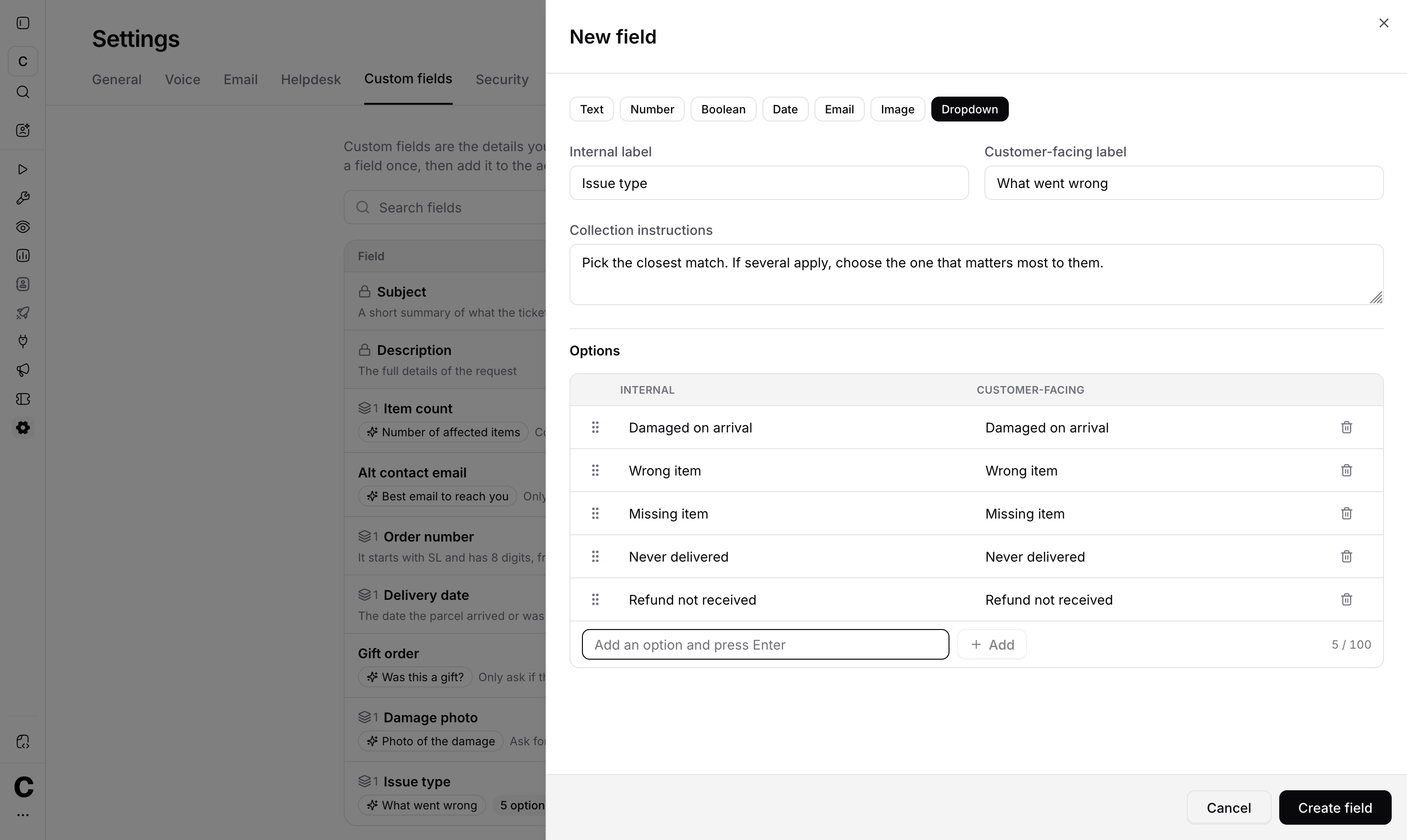 Go to **Settings → Custom fields** for your AI agent.
Click **New field**, fill in the internal and customer-facing labels, and pick the type. The type can't be changed later, because existing ticket values depend on it.
Tell the AI agent how to get the value, for example *"Ask for the order number from the confirmation email, not the tracking code."*
Type an option and press Enter to add it. Options have their own internal and customer-facing labels, and you can archive an option to stop offering it without losing the tickets that already carry it.
***
## Collect fields when creating tickets
Go to **Settings → Custom fields** for your AI agent.
Click **New field**, fill in the internal and customer-facing labels, and pick the type. The type can't be changed later, because existing ticket values depend on it.
Tell the AI agent how to get the value, for example *"Ask for the order number from the confirmation email, not the tracking code."*
Type an option and press Enter to add it. Options have their own internal and customer-facing labels, and you can archive an option to stop offering it without losing the tickets that already carry it.
***
## Collect fields when creating tickets
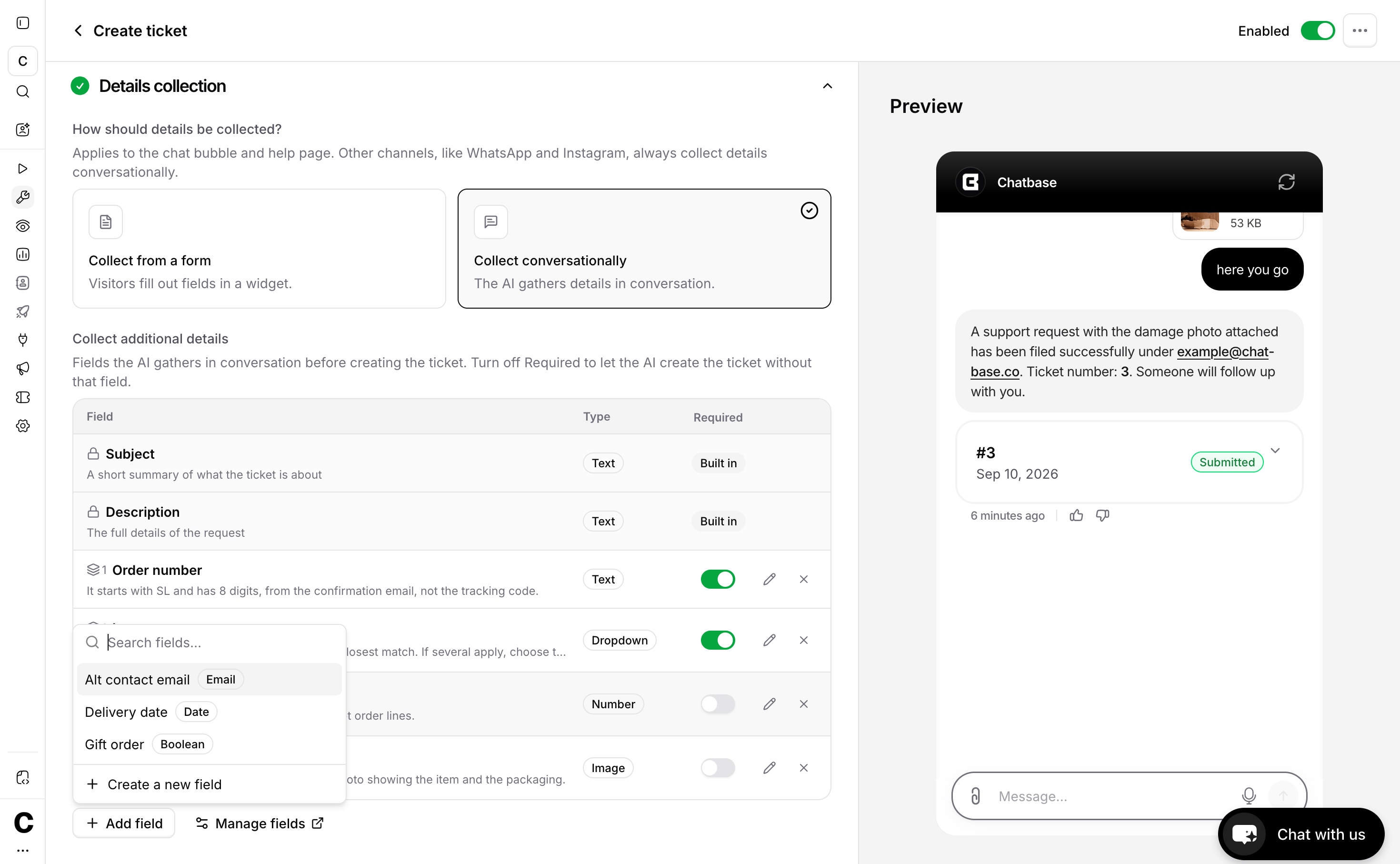 In your AI agent's **Actions**, open a **Create ticket** action. The **Collect additional details** section lists the fields this action collects.
Search your fields and add the ones this action should collect. You can create a new field from here too. Two fields with the same customer-facing label can't be collected by one action, since the customer couldn't tell them apart.
Each field has a **Required** toggle, set per action. The AI agent won't create the ticket until every required field is collected. It asks for optional fields but creates the ticket without them if the customer doesn't answer.
The AI agent asks for fields during the conversation using the customer-facing label and your collection instruction, and re-asks for anything required that is still missing before it creates the ticket.
Create-ticket actions set up before custom fields existed keep their own list of collected details. New create-ticket actions use custom fields.
***
## Field values on the ticket
In your AI agent's **Actions**, open a **Create ticket** action. The **Collect additional details** section lists the fields this action collects.
Search your fields and add the ones this action should collect. You can create a new field from here too. Two fields with the same customer-facing label can't be collected by one action, since the customer couldn't tell them apart.
Each field has a **Required** toggle, set per action. The AI agent won't create the ticket until every required field is collected. It asks for optional fields but creates the ticket without them if the customer doesn't answer.
The AI agent asks for fields during the conversation using the customer-facing label and your collection instruction, and re-asks for anything required that is still missing before it creates the ticket.
Create-ticket actions set up before custom fields existed keep their own list of collected details. New create-ticket actions use custom fields.
***
## Field values on the ticket
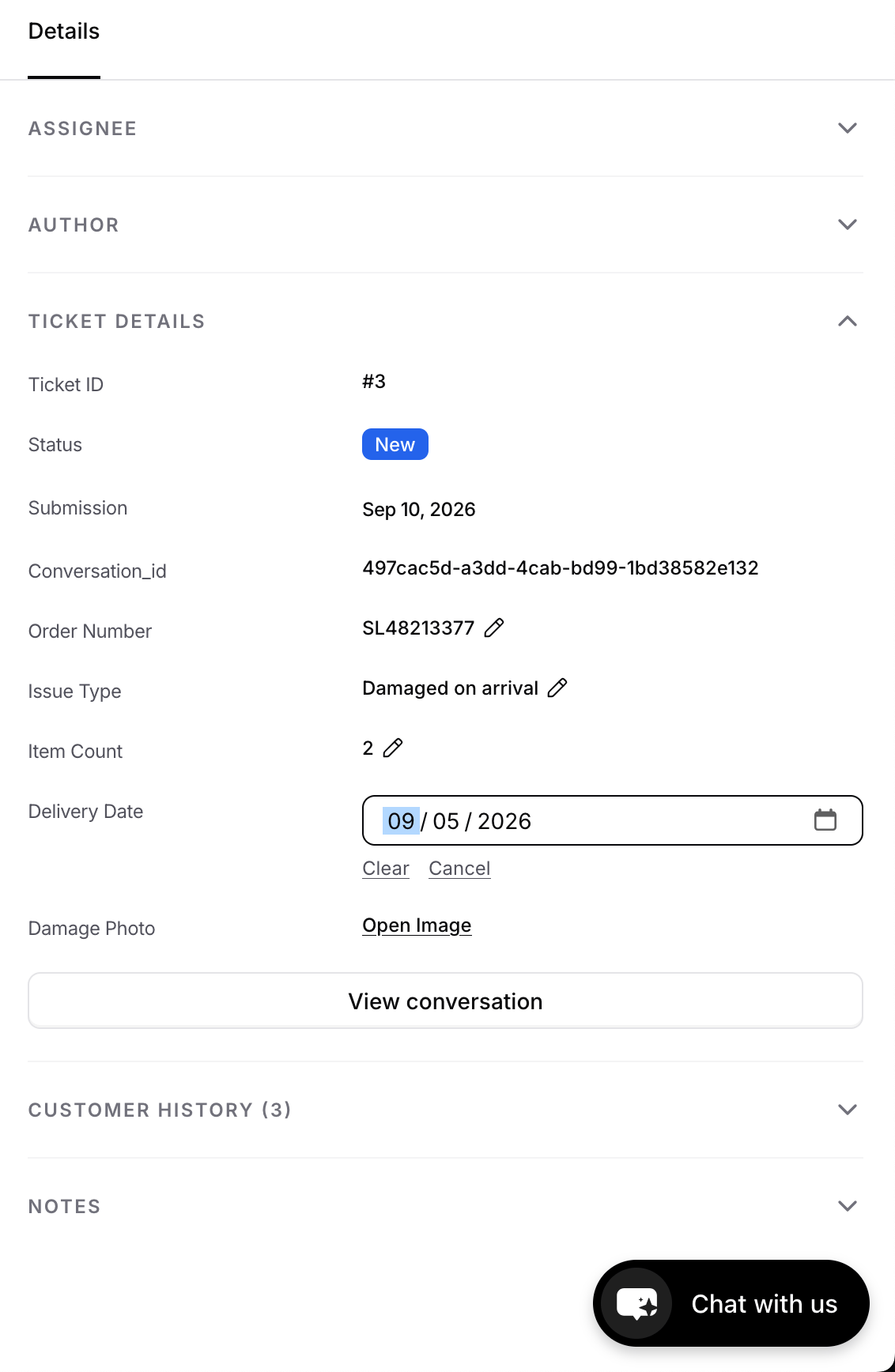 Every ticket shows the fields its action collects, filled or not, in the details panel. A field the customer didn't answer reads **Not set**. Add a field to the action later and it appears, not set, on that action's existing tickets too.
Your team can work with the values directly:
* **Edit or clear a value** inline from the details panel. Values are rendered by type: dates as dates, Dropdown values as their label, images as attachments.
* **Follow the history** in the ticket timeline. Each edit is recorded as *changed Order number from A to B*, with who made it.
Editing a field never reopens a closed ticket.
***
## Archiving fields
Fields are archived, never deleted, so historical ticket data always keeps its meaning.
* Archiving a field stops the AI agent from collecting it. Values already on tickets stay visible.
* If the field is still on any create-ticket action, you'll be asked to confirm. It stays listed there, marked **Archived** and not collected, until you remove it from the action.
* Labels stay reserved while a field is archived. To bring a field back, **restore** it instead of creating a new one. A restored field reconnects to all of its historical values.
The same applies to Dropdown options: archive an option to stop offering it, and restore it later if you need it again.
***
## Limits
| Limit | Value |
| -------------------------------- | ---------------- |
| Fields per AI agent | 200 |
| Fields collected per action | 20 |
| Options per Dropdown field | 100 |
| Internal / customer-facing label | 50 characters |
| Collection instruction | 200 characters |
| A collected value | 2,000 characters |
Every ticket shows the fields its action collects, filled or not, in the details panel. A field the customer didn't answer reads **Not set**. Add a field to the action later and it appears, not set, on that action's existing tickets too.
Your team can work with the values directly:
* **Edit or clear a value** inline from the details panel. Values are rendered by type: dates as dates, Dropdown values as their label, images as attachments.
* **Follow the history** in the ticket timeline. Each edit is recorded as *changed Order number from A to B*, with who made it.
Editing a field never reopens a closed ticket.
***
## Archiving fields
Fields are archived, never deleted, so historical ticket data always keeps its meaning.
* Archiving a field stops the AI agent from collecting it. Values already on tickets stay visible.
* If the field is still on any create-ticket action, you'll be asked to confirm. It stays listed there, marked **Archived** and not collected, until you remove it from the action.
* Labels stay reserved while a field is archived. To bring a field back, **restore** it instead of creating a new one. A restored field reconnects to all of its historical values.
The same applies to Dropdown options: archive an option to stop offering it, and restore it later if you need it again.
***
## Limits
| Limit | Value |
| -------------------------------- | ---------------- |
| Fields per AI agent | 200 |
| Fields collected per action | 20 |
| Options per Dropdown field | 100 |
| Internal / customer-facing label | 50 characters |
| Collection instruction | 200 characters |
| A collected value | 2,000 characters |