> ## Documentation Index
> Fetch the complete documentation index at: https://chatbase.co/docs/llms.txt
> Use this file to discover all available pages before exploring further.
# Connect
> This section in the AI agent shows how you can integrate the bot with your website, or even add it as an integration to Messenger or WhatsApp or many more!
### Embed
To embed your Agent into your website or application, first you need to enable your Agent.
 Now we have two main ways of embedding the AI agent to your website, the iframe or the widget.
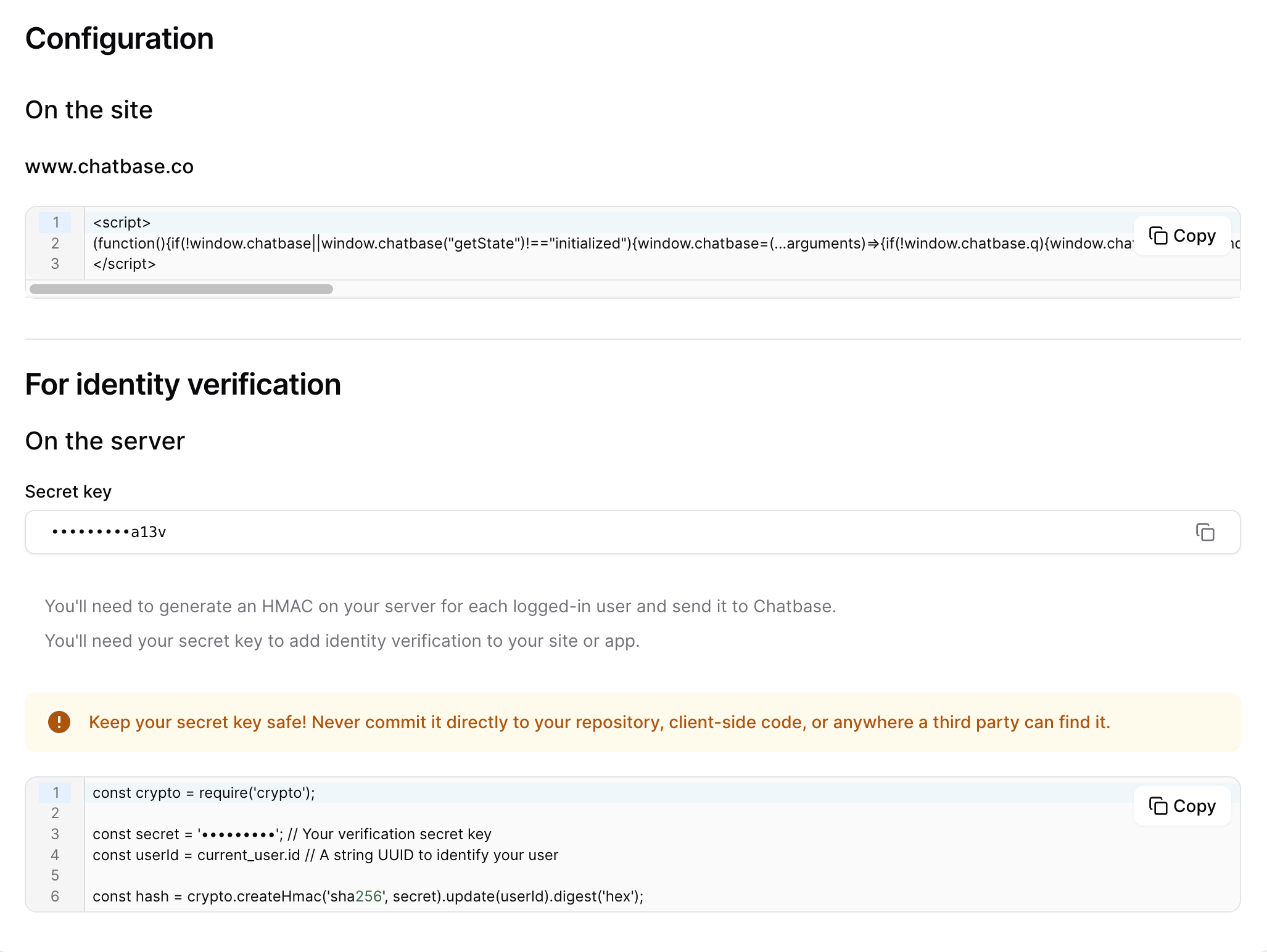 The iframe adds a static component to your website which has the chat interface. This iframe cant be minimized or closed.
The widget adds a bubble icon to the bottom right corner of your website. When you press this button a chat window will appear and you can use it to send messages to your bot and you can press the same button again to minimize the chat window once again.
The iframe adds a static component to your website which has the chat interface. This iframe cant be minimized or closed.
The widget adds a bubble icon to the bottom right corner of your website. When you press this button a chat window will appear and you can use it to send messages to your bot and you can press the same button again to minimize the chat window once again.
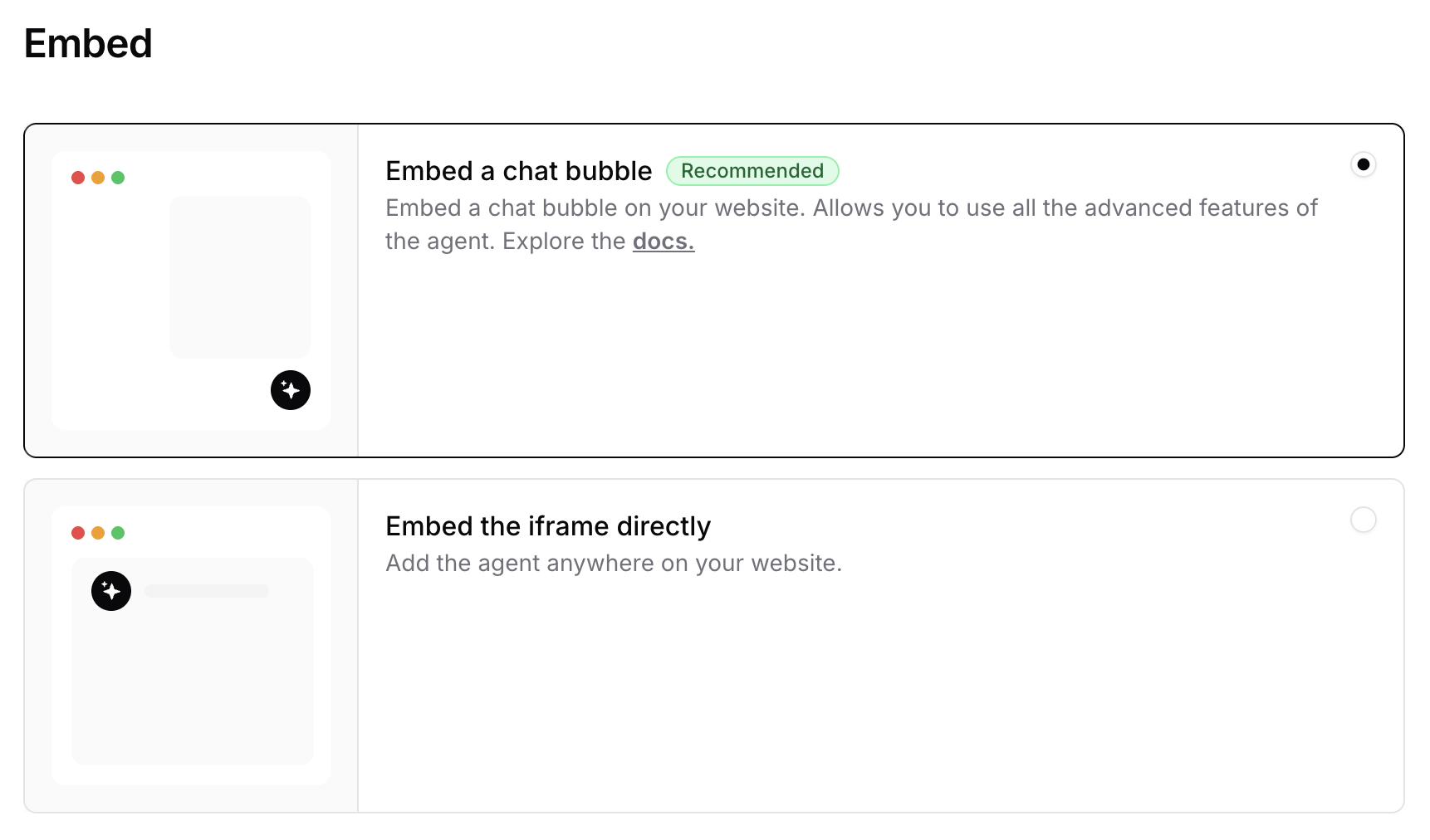 ### Configuration - Widget/Chat Bubble
First you will need to copy the script and add it to your website or app.
### Configuration - Widget/Chat Bubble
First you will need to copy the script and add it to your website or app.
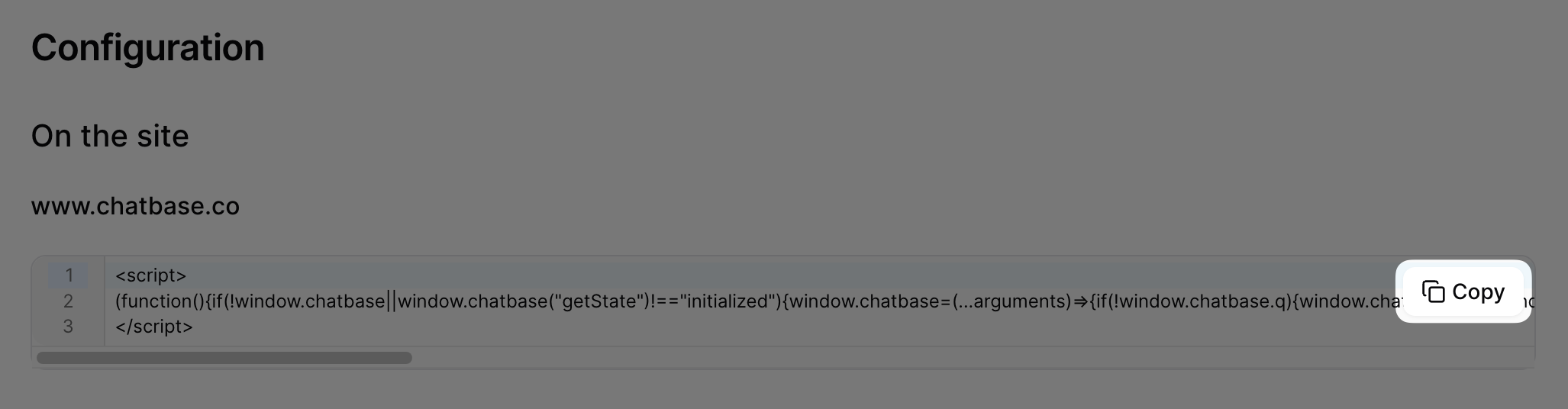 Next for Identify Verfication of your users when they interact with your Agent, you need to generate an HMAC on your server for each logged-in user and send it to Chatbase.
You'll need your secret key to add identity verification to your site or app.
Next for Identify Verfication of your users when they interact with your Agent, you need to generate an HMAC on your server for each logged-in user and send it to Chatbase.
You'll need your secret key to add identity verification to your site or app.
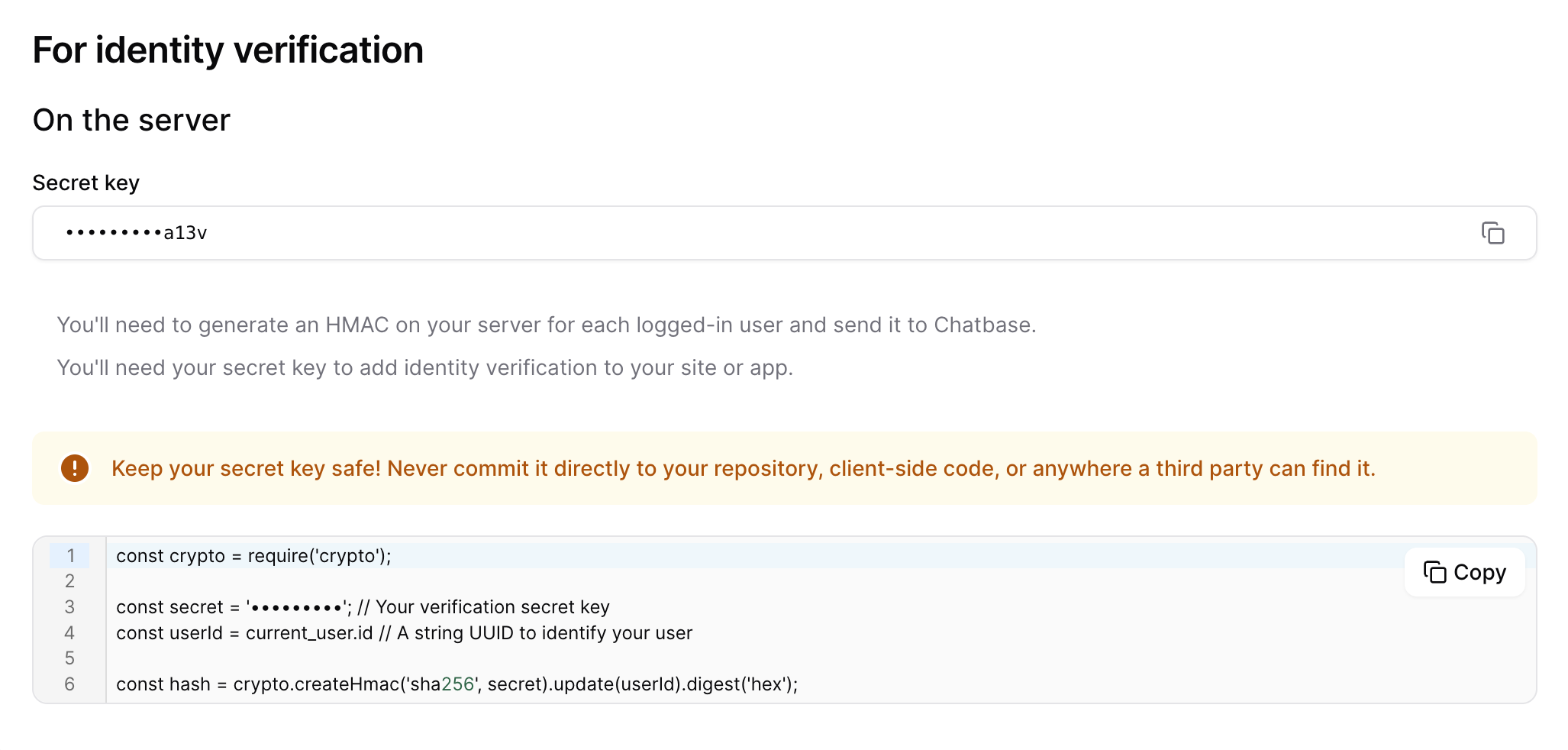 Go here for the [full documentation](/developer-guides/identity-verificatio).
### Share
This tab allows you to find a url for the iframe of the bot, showing a full screen of the AI agent in case you would like to send it for your colleagues to test or even use the bot!
Go here for the [full documentation](/developer-guides/identity-verificatio).
### Share
This tab allows you to find a url for the iframe of the bot, showing a full screen of the AI agent in case you would like to send it for your colleagues to test or even use the bot!
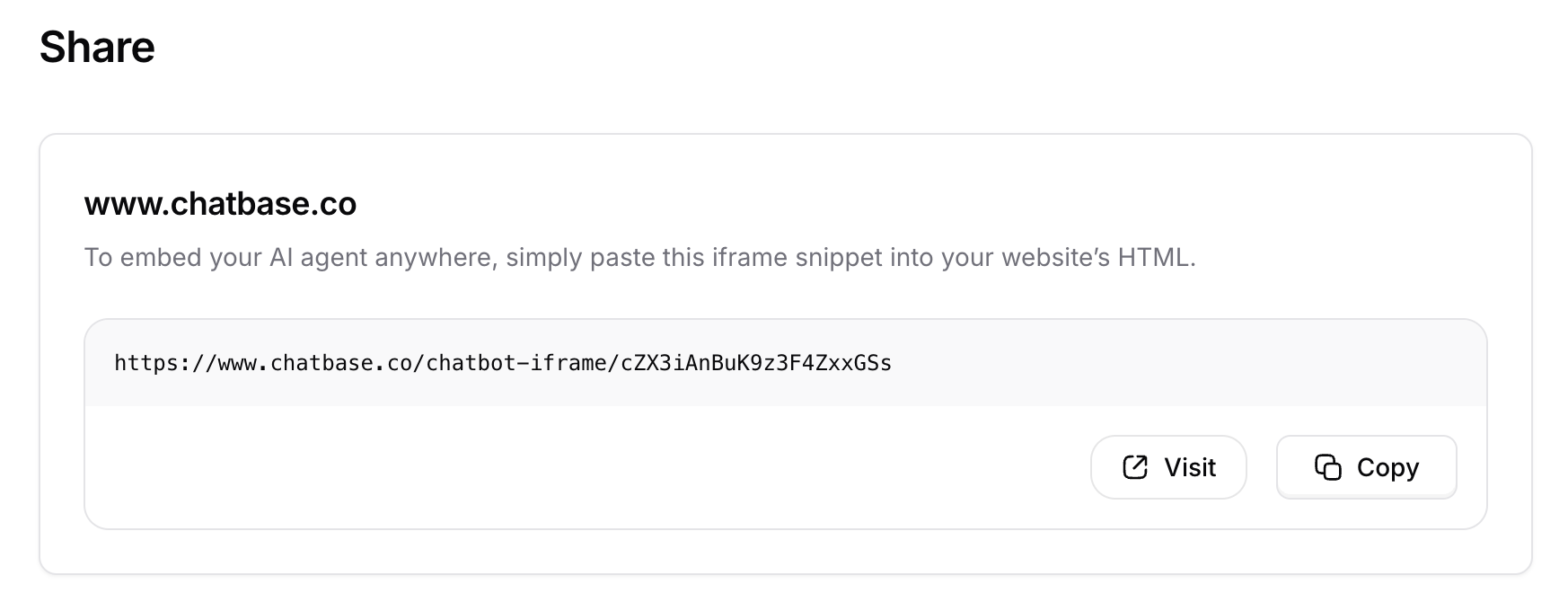 Note: This link is generated using the Custom domains if it was configured. If not, it will be the base url for the iframe.