> ## Documentation Index
> Fetch the complete documentation index at: https://chatbase.co/docs/llms.txt
> Use this file to discover all available pages before exploring further.
# Build
> Configure everything your agent needs to operate, including its instructions, knowledge, actions, widgets, and channel-specific behavior.
## Instructions
Instructions define your agent's behavior, role, and response guidelines. Use them to provide context, set expectations, and control how your agent responds to users.
### General
The **General** section contains your agent's primary instructions.
Use this section to define:
* Your business or product context
* The agent's role and responsibilities
* Response style and tone
* Goals and expected behavior
* Any additional guidance the agent should follow
These instructions serve as the foundation for your agent's responses.
### Guardrails
Use **Guardrails** to define rules your agent should always follow.
Examples include:
* Restricting topics the agent can discuss
* Preventing the disclosure of sensitive information
* Defining safety or compliance requirements
* Controlling fallback behavior
* Limiting the agent's role or capabilities
Guardrails are intended for non-negotiable rules that should apply to every conversation.
Start with a simple, clear description of your agent's purpose, then gradually add specific instructions based on user feedback and common queries.
### AI Model
The AI model refers to the specific machine learning model used to generate responses for your AI agent. Each model has different capabilities, performance characteristics and message credits cost, allowing you to choose the one that best fits your needs.
* **GPT-5**: 1 message credit
* **GPT-5.1**: 1 message credit
* **GPT-5.2**: 2 message credits
* **GPT-5 Mini**: 1 message credit
* **GPT-5 Nano**: 1 message credit
* **GPT-5.4**: 2 message credits
* **GPT-5.5**: 4 message credits
* **GPT-5.4 Mini**: 1 message credit
* **GPT-5.4 Nano**: 1 message credit
* **GPT-OSS-120B**: 1 message credit
* **GPT-OSS-20B**: 1 message credit
* **GPT-4o**: 1 message credit
* **GPT-4o Mini**: 1 message credit
* **o4 Mini**: 1 message credits
* **GPT-5.6 Luna**: 1 message credits
* **GPT-5.6 Luna**: 1 message credits
* **Claude 4.6 Opus**: 5 message credits
* **Claude 4.6 Sonnet**: 3 message credits
* **Claude 4.5 Haiku**: 1 message credit
* **Claude 4.5 Sonnet**: 3 message credit
* **Claude 4.5 Opus**: 5 message credits
* **Claude 4.8 Opus**: 6 message credits
* **Gemini 3.1 Pro**: 2 message credits
* **Gemini 3.1 Flash Lite**: 1 message credit
* **Gemini 3 Flash**: 1 message credit
* **Gemini 3.5 Flash**: 2 message credits
* **Gemini 3.5 Flash Lite**: 1 message credit
* **Gemini 3.6 Flash**: 2 message credits
* **Gemini 2.5 Pro**: 2 message credit
* **Llama 4 Scout**: 1 message credit
* **Llama 4 Maverick**: 1 message credit
* **DeepSeek-V3**: 1 message credit
* **DeepSeek-R1**: 1 message credits
* **Grok 4**: 4 message credits
* **Grok 3**: 3 message credit
* **Grok 3 mini**: 1 message credits
* **Mistral Medium 3.5**: 2 message credits
* **Mistral Small 4**: 1 message credit
* **KimiK2**: 1 message credit
* **GLM 5.2**: 2 message credits
### Temperature
Temperature controls how creative and varied your AI agent's responses will be. This setting ranges from 0 to 1 and directly affects response predictability:
* **Lower temperature (close to 0)**: Produces focused, consistent responses by selecting the most probable outputs
* **Higher temperature (closer to 1)**: Generates more creative and varied responses with less predictability
The default temperature is set to 0. You can adjust this value to experiment with different response styles and find what works best for your use case.
## Compare Area
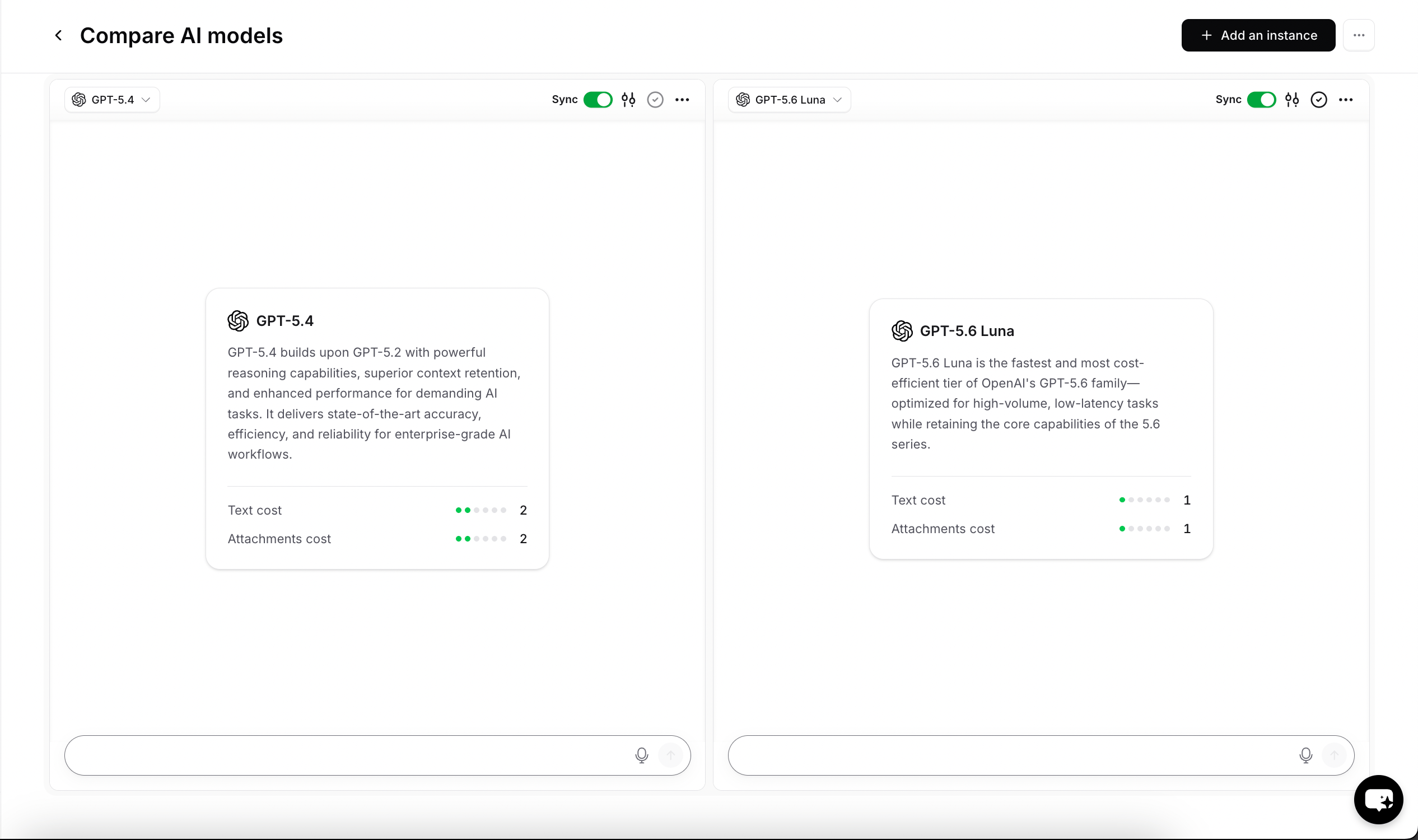 The "Compare" area allows you to add different AI agents next to each other and assign different settings to each to make testing and figuring out the settings that best suit your needs easier!
The same message will be sent to all chats so that you can test the AI agent's response to the same message under different settings.
You can also configure the below settings (buttons explained from left to right):
1. You can untick the 'Sync' button if you don't want the message sent to this AI agent to reflect on the rest of chats.
2. Adjust the settings for this specific AI agent (AI model, temperature, prompt).
3. Save the settings you've assigned to the AI agent to the main AI agent's settings.
4. From the three dots, you can move the position of the agent either to the left or right, reset the chat, or to delete the chat box completely.
The "Compare" area allows you to add different AI agents next to each other and assign different settings to each to make testing and figuring out the settings that best suit your needs easier!
The same message will be sent to all chats so that you can test the AI agent's response to the same message under different settings.
You can also configure the below settings (buttons explained from left to right):
1. You can untick the 'Sync' button if you don't want the message sent to this AI agent to reflect on the rest of chats.
2. Adjust the settings for this specific AI agent (AI model, temperature, prompt).
3. Save the settings you've assigned to the AI agent to the main AI agent's settings.
4. From the three dots, you can move the position of the agent either to the left or right, reset the chat, or to delete the chat box completely.
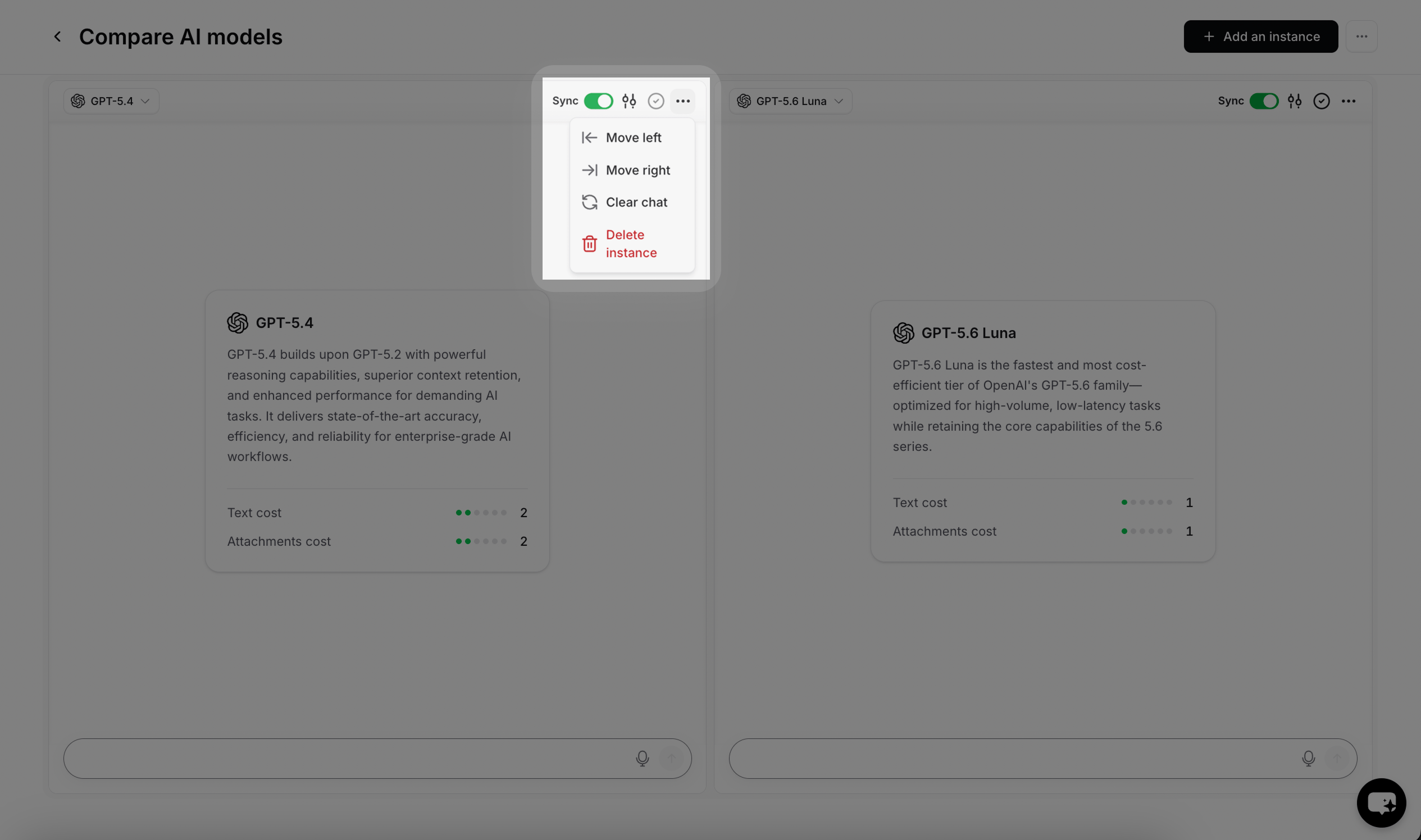 You can also use any of the following options:
* Clear all chats.
* Reset the settings of the AI agent to the main settings.
* Add a new AI agent to test with.
5. To change which AI models you are testing, click the filter icon and select a new model from the dropdown.
> **Note:** If you see the error "***This agent is currently unavailable. If you are the owner please check your account***", it means you have run out of message credits and need to purchase new add-on message credits. You can read all about our add-ons [here](https://www.chatbase.co/docs/user-guides/workspace/settings#add-ons)
You can also use any of the following options:
* Clear all chats.
* Reset the settings of the AI agent to the main settings.
* Add a new AI agent to test with.
5. To change which AI models you are testing, click the filter icon and select a new model from the dropdown.
> **Note:** If you see the error "***This agent is currently unavailable. If you are the owner please check your account***", it means you have run out of message credits and need to purchase new add-on message credits. You can read all about our add-ons [here](https://www.chatbase.co/docs/user-guides/workspace/settings#add-ons)